This article continues from our previous guide about date-only filtering, focusing on DateTime columns (date + time components).
For date-only filtering (e.g., “Birthday”), please see our previous article:
Power Automate: Filter by Date (Date-only)
The DateTime Format Difference
While date-only filters use the simple “2024-10-19” format, DateTime filters in SharePoint OData queries require the ISO 8601 format: “2024-10-19T00:00:00Z“.
- T : Separator between the date and time components.
- Z : Indicates UTC time standard. (For Japan Standard Time, you would use “+09:00” instead of “Z”).
The biggest advantage of DateTime filters over date-only filters is that you can use the utcNow() function directly without manual timezone conversion.
This works because the timezone suffix (“Z” or “+09:00”) tells SharePoint exactly which moment in time you mean, allowing it to handle the conversion automatically.
※We’ll explain why this works in the bonus section at the end.
// Japan Time: Oct 19, 00:00
dateTime eq '2024-10-19T00:00:00+09:00'

// UTC Time: Oct 18, 15:00 (Equivalent to Oct 19, 00:00 JST)
dateTime eq '2024-10-18T15:00:00Z'
Functions and Operators Cheat Sheet
Operators
- eq : equals ( = )
- gt : greater than ( > )
- ge : greater than or equal to ( >= )
- le : less than or equal to ( <= )
- lt : less than ( < )
- and : AND operator
Practical Examples (Copy & Paste)
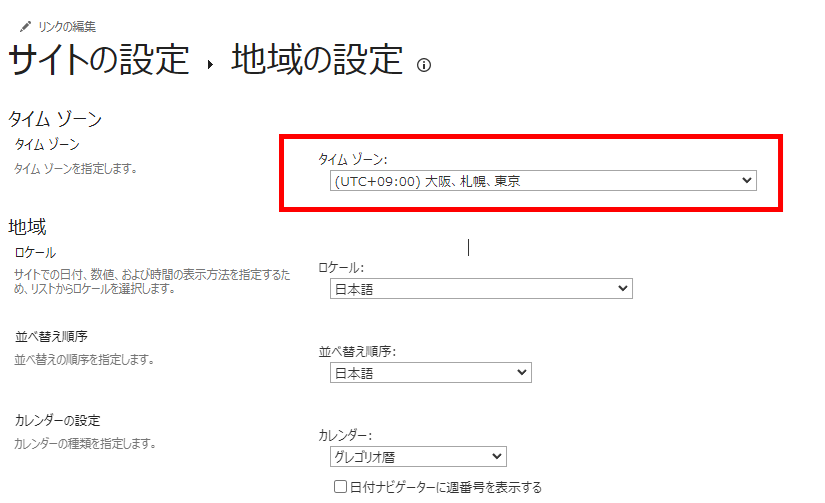
We are using a SharePoint site with the timezone set to (UTC+09:00) Osaka, Sapporo, Tokyo.
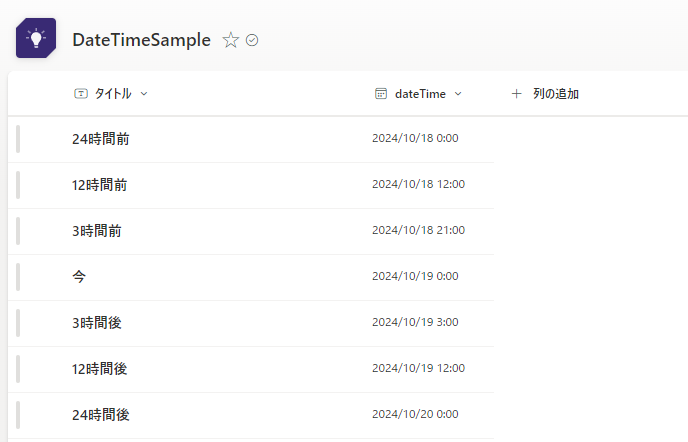
We will apply filters to this list:
Debugging
utcNow() in real-time is tricky because the time keeps changing. For these examples, we use a variable representing “Oct 19, 00:00 JST” to simulate the current time.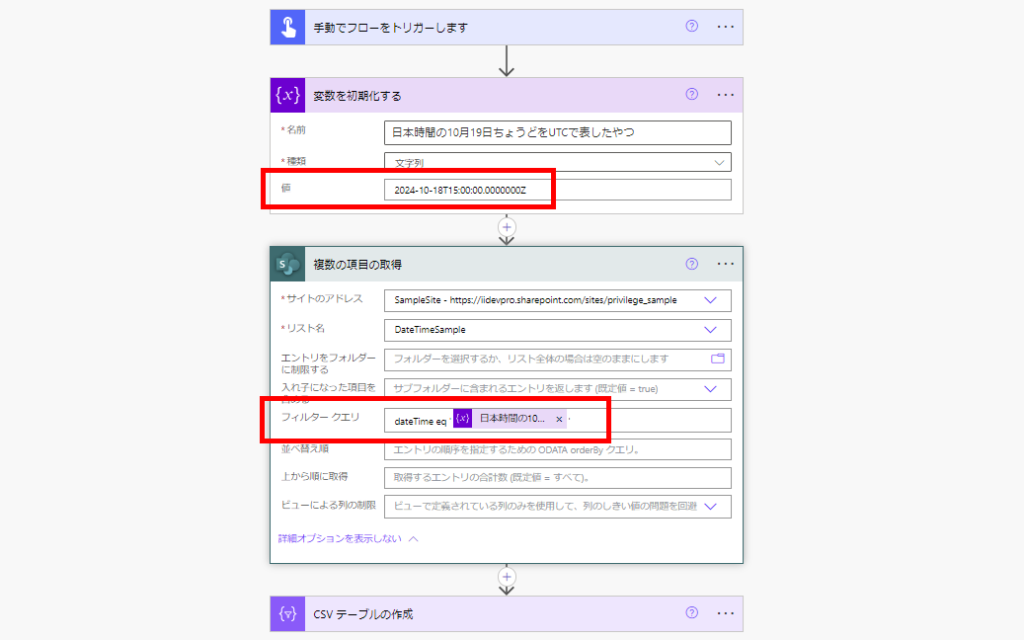
1. Get items older than now (Past)
Use this to archive old items or find past due tasks.
dateTime le '@{utcNow()}'
// Use 'lt' to exclude the exact current second
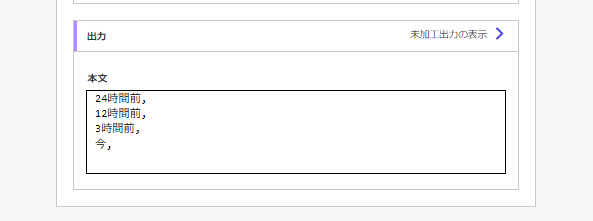
Result
2. Get items newer than now (Future)
Use this to find upcoming appointments or scheduled tasks.
dateTime gt '@{utcNow()}'
// Use 'ge' to include the exact current second
Result
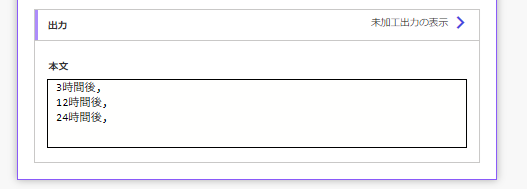
3. Get items from the last 12 hours (Recent History)
Combining ge (start) and le (end).
dateTime ge '@{addHours(utcNow(), -12)}' and dateTime le '@{utcNow()}'
Result
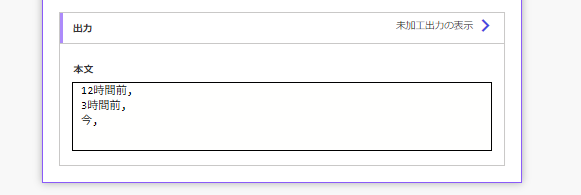
4. Get items occurring in the next 24 hours (Upcoming)
Useful for “Daily Digest” notifications.
dateTime gt '@{utcNow()}' and dateTime lt '@{addHours(utcNow(), 12)}'
Result
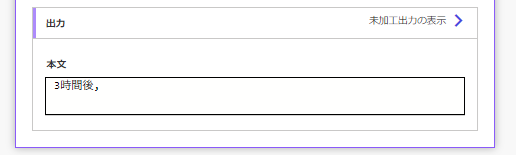
5. Exact Match (Rare Case)
It is rare to match a DateTime column down to the exact second, but here is the syntax.
dateTime eq '@{utcNow()}'
Result

Related Articles
Bonus: Why SharePoint Handles Timezone Conversions So Well
Unlike Date-only columns, SharePoint stores DateTime columns with strict timezone awareness. Here is a quick experiment to prove it.
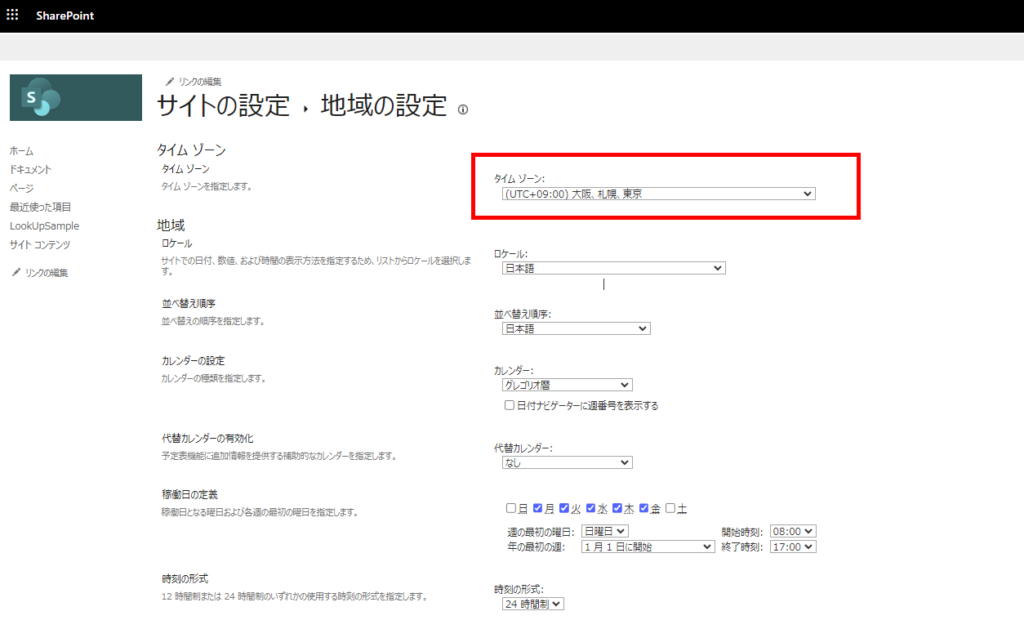
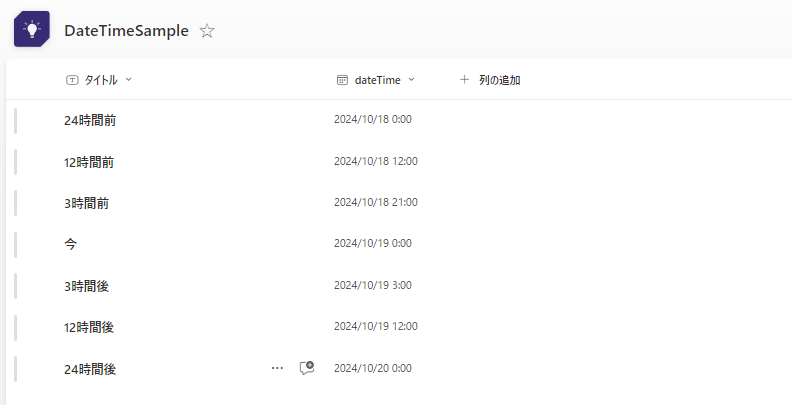
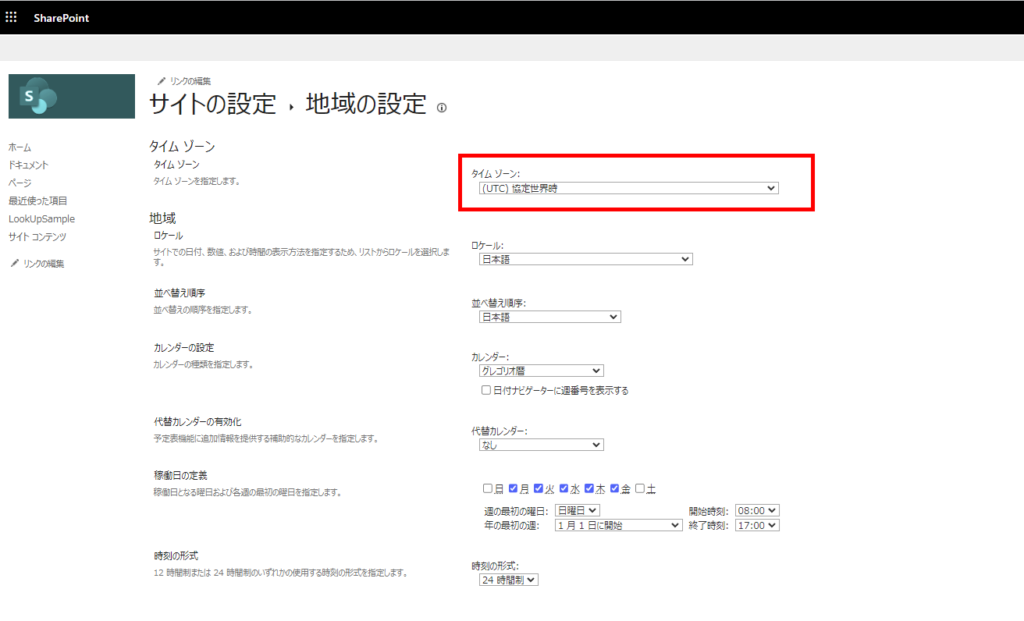
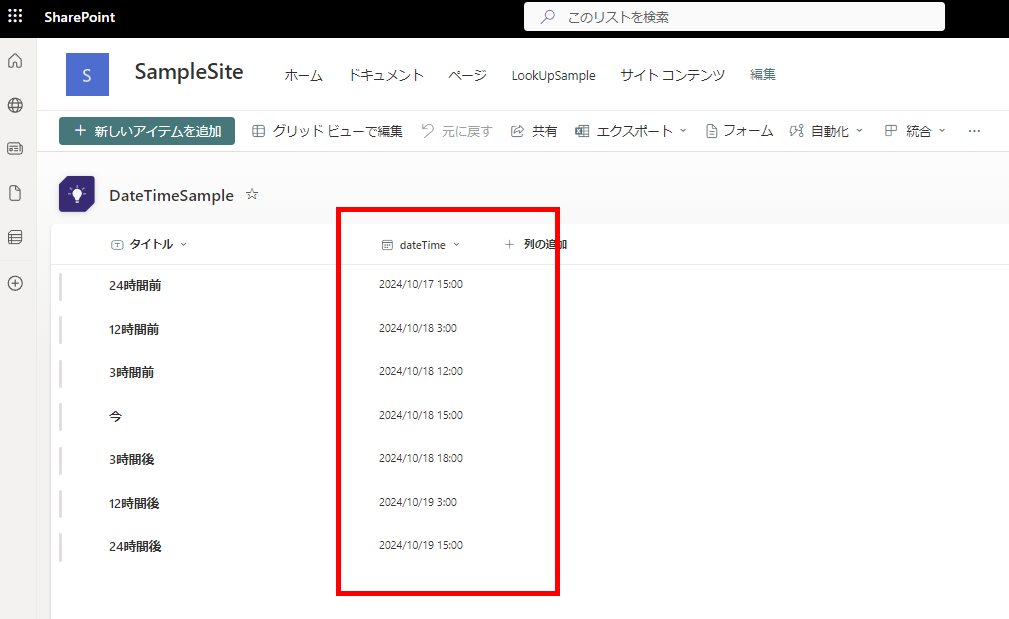
Conclusion: SharePoint interprets your input time based on the site’s timezone settings at the moment of entry and stores it internally as UTC. When you filter using utcNow() (which is Z/UTC), SharePoint compares it correctly against that internal UTC value.