Are you struggling with Power Automate timeouts when reading large Excel tables?
The standard “List rows present in a table” action is notoriously slow and often fails when handling datasets larger than the 5,000-item pagination limit.
In this article, I’ll share a benchmark-tested Office Script solution that cuts processing time from 44 seconds down to 7 seconds (up to 6x faster) and reliably handles 100,000 rows without errors.
Why “List Rows Present in a Table” Fails on Large Data
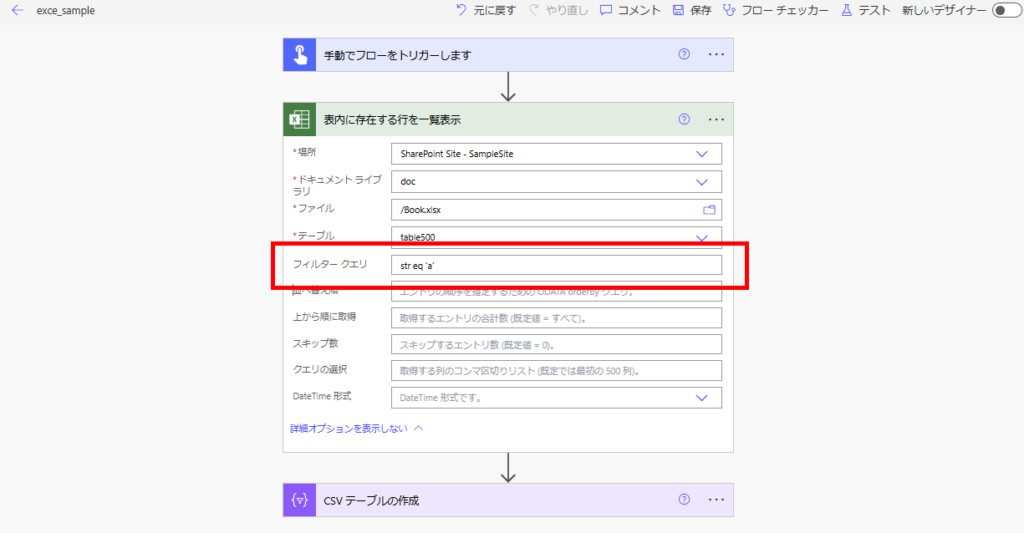
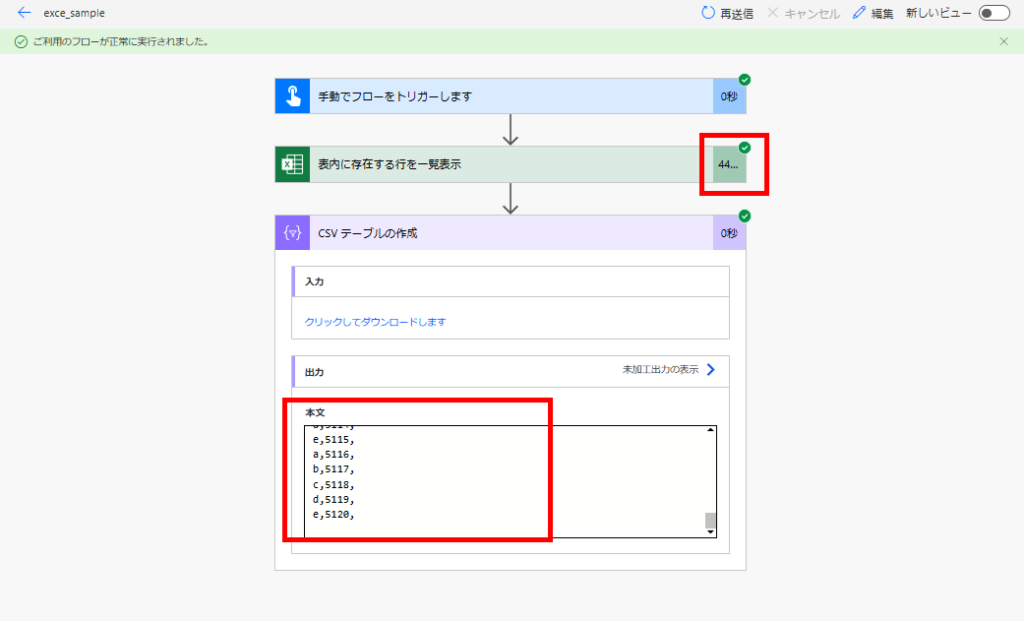
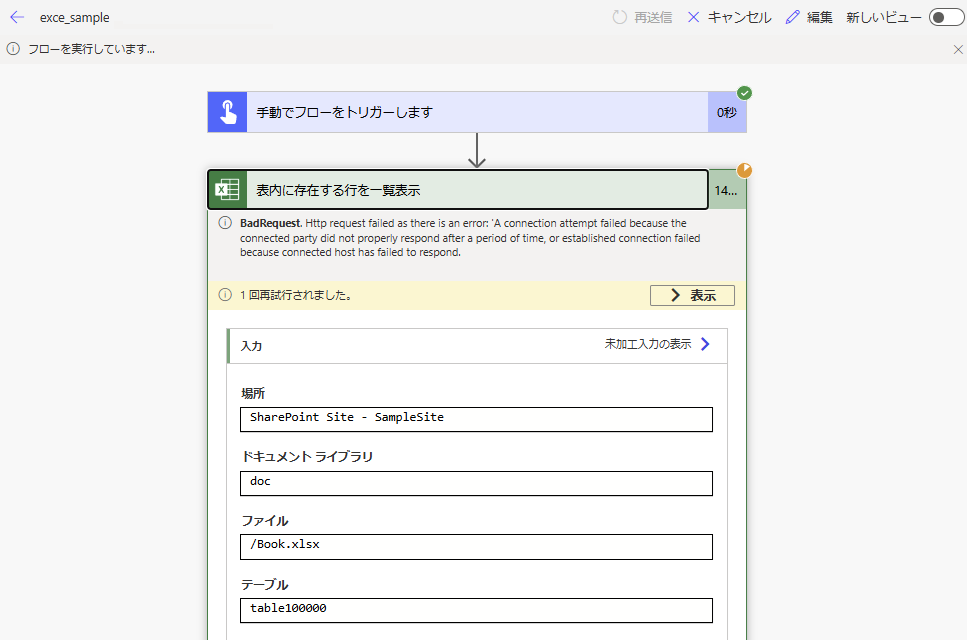
For more details on these limitations, check my previous analysis:
Performance Analysis of “List rows present in a table”
In this article, I’ll demonstrate how to use Office Scripts to bypass these limits and retrieve data reliably.
Solution 1: A Versatile Script for Any Table
First, let’s look at a generic function that can retrieve values efficiently without depending on a specific table schema.
The Code
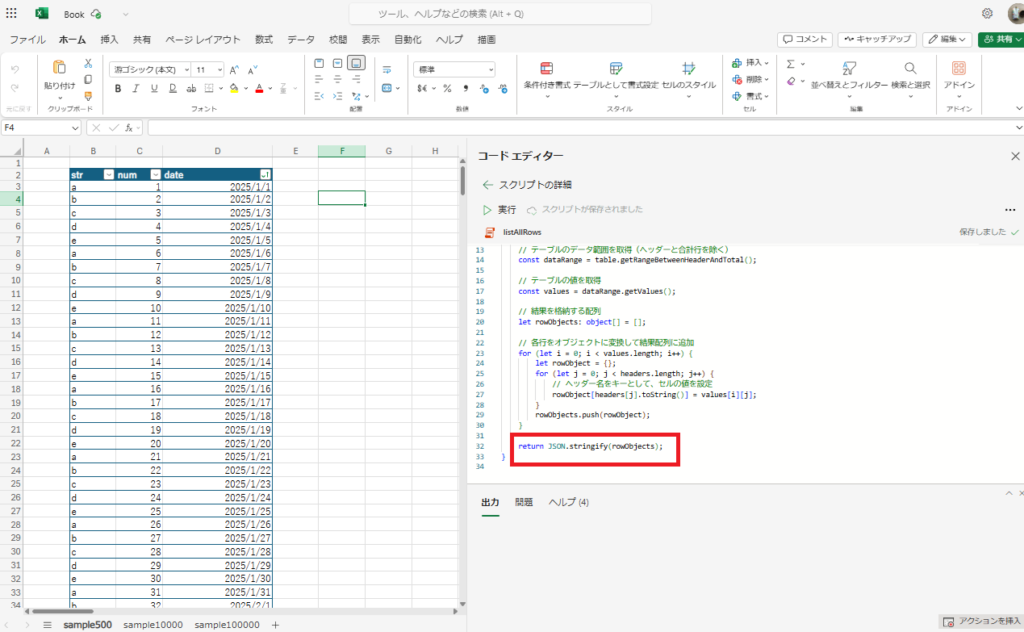
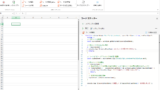
Copy the code below into your Office Script editor:
function main(workbook: ExcelScript.Workbook, tableName:string) {
    // Get the table with the specified name
    const table = workbook.getTable(tableName);

    // Throw an error if the table doesn't exist
    if (!table) {
        throw new Error(`Table "${tableName}" not found.`);
    }

    // Get the header row of the table
    const headers = table.getHeaderRowRange().getValues()[0];

    // Get the data range of the table (excluding header and total rows)
    const dataRange = table.getRangeBetweenHeaderAndTotal();

    // Get the values from the table
    const values = dataRange.getValues();

    // Array to store the results
    let rowObjects: object[] = [];

    // Convert each row to an object and add to the results array
    for (let i = 0; i < values.length; i++) {
        let rowObject = {};
        for (let j = 0; j < headers.length; j++) {
            // Set the cell value using the header name as the key
            rowObject[headers[j].toString()] = values[i][j];
        }
        rowObjects.push(rowObject);
    }
    return JSON.stringify(rowObjects);
}
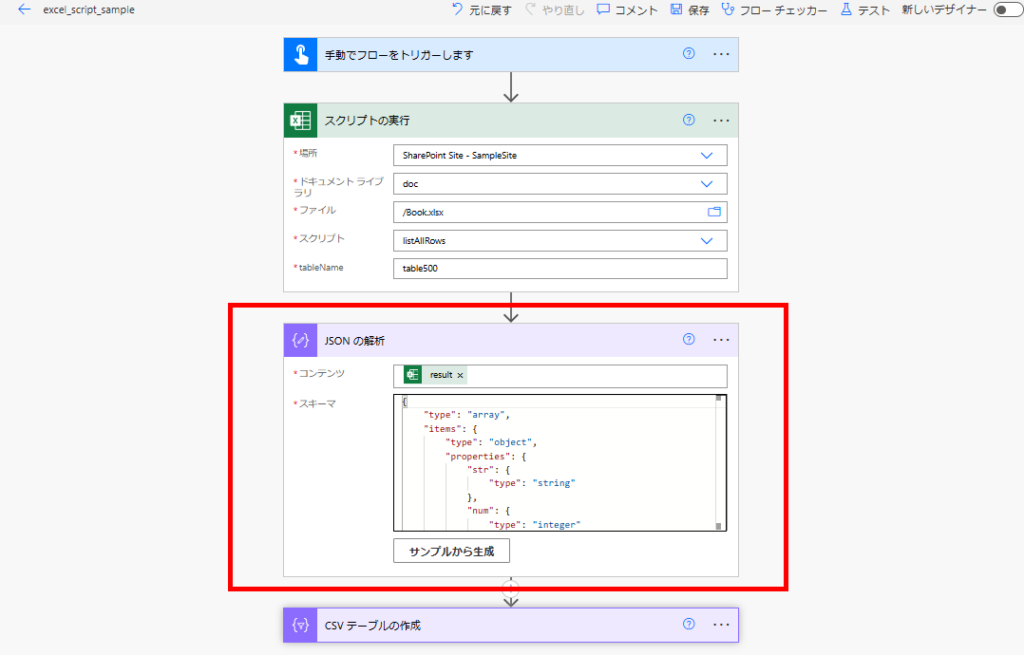
Add a "Parse JSON" action after the "Run script" action.
Run the flow once to get the output, then use the "Generate from sample" feature in the Parse JSON action to automatically create the schema.
Performance Benchmark
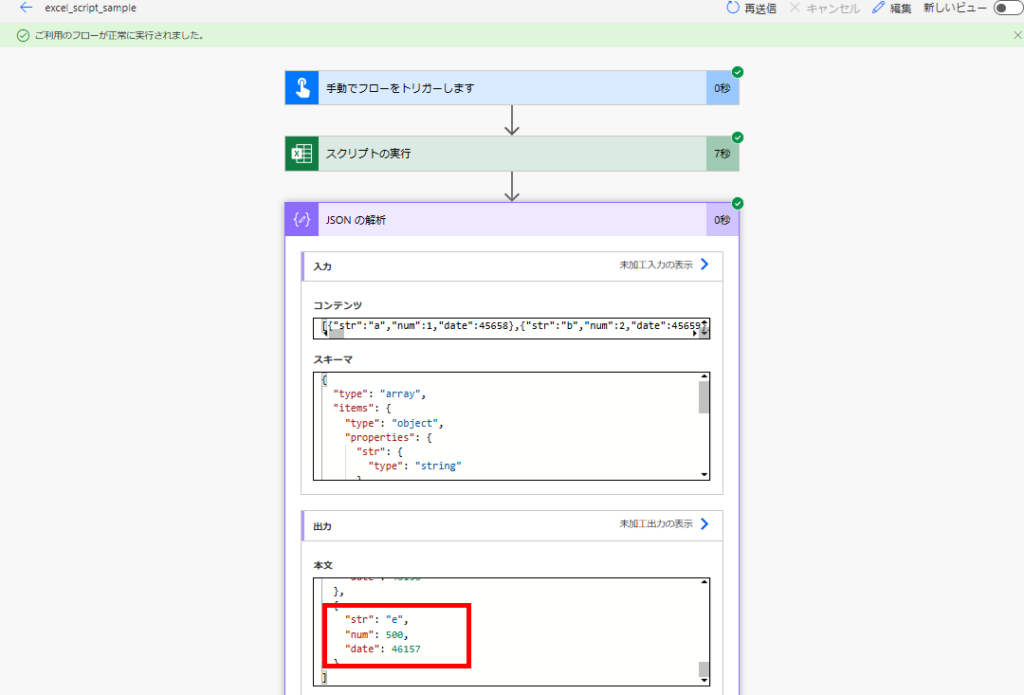
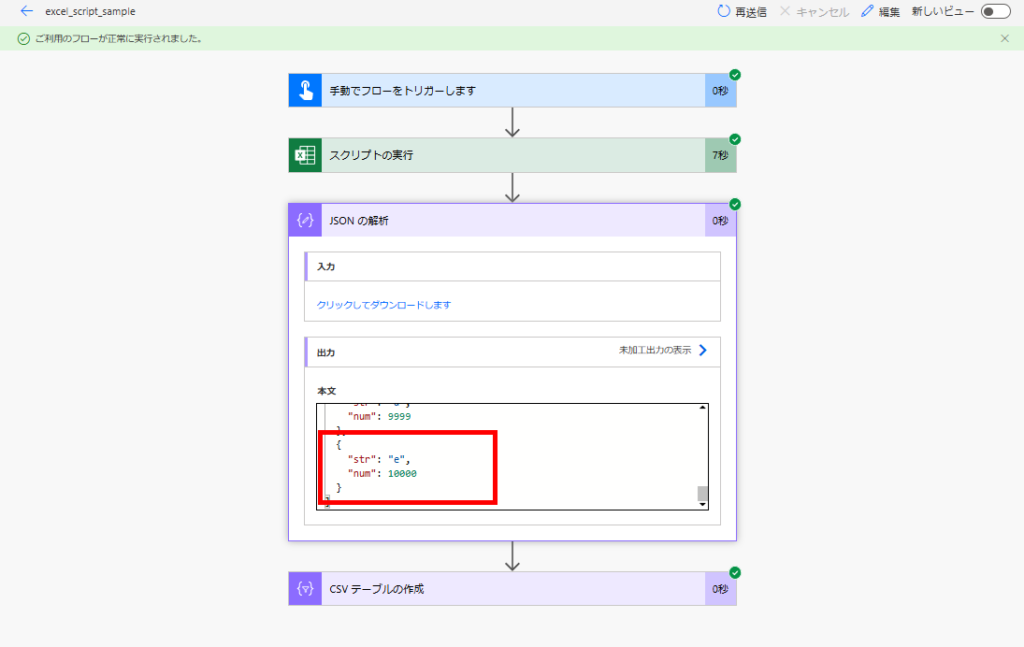
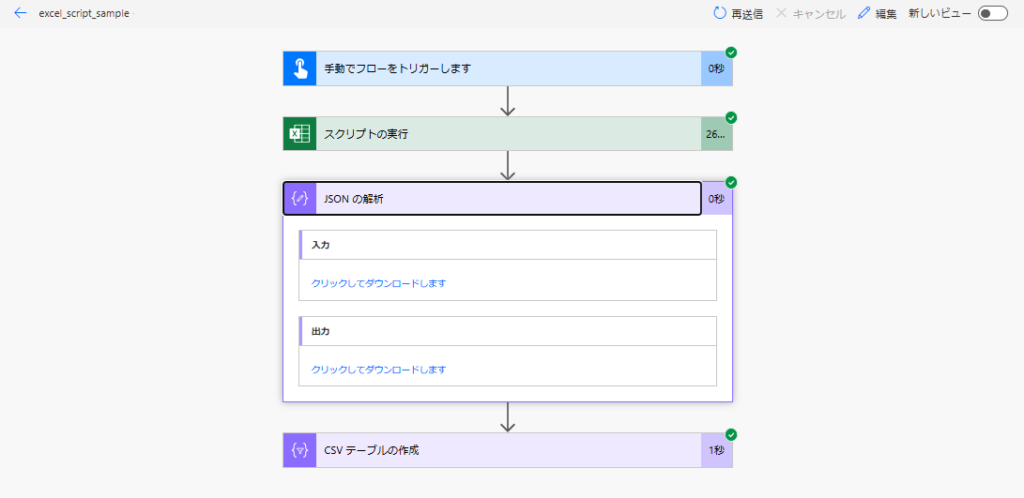
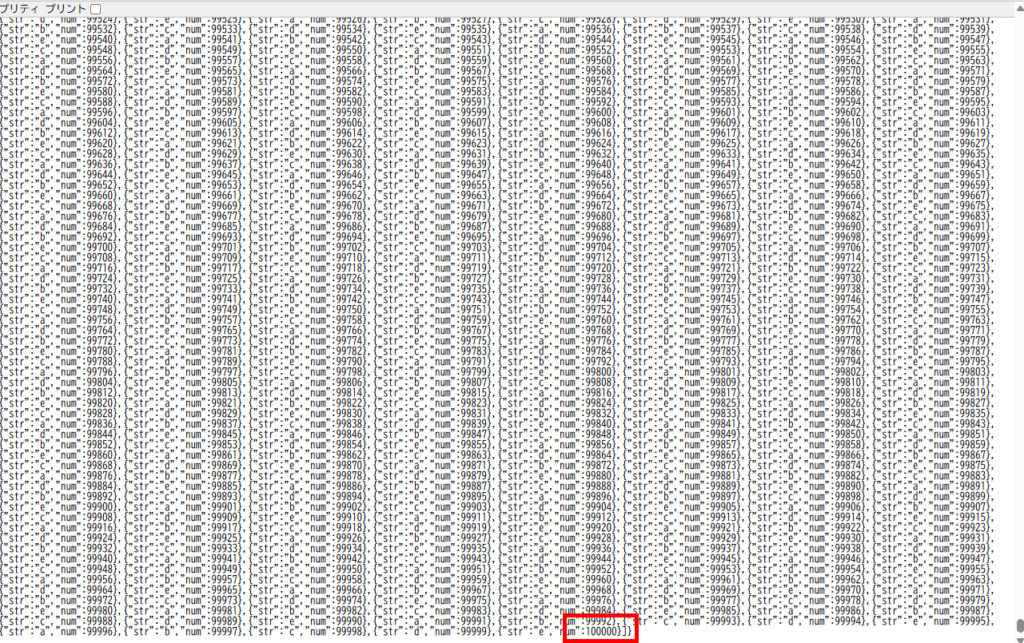
Note: The script has a fixed startup overhead (a few seconds), so the efficiency gains become massive as the row count increases.
Solution 2: Specialized Script (Recommended)
While the generic script above is fast, it has two minor downsides:
- It returns data as a large JSON string (which requires parsing).
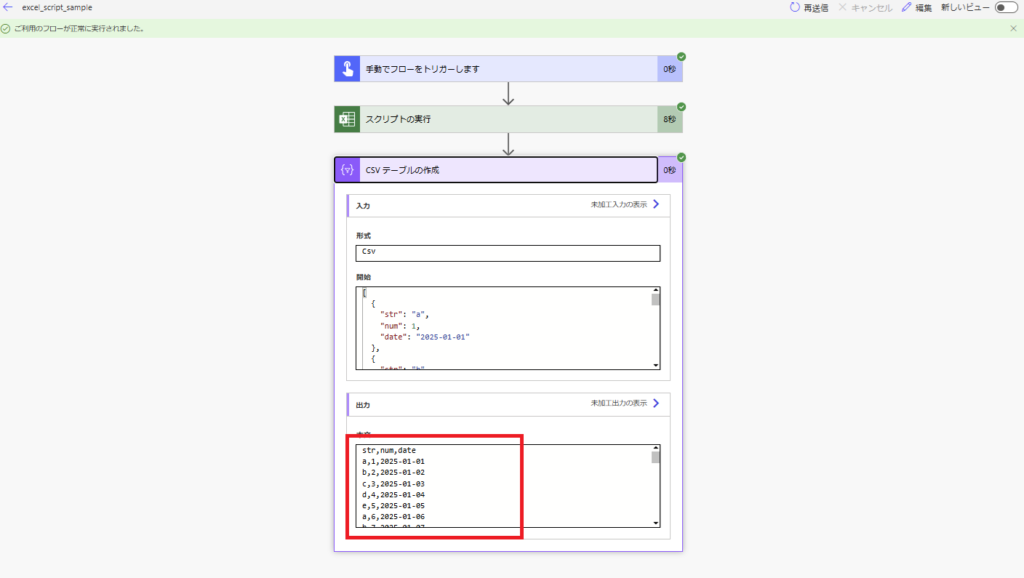
- Dates are returned as Excel Serial Numbers (e.g., 45321 instead of 2024-02-10).
To solve this, I recommend creating a script specialized for your specific table structure.
The Code
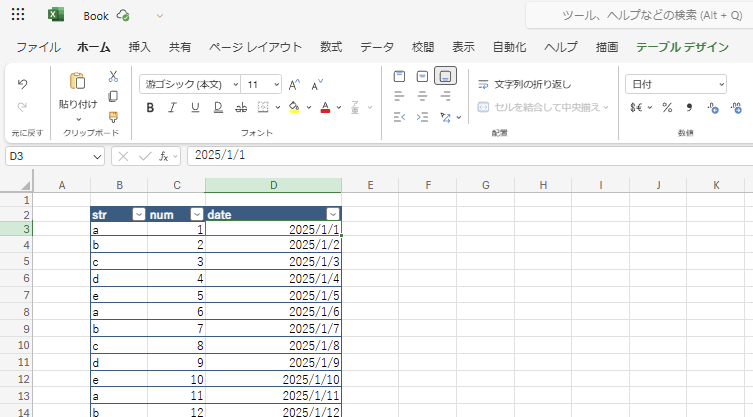
// Define the return type structure based on your columns
type TableRow = {
    str: string;
    num: number;
    date: string;
};

function main(workbook: ExcelScript.Workbook): TableRow[] {
    // Get the specific table by name
    const table = workbook.getTable("table500");

    // Get the range of the table
    const range = table.getRange();

    // Get the values from the table
    const values = range.getValues();

    // Get the indices of the columns to retrieve
    const headers = values[0];
    const strIndex = headers.indexOf("str");
    const numIndex = headers.indexOf("num");
    const dateIndex = headers.indexOf("date");

    // Throw an error if the column indices are not found
    if (strIndex === -1 || numIndex === -1 || dateIndex === -1) {
        throw new Error("Required columns 'str' or 'num' not found in the table");
    }

    // Array to store the results
    const result: { str: string, num: number, date:string }[] = [];

    // Process each row, skipping the header row
    for (let i = 1; i < values.length; i++) {
        const row = values[i];
        const serial_date = Number(row[dateIndex]);
        const date = excelSerialDateToISOString(serial_date);
        result.push({
            str: row[strIndex].toString(),
            num: Number(row[numIndex]),
            date: date
        });
    }

    return result;
}

/**
 * Convert Excel date serial number to ISO string
 * @param serialNumber Excel date serial number
 * @param use1904Windowing Whether to use 1904 as the base year (for legacy Mac support)
 * @returns Date string in ISO format (yyyy-MM-dd)
 */
function excelSerialDateToISOString(serialNumber: number, use1904Windowing: boolean = false): string {
    // Set the base date (1900 or 1904)
    const baseDate = use1904Windowing ? new Date(Date.UTC(1904, 0, 1)) : new Date(Date.UTC(1900, 0, 1));

    // Handle Excel date bug (Excel incorrectly treats 1900 as a leap year)
    let adjustedSerialNumber = serialNumber;
    if (!use1904Windowing && serialNumber >= 60) {
        adjustedSerialNumber--; // Adjust for February 29, 1900 bug
    }

    // Convert serial number to days (in Excel, the integer part is the date, the fractional part is the time)
    const days = Math.floor(adjustedSerialNumber);
    const timeFraction = adjustedSerialNumber - days;

    // Convert to milliseconds and add to the base date
    const milliseconds = Math.round(timeFraction * 24 * 60 * 60 * 1000);
    const date = new Date(baseDate.getTime() + ((days - 1) * 24 * 60 * 60 * 1000) + milliseconds);

    // Return in yyyy-MM-dd format
    const year = date.getFullYear();
    const month = String(date.getMonth() + 1).padStart(2, '0');
    const day = String(date.getDate()).padStart(2, '0');

    return `${year}-${month}-${day}`;
}
Why this approach is better
This eliminates the need for complex date conversion expressions in Power Automate, making your flow cleaner and easier to maintain.
Summary
If you need to process large Excel files in Power Automate, switching to Office Scripts is highly recommended.
- Speed: Up to 6x faster (44s → 7s).
- Reliability: Handles 100,000+ rows without timeouts.
- Flexibility: Custom scripts can handle date formatting directly in Excel.

コメント