Previously, this required a complex workaround using Power Automate, but today it can be completed by enabling a single setting.
This article explains the latest “standard implementation.”
*The legacy method (Copilot Studio → Power Automate → AI Builder) is archived at the end of this article for reference.
This is a continuation of my previous article, where I demonstrate how to build a multimodal agent in Copilot Studio that can read files attached to a conversation.
Previous article:
https://ippu-biz.com/development/powerplatform/copilot-studio/topic-attachments/
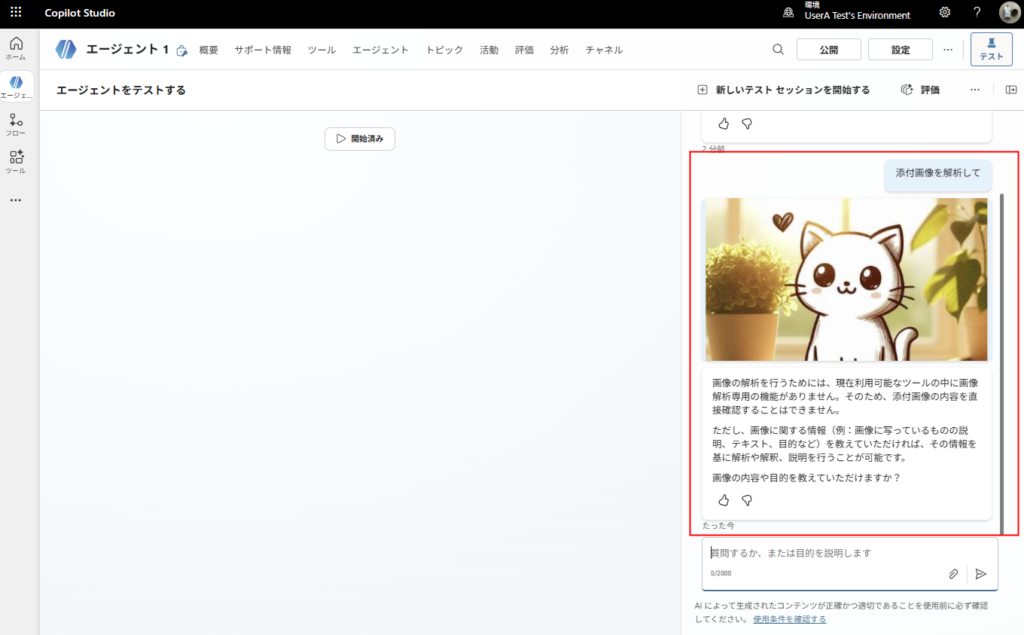
Goal
Prerequisite: Confirm settings
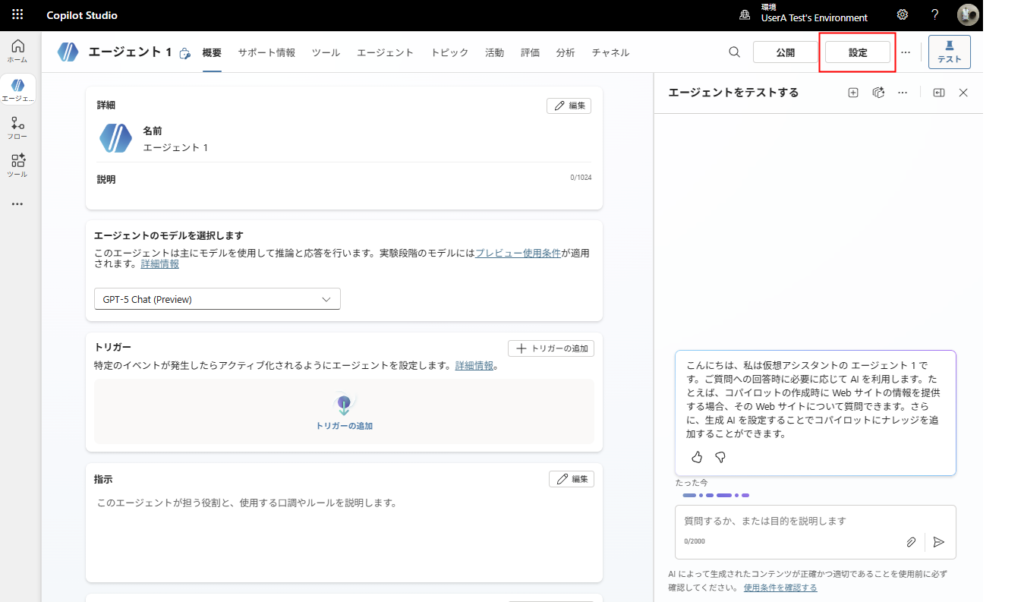
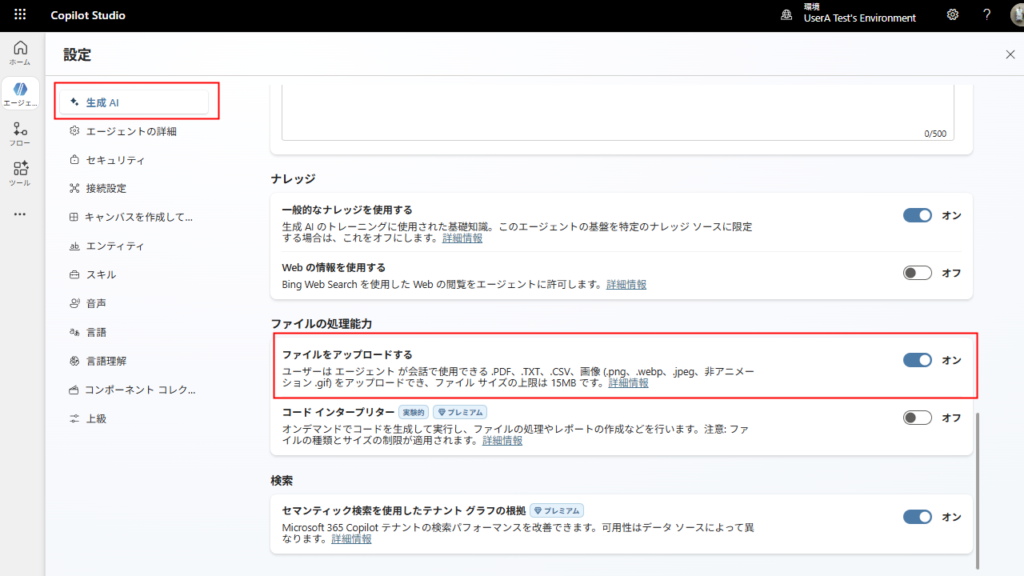
First, confirm that file upload is enabled.
From [Settings]:
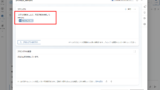
In the [Generative AI] tab, make sure [Upload documents] is turned on:
Build (Standard method)
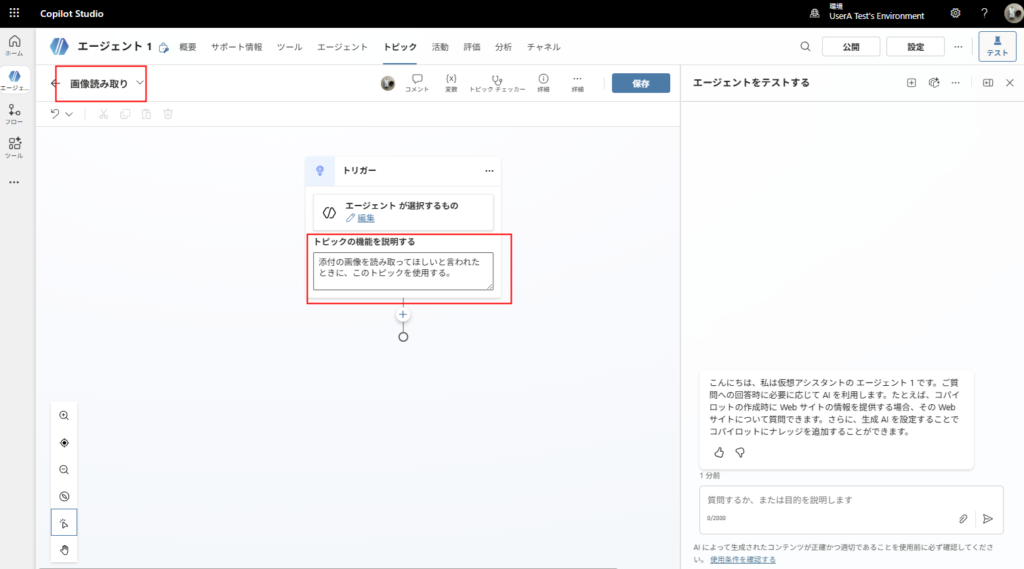
Create a new topic and configure the trigger so it starts when the user asks to analyze an attached image (example below).
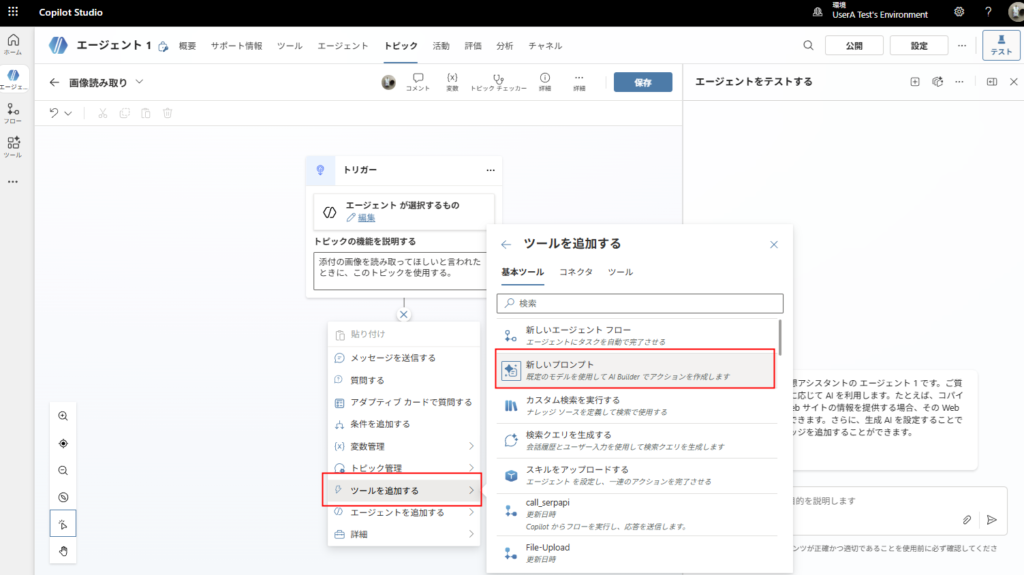
Next, go to [Add a tool] and choose [New prompt].
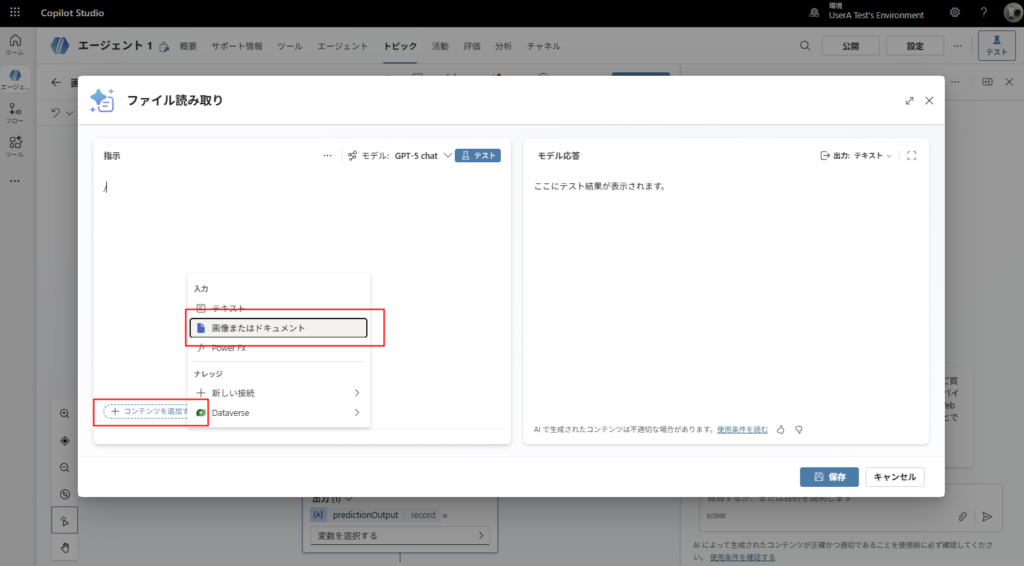
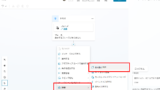
From [Add content], add [Image or document]:
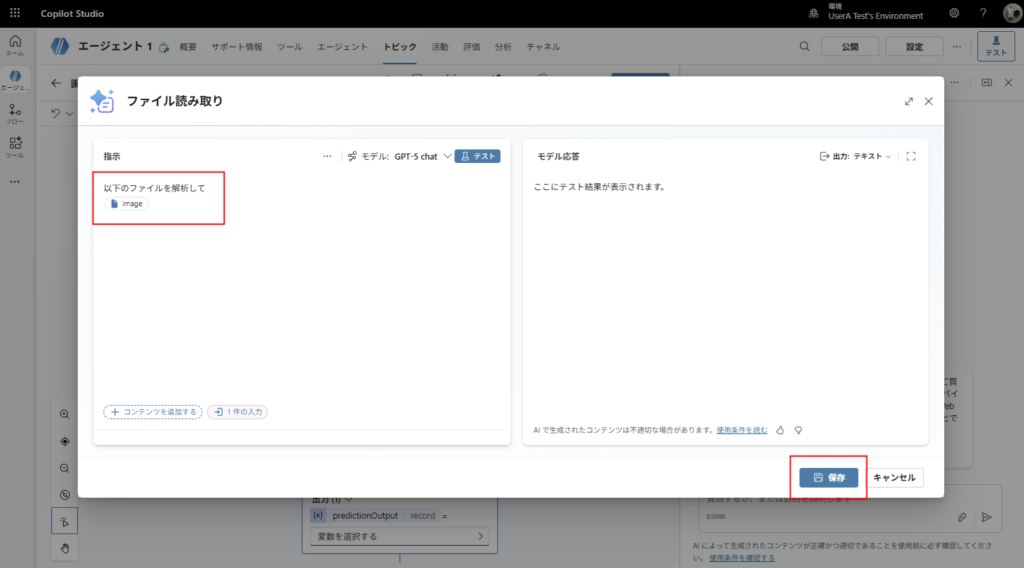
Give the argument a name, add your prompt instructions, then click [Save].
In the topic, set the prompt input using the following formula:
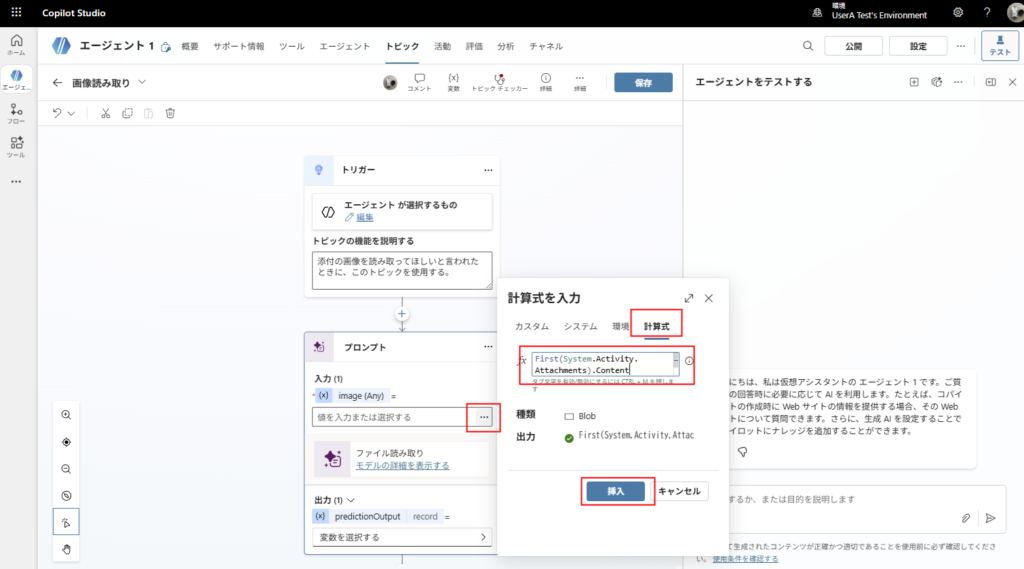
First(System.Activity.Attachments).ContentStore the output in a variable:
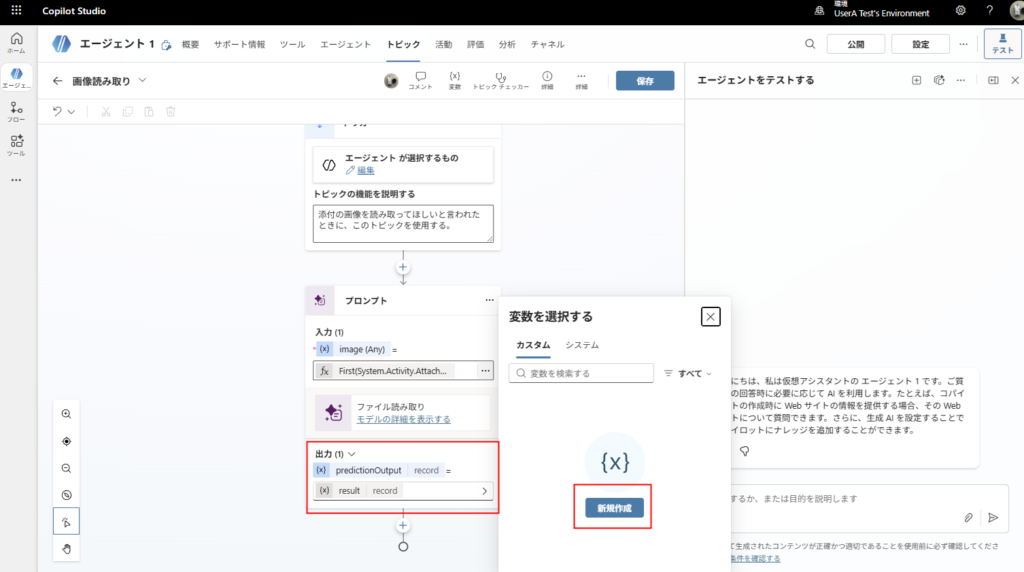
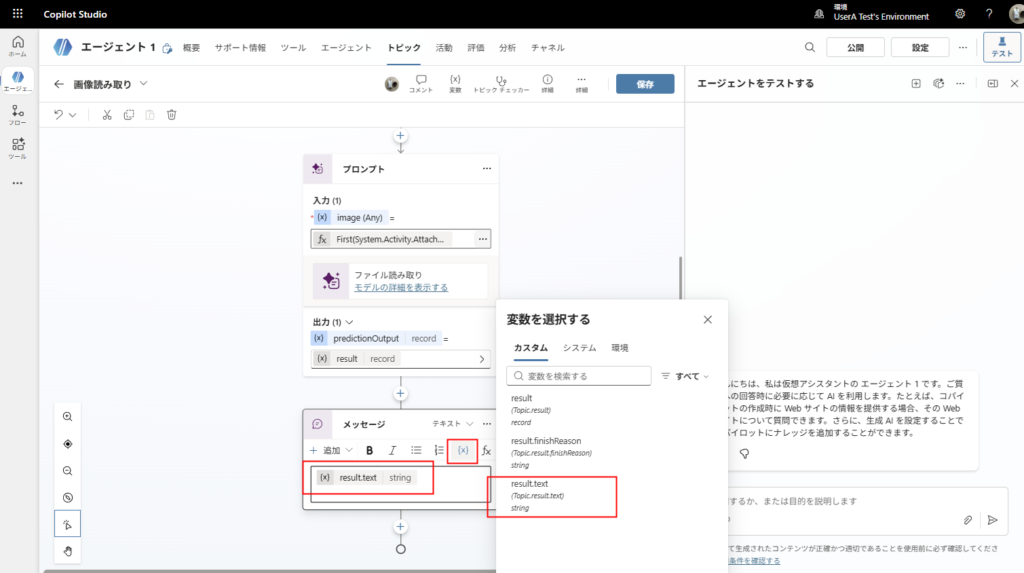
Finally, use [Send a message] and set the message to the .text property of the variable used above.
Test
Attach an image and ask “Analyze it.” The agent will analyze the image.
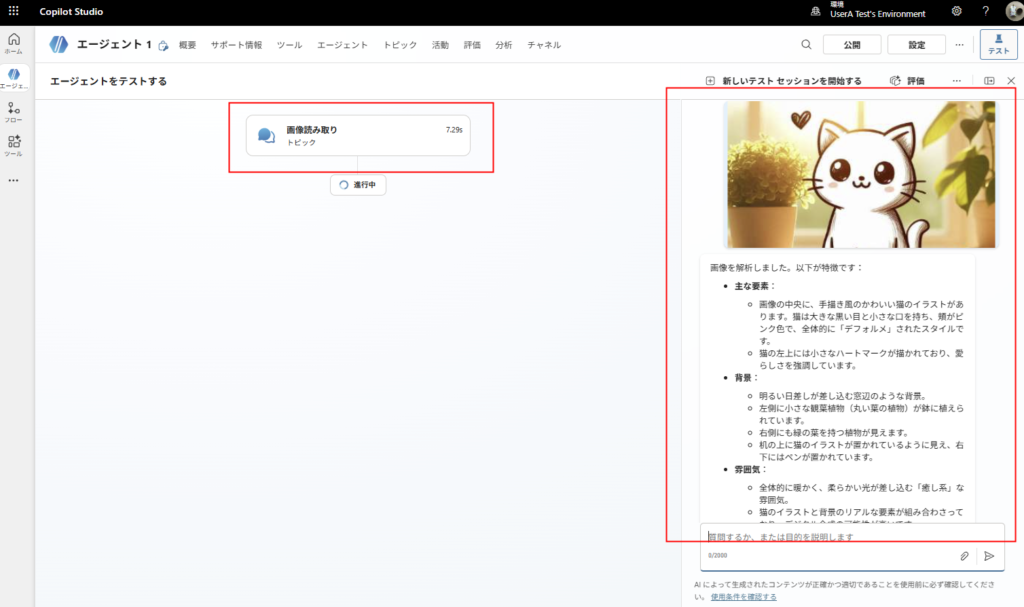
This example focuses on images, but the same approach can also analyze PDFs.
If you want to analyze Excel, Word, or PowerPoint, you’ll need additional services such as Azure AI Document Intelligence.
Related Articles
Bonus: [Legacy Method Archive] Copilot Studio → Power Automate → AI Builder
The content below is archived and outdated.
At the time, attachments were not available in System.Attachments, and prompt actions couldn’t accept file inputs directly.
Build (Legacy)
Just like the previous article, this example only targets the first attached file.
Note: If you want to handle multiple files, treat them as a Table type or use Foreach.
Create a prompt action (Legacy)
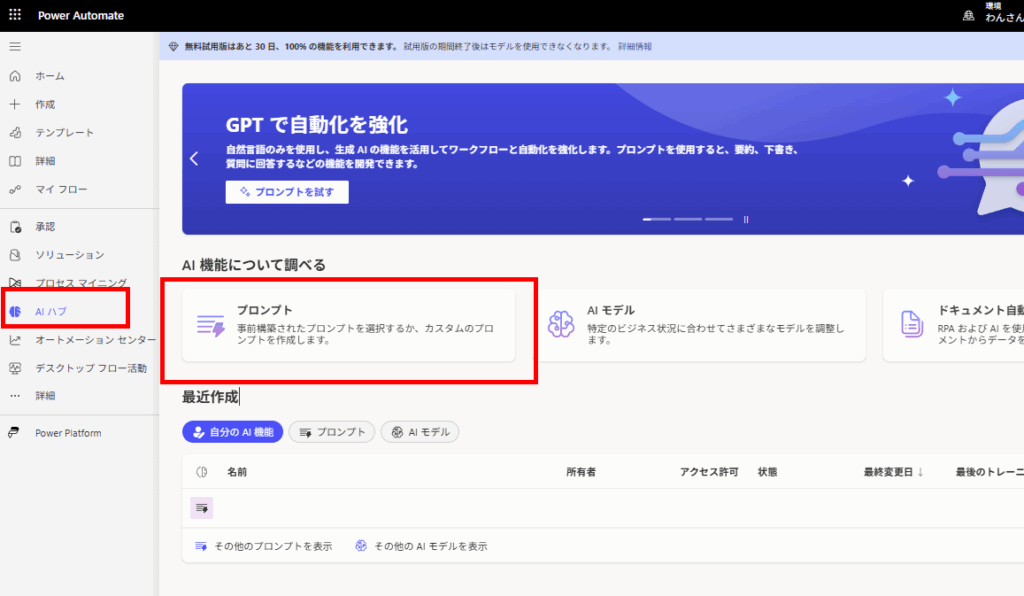
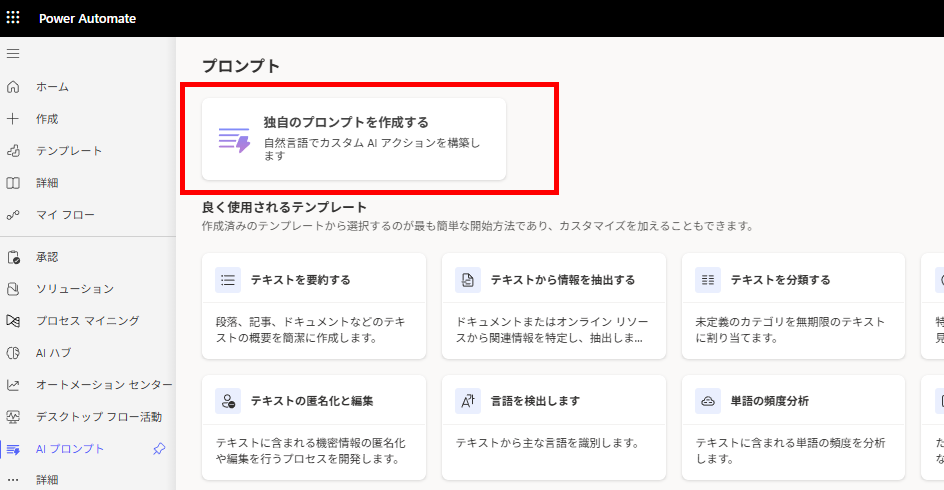
Note: Prompt accuracy was not validated in the original legacy example.
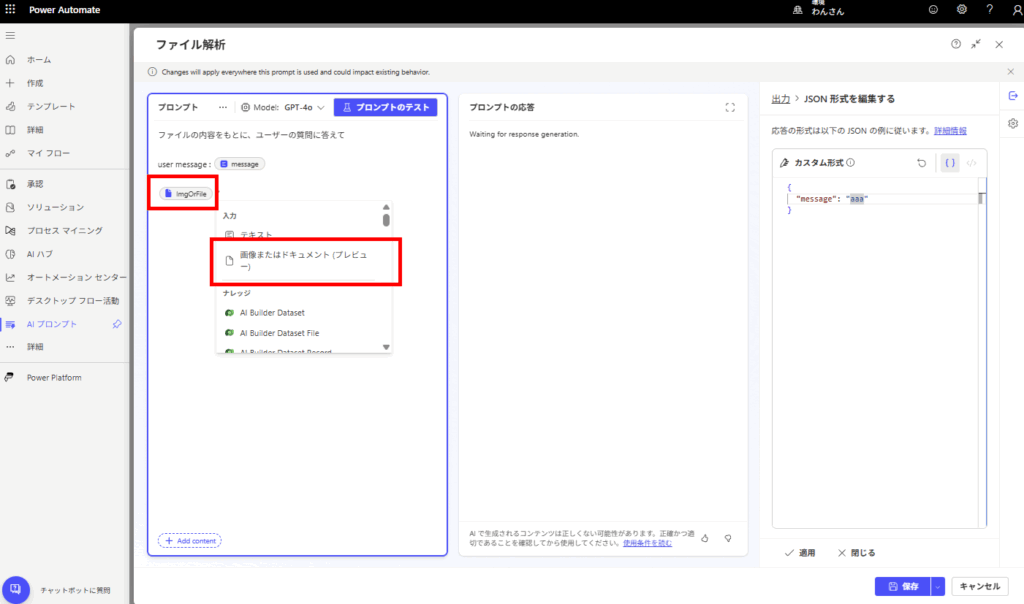
This completes the creation of the prompt action.
Build Power Automate flow (Legacy)
At the time of writing, Copilot Studio couldn’t pass “File” inputs to prompt actions, so the workaround was to route through Power Automate.
Reference:
https://learn.microsoft.com/ja-jp/ai-builder/add-inputs-prompt#limitations
Convert the data string to binary using
base64ToBinary.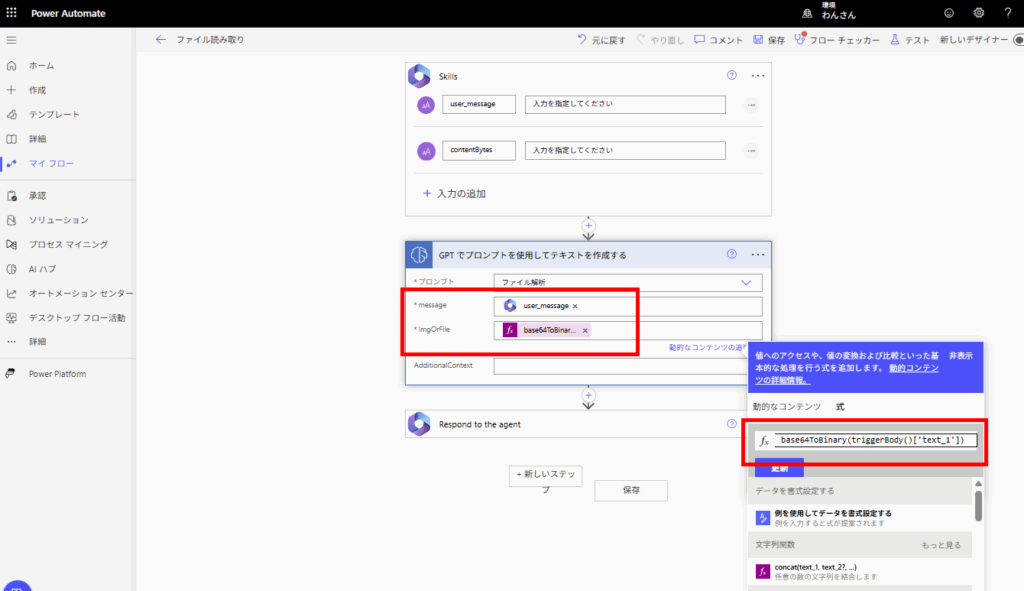
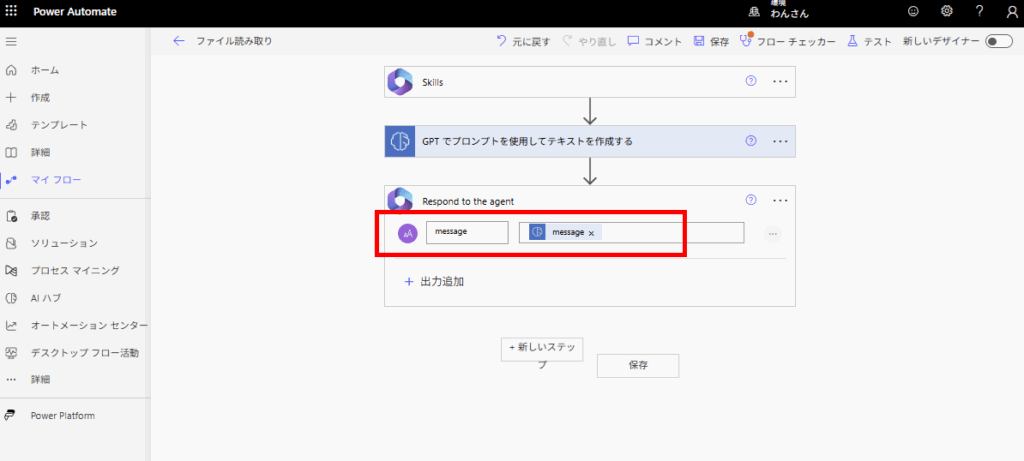
Build in Copilot Studio (Legacy)
Start the conversation using “Conversation boosting” (legacy name).
Note: This example assumes a single conversation. Multi-turn scenarios may require additional testing.
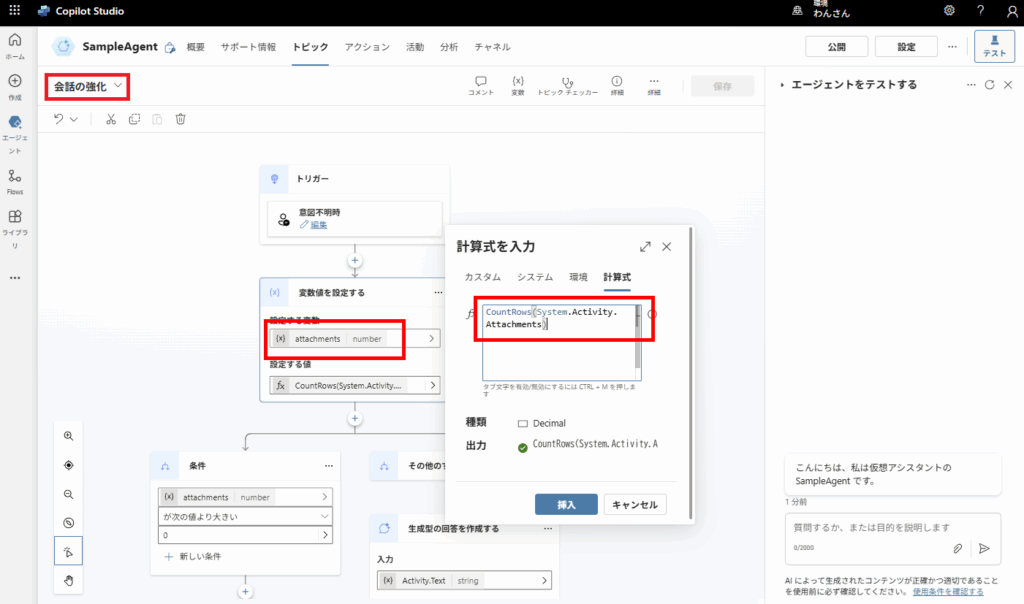
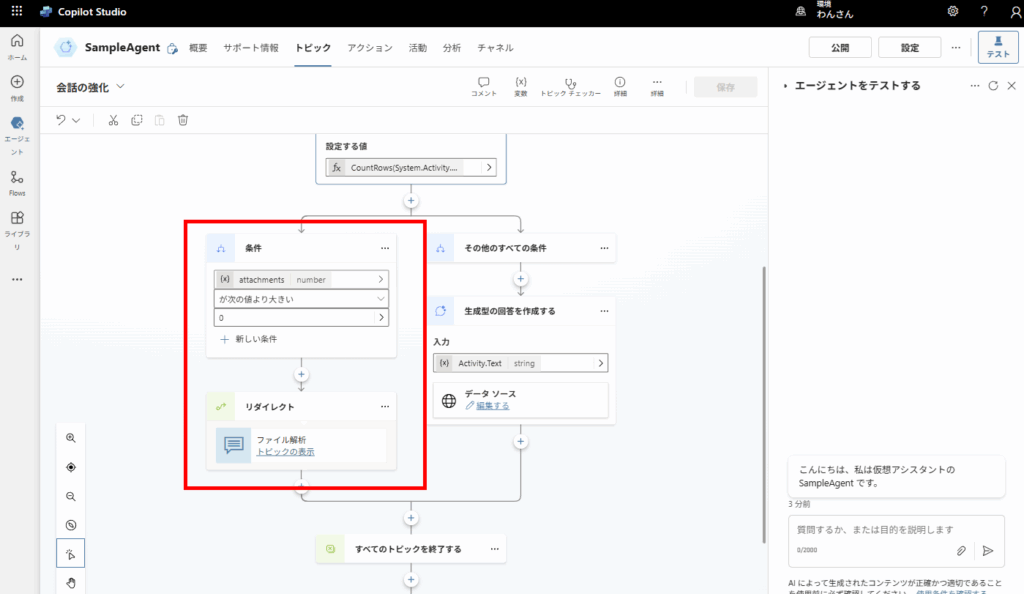
contentUrl as explained in the previous article: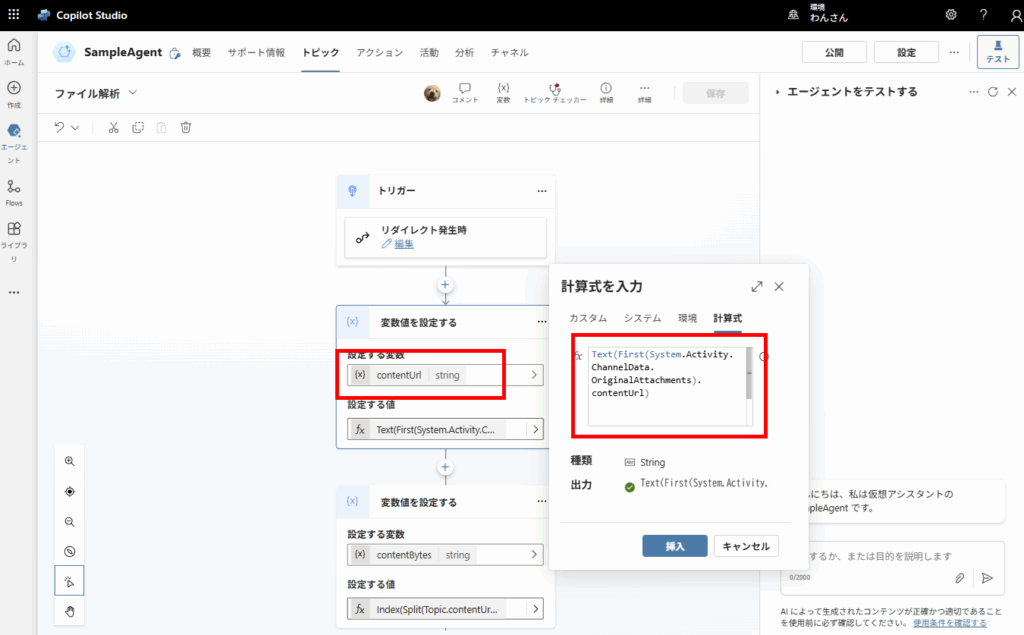
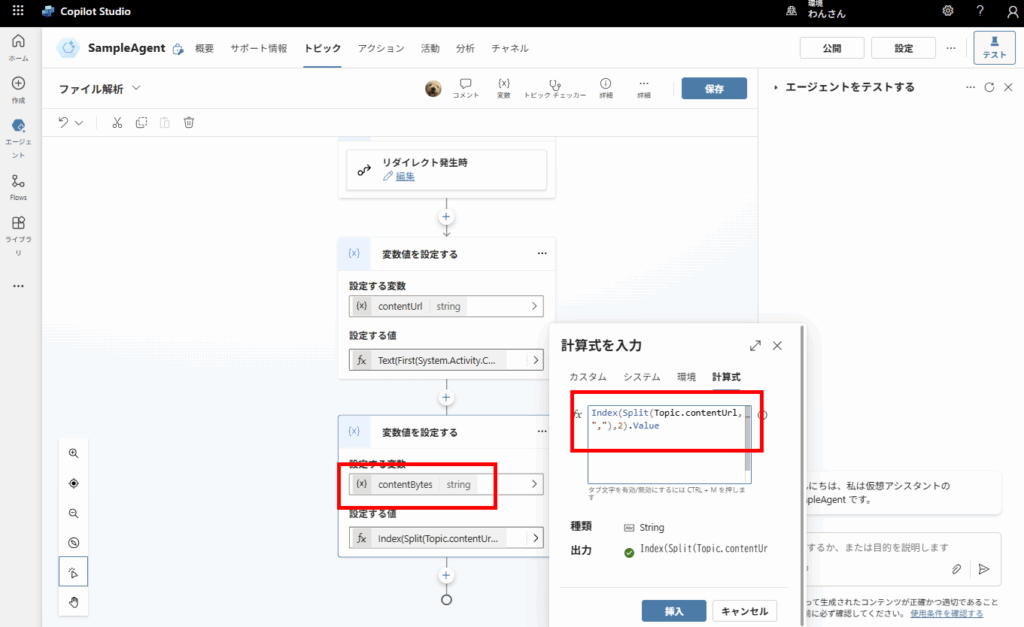
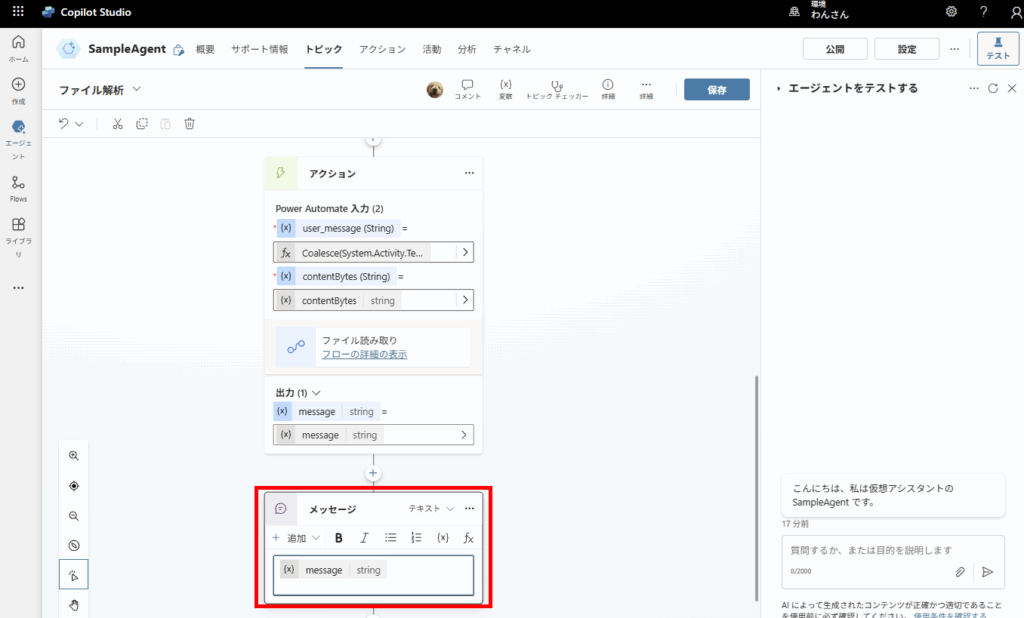
Activity.Text) and the extracted data: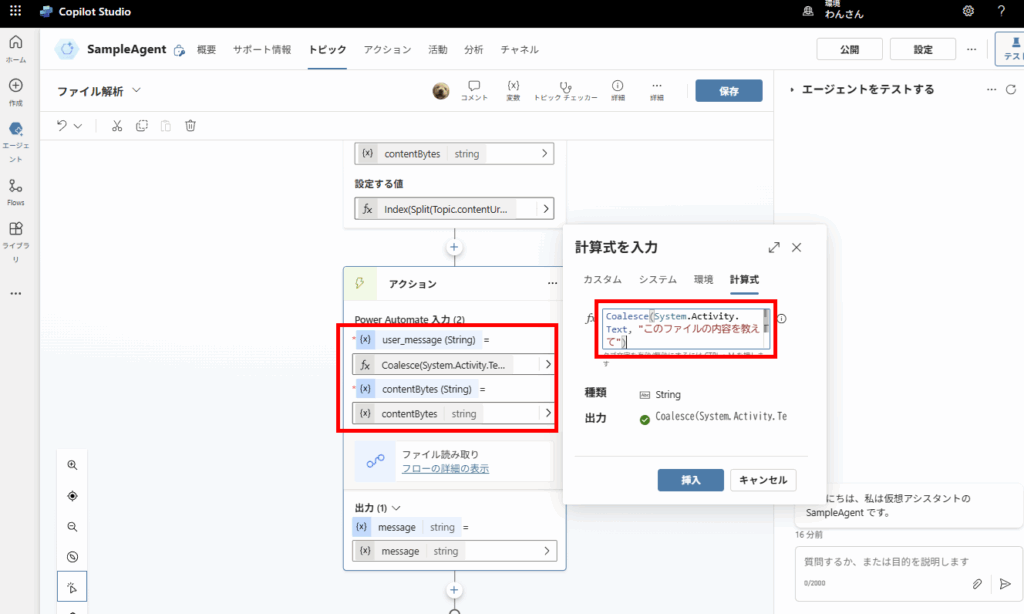
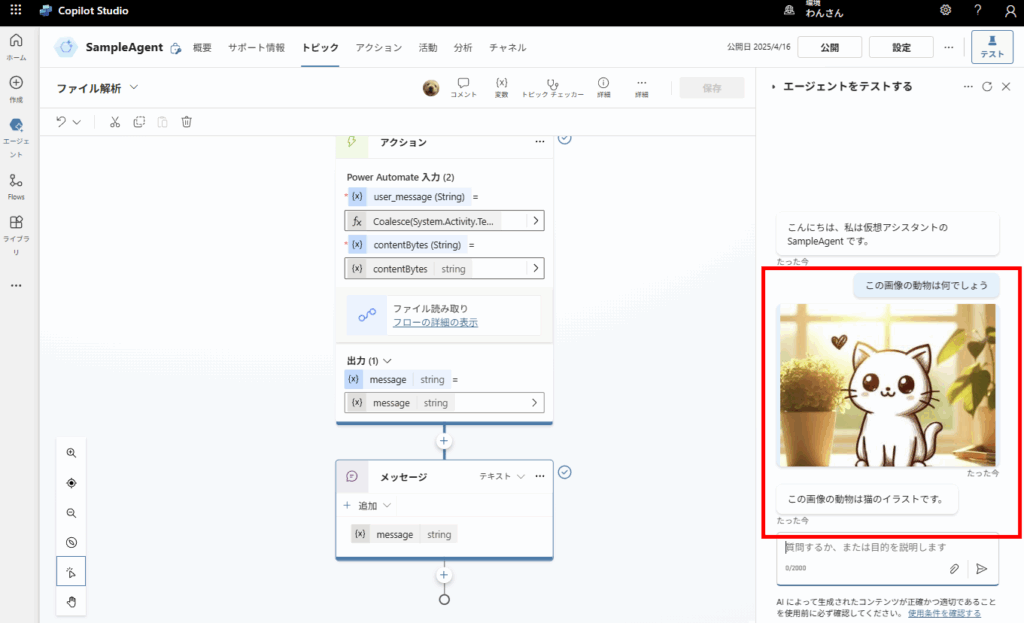
Legacy testing
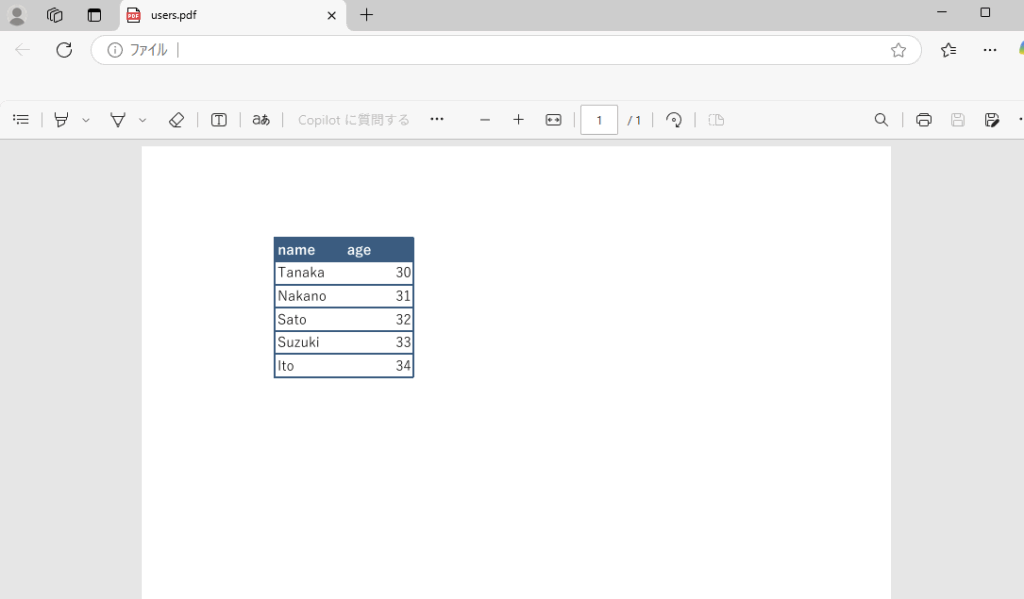
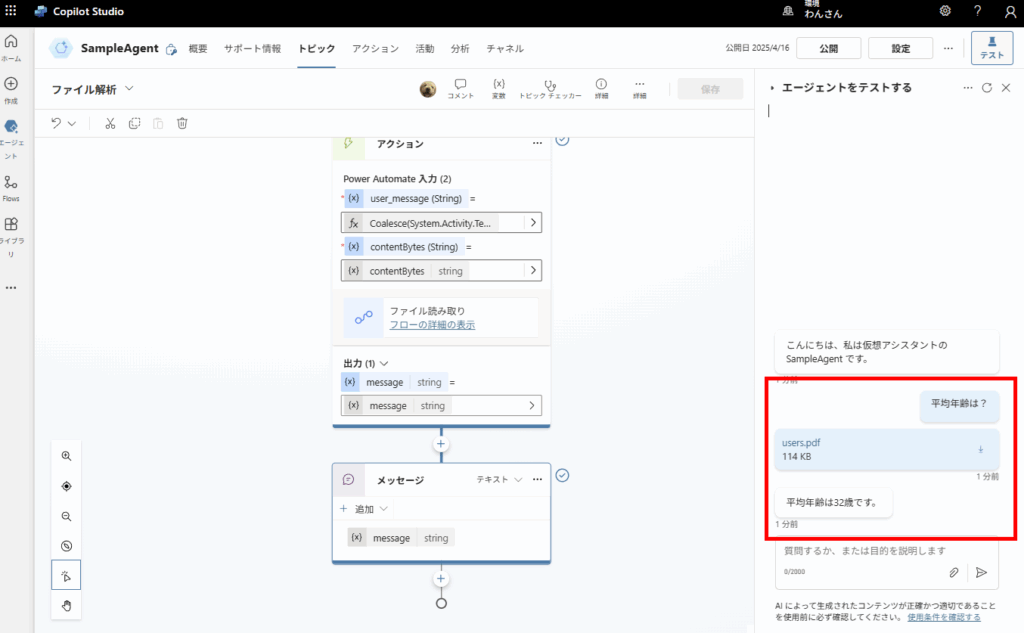
If you want to read Excel or PowerPoint files, you’ll need to integrate additional services such as Azure AI Document Intelligence.
コメント