I recently encountered an issue where a “Create new folder” action in a Power Automate (SharePoint connector) flow suddenly failed with the error “Exception from HRESULT: 0x80131904”.
TL;DR: The cause was “too many files accumulated in the SharePoint Recycle Bin”.
Even though the visible number of files was under 5,000, the total count including the contents of the Recycle Bin exceeded the threshold, causing the error.
Below are my notes on the investigation and solution.
Error Occurred: “Exception from HRESULT: 0x80131904”
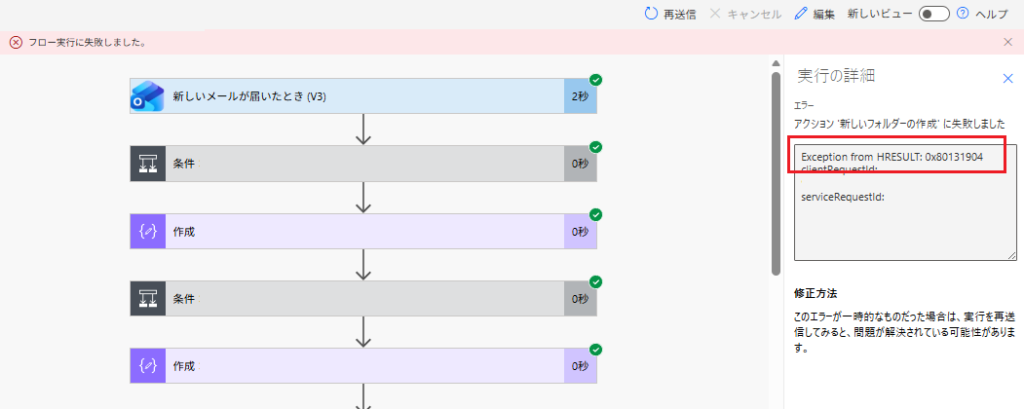
Exception from HRESULT: 0x80131904
clientRequestId: xxxxxxxx-xxxx-xxxx-xxxx-xxxxxxxxxxxx
serviceRequestId: xxxxxxxx-xxxx-xxxx-xxxx-xxxxxxxxxxxx
“0x80131904” is a common error code, and there are several reported cases of the same error string occurring in SharePoint Online.

Background: The SharePoint “5,000 Item Limit” Problem
SharePoint has a “List View Threshold,” often referred to with the 5,000 items guideline.
If you hit this threshold, errors can occur not only in the screen display but also in “operations via API” (which is exactly what happened this time).
The Cause: Recycle Bin Overload
Initially, when I checked the number of items in the document library, it was around 3,700, so I didn’t see any immediate red flags.
However, in the Recycle Bin of the same site, there were over 7,000 files deleted from the same document library remaining. This was the pitfall.
In SharePoint, there are cases where “items in the Recycle Bin increase too much, causing threshold-related errors.” If you only look at the “visible file count” and feel safe, you might get blocked by what is clogged up in the background.
Resolution: Delete Unnecessary Files and Empty the Recycle Bin
To fix this, I permanently deleted unnecessary files and emptied the Recycle Bin. After that, the flow executed successfully to the end without any issues.
By the way, the SharePoint Online Recycle Bin has stages: there is the “Recycle Bin” that users see, and another layer (Second-stage Recycle Bin) beyond that.
To reduce the chances of falling into this trap, it is safer to make “emptying the Recycle Bin periodically” a rule in your operations.
Potential Workarounds (Unverified)
I solved it by “emptying the Recycle Bin” this time, but there are environments where you can’t easily delete files. Here are the workarounds I plan to try if I get stuck with the same issue again.
1) Split the Document Library
Create a separate document library for archiving and move old files there.
If you can suppress the total volume of the library that Power Automate accesses, you should be less likely to trigger threshold-related errors.
2) Add Indexes to Columns
It is a standard best practice that SharePoint List View Threshold issues can be “avoided with indexes.”
Therefore, adding indexes to columns used for search/reference in the flow (such as columns related to creation date or folder path) is also a candidate for resolution.
Note: 0x80131904 Can Occur for Other Reasons
In my environment this time, “massive files in the Recycle Bin” was the cause, but 0x80131904 itself is a generic SQL error and can occur in SharePoint Online due to other factors (like throttling or timeouts).
So, if you encounter the same error (Exception from HRESULT: 0x80131904), you should suspect the “item count (including Recycle Bin)” first. If that doesn’t solve it, you will need to investigate other causes.
コメント