This time, I tried calling OpenAI’s Whisper (Speech to Text) via Power Automate and wrote down the results.
About Whisper
Whisper is a general-purpose automatic speech recognition (ASR) system developed by OpenAI.
Trained on 680,000 hours of multilingual supervised data, it delivers state-of-the-art accuracy in speech-to-text, translation, and language identification across dozens of languages.
Key Features
- Robustness: Performs exceptionally well against accents, background noise, and technical jargon.
- Versatility: Supports both Transcriptions (speech-to-text in original language) and Translations (speech-to-English).
- Supported Formats:
mp3,mp4,mpeg,mpga,m4a,wav,webm(File size limit: 25 MB)
In this tutorial, we will bypass standard connectors and call the Whisper API directly via Power Automate’s HTTP action to build a powerful speech-to-text workflow.
*API Reference
https://platform.openai.com/docs/api-reference/audio
Preliminary Preparation: Obtaining APIKey for OpenAI
First, go to the OpenAI home page and log in.
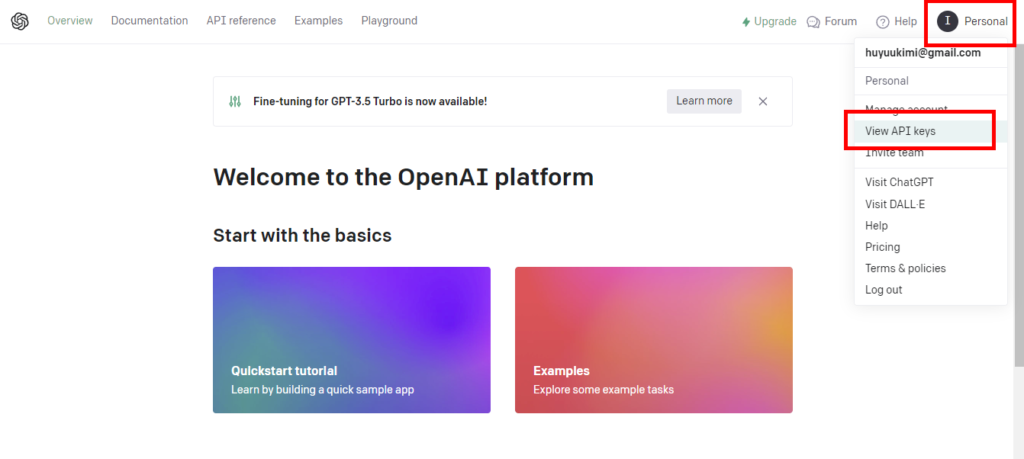
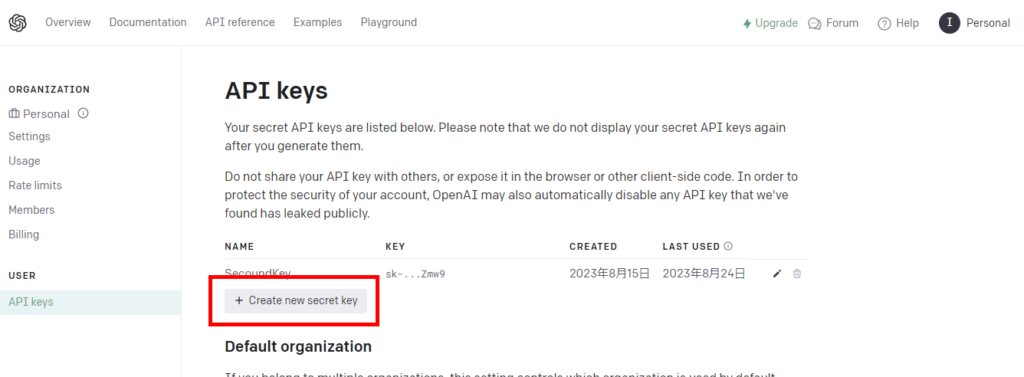
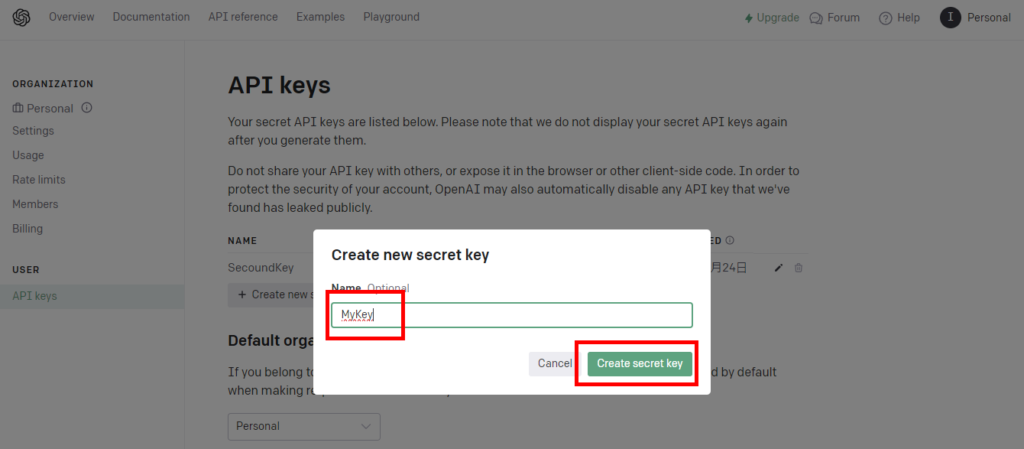
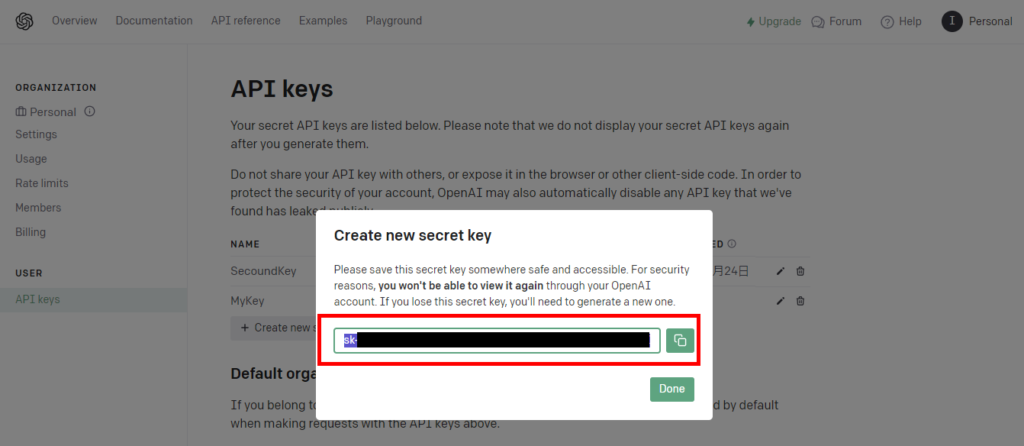
Preliminary preparations are now complete.
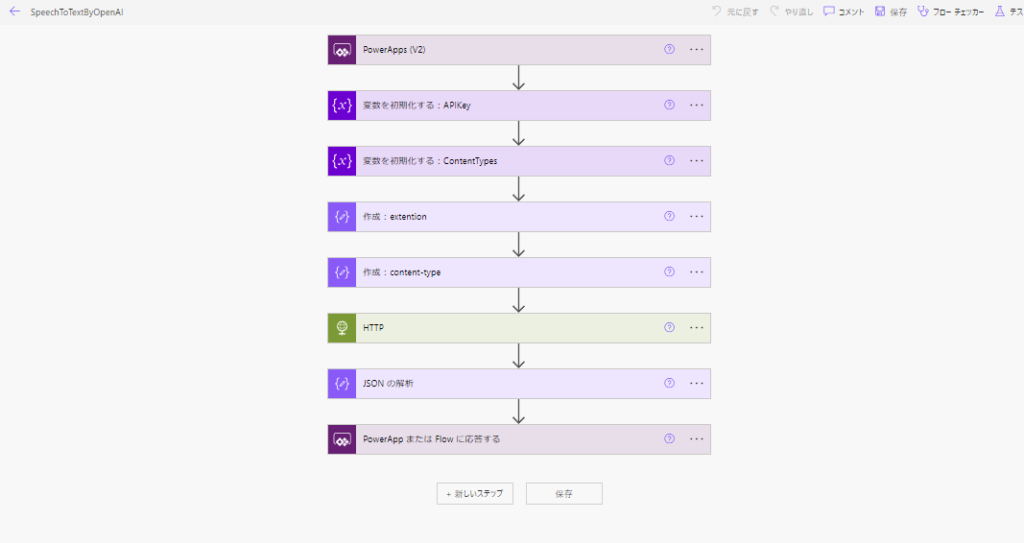
Build Power Automate
Then we’ll start building Power Automate.
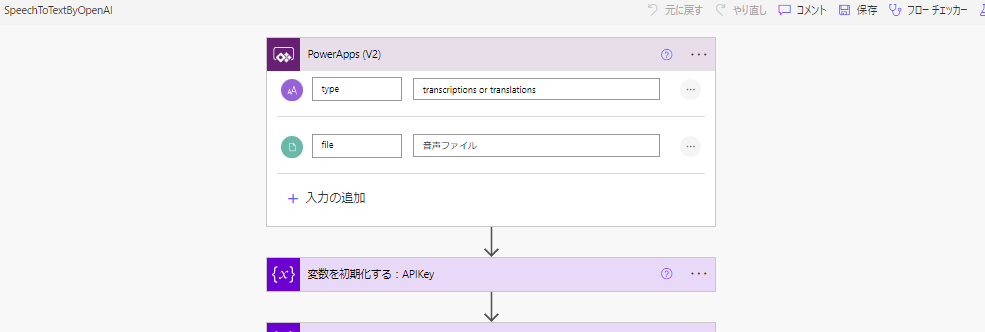
- File type argument to have “voice” from Apps.
- String type argument asking you to select “transcriptions” or “translations”.
*There are actually a few more file types that are supported, but I’ll leave it at that for now.
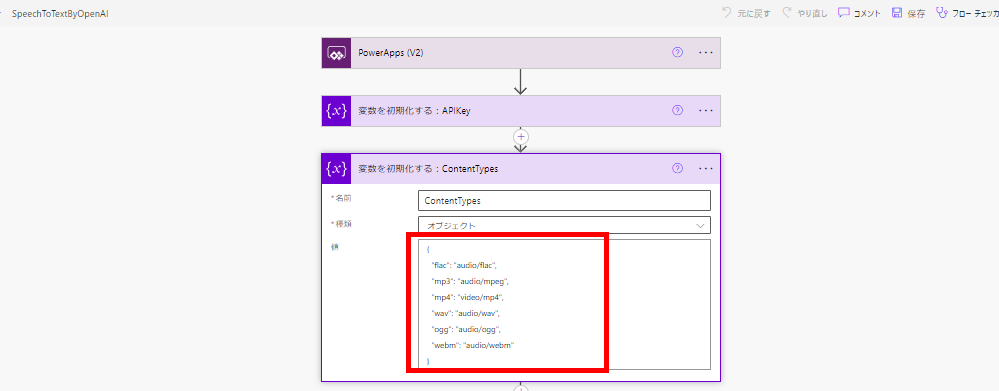
{
  "flac": "audio/flac",
  "mp3": "audio/mpeg",
  "mp4": "video/mp4",
  "wav": "audio/wav",
  "ogg": "audio/ogg",
  "webm": "audio/webm"
}
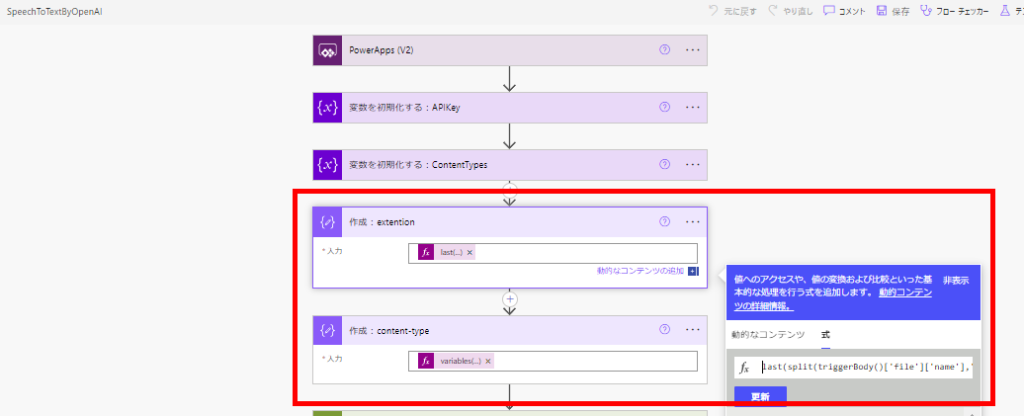
// Getting file extensions from file names
@{last(split(triggerBody()['file']['name'],'.'))}
// Get MIME type from file extension
@{variables('ContentTypes')?[outputs('作成:extention')]}
※Change the URL (transcription or English translation) to be called depending on the argument.
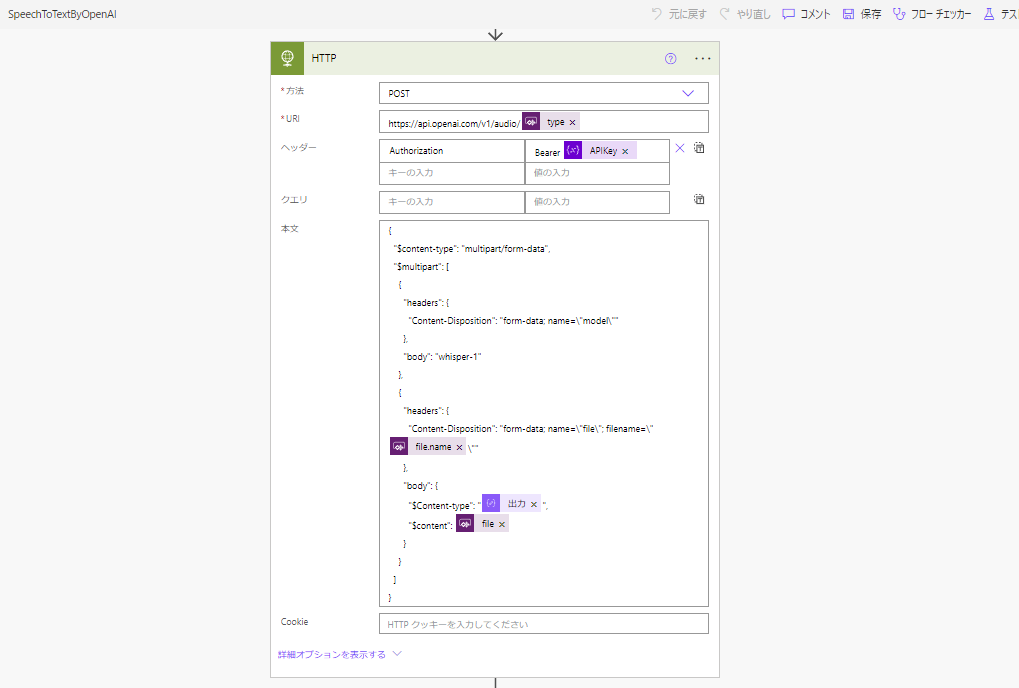
{
  "$content-type": "multipart/form-data",
  "$multipart": [
    {
      "headers": {
        "Content-Disposition": "form-data; name="model""
      },
      "body": "whisper-1"
    },
    {
      "headers": {
        "Content-Disposition": "form-data; name="file"; filename="@{triggerBody()['file']['name']}""
      },
      "body": {
        "$Content-type": "@{outputs('作成:content-type')}",
        "$content": @{triggerBody()['file']['contentBytes']}
      }
    }
  ]
}
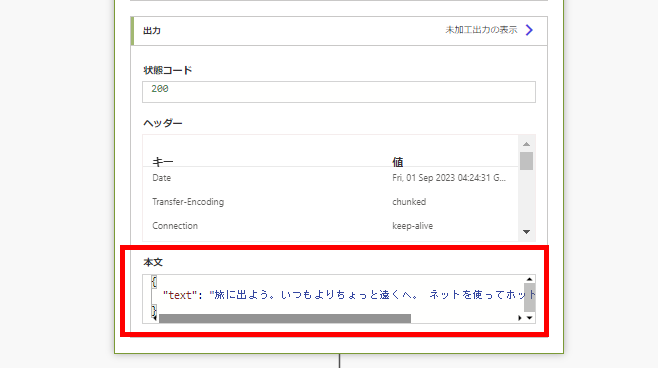
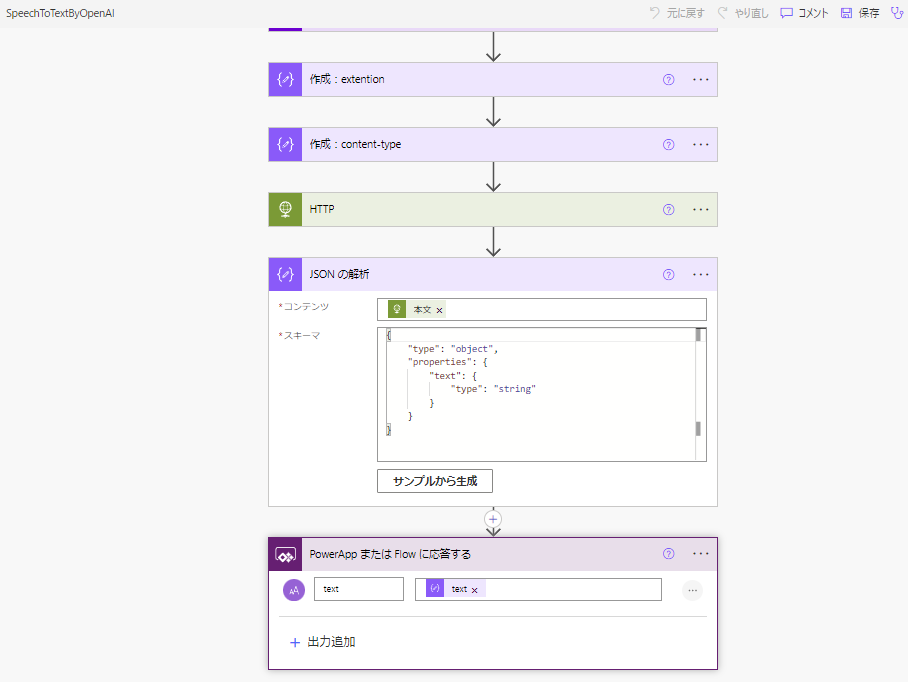
Power Automate is now complete!
Building Power Apps
Power Apps creates the following two screens
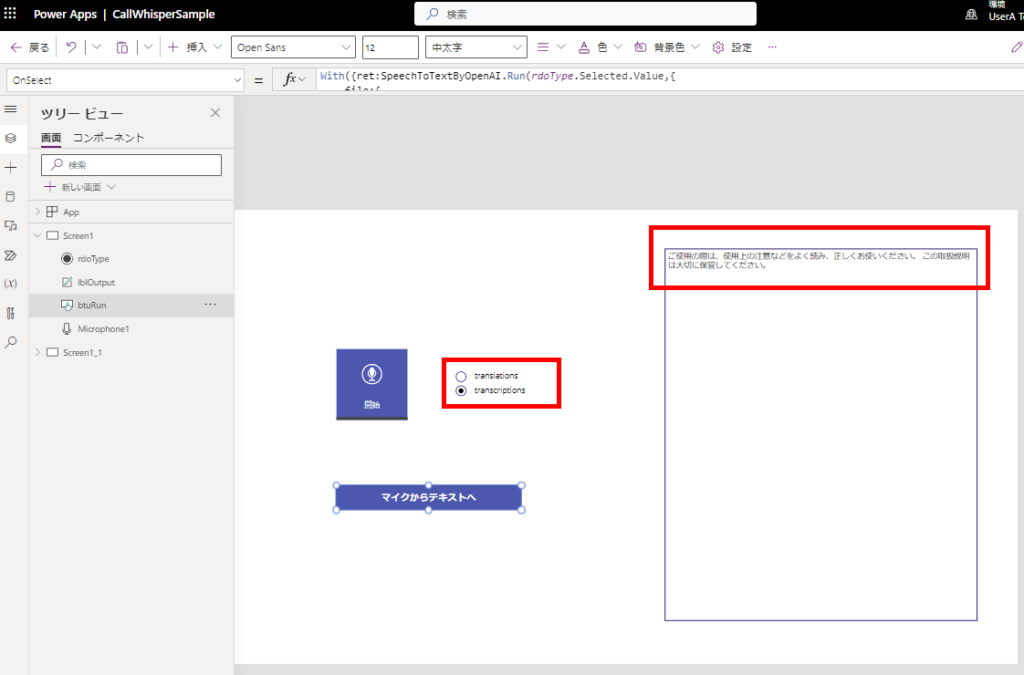
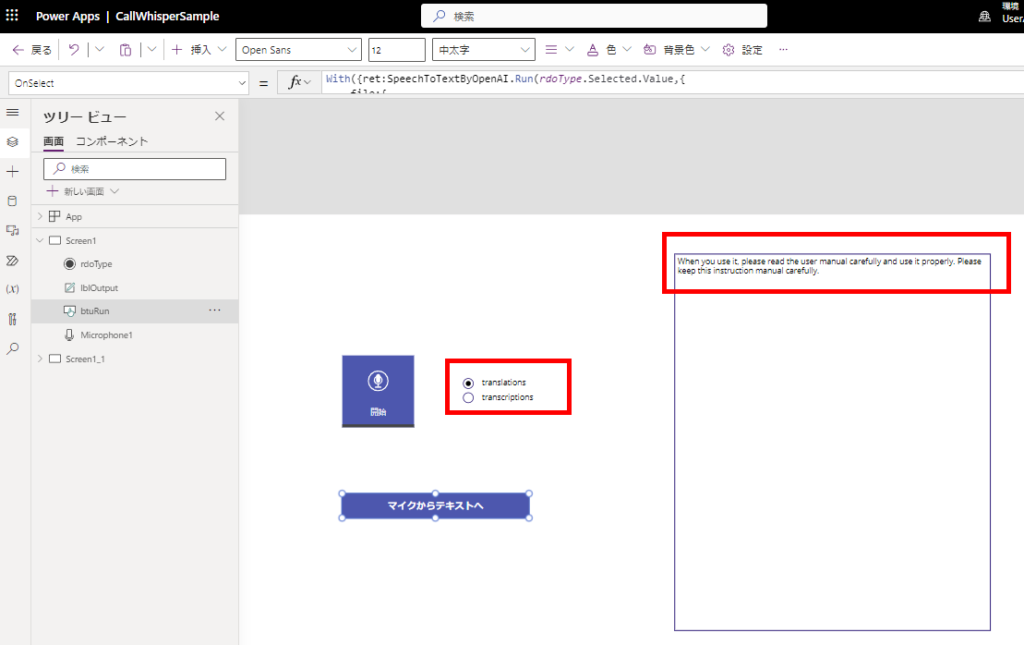
- Screen to pass audio from microphone control
- Screen to pass audio file from attachments control
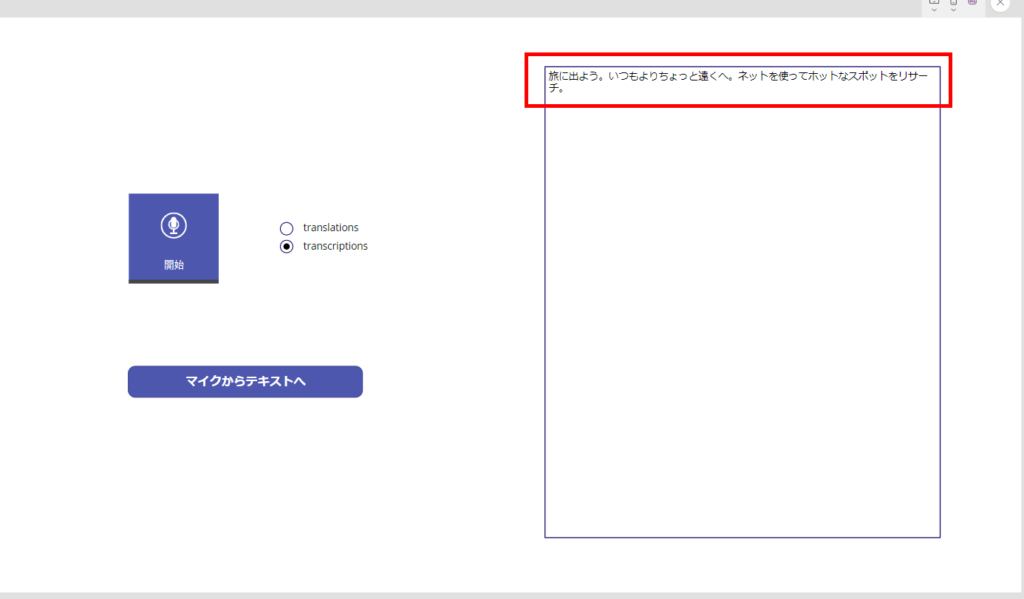
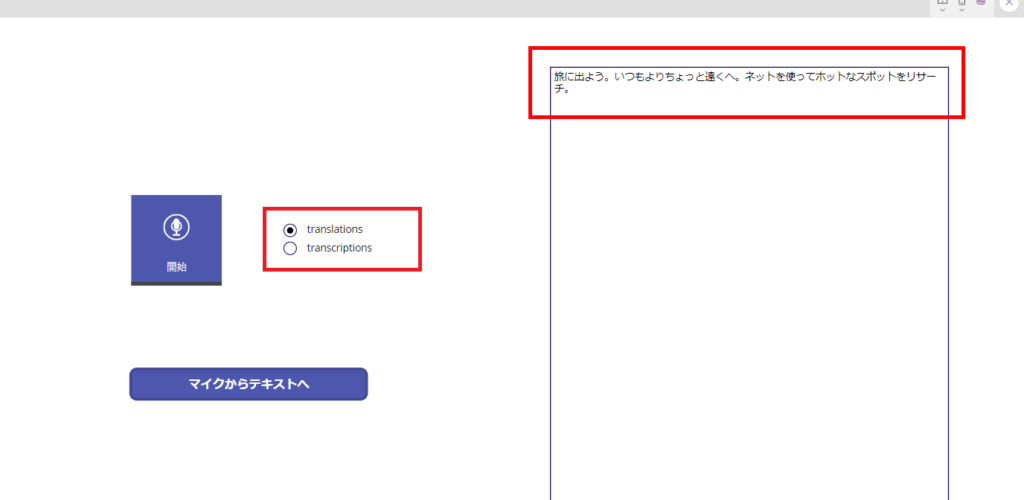
Pass audio from the microphone control
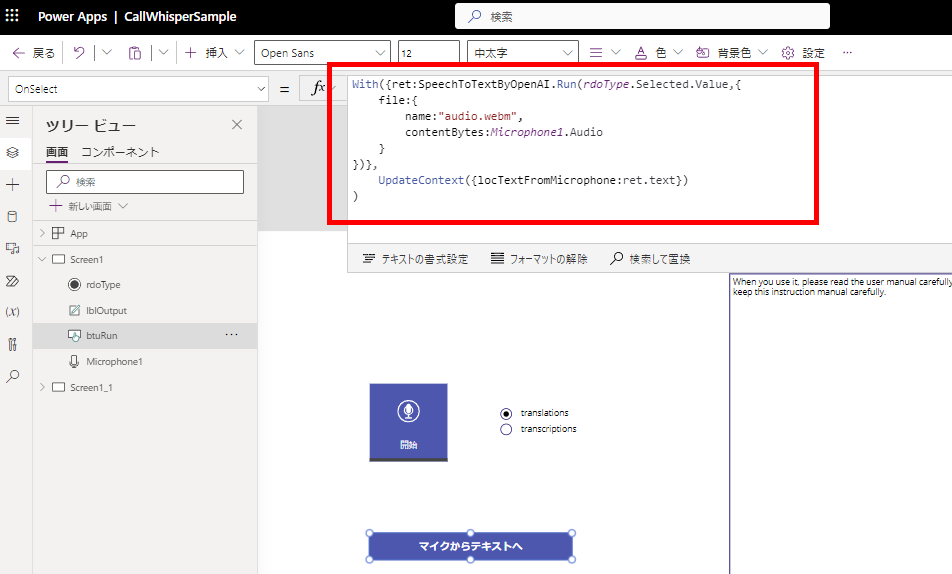
With({ret:SpeechToTextByOpenAI.Run(rdoType.Selected.Value,{
    file:{
        name:"audio.webm",
        contentBytes:Microphone1.Audio
        }
    })},
    UpdateContext({locTextFromMicrophone:ret.text})
)
Passing audio files from attachments control
※Attachment limit set to 1.
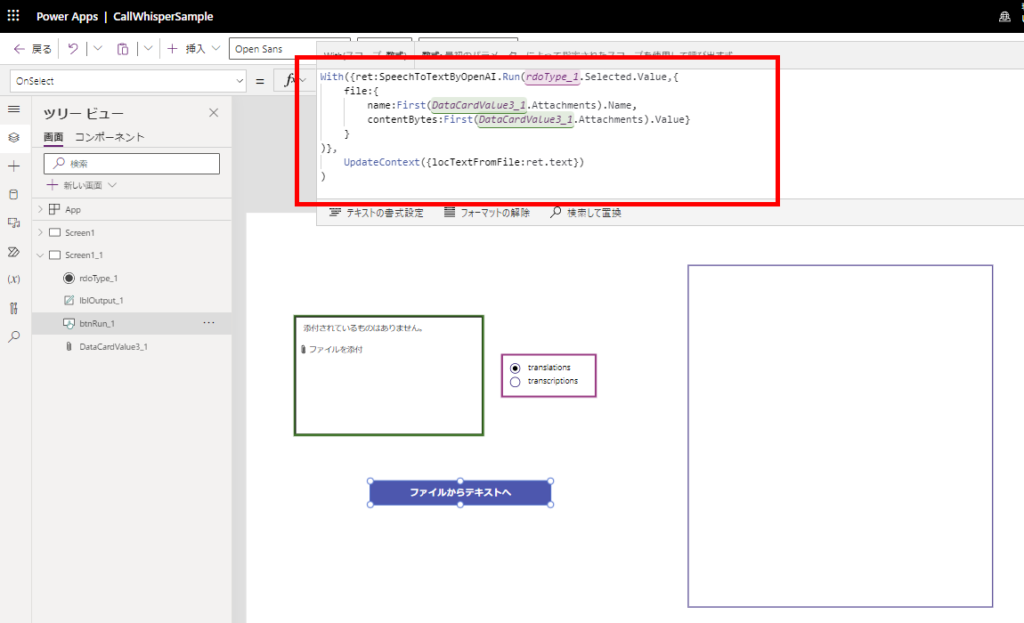
With({ret:SpeechToTextByOpenAI.Run(rdoType_1.Selected.Value,{
    file:{
        name:First(DataCardValue3_1.Attachments).Name,
        contentBytes:First(DataCardValue3_1.Attachments).Value}
    })},
    UpdateContext({locTextFromFile:ret.text})
)
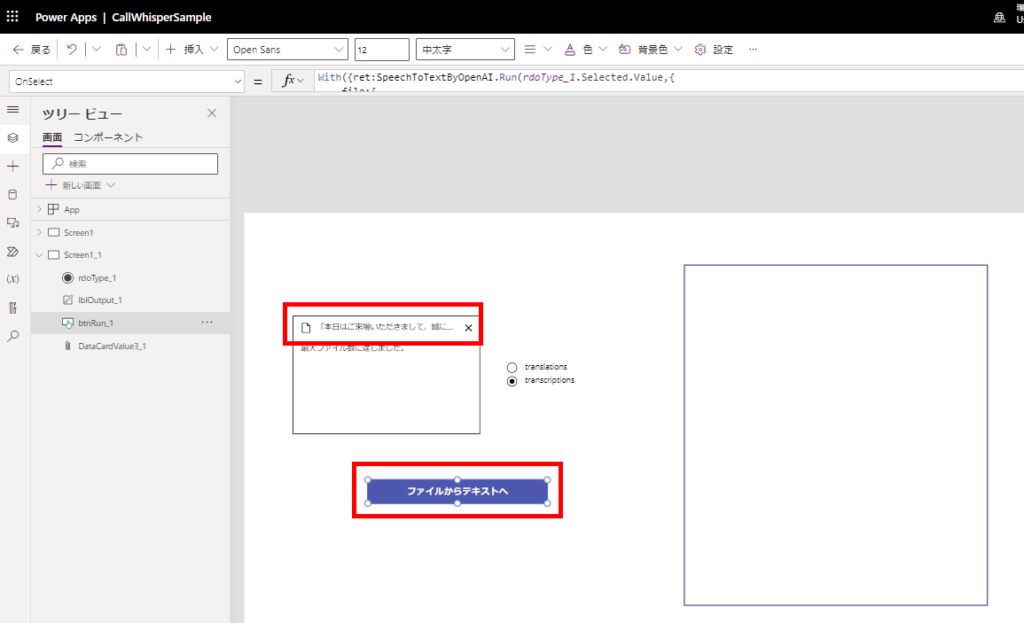
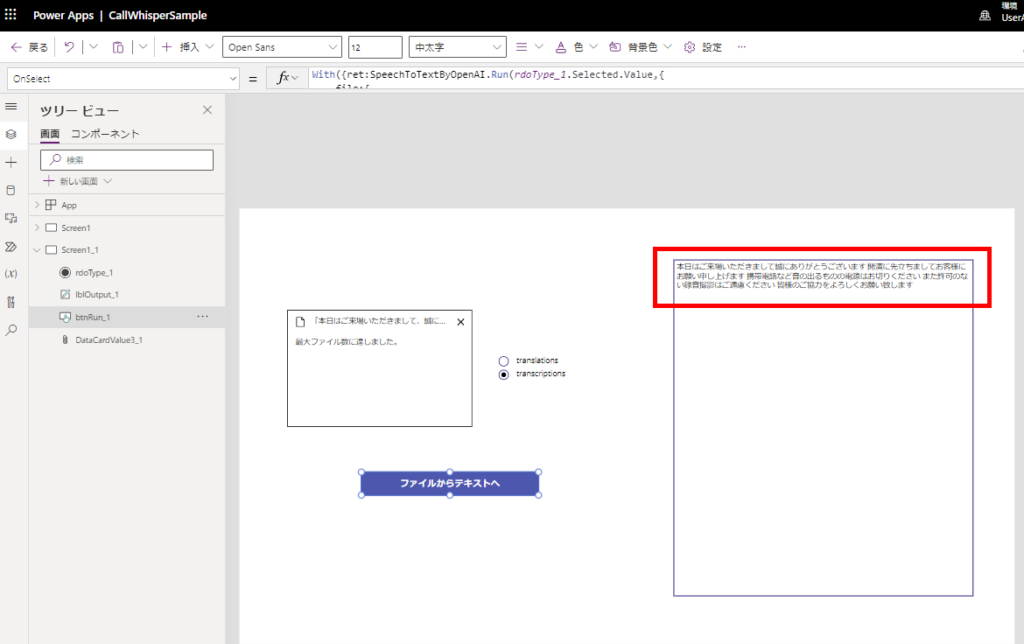
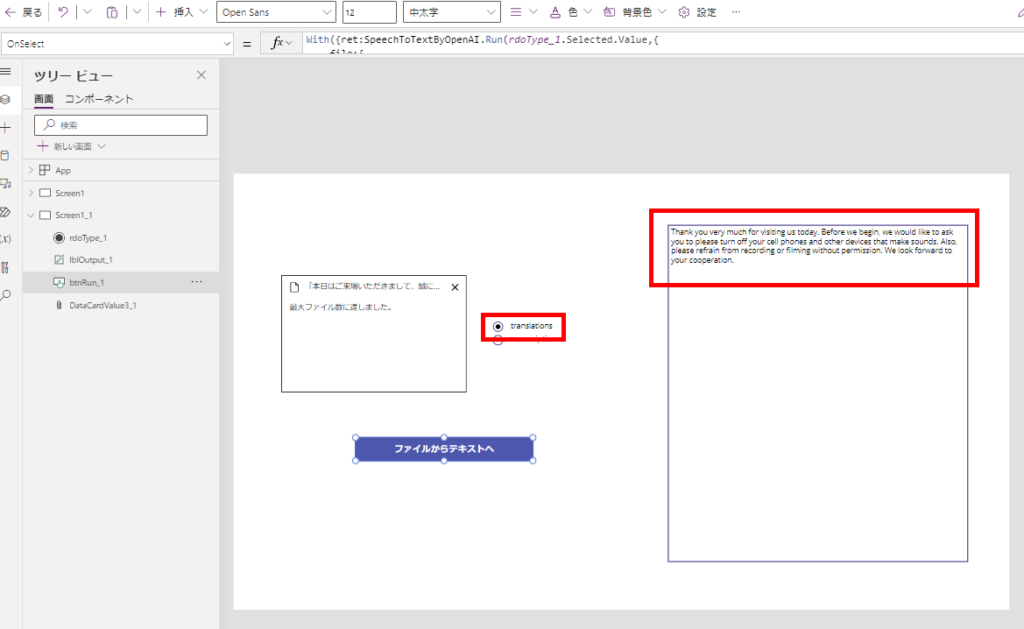
*We used the audio files from this site.
https://soundeffect-lab.info/sound/voice/info-lady1.html
Extra 1: Translation from Japanese to English often fails.
Addition 2: Brazilian language was acceptable.
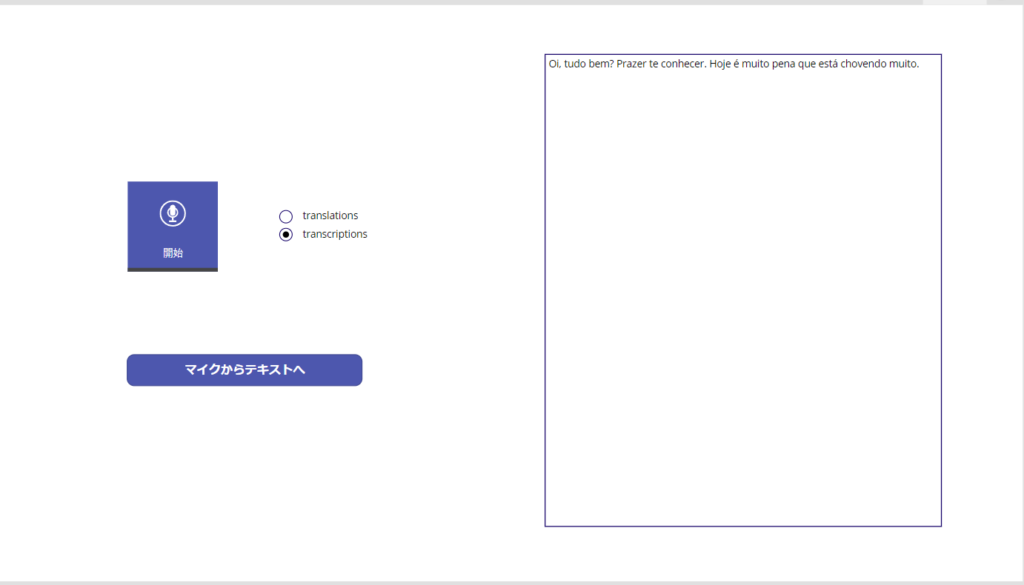
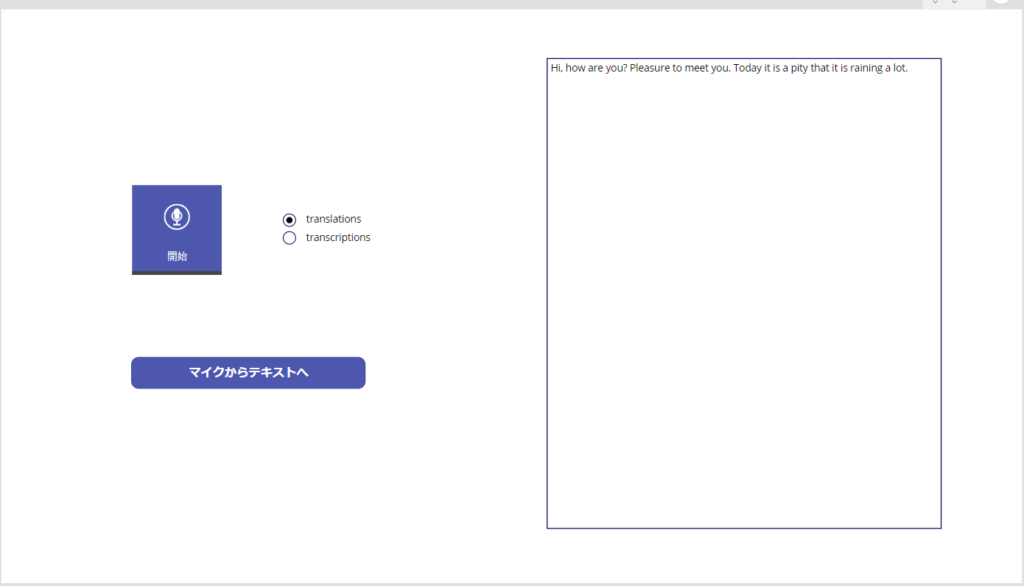
It seems that “prompt”, “temperature”, “language”, etc. can be passed as arguments to this API, so there are many more things to play with!
コメント