I recently encountered a frustrating issue where a Power Apps Gallery would stop loading items at 500 (or 2000) rows, even though no delegation warning appeared. After researching and testing, I discovered that functions like AddColumns silently break server-side paging.
The Hidden Trap: No Warning, But Limited Data
Usually, when you use a non-delegable function (like `Search` on a complex column), Power Apps displays a yellow warning triangle. However, AddColumns, DropColumns, and ShowColumns do NOT trigger this warning in many cases, leading developers to believe everything is fine.
The Experiment
I tested this with a SharePoint Online list containing 2,001 items.
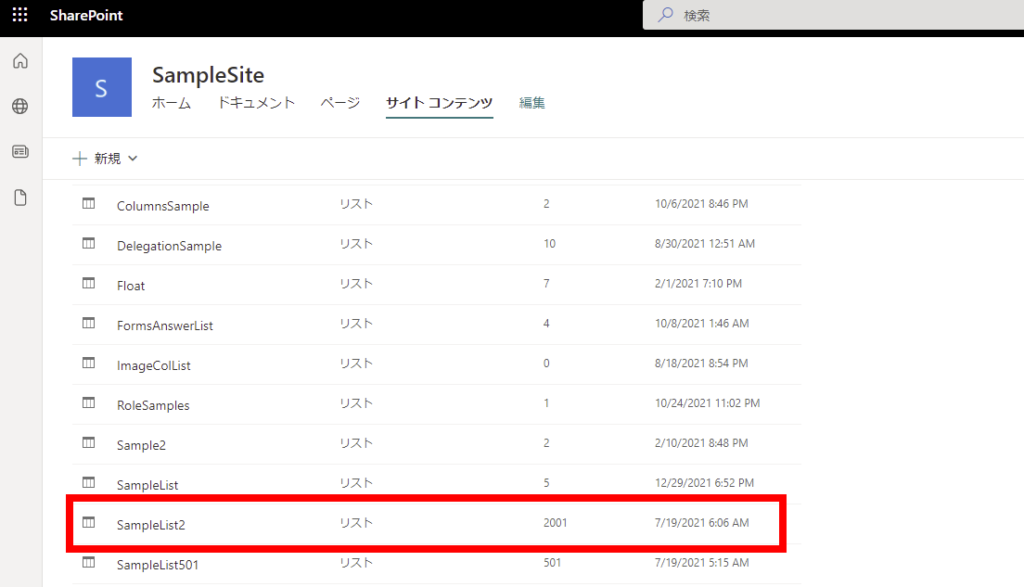
My Power Apps “Data Row Limit” setting was increased to 2000.
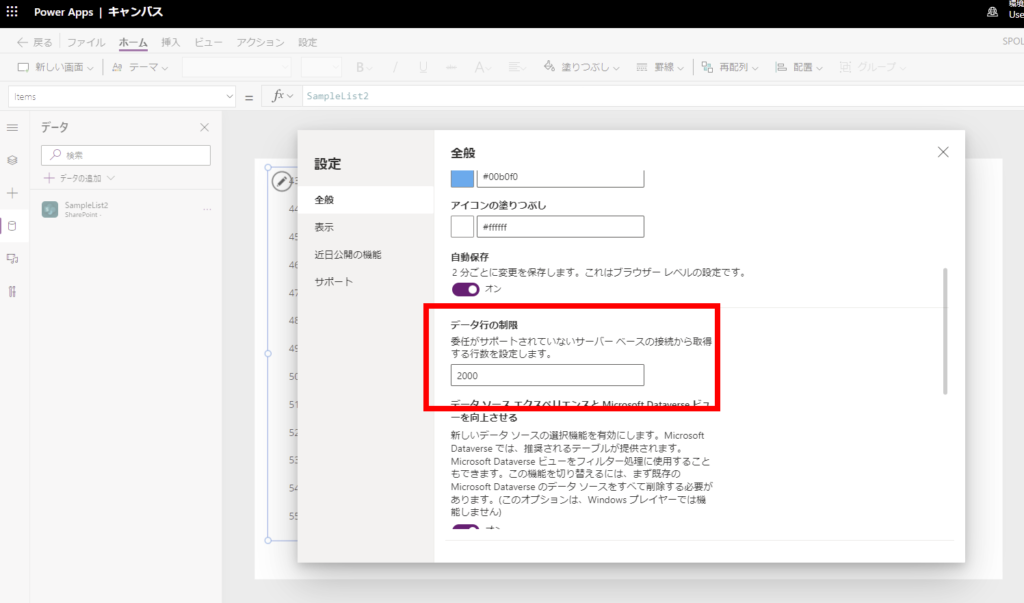
Scenario A: Standard Gallery (Works Fine)
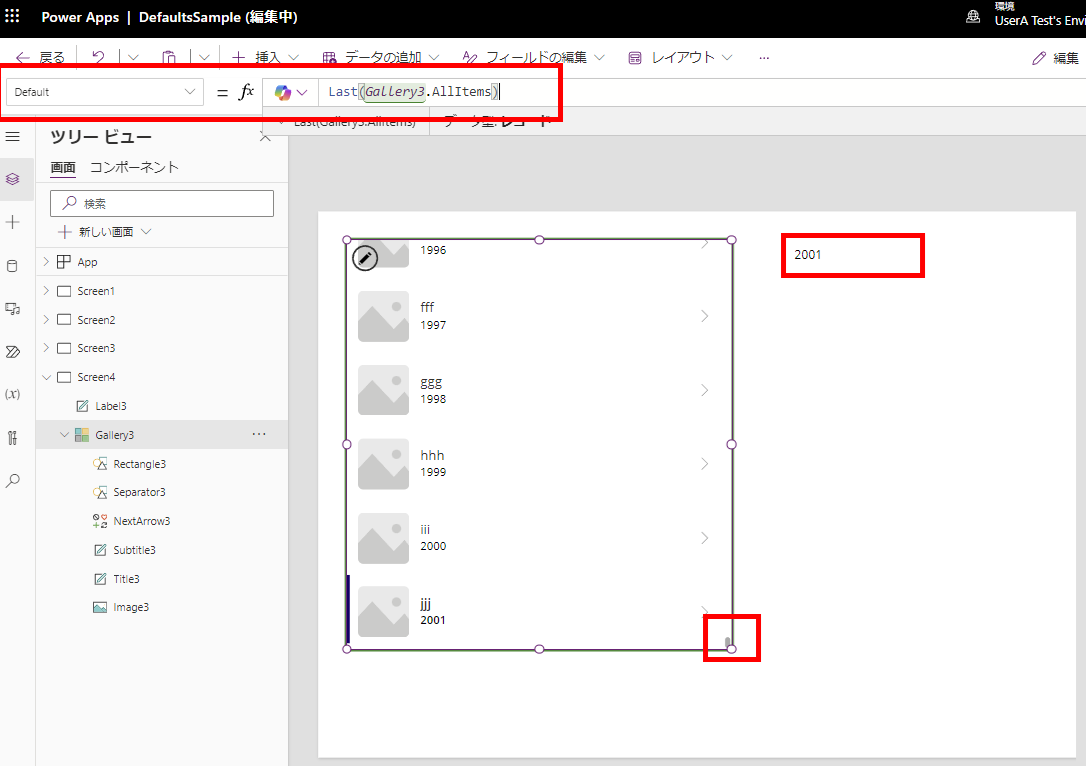
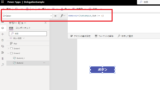
When simply connecting the list to a Gallery, standard delegation (server-side paging) works. As you scroll down, Power Apps fetches data in batches (100 items at a time), allowing you to view all 2,001 items.

Scenario B: Using AddColumns (Stops at Limit)
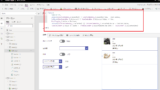
However, once I wrapped the data source with `AddColumns(…)` in the Items property, the Gallery stopped loading exactly at 2,000 items. The 2,001st item was unreachable.
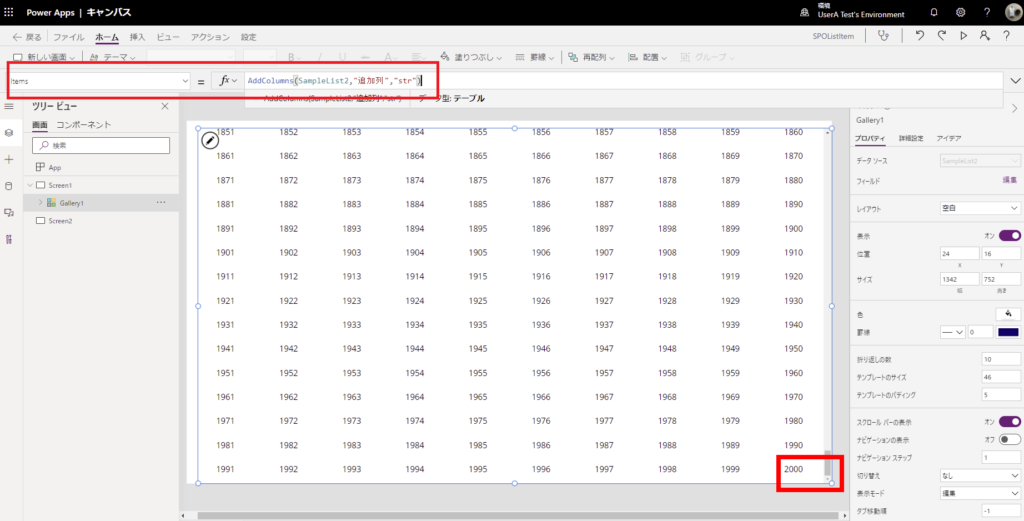
The scary part: No blue underline or yellow warning icon appeared in the editor.
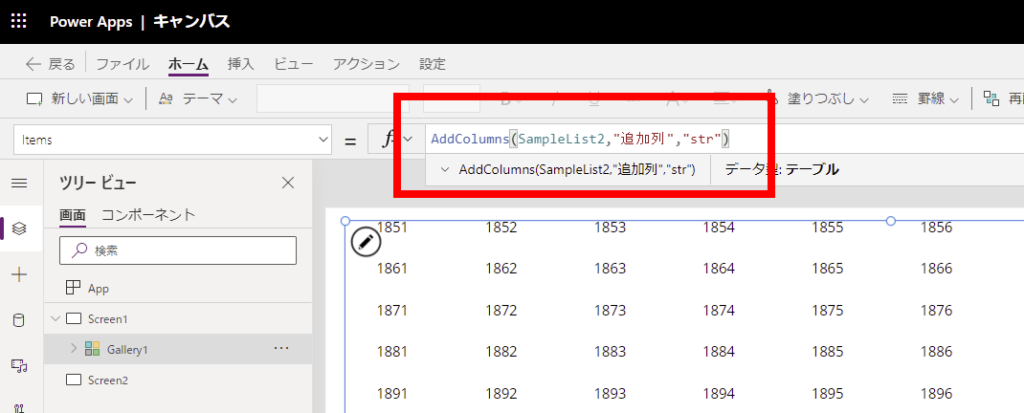
Why Does This Happen? (Table Shaping Functions)
The functions AddColumns, DropColumns, and ShowColumns are known as “Table Shaping” functions. When used on a connected data source:
- Power Apps tries to fetch the data to shape the table locally.
- It respects the Data Row Limit (500 by default, max 2000).
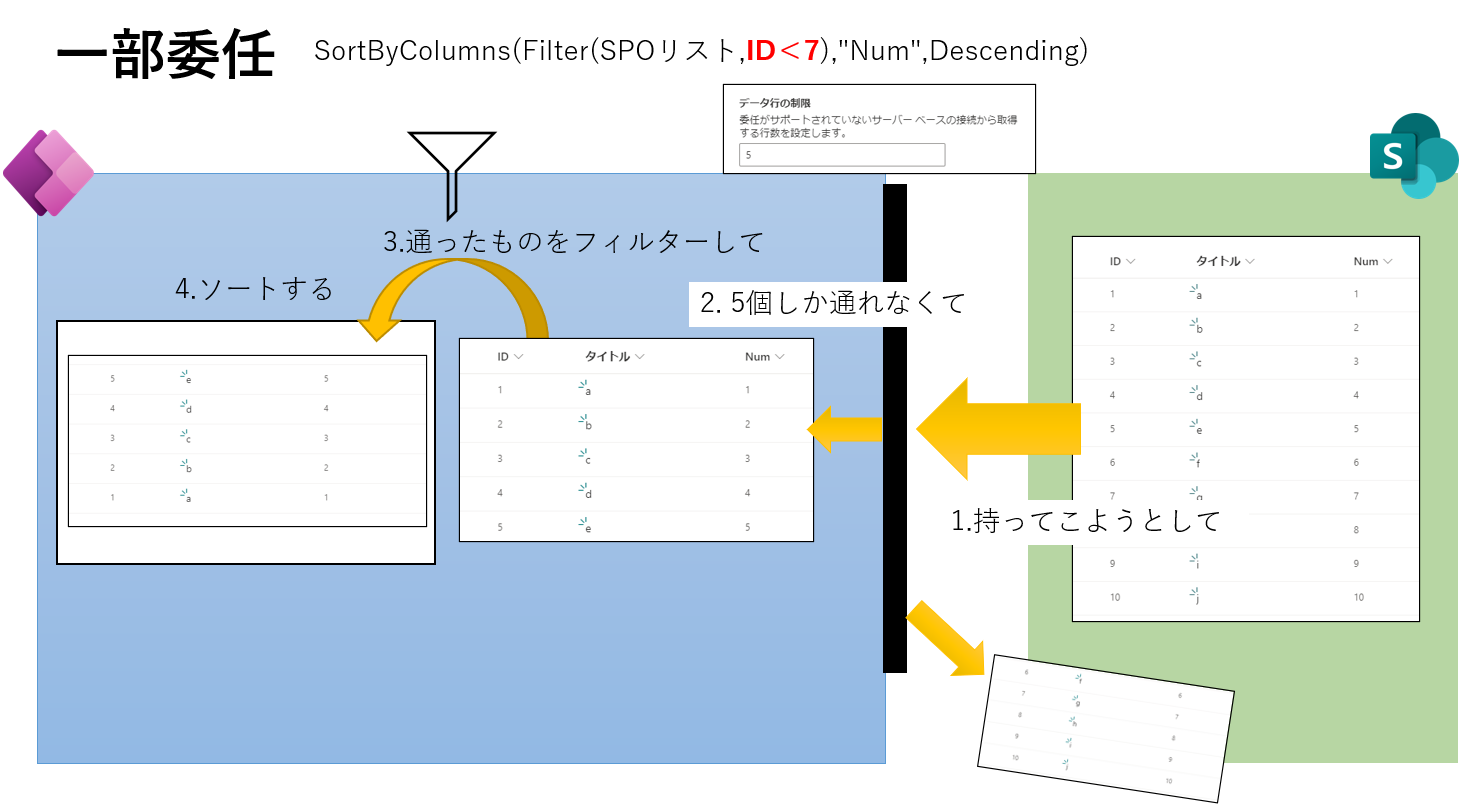
- Consequently, Server-side Paging (Infinite Scroll) is disabled because Power Apps needs to process the table structure before displaying it.
This behavior is consistent across data sources. I verified the same limitation with Dataverse.
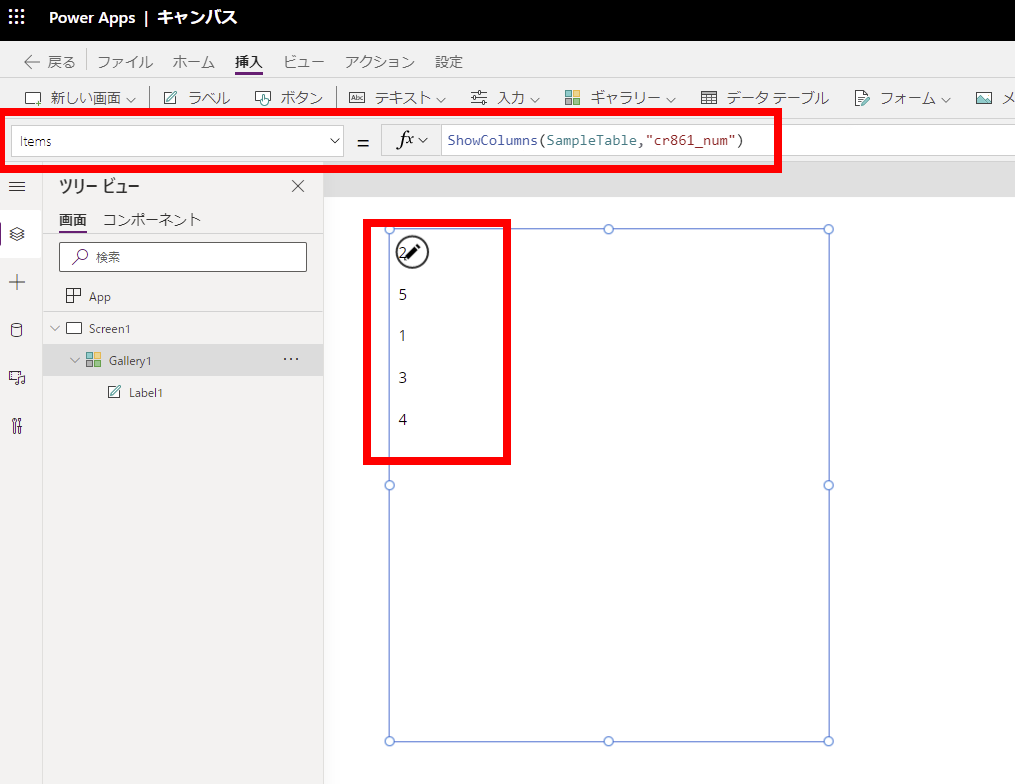
Even with Dataverse, using DropColumns or ShowColumns restricted the data retrieval to the row limit setting (e.g., 5 rows in this test).
Workarounds: How to fix it?
If you need to display more than 2,000 items but also need additional columns, consider these approaches:
1. Do calculations inside the Gallery controls
Instead of using `AddColumns` in the Items property, perform the lookup or calculation directly in the Text property of a Label inside the Gallery.
- Bad:
Items = AddColumns(SharePointList, "CityName", LookUp(...)) - Good:
Items = SharePointList
Inside Gallery Label:Text = LookUp(Cities, ID=ThisItem.CityID).Name
Note: This might cause performance issues if the lookup is heavy, but it preserves delegation/paging for the main list.
2. Create Calculated Columns in the Data Source
If possible, create the calculated column on the SharePoint or Dataverse side. This is the most performant and delegable solution.
Conclusion
Just because you don’t see a delegation warning doesn’t mean your app handles large datasets correctly. Avoid using `AddColumns`, `DropColumns`, and `ShowColumns` directly on large data sources in the Gallery Items property if you expect more than 2,000 rows.
Always test your apps with datasets larger than the 2,000-row limit to catch these hidden traps!

コメント