I made a note of this because I was asked how to change a column containing only “time” to the time on the current date when working with Excel in Power Automate.
Objective
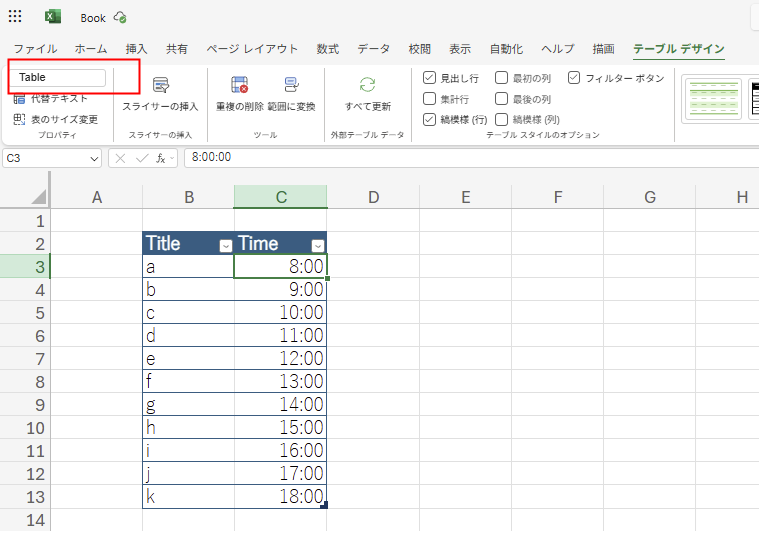
For example, if you have an Excel file like this:
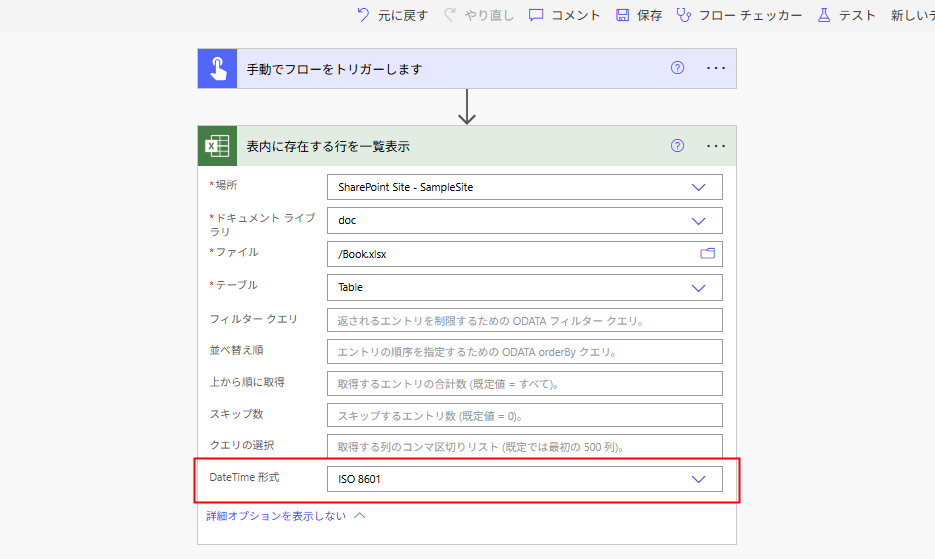
When you retrieve this with Power Automate:
The date becomes the year 1899.
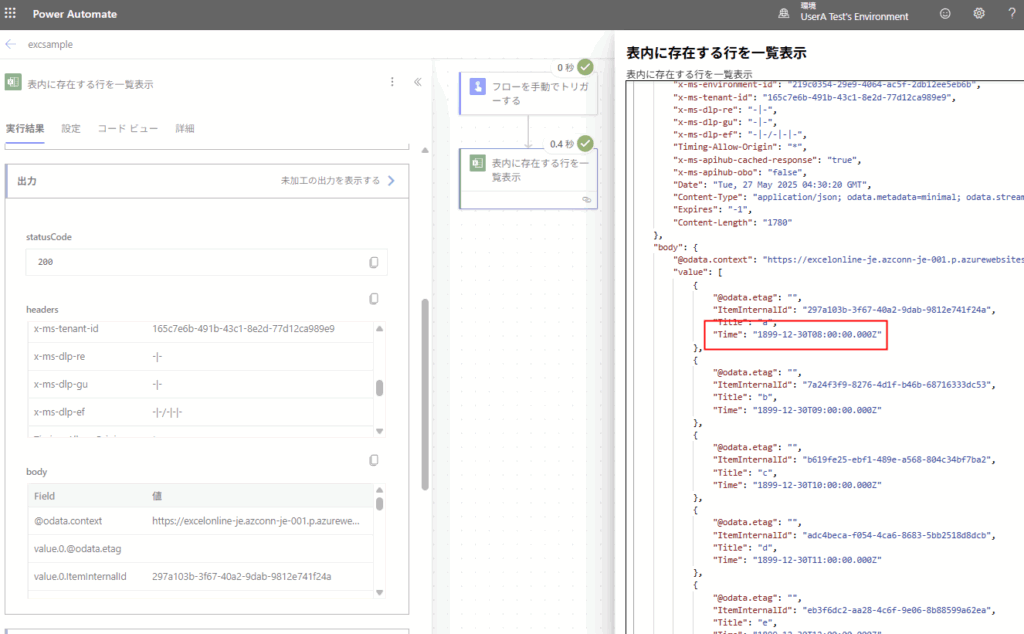
For instance, if Excel contains only “time” information, such as “I want to run a process at this time every day,” it is difficult to handle as is, so I will try converting this date to today’s date.
Method: Extract only the time with formatDateTime
First, add a Select action to transform the information in each Excel column.
In this step, use formatDateTime to extract only the time part, concatenate it with the current date and “T”, and create a timestamp for the corresponding time of the current day.
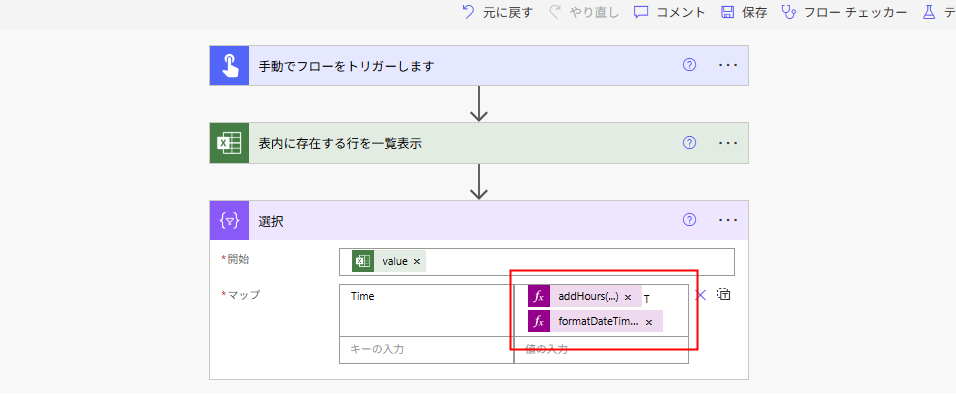
// Date part
addHours(utcNow(),9,'yyyy-MM-dd')
// Time part (Connect these two with "T")
formatDateTime(item()?['Time'],'HH:mm:ss')

// *If taking time zone into account, add "+hh:MM" to the end.
addHours(utcNow(),9,'yyyy-MM-dd') T formatDateTime(item()?['Time'],'HH:mm:ss') +09:00
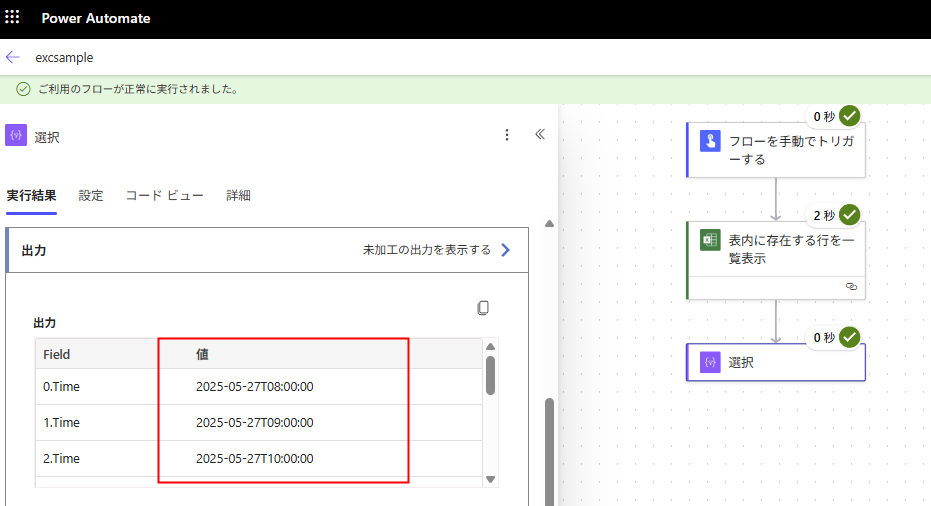
The result of the “Select” action looks like this; the time remains unchanged, but the date changes to today.
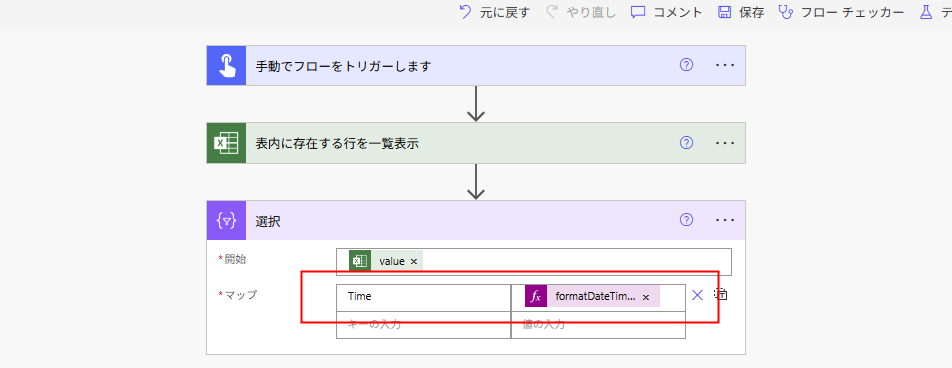
Of course, you can also combine the expressions into one as shown below.
// Date and time only
formatDateTime(item()?['Time'],concat(addHours(utcNow(),9,'yyyy-MM-ddT'),'HH:mm:ss'))

// Date and time with specified time zone
formatDateTime(item()?['Time'],concat(addHours(utcNow(),9,'yyyy-MM-ddT'),'HH:mm:ss+09:00'))
コメント