Looking to highlight negative numbers in Excel using Power Automate?
Standard Power Automate actions can’t change font colors, but Office Scripts can. This post shares a simple script to automatically format negative numbers in red—a perfect solution for financial reports or data validation.
The Goal
For example, let’s say you have a script that “receives an integer array and outputs it to Excel sequentially,” as shown in the image below.
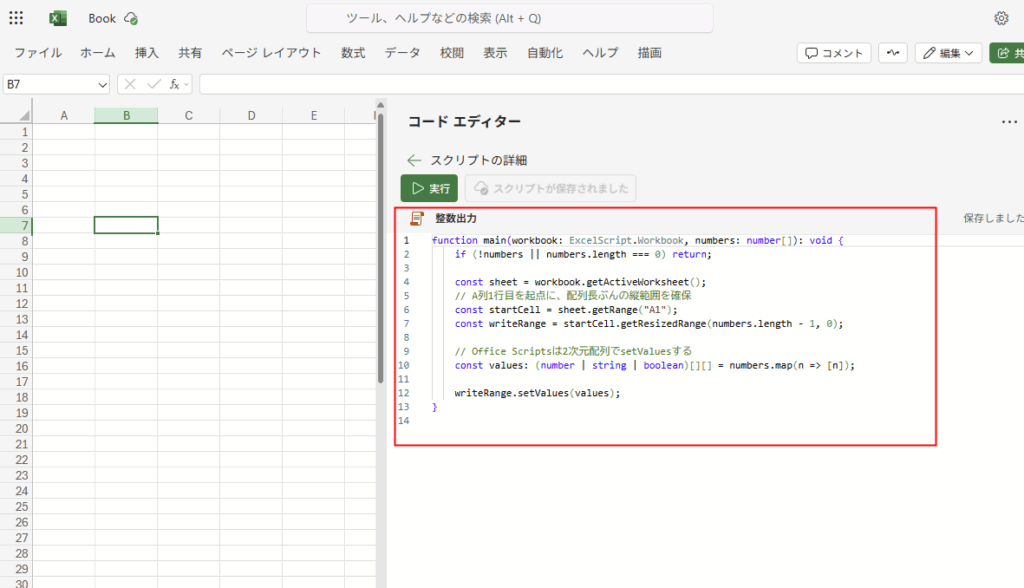
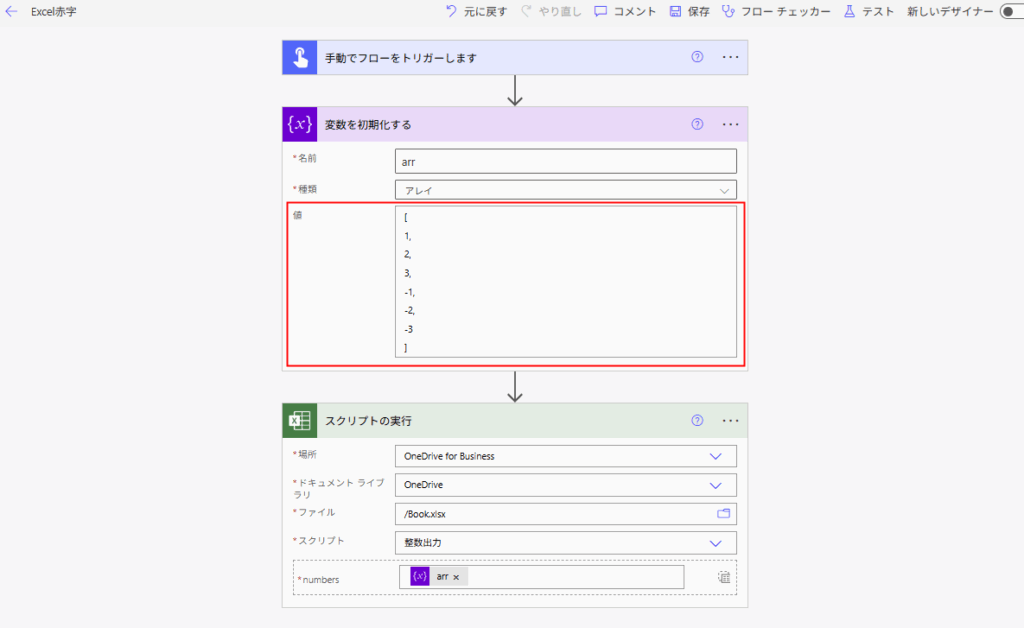
When you call this from Power Automate:
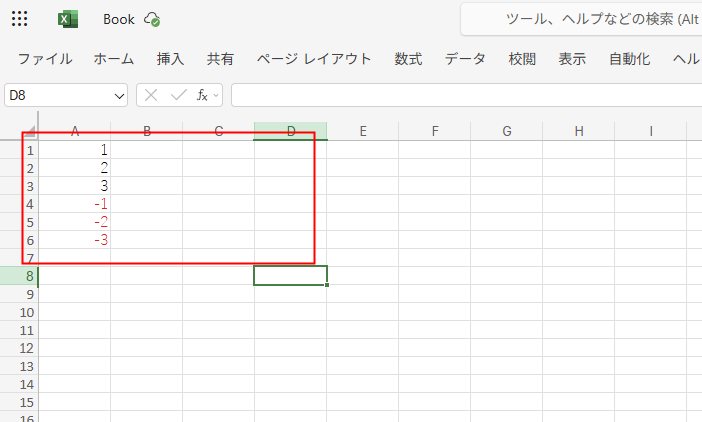
The integers are output to Excel like this:
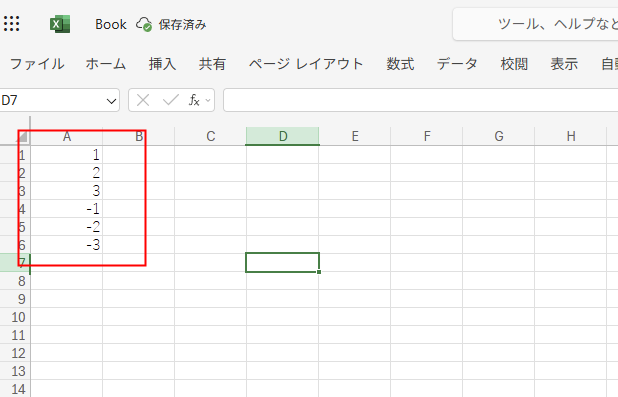
In this post, I will try to specify the font color for these numbers: “Red for negative, Black for positive“.
Method: Use the setNumberFormat function
To specify Excel formats from Office Scripts, use the setNumberFormat function.
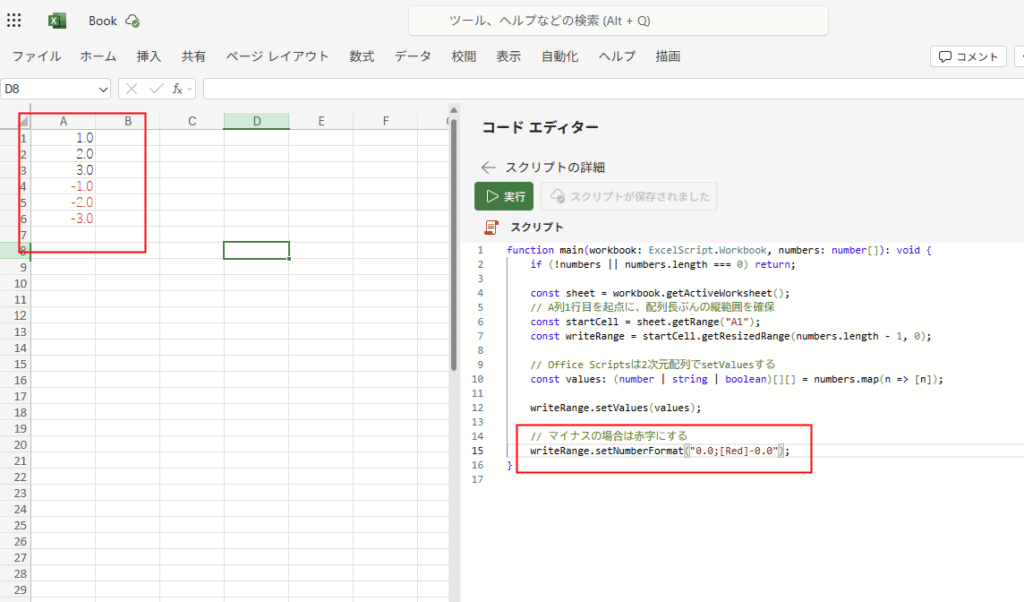
To specify “make it red if negative,” simply apply the format to the output cell range as shown in the image:
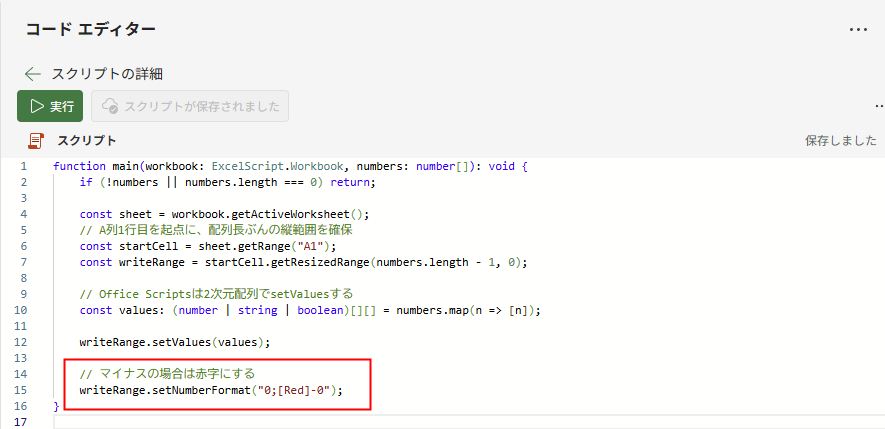
Negative numbers will now appear in red font.
Besides changing font colors, you can also control decimal display by specifying formats like “0.0”, allowing for various detailed manipulations.
function main(workbook: ExcelScript.Workbook, numbers: number[]): void {
    if (!numbers || numbers.length === 0) return;

    const sheet = workbook.getActiveWorksheet();
    // Define the vertical range starting from A1 based on the array length
    const startCell = sheet.getRange("A1");
    const writeRange = startCell.getResizedRange(numbers.length - 1, 0);

    // Office Scripts uses a 2D array for setValues
    const values: (number | string | boolean)[][] = numbers.map(n => [n]);

    writeRange.setValues(values);

    // Turn negative numbers red
    writeRange.setNumberFormat("0;[Red]-0");
}
コメント