How to Use SharePoint Knowledge Base in Copilot Studio for RAG Implementation
2025.02.15
Note regarding screenshots:
The screenshots in this article are from the Japanese version of Copilot Studio. However, the icons and layout are identical to the English version. Please refer to the captions below each image for the corresponding English menu names.
As I begin learning about Copilot Studio, I’m documenting my findings.
In this article, I’ll explain how to generate responses using RAG by accessing SharePoint knowledge directly from topics.
Previous Implementation Using “Conversational Boosting” Topic
In my previous article, I demonstrated accessing SharePoint knowledge using “Conversational boosting” and “orchestration.”
While this approach works well for simple agents, it becomes limiting when dealing with multiple knowledge sources, especially when you need to selectively use specific knowledge bases for particular types of questions while excluding others.
For such scenarios, we can achieve better control by using “Topics” combined with “generative responses.”
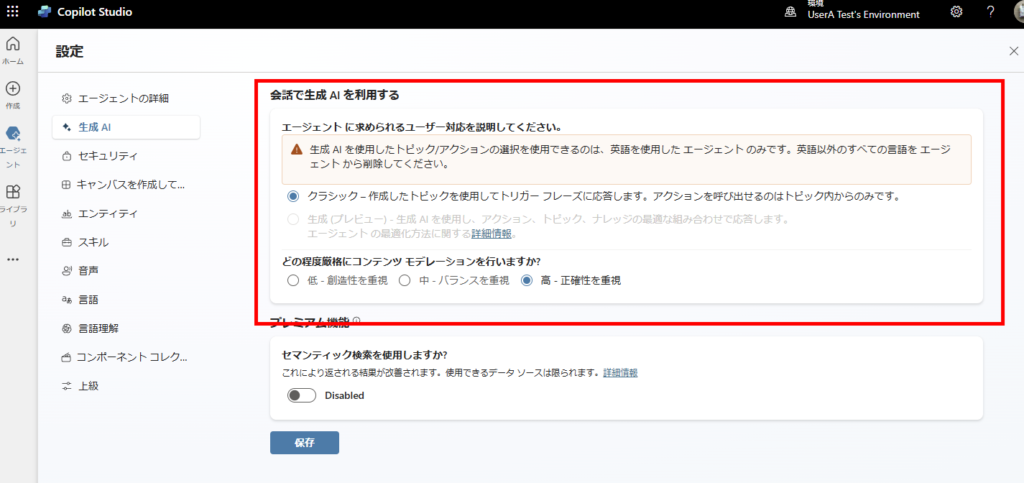
We’ll start with an agent that has the “Use AI in conversation” setting turned off.
Note: In the agent settings (under the Generative AI tab), ensure that “Use AI in conversation” is turned Off. We will configure this manually in the topic.
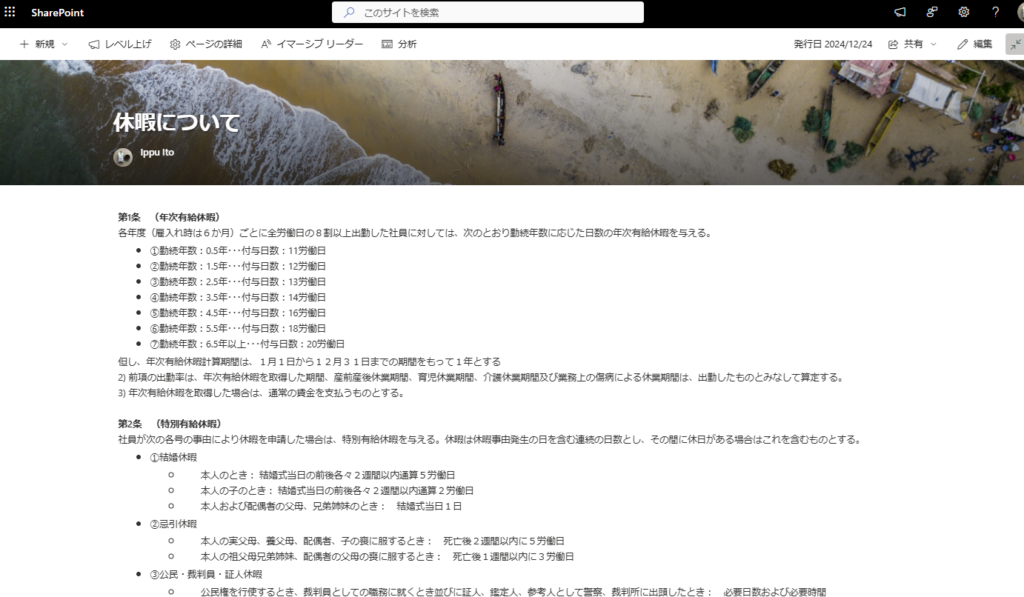
We’ll create a sample implementation using this SharePoint site, where the agent will exclusively use this knowledge base when responding to vacation-related queries.
Implementation
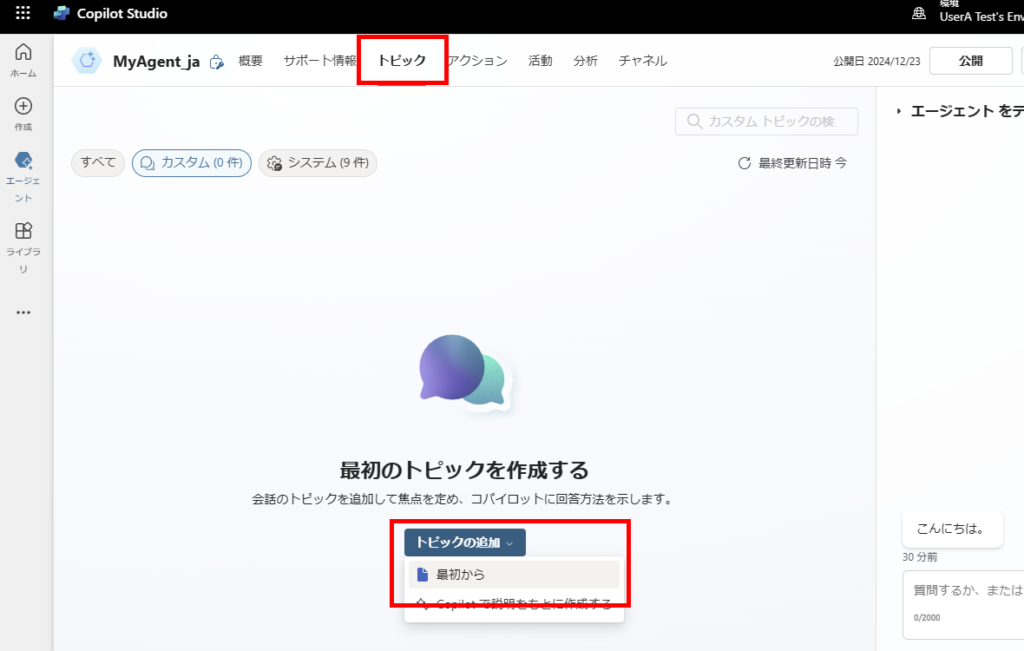
First, select [Add topic] from [Topics],
Navigate to Topics and select Add a topic > From blank.
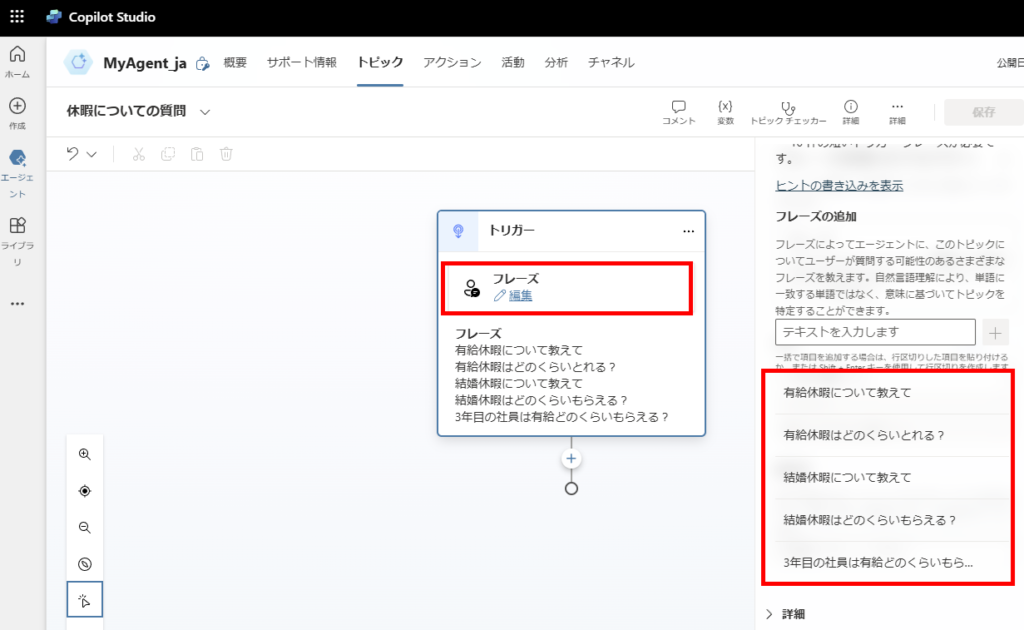
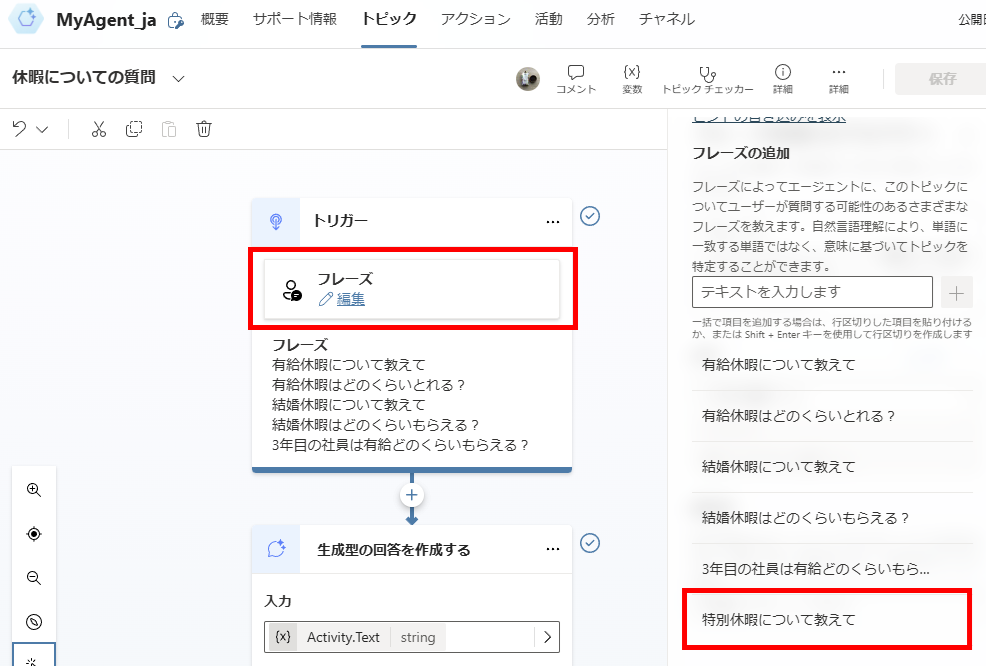
Configure vacation-related trigger phrases (these are simplified examples for this demonstration).
For best practices on setting appropriate trigger phrases, refer to:
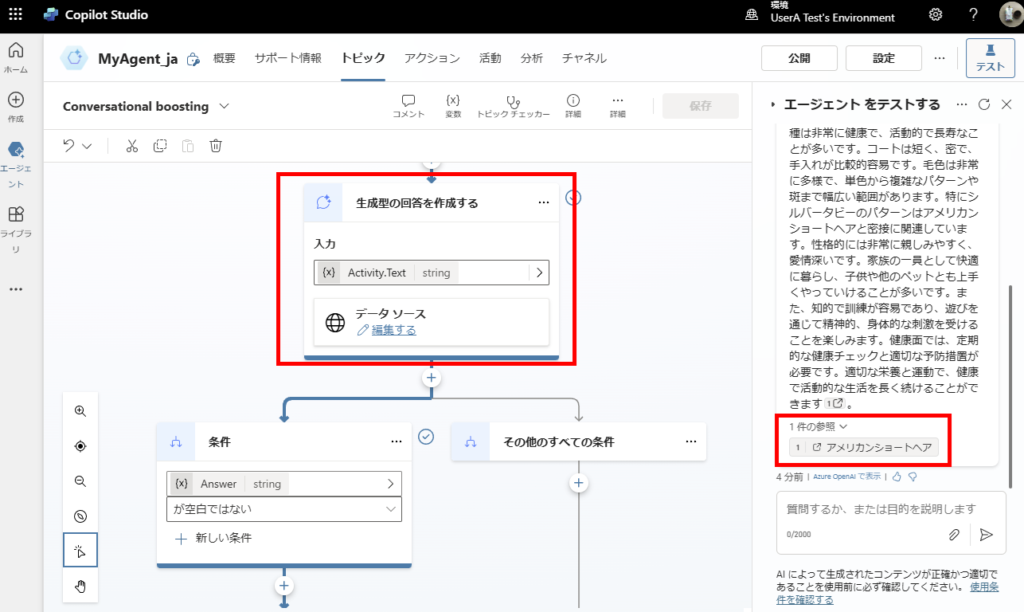
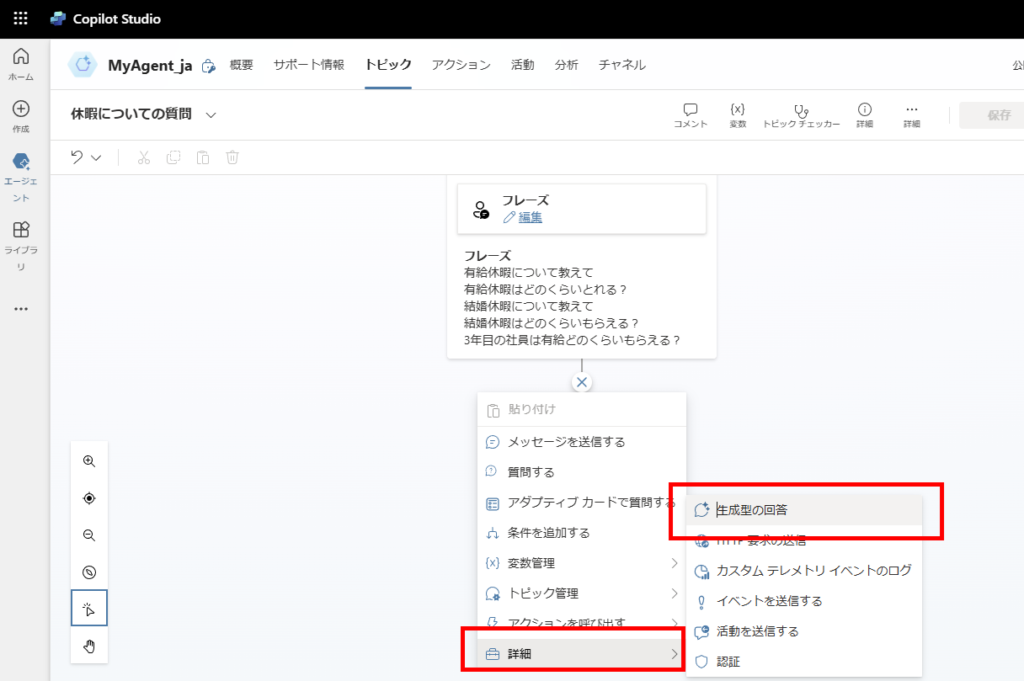
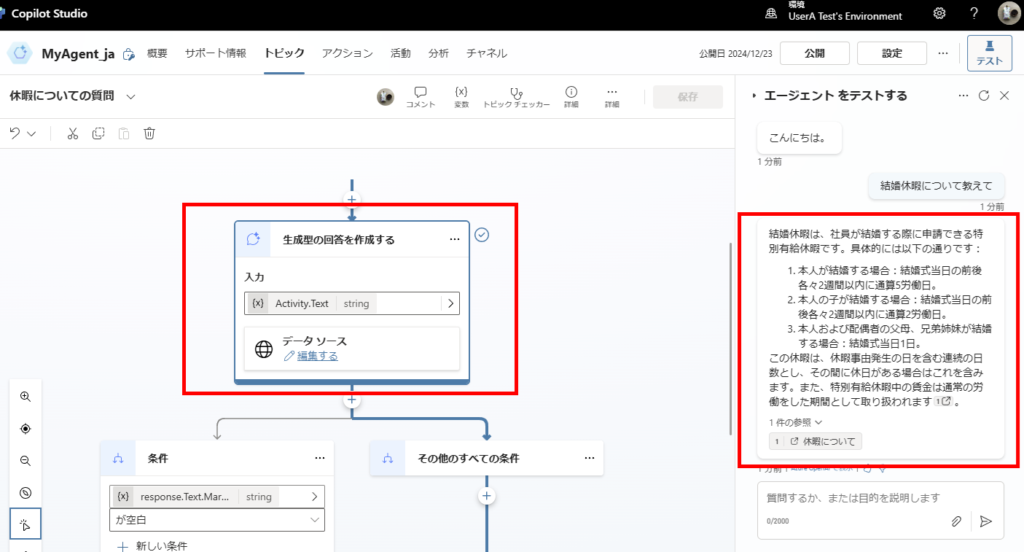
Next, add a [Generative response] from [Advanced],
Step: Click the + icon to add a node. Select Advanced > Create generative answers.
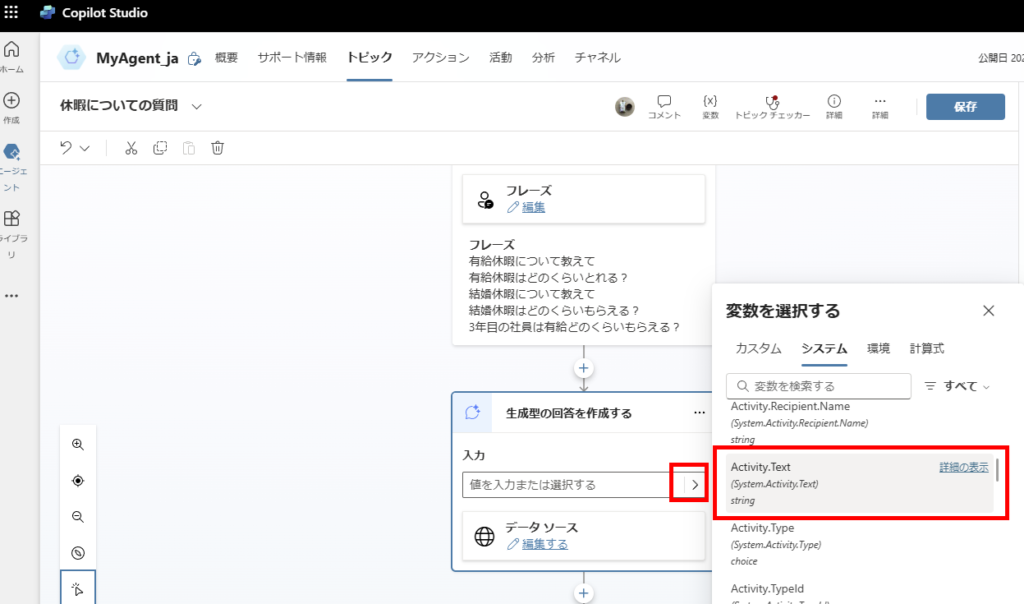
Set the system variable “Activity.Text” (the user’s last sent message) as input.
Step: In the Input field, select the system variable Activity.Text to pass the user’s latest message to the node.
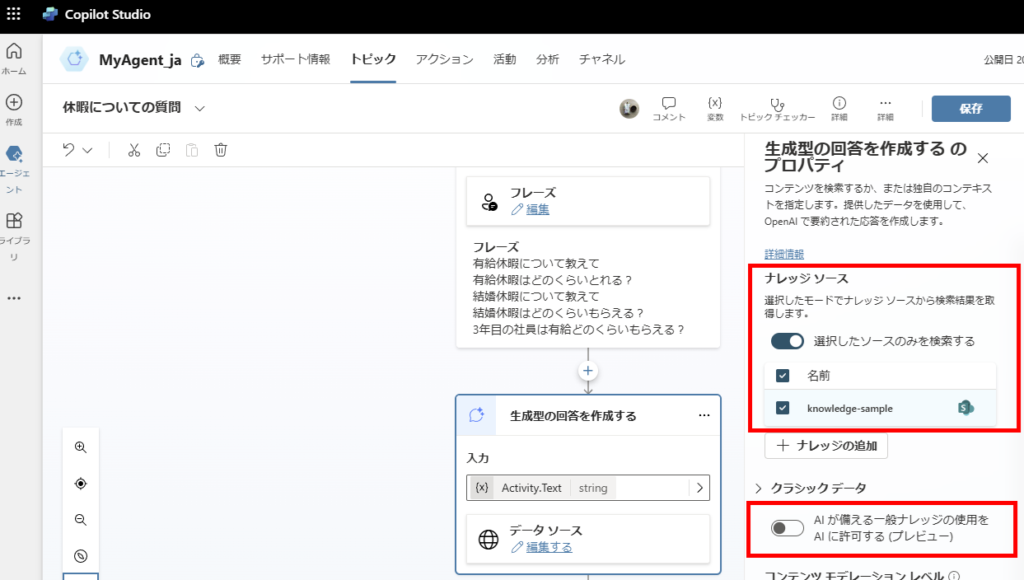
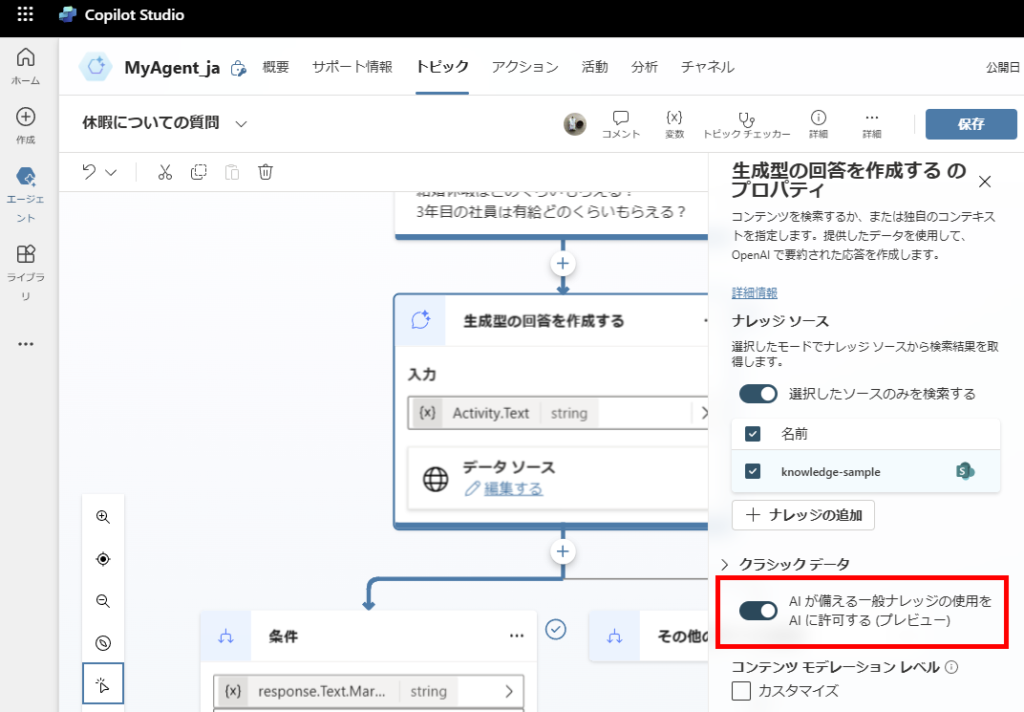
In [Properties], check [Search only selected sources] and turn OFF [Use AI’s general knowledge].
Note: This prevents the AI from retrieving information from unspecified knowledge bases or using its own knowledge (differences in behavior are detailed in the bonus section).
Important: In the node properties:
1. Check “Search only selected sources”.
2. Uncheck “Allow the AI to use its own general knowledge”.
This ensures the bot only answers based on the specific SharePoint site you define.
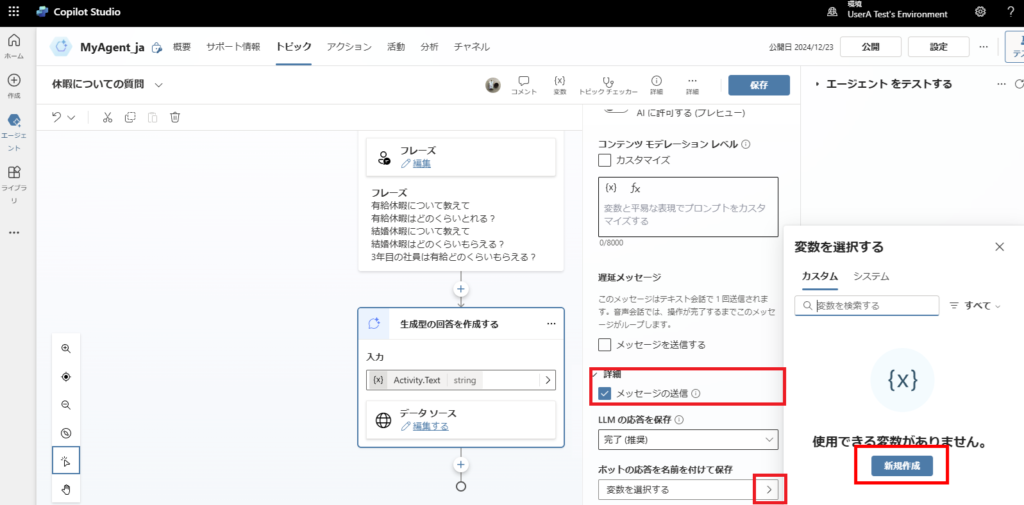
Scroll down to turn ON [Send message] (this node will handle user responses), select [Create new] from [Save response],
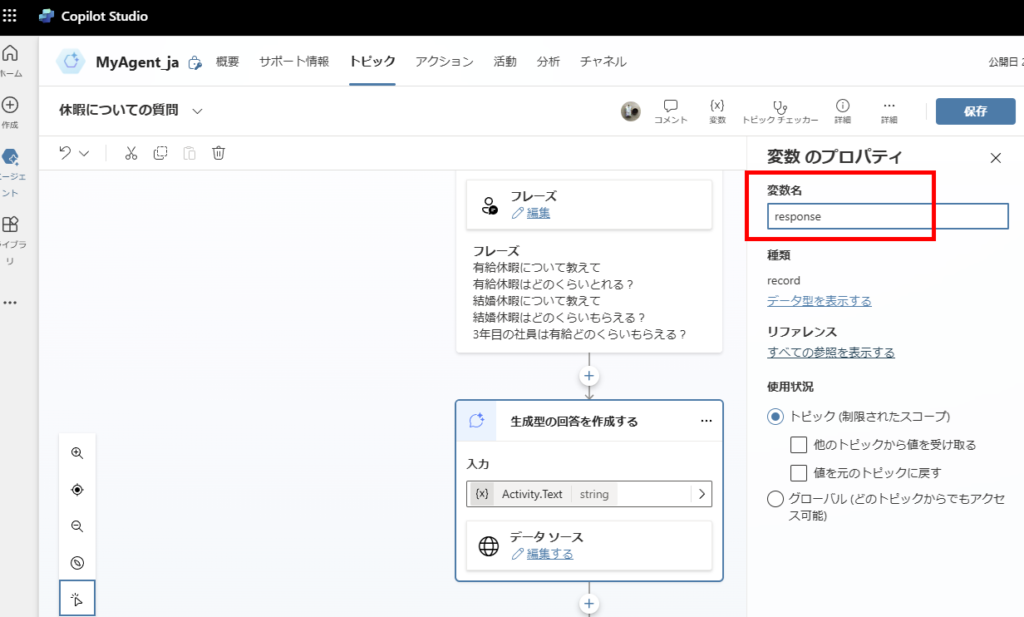
Save the generative response output to a variable (in this case, “response”).
Step: Under Save response, create a new variable (e.g., TopicResponse) to store the generated answer.
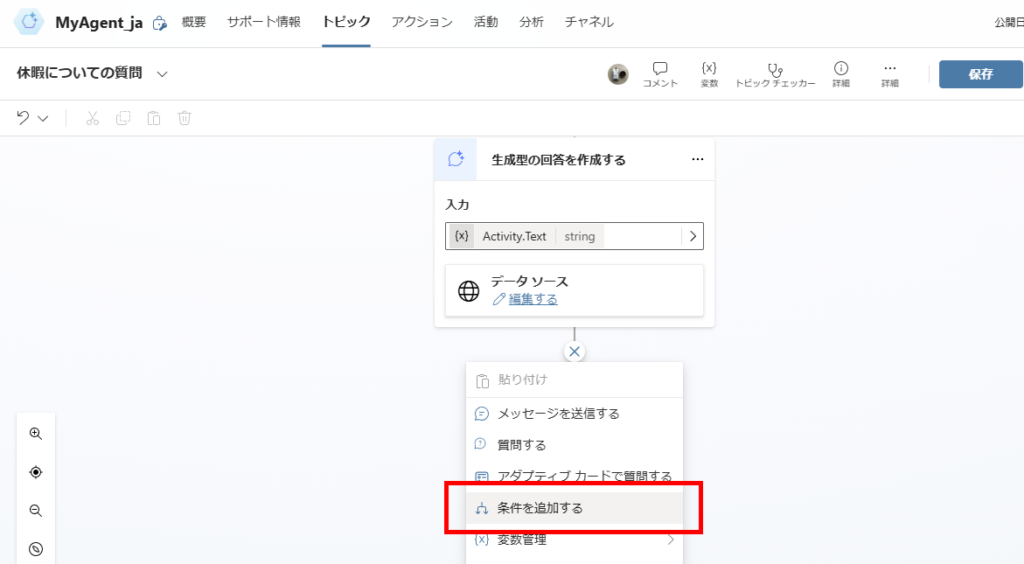
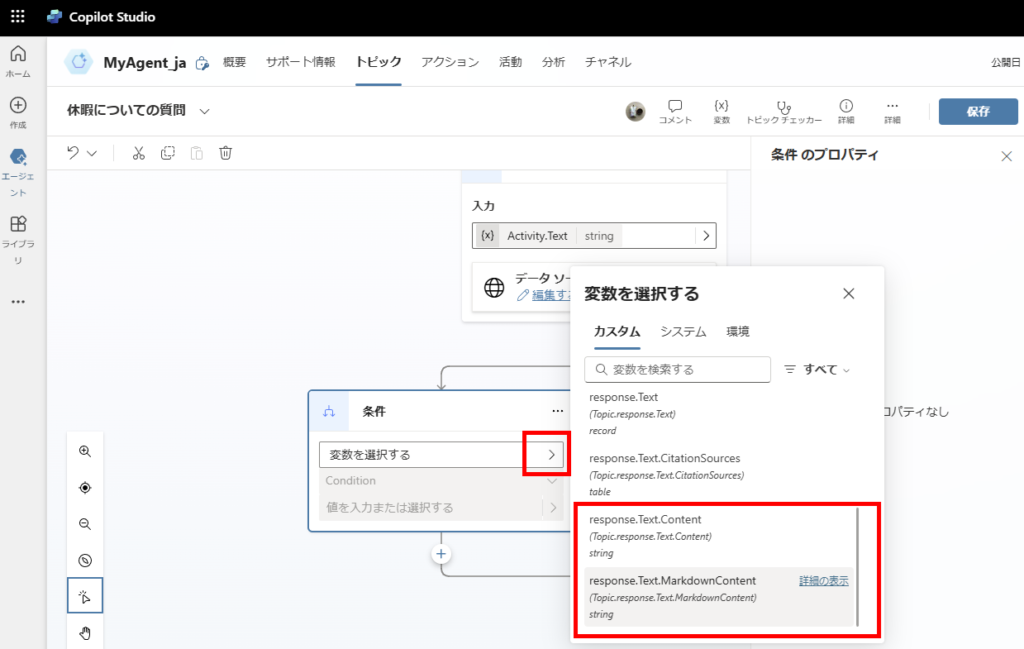
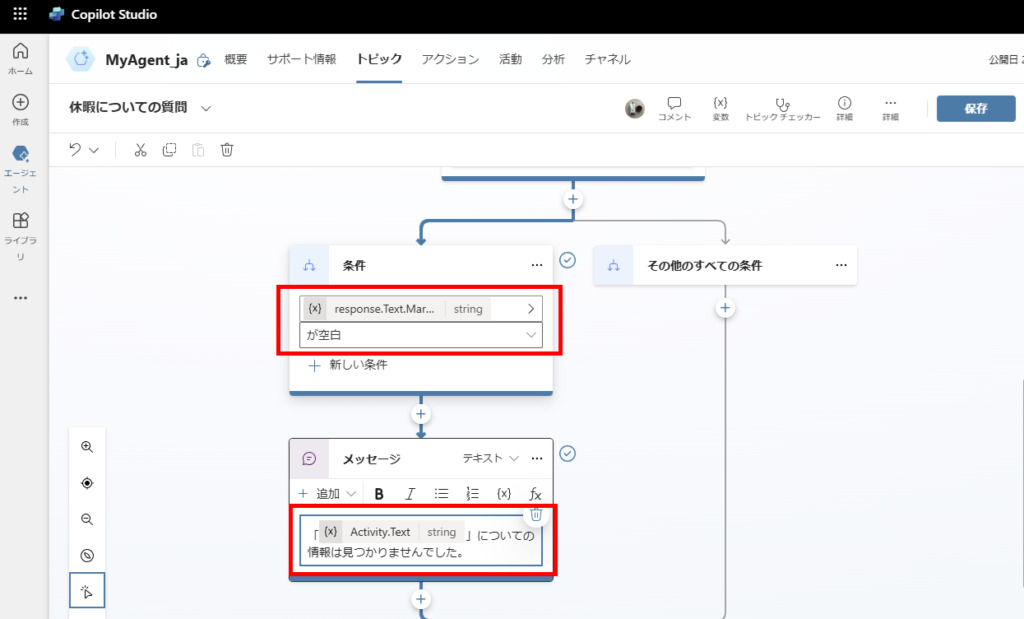
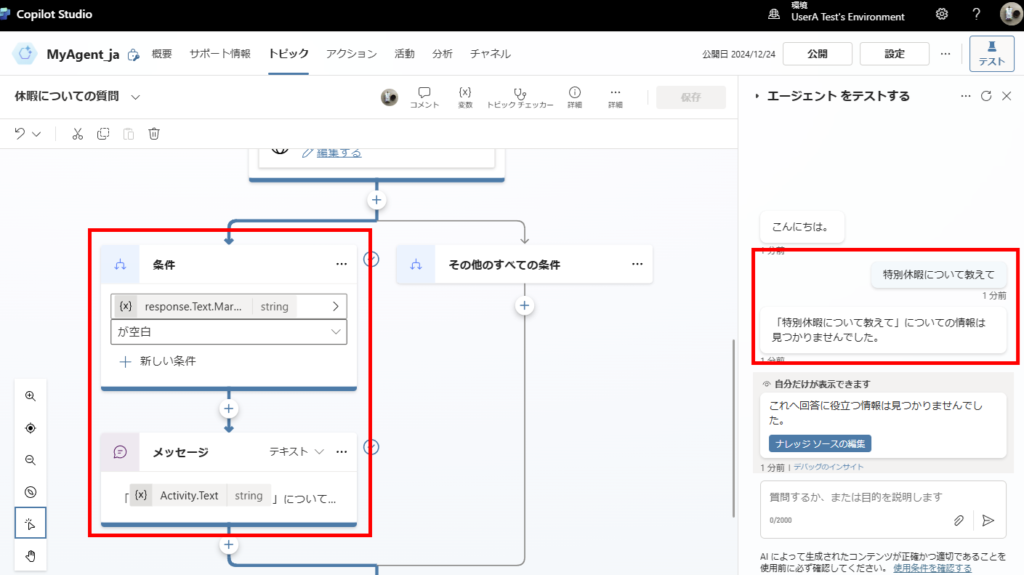
Then add a “Condition”,
For the text output from the generative response (Text.Content or Text.MarkdownContent),
Perform a blank check and send a “Information not found” message if blank.
Step: Add a Condition node. Set the logic to check if your variable (e.g., TopicResponse) is Blank.
If blank, it means no relevant information was found in SharePoint.
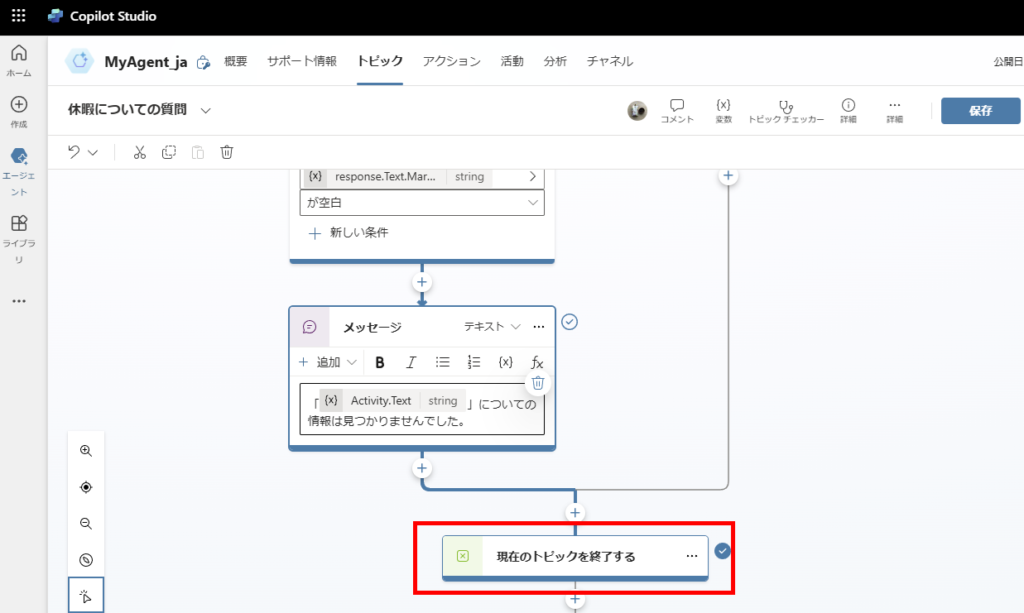
Finally, add [End current topic] to complete the implementation.
Testing the Implementation
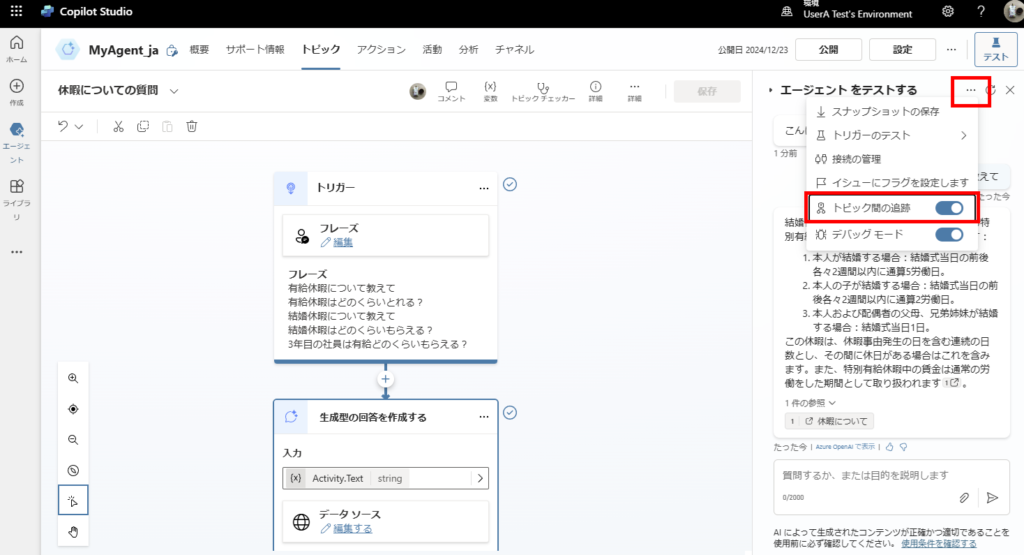
Turn ON [Cross-topic tracking],
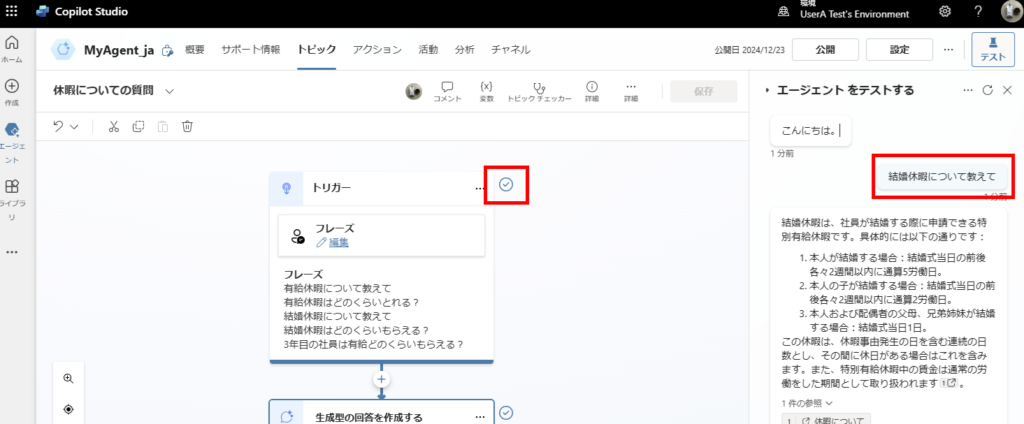
When you send a question matching the trigger phrases, the trigger activates,
The [Generative response] then searches the specified data source and creates a RAG-based response.
By carefully managing which data sources to use for specific topics, we can potentially create agents with higher response accuracy.
Bonus 1: When Information is Not Found in Data Source
For example, if we add trigger phrases for questions that have no information in the data source (though you probably wouldn’t do this in practice),
When such a question is asked, the generative response text will be empty, and the configured fallback message will be sent.
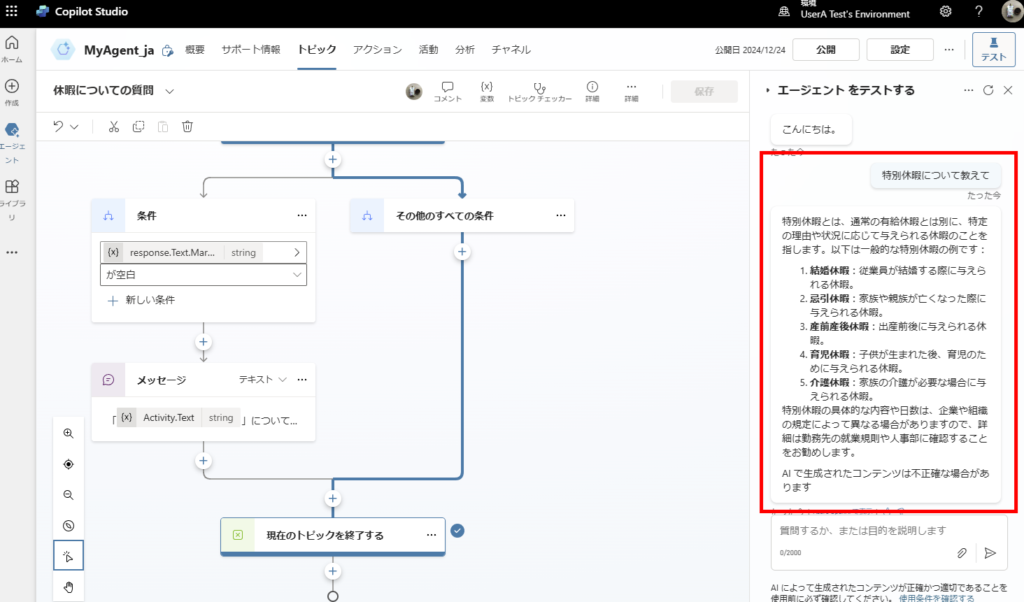
Bonus 2: When “Allow AI to Use its General Knowledge” is Enabled
If we enable the “Allow AI to Use its General Knowledge” option that we turned off during setup, and ask a question about special leave (which isn’t in our data source),
The AI will generate a response using its own knowledge base. Whether this is beneficial or detrimental depends on your specific topic requirements.

コメント