When building advanced agents in Copilot Studio, mastering Power Fx is essential. Unlike standard configuration, using Power Fx formulas allows for complex logic, data manipulation, and precise variable control.
This guide serves as a cheat sheet for using Power Fx in Copilot Studio, covering undocumented functions, variable prefixes, and array handling quirks.
Power Fx in Copilot Studio Overview
You can use Power Fx expressions in various nodes, such as Set Variable, Message, and Condition.
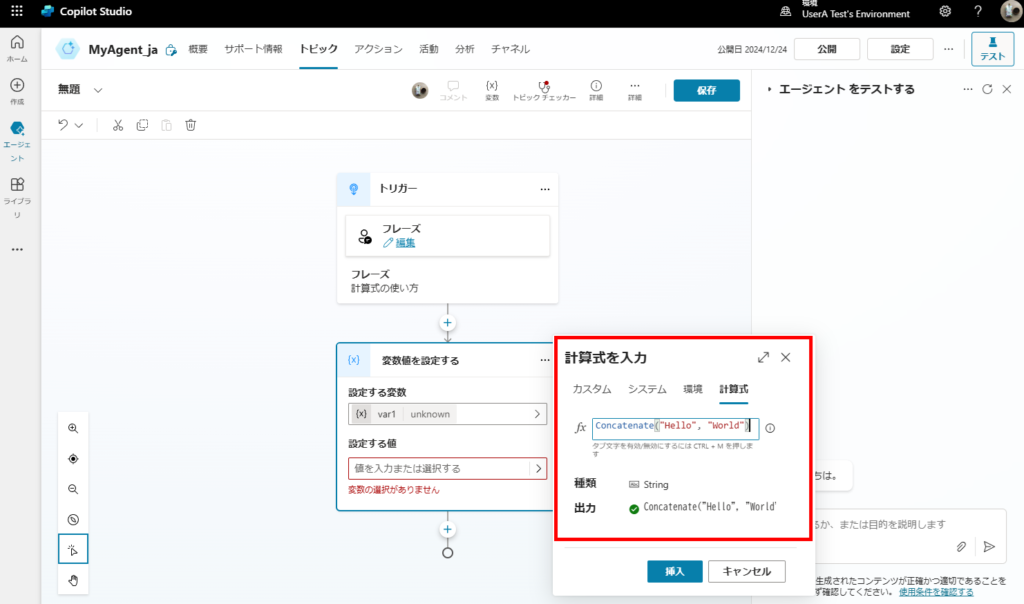
Available Functions & Hidden Gems
Copilot Studio supports a subset of Power Fx functions. While functions like `PDF` or `SaveData` are unsupported, most logic and table functions work.
Official documentation: Common Power Fx formulas
Official documentation: Common Power Fx formulas
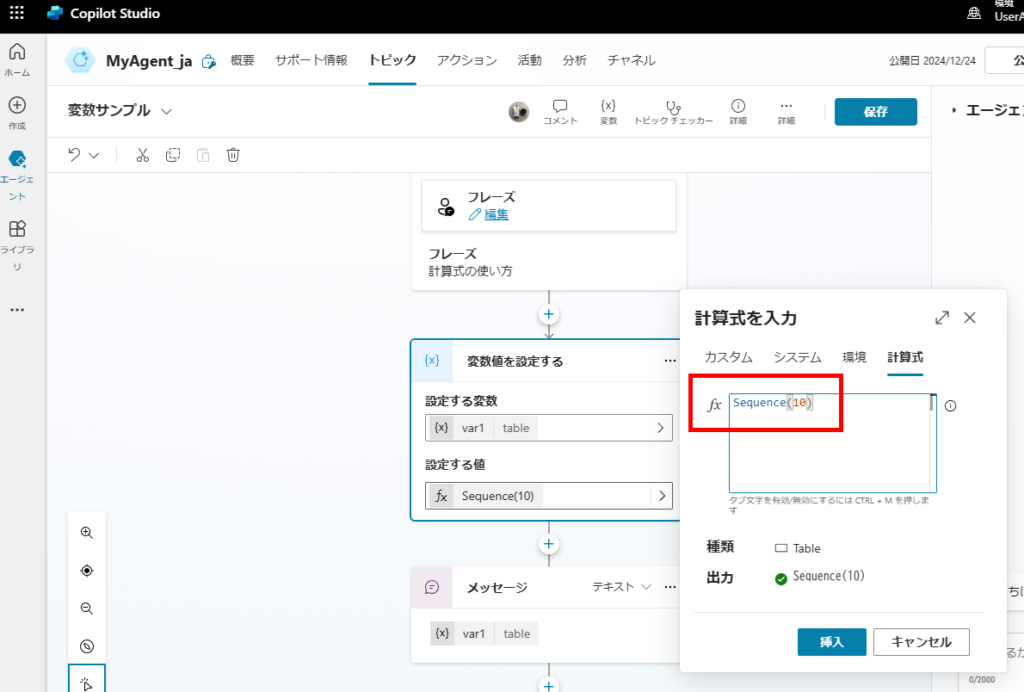
💡 Pro Tip: Some functions, like `Sequence`, are not listed in the documentation but still work. Don’t be afraid to test functions you use in Power Apps!
Operators & String Interpolation
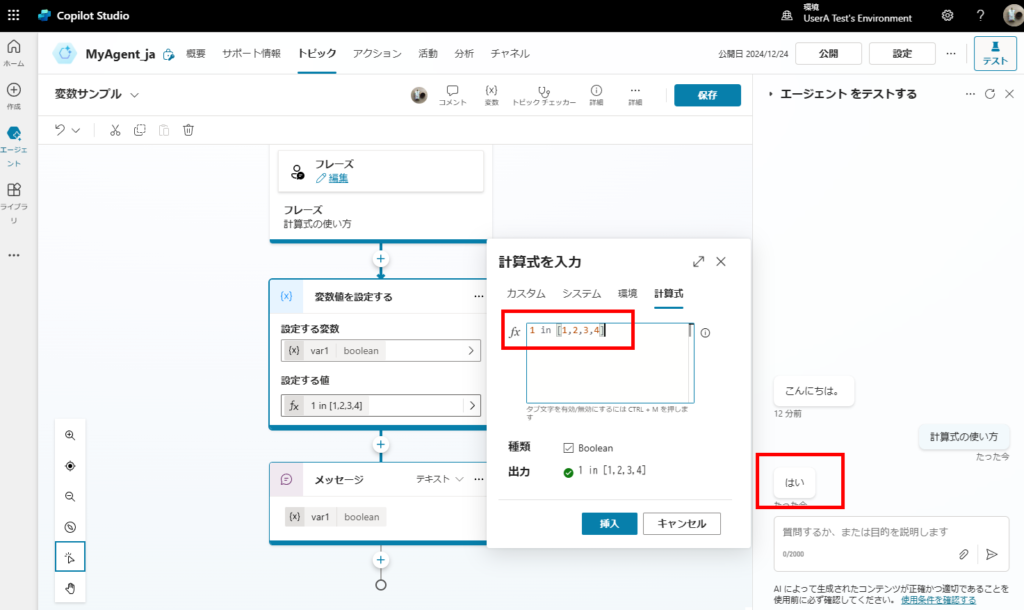
Standard operators (`+`, `-`, `&`, `in`) and comparisons work as expected.
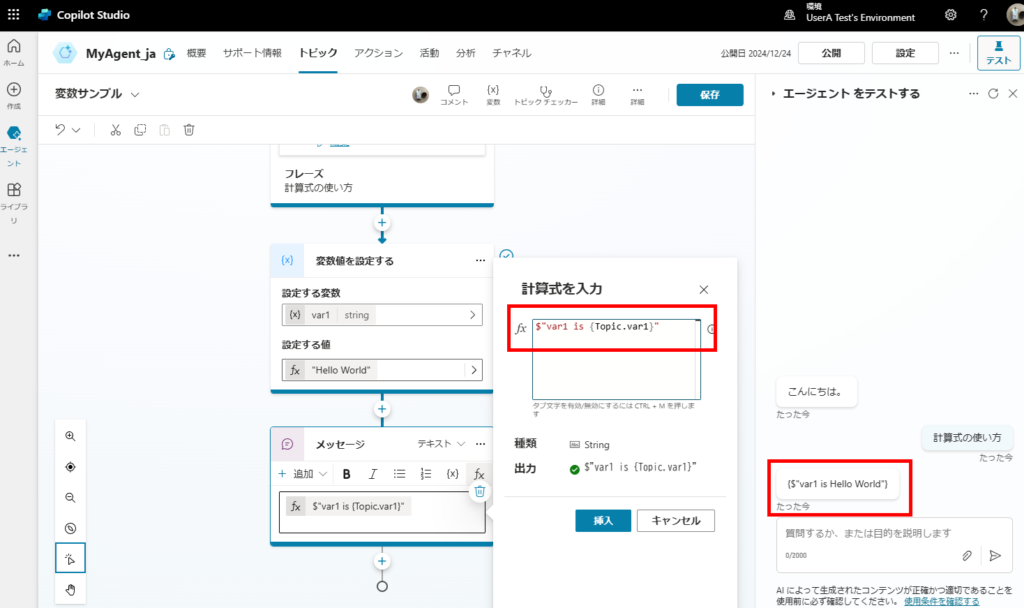
⚠️ Warning: String Interpolation
Using string interpolation syntax (e.g., `$”Hello {Name}”`) can be unreliable or cause errors. This is likely because Copilot Studio’s underlying YAML definition uses a similar syntax for variable embedding. Stick to the `Concatenate` function or `&` operator for safety.
Using string interpolation syntax (e.g., `$”Hello {Name}”`) can be unreliable or cause errors. This is likely because Copilot Studio’s underlying YAML definition uses a similar syntax for variable embedding. Stick to the `Concatenate` function or `&` operator for safety.
Writing Complex Formulas
You can write complex logic using functions like `ForAll`, `Filter`, and even `With`.
Example: Generating a table of squared values greater than 6 from the first 10 numbers.
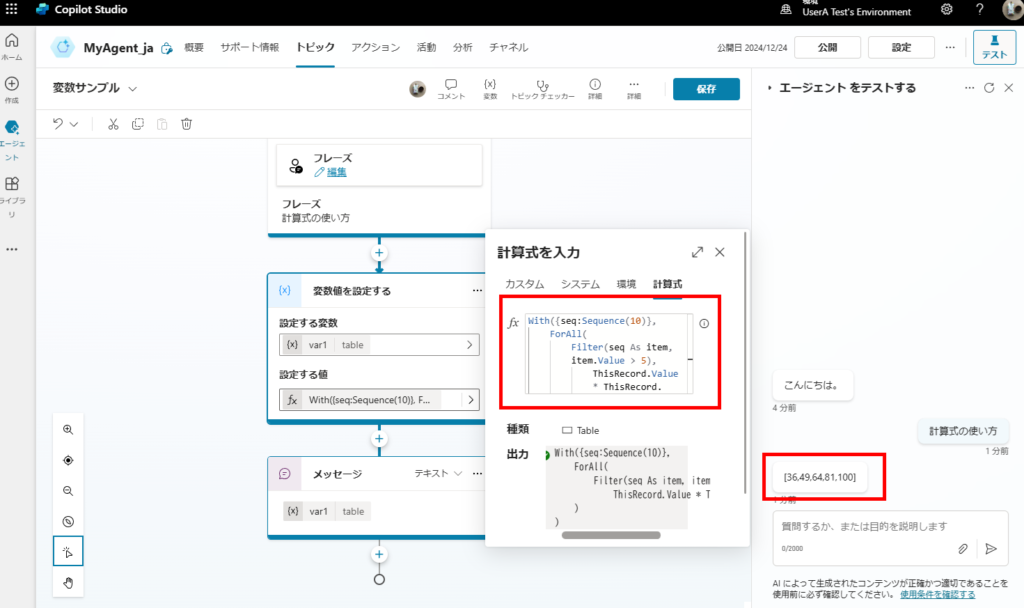
Example: Generating a table of squared values greater than 6 from the first 10 numbers.
For longer formulas, use the expand button (top-right of the editor) to get a larger coding window.
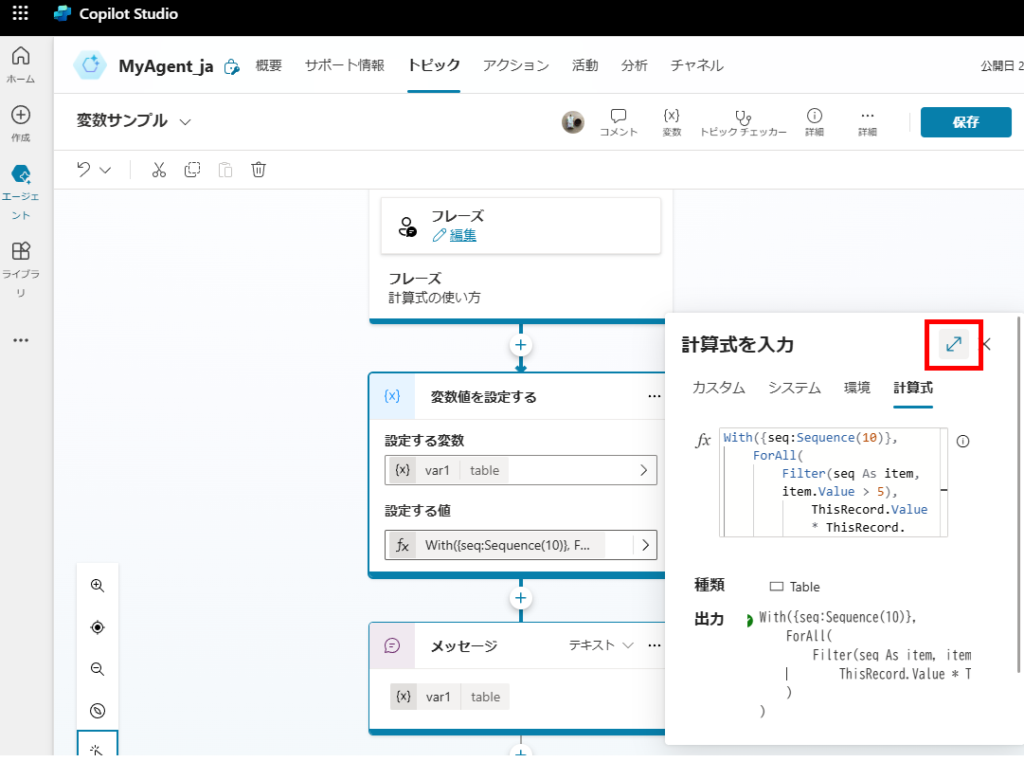
Cheat Sheet: Variable Prefixes
When accessing variables inside a Power Fx formula, you must add the correct prefix. This is different from Power Apps.
| Variable Type | Prefix | Example |
|---|---|---|
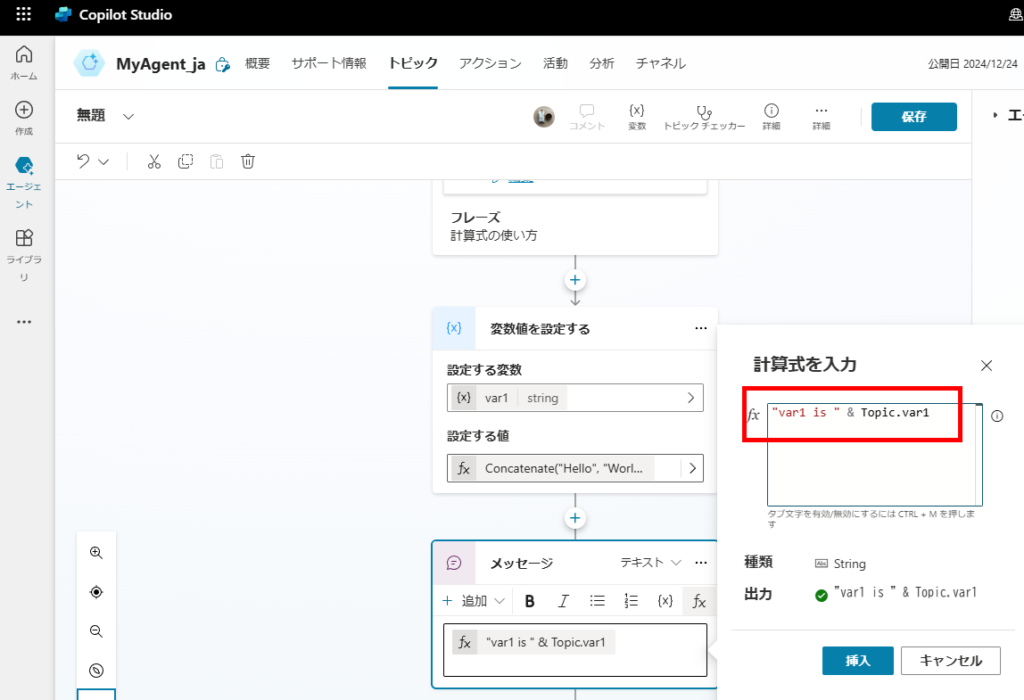
| Topic Variable | Topic. |
Topic.UserName |
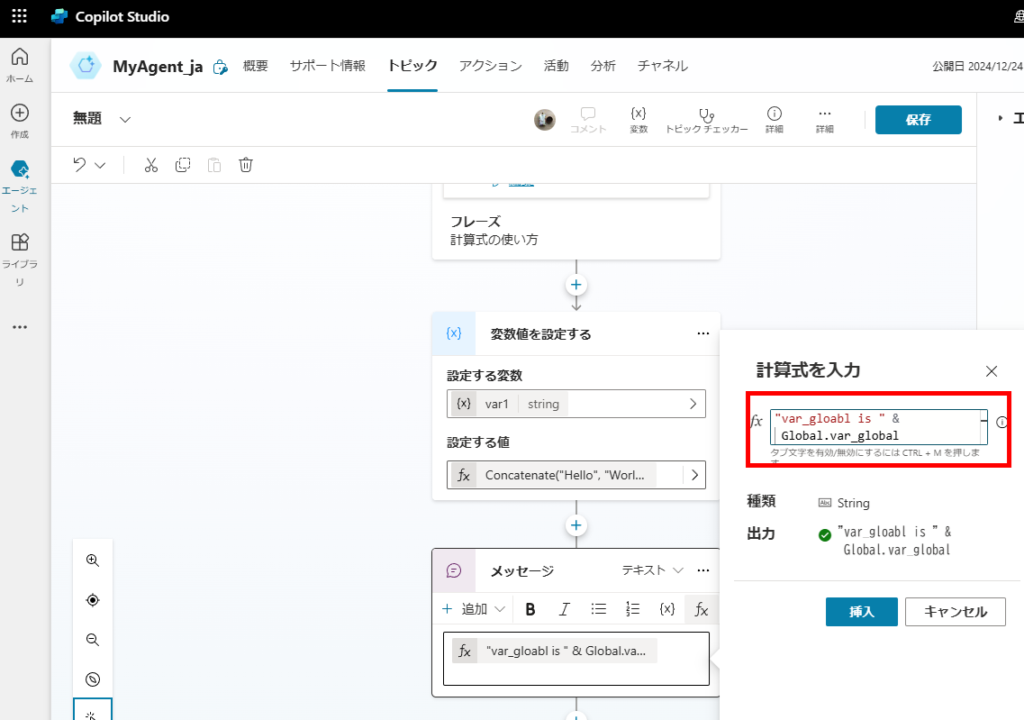
| Global Variable | Global. |
Global.TotalCount |
| System Variable | System. |
System.ConversationId |
| Environment Variable* | Env. |
Env.SiteUrl |
*Environment variables (Env.) are not officially documented but often work.
Example: Accessing a Topic Variable:
Example: Accessing a Global Variable:
⚠️ Important: Handling Arrays
Just like in Power Apps, Power Fx in Copilot Studio treats arrays as Single Column Tables. This is a common pitfall for developers coming from other languages.
If you declare an array like `[1, 2, 3]`, it is stored as a table of objects:
You must reference the item using .Value.
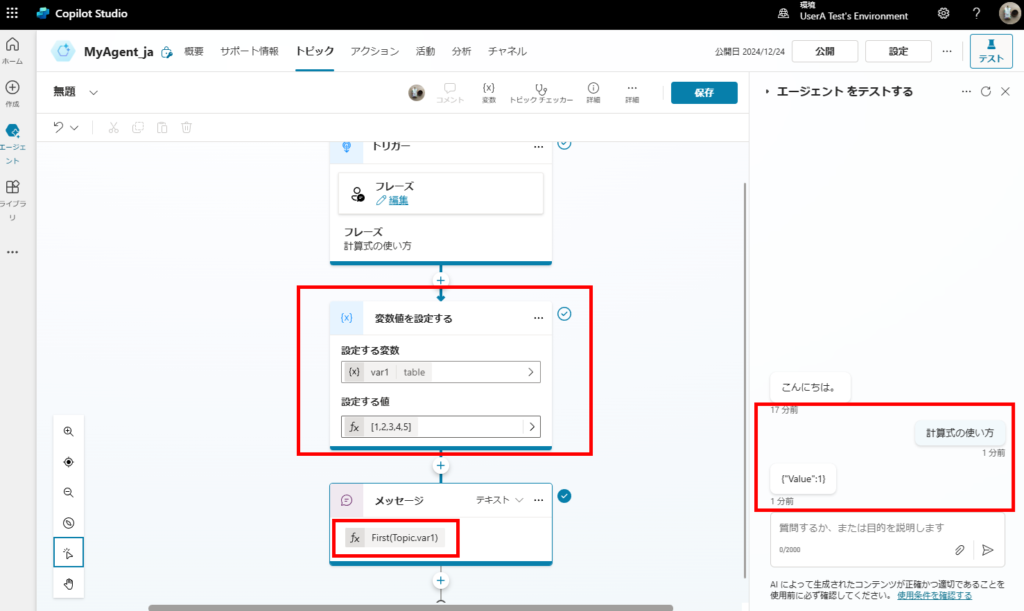
[{Value: 1}, {Value: 2}, {Value: 3}]You must reference the item using .Value.
Using Comments
Always comment your code! You can use `//` for single-line comments or `/* … */` for blocks.
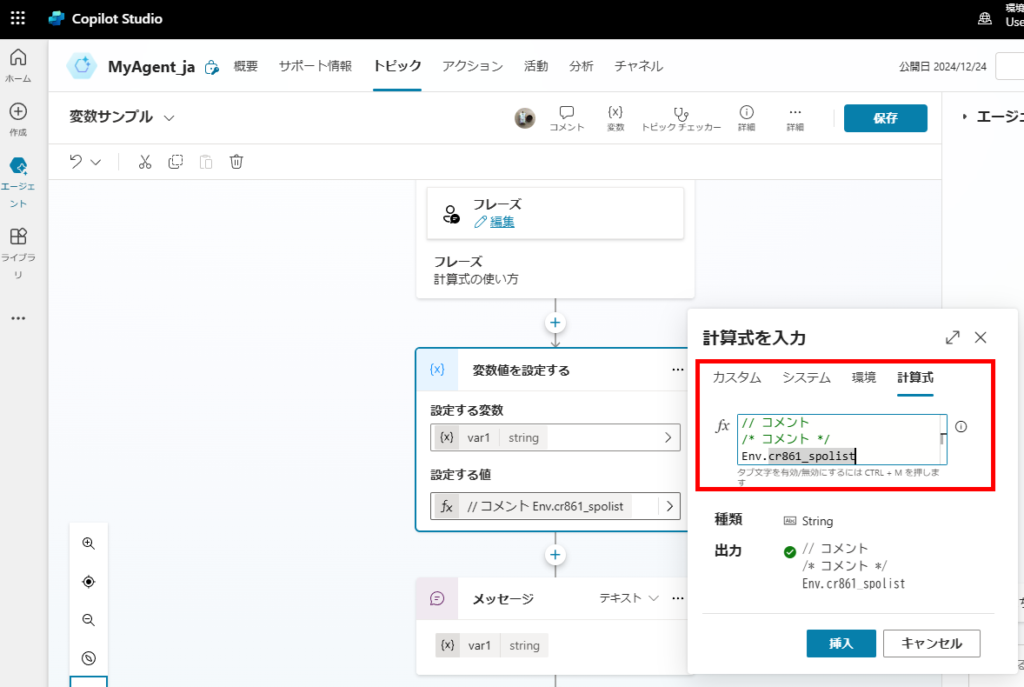
コメント