Previously, this required a complex workaround using Power Automate, but today it can be completed with a single configuration.
This article explains the latest “standard implementation method.”
*The legacy method (using ChannelData and Power Automate flow) is archived at the end of this article.
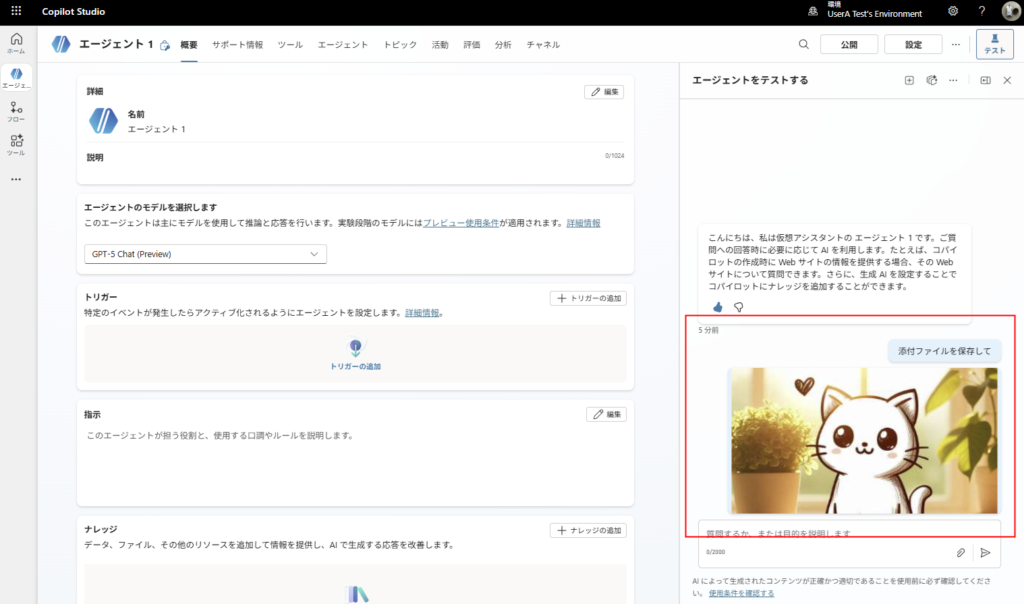
This is a quick note on how to retrieve the content of files attached to a conversation.
Goal
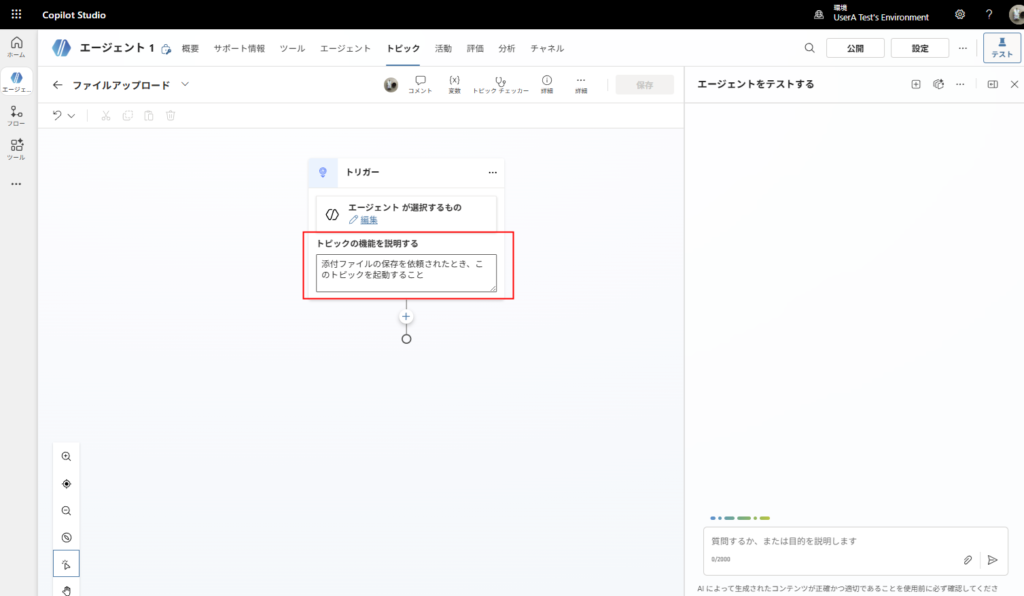
Build
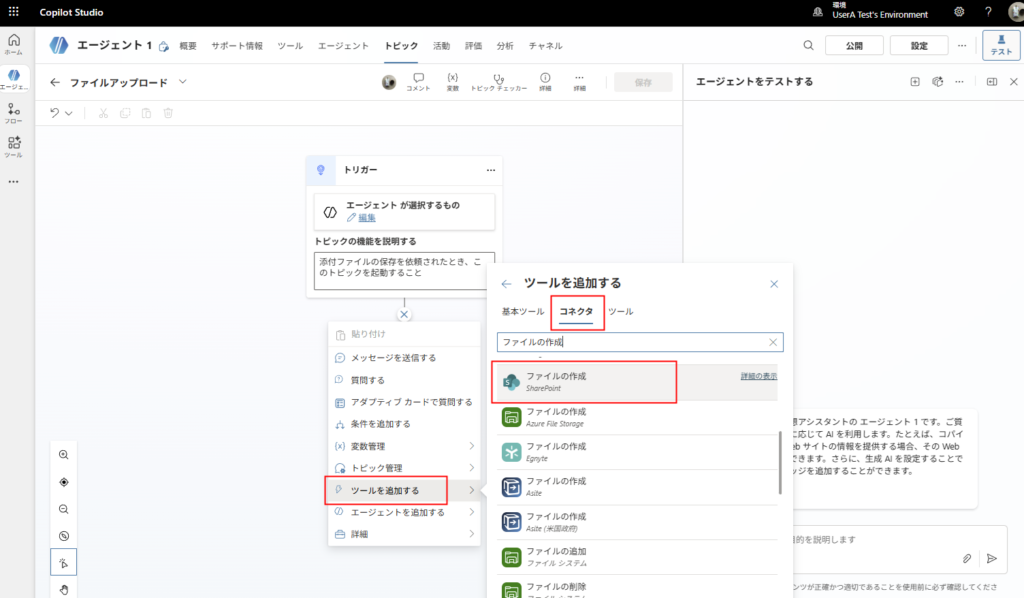
*As you can see, the popup might not disappear and could block the view, so you may need to maneuver around it to click the button.
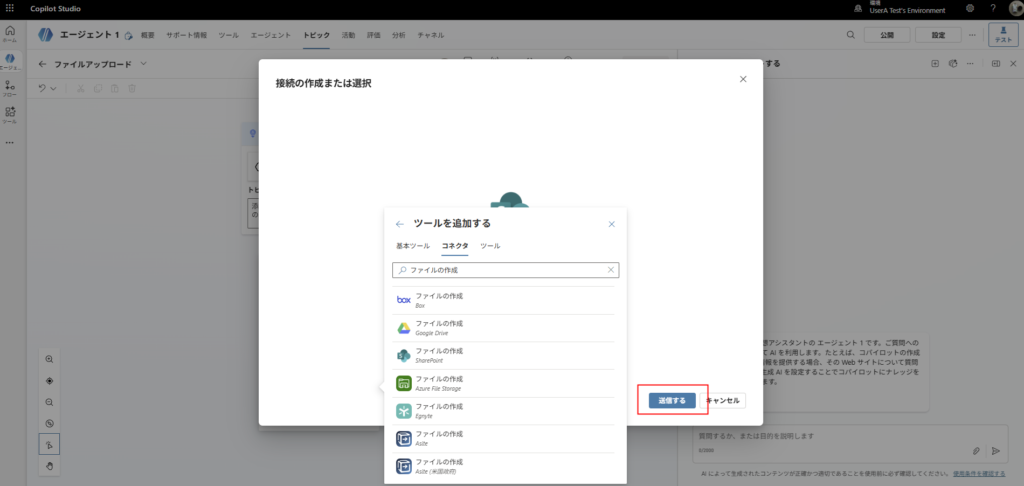
Then, enter the following formula for [File Name]:
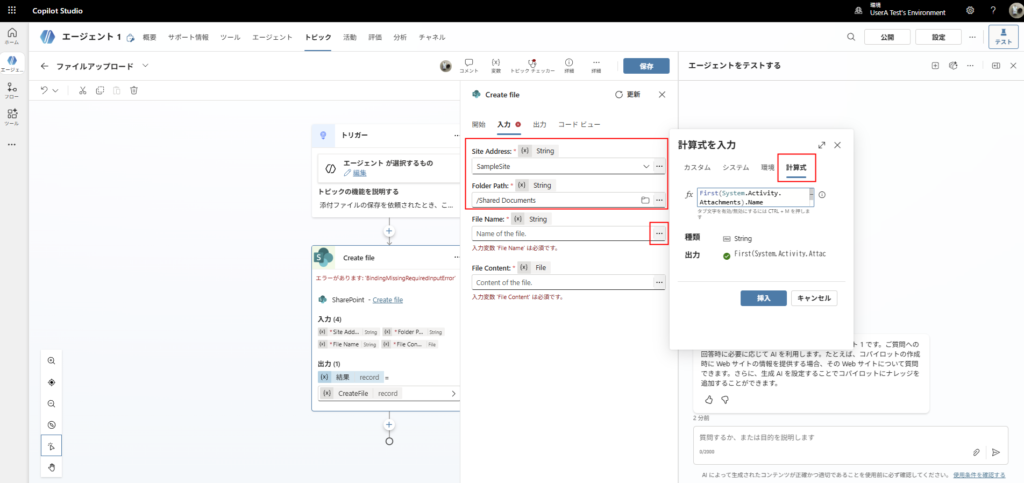
First(System.Activity.Attachments).Name
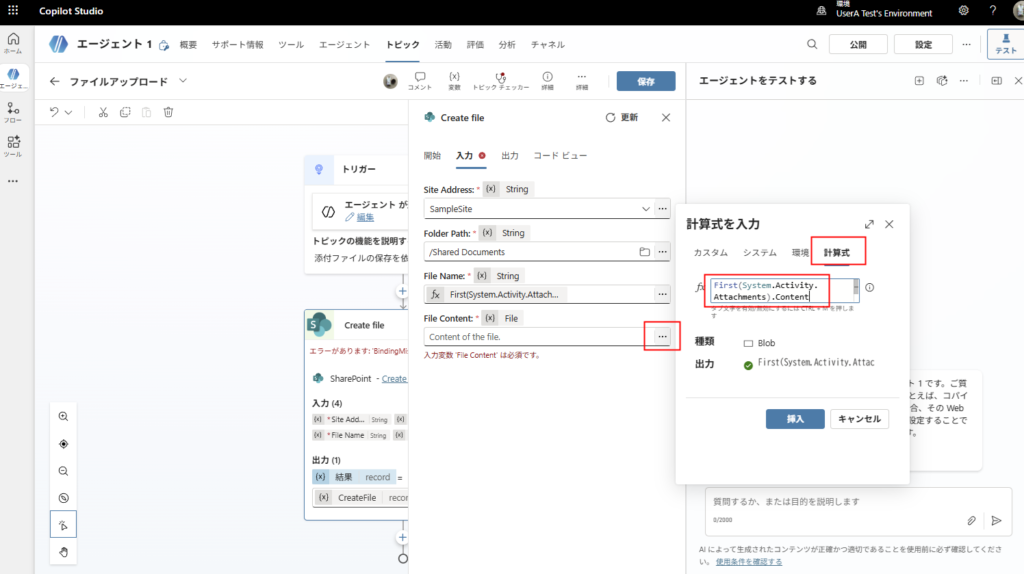
First(System.Activity.Attachments).Content
The build is now complete.
This example assumes “always exactly one file is attached.” If there is a possibility of zero attachments (user error), use an
If condition. If multiple files might be attached, use a loop.
Test
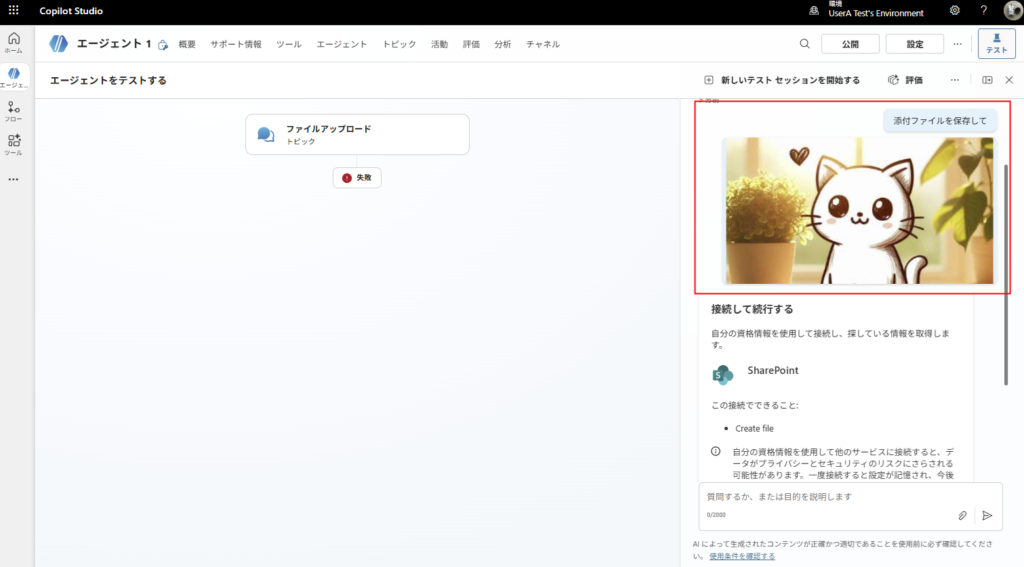
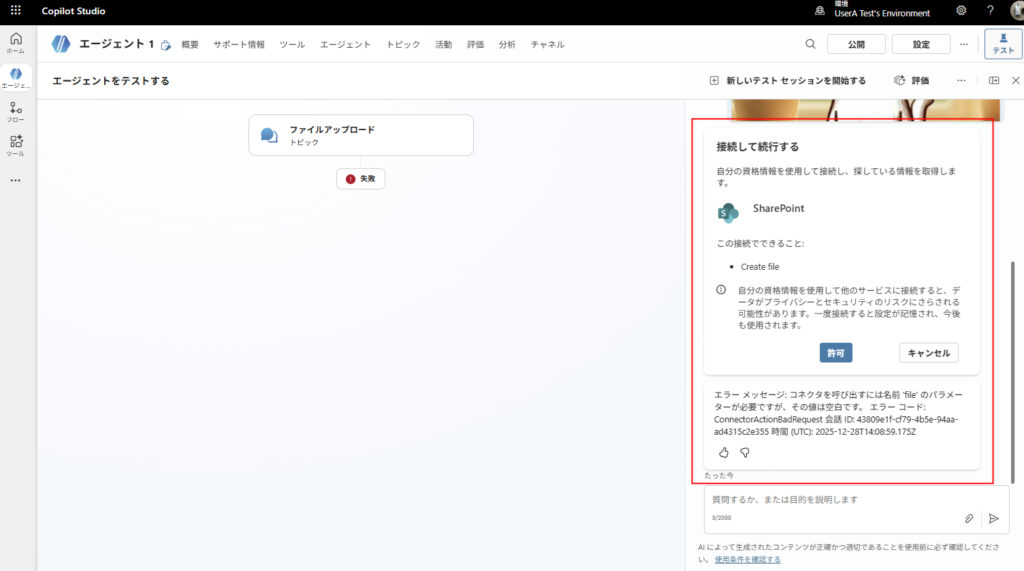
The flow might error out the first time—don’t worry about it. Just restart the conversation via [Start a new test session].
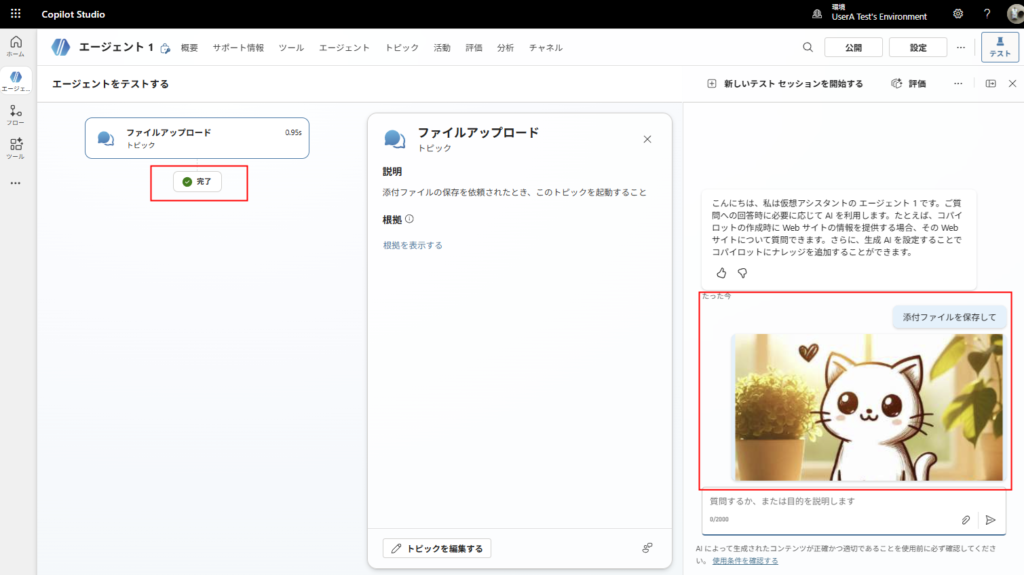
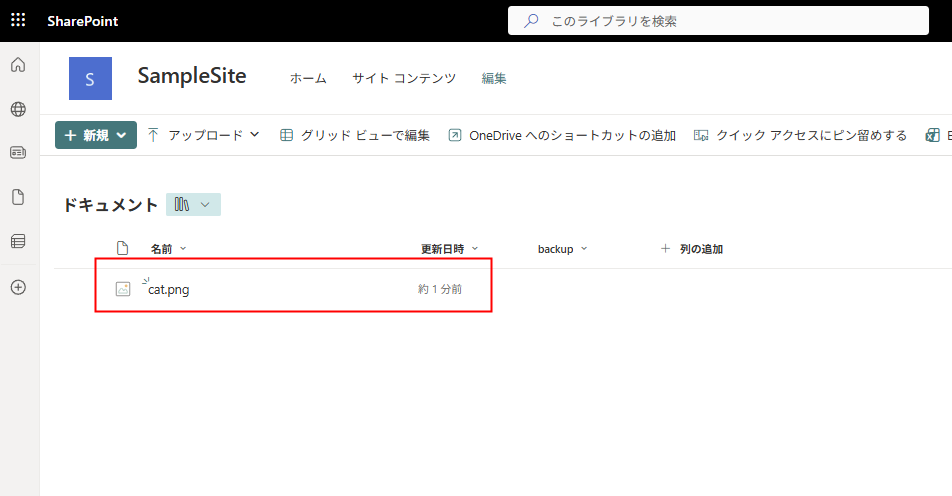
This is significantly easier compared to the “legacy method” described below.
Since this was just a test, the manual connection approval was fine. However, in actual operation, you may need to implement measures such as configuring SSO correctly or adding a topic at the beginning of the conversation to request authentication proactively to prevent errors.
Related Articles
[How to create a Multimodal Agent]
[Power Automate Actions in Copilot Studio]
Bonus: [Legacy Method Archive] ChannelData & Power Automate
Goal
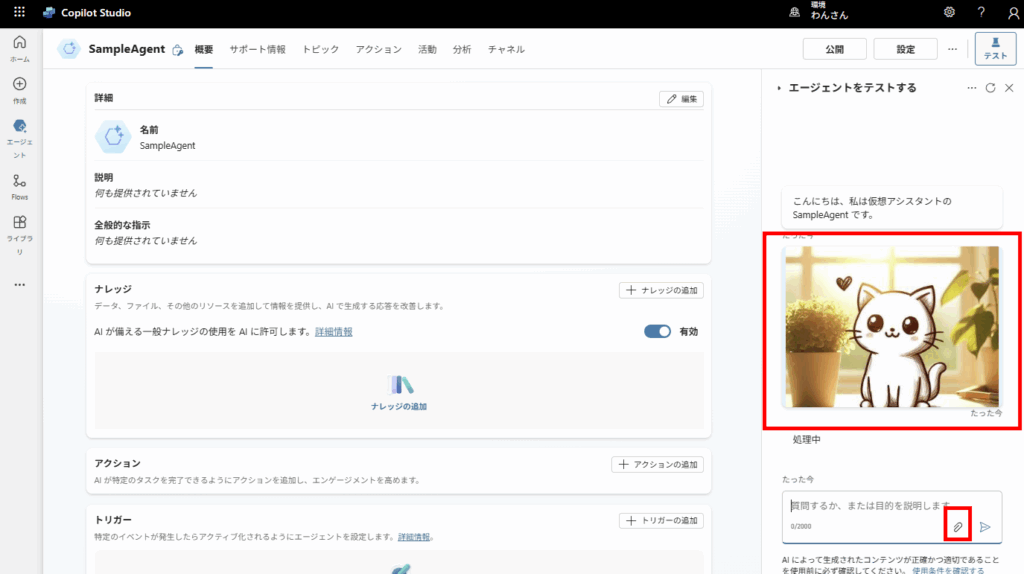
Attachments are available in ChannelData
There is an “Attachments” property in System.Activity, which is misleading.
According to the reference below, attachment information actually exists in “ChannelData.”
Reference Link
ChannelData, we can see that the file data (Base64) is contained in the OriginalAttachments property.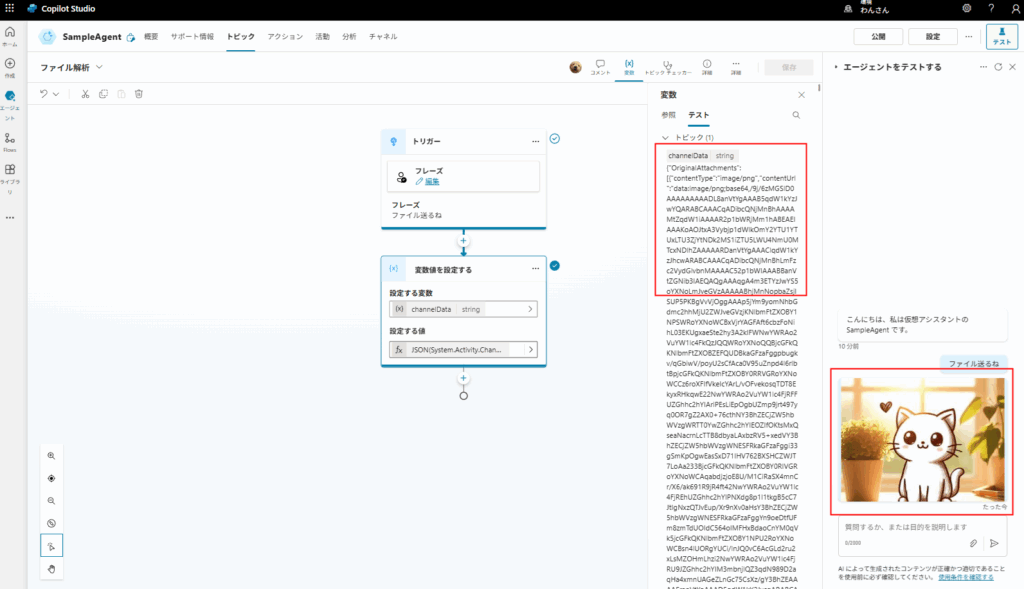
We will use this Base64 data to add file saving functionality to the agent.
Build: Saving attached files to SharePoint (Legacy)
In this example, we assume we are targeting only the first attached file.
*If you want to handle multiple files, do not use the First function; instead, handle them as a Table or loop with Foreach.
Build Power Automate
First, build the Power Automate flow to save the file.
Ensure the data string is converted to binary using the
base64ToBinary function.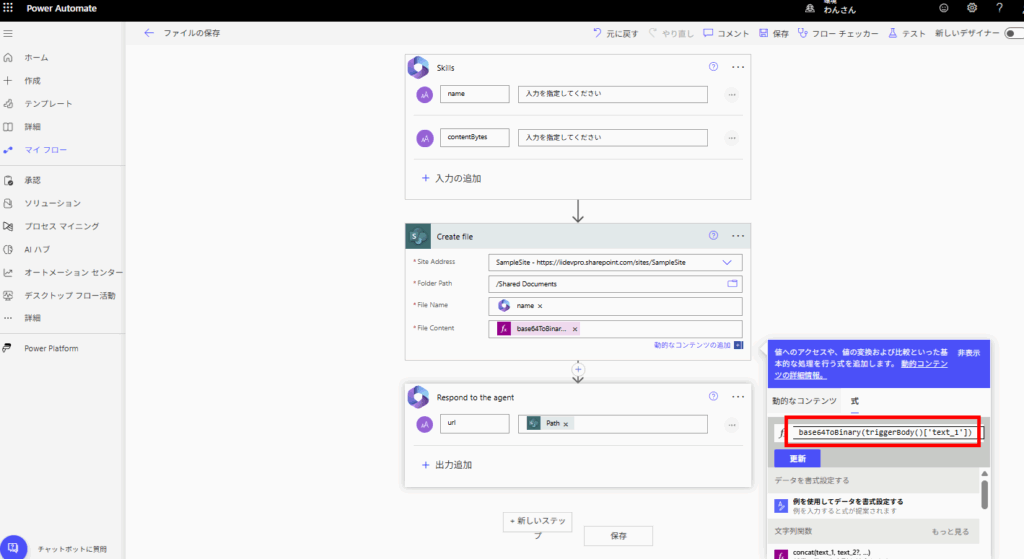
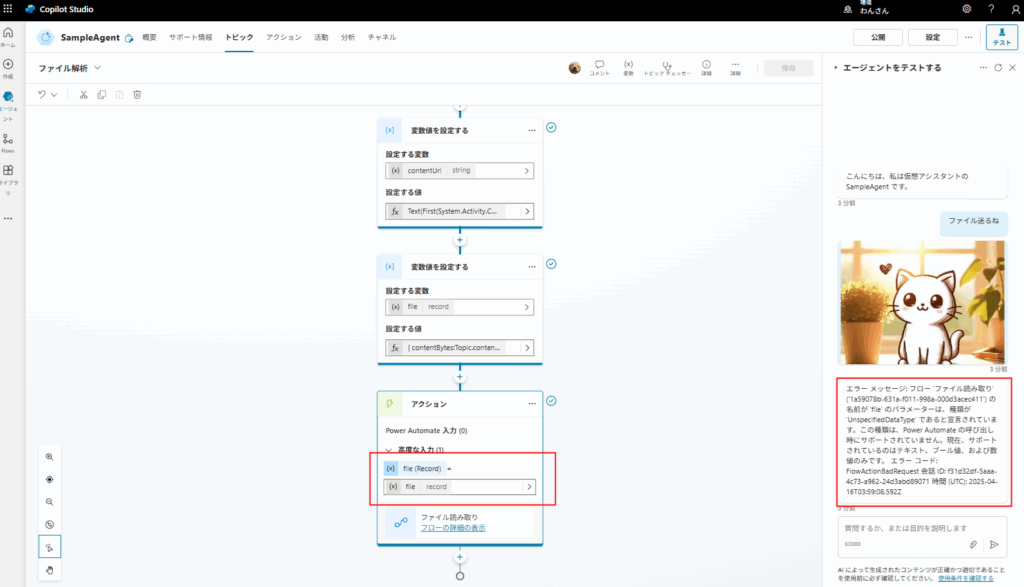
Power Automate construction is complete.
Build Copilot Studio (Legacy)
contentUrl of the first file in ChannelData as a string: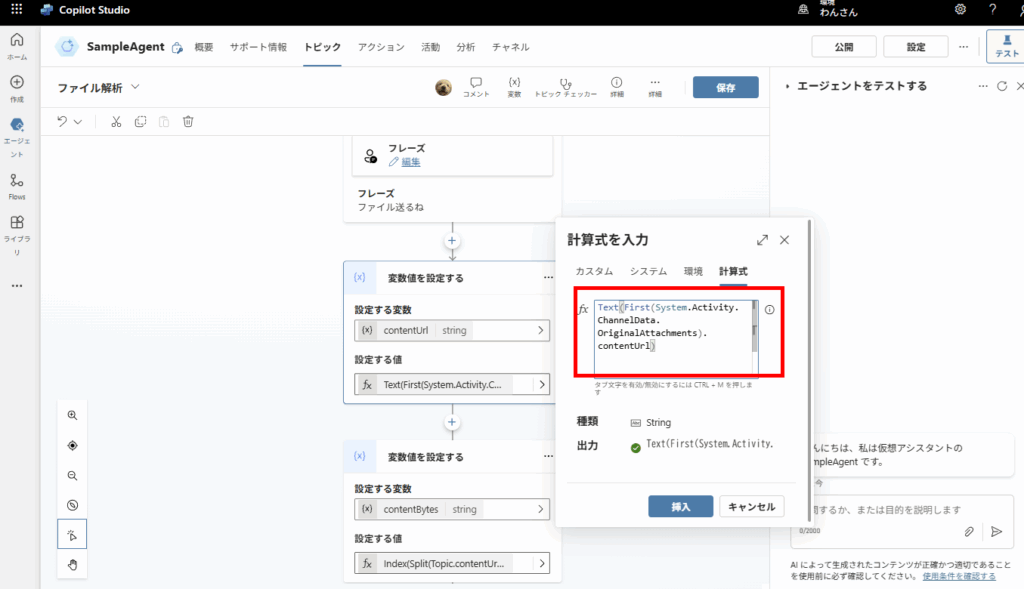
Split and Index to extract the data string portion from the contentUrl: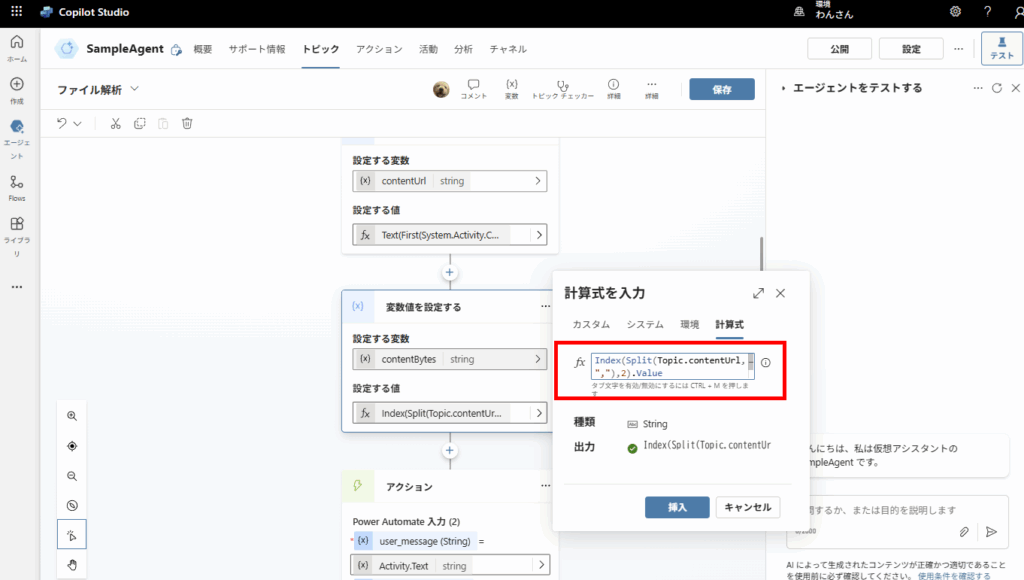
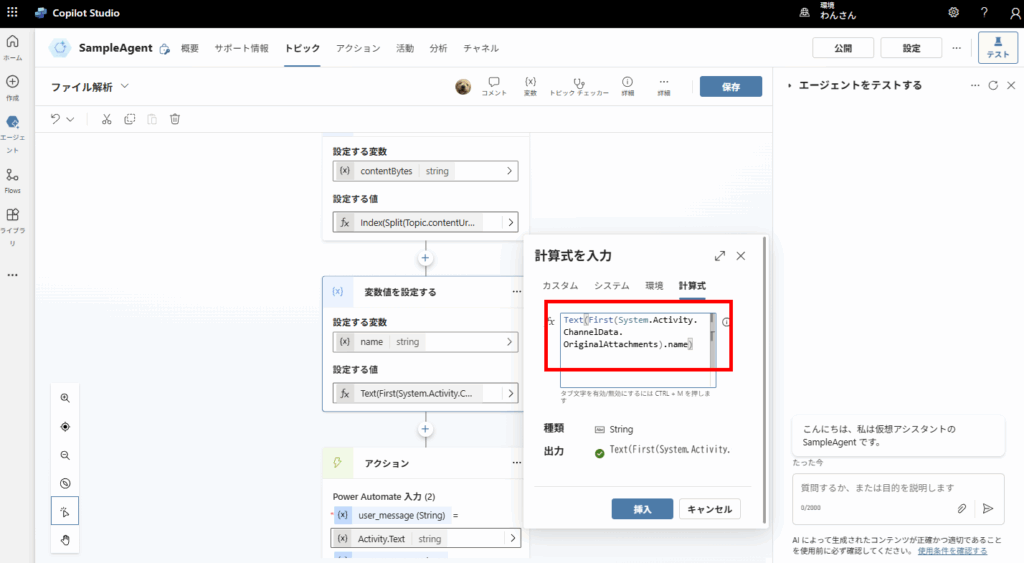
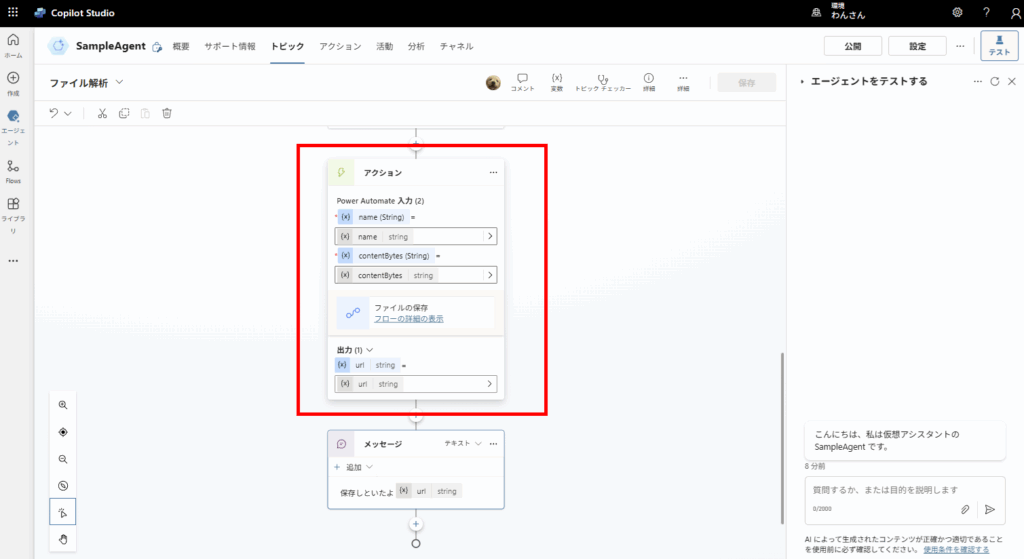
The legacy build is complete.
// Get contentUrl
Text(First(System.Activity.ChannelData.OriginalAttachments).contentUrl)

// Get data portion
Index(Split(Topic.contentUrl,","),2).Value

// Get file name
Text(First(System.Activity.ChannelData.OriginalAttachments).name)
Legacy Test
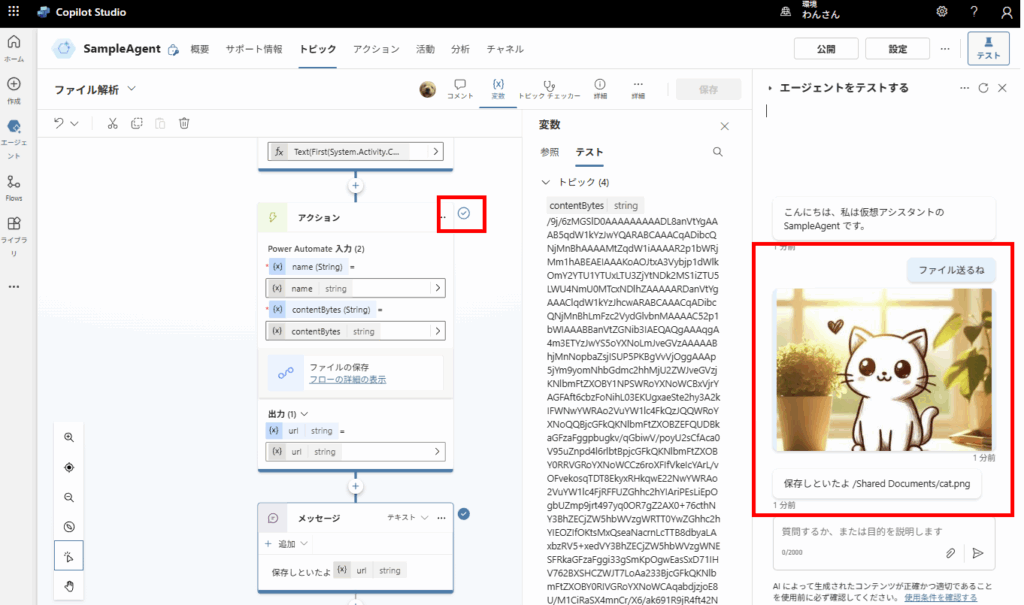
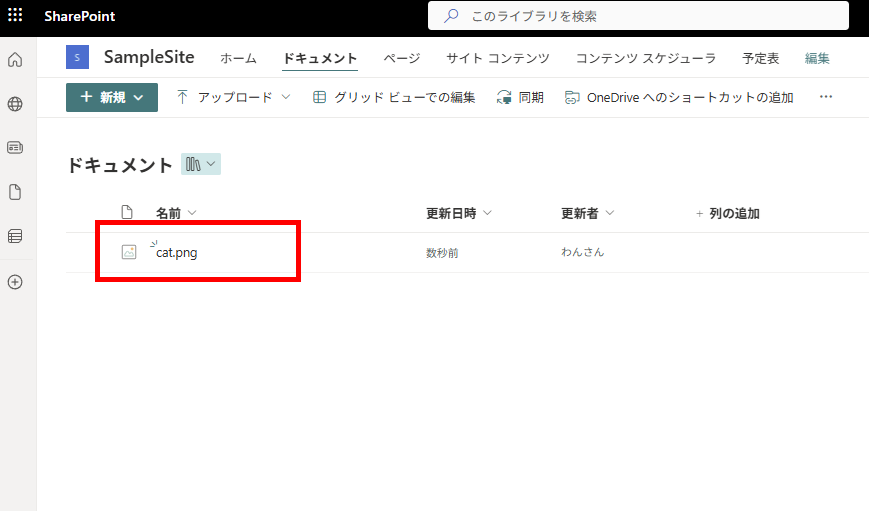

コメント
Hello,
I am able to Send attachment to the flow. Thank you.
But, After publishing, attachment option not showing in demo site. Is there any settings needs to be changed ?
Thank you
Hello,
Unfortunately, I have only tested it within Copilot Studio, so I am not sure how to display the attachment option on the demo site.
There is also a high possibility that file attachments are not supported on the site (when published as a website).
Thank you.