[Fixed] Power Automate Excel Action Not Updating? How to Handle Sync Lag

Sometimes, when updating an Excel file with Power Automate, you might notice a delay before those changes are actually visible to subsequent actions. Depending on how your flow is built, this “sync lag” can cause empty files to be sent or processed.

In this post, I share a reliable workaround to handle this synchronization issue.

スポンサーリンク

The Issue: Excel Sync Lag

When updates are applied to an Excel file on SharePoint Online or OneDrive, the “save” process in the cloud can take a few moments. If your flow tries to read the file immediately after updating it, it might retrieve the old version.

Here is the flow scenario where the issue occurred:

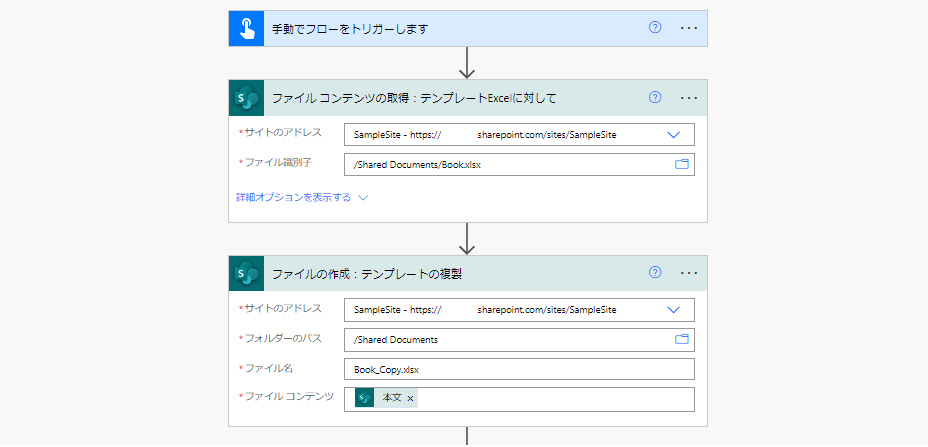
  1. Duplicate a template Excel file on SPO
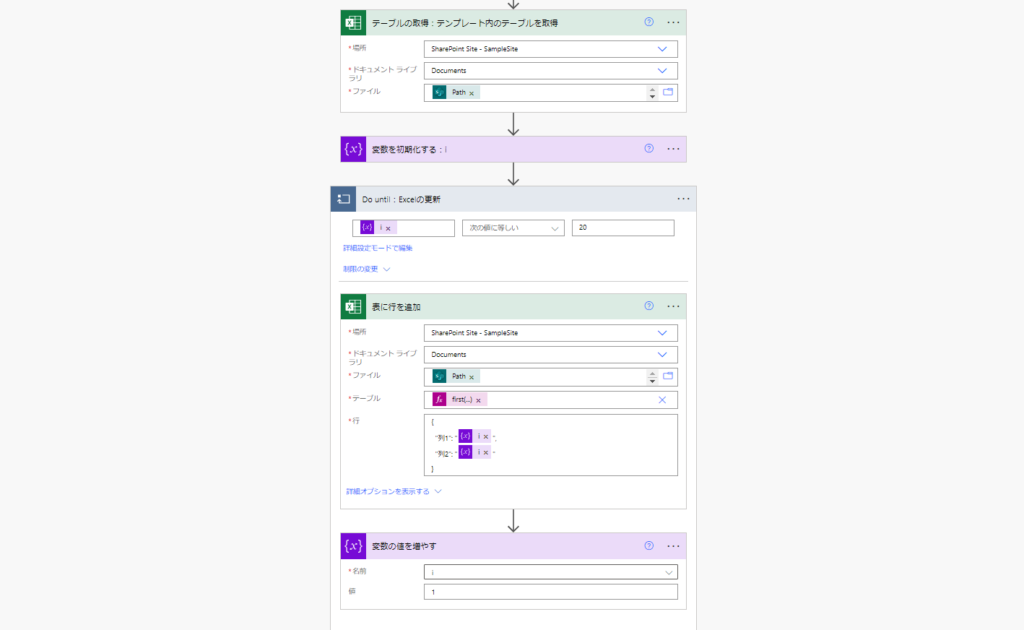
  2. Add data to the duplicated Excel
  3. Get the file content and send it via email
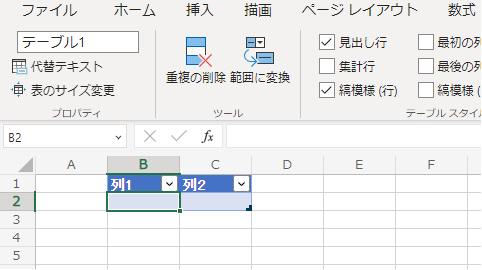
1. Setup: I saved a simple Excel template on SharePoint Online.
Excel template on SPO
2. The flow duplicates this file.
Duplicate file action
3. Then, it adds data to the duplicate (in this test, simply adding 20 rows).
Update Excel rows
4. Finally, it retrieves the file content and emails it.

*Note: In a production flow, you should delete the temp file afterwards, but I omitted that step here.
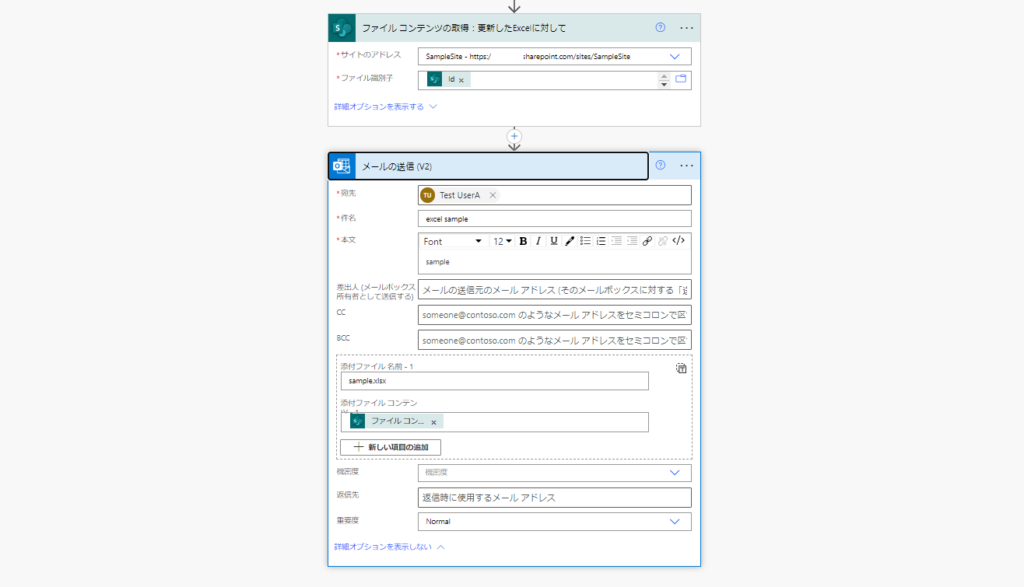
Get file content and email
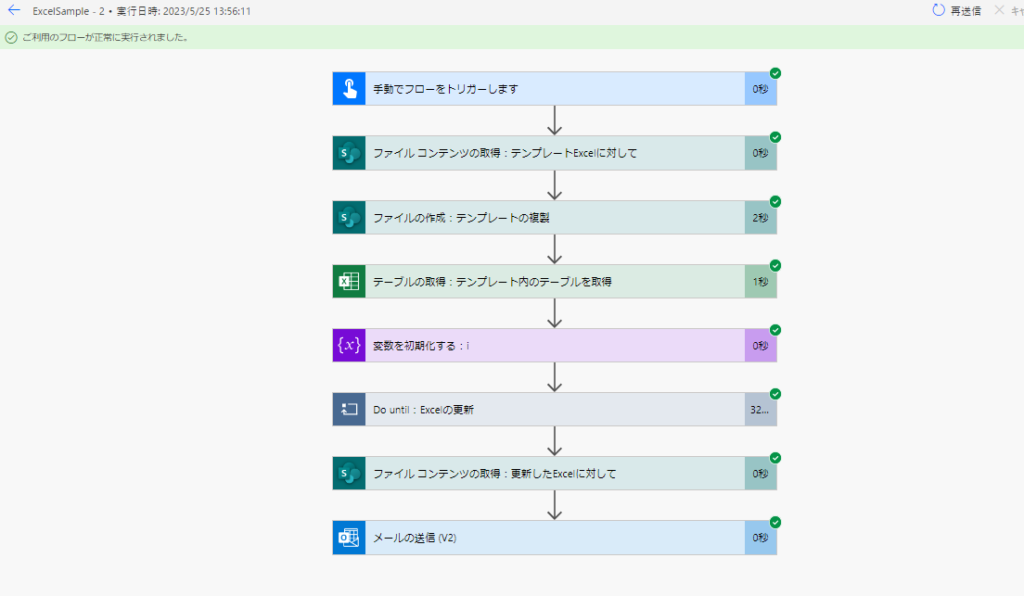
The flow run history shows “Succeeded”…
Flow success status
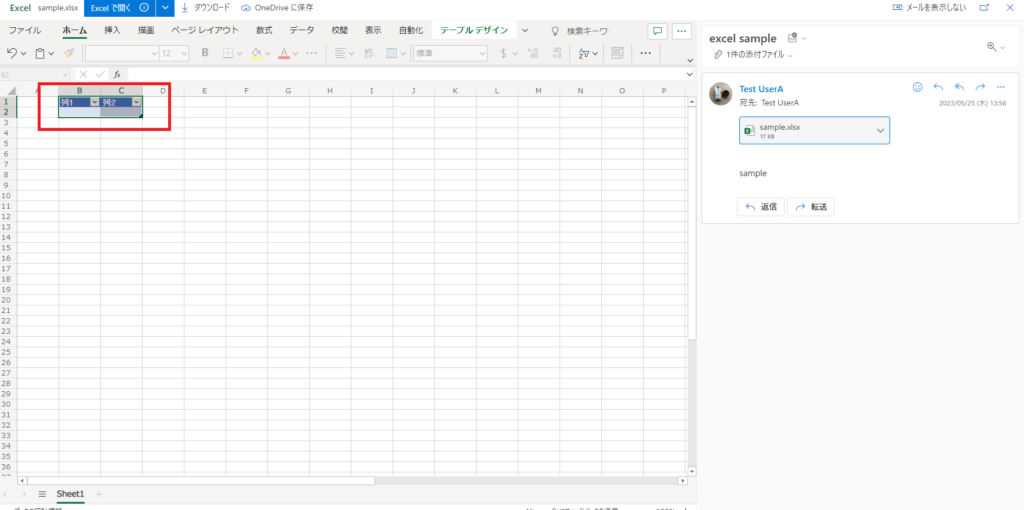
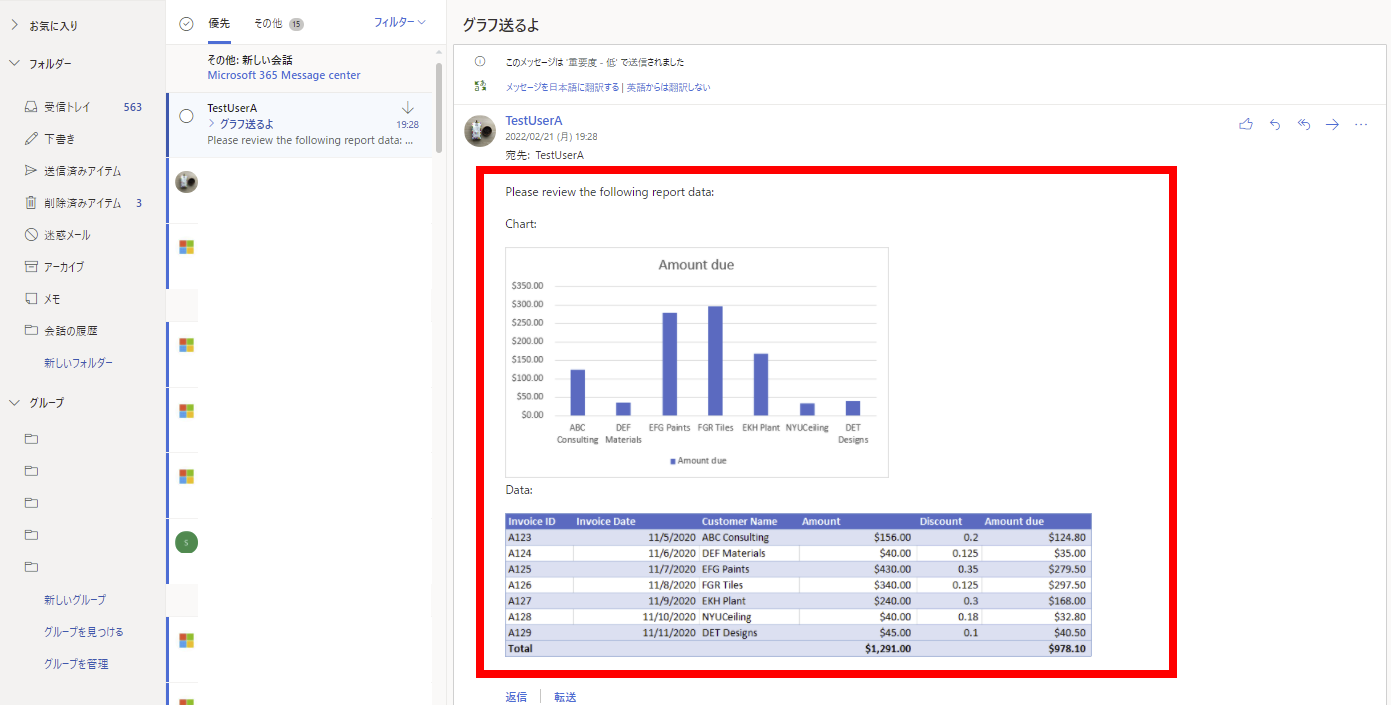
…but the Excel file attached to the email was empty.
Empty Excel file
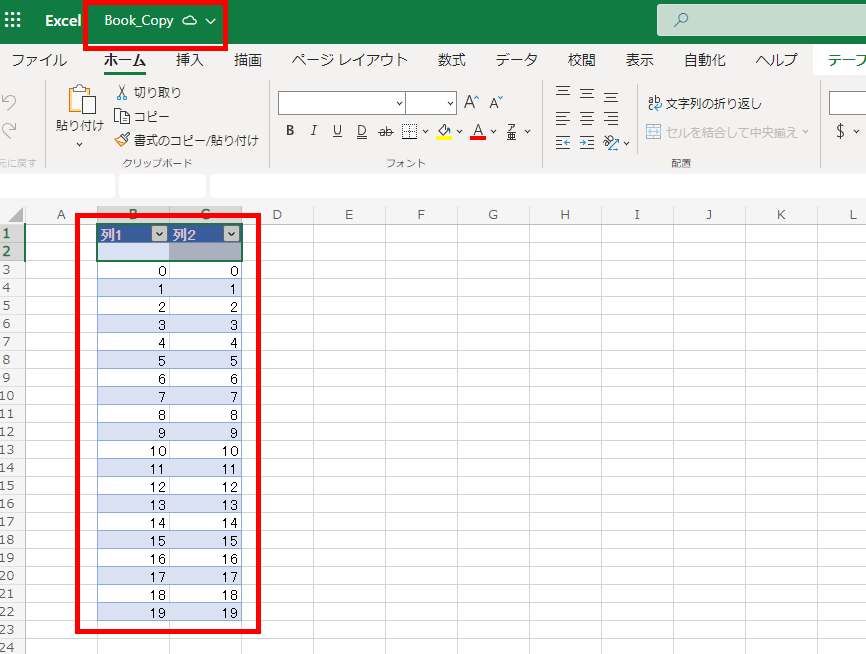
However, if you check the file directly on SharePoint, the rows were definitely added.
SharePoint view shows data

The cause is simple: The “Get File Content” action runs before the Excel Online service has finished committing the updates.

The Solution: Wait for the ‘Modified’ Timestamp
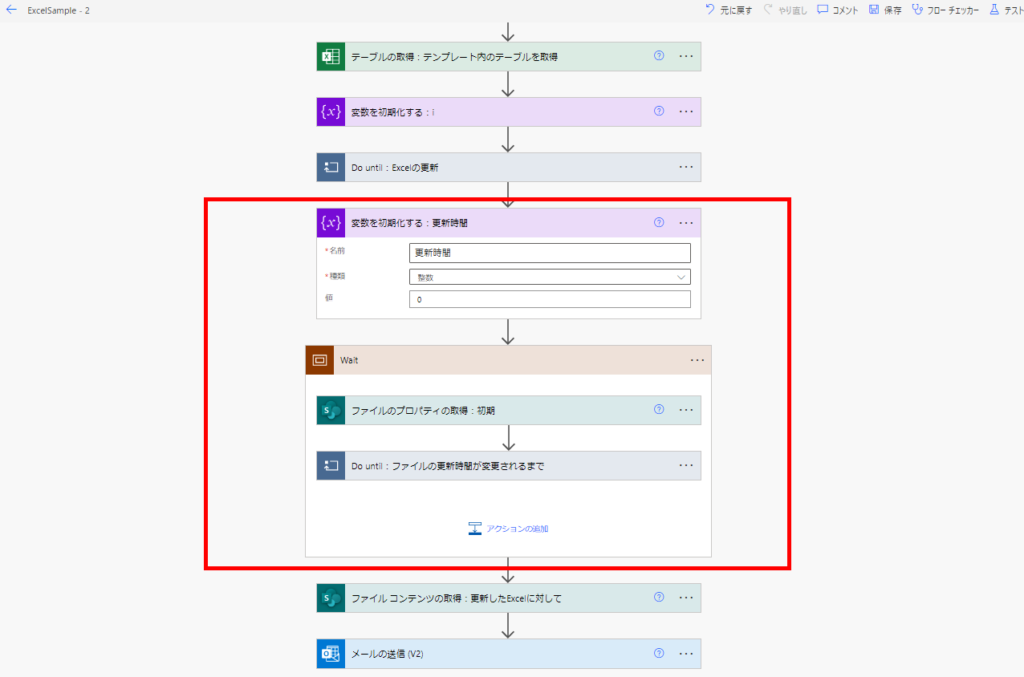
The most reliable fix is to wait until the file’s content is actually updated. I implemented a loop that waits for the file’s Modified time to change.
Do Until loop overview
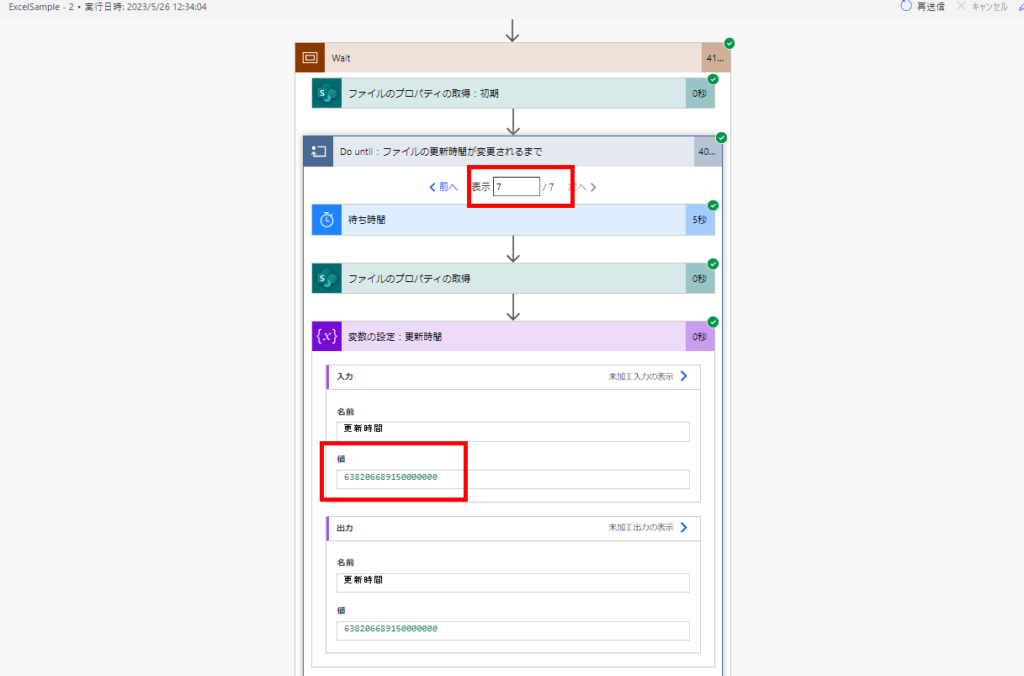
I used a “Do Until” loop. It compares the file’s current update time (converted to an integer using the ticks function) against the time captured before the loop.
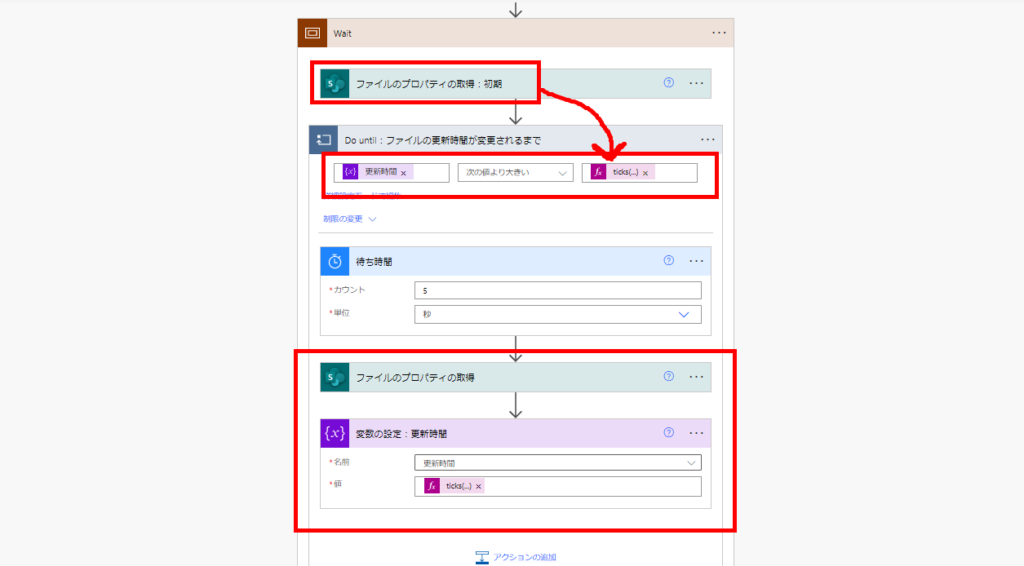
Ticks function comparison

Here is the expression used:

ticks(outputs('Get_file_properties')?['body/Modified'])
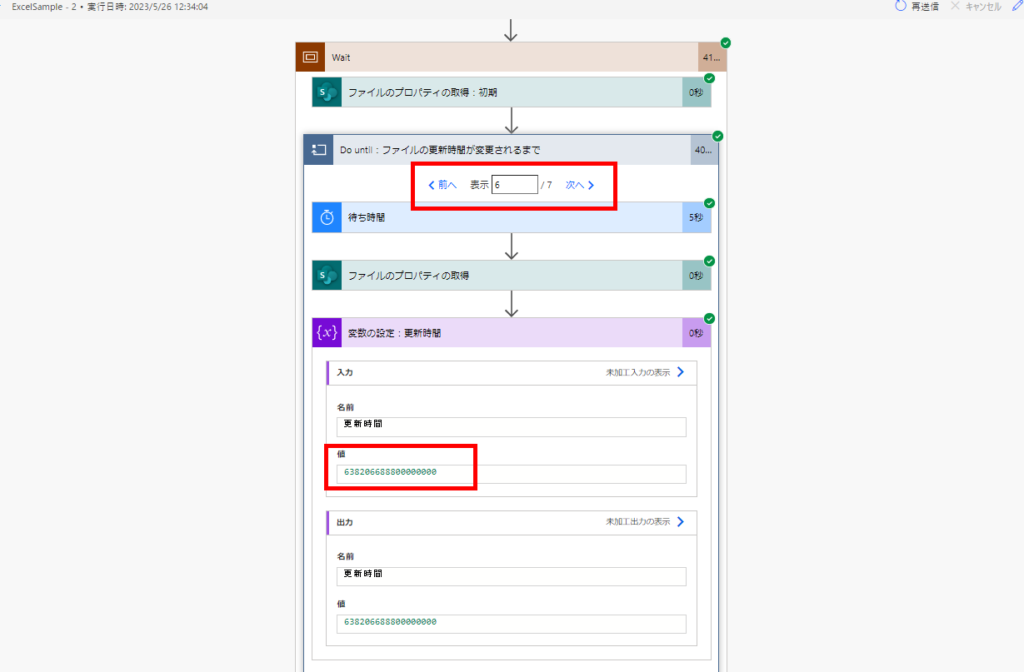
With this loop, the flow successfully waited (about 30-40 seconds in my test environment) and captured the updates.
Flow wait duration
Flow loop details
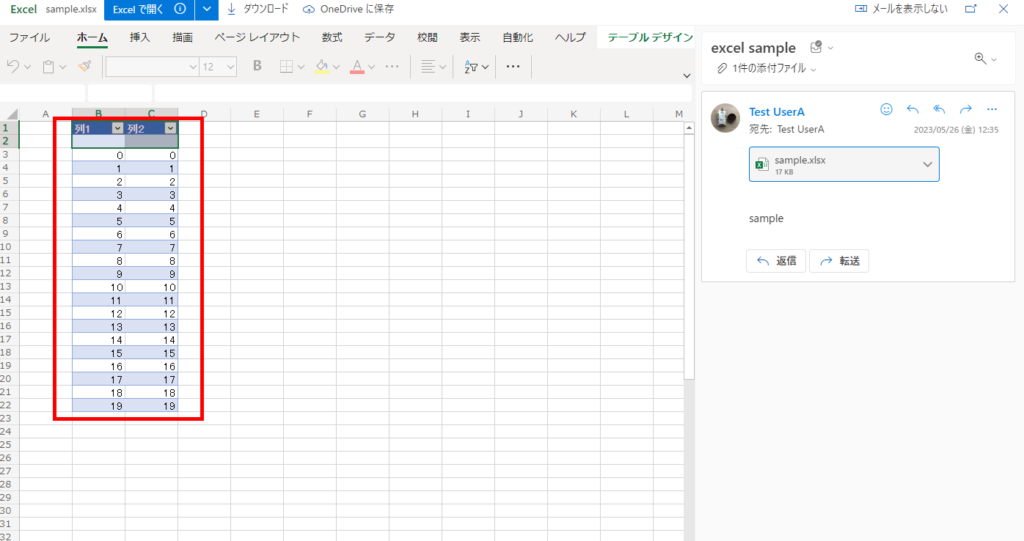
The resulting email attachment now correctly contains the updated rows.
Correct Excel attachment

While this lag doesn’t happen every time, adding this logic makes your automation much more robust for production environments.
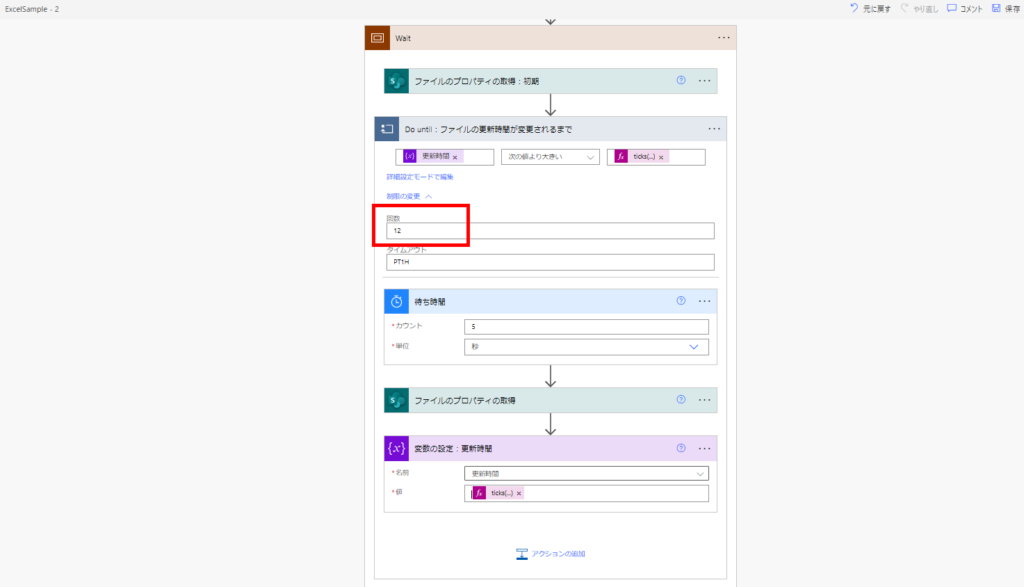
Important: Always set a timeout limit for your “Do Until” loop. In rare cases where the update happens instantly (or fails), you don’t want the flow to wait forever. I recommend setting a timeout (e.g., 10 minutes) suitable for your environment.
Do Until timeout settings

Related Articles

コメント

Copied title and URL