I explored variables in Copilot Studio in detail. While they look similar to Power Apps variables, there are some unique behaviors—especially with the “Choice” type and variable scopes—that can trip you up. Here is a summary of what you need to know.
1. Variable Types & The “Choice” Trap
The types of variables available in Copilot Studio are almost the same as those in Power Apps (Power Fx). They are as follows:
- String: Text
- Bool: true or false
- Number: Numeric values
- Table: Tables (including arrays)
- Record: Records (objects)
- DateTime: Date and time
- Choice: Options (⚠️ behaves differently from Power Apps)
- Blank: Blank (same as blank in Power Apps)
⚠️ Watch Out for the “Choice” Type
Among these, the “Choice” type differs significantly from Power Apps. In Power Apps, table-type values are often used as options for controls like combo boxes. However, in Copilot Studio, “Choice” is treated as a distinct strict type. You cannot simply pass a string into a Choice variable without conversion.
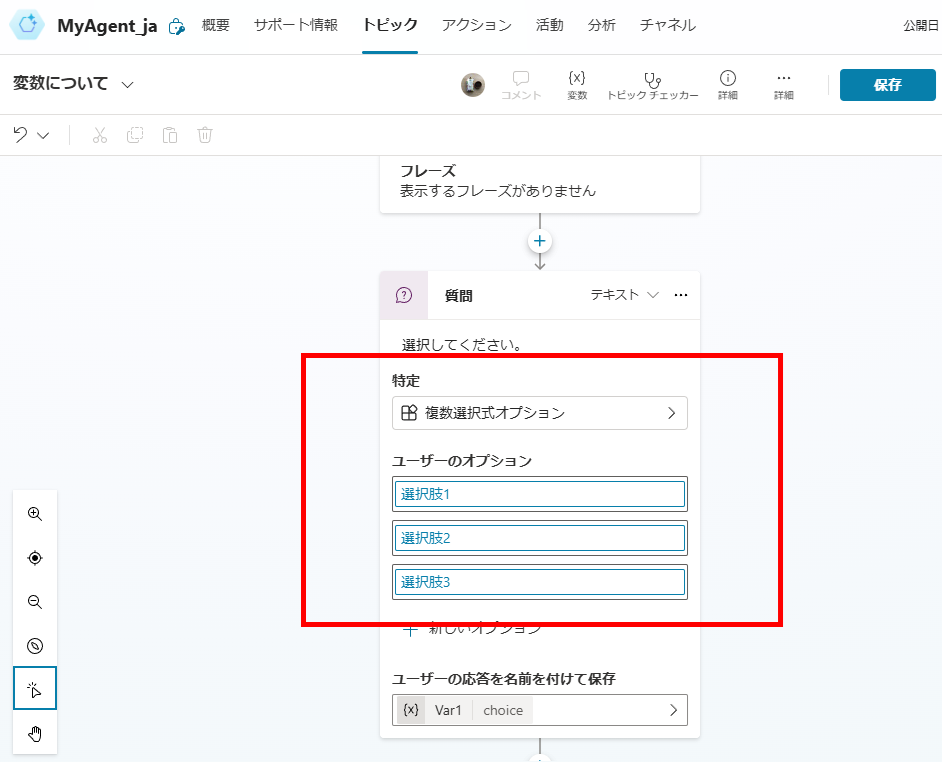
Additionally, entities themselves are not considered “types” but act as definitions for types. For example:
- “Age,” “Currency,” “Count”: Treated as Number type
- “Postal Code,” “Country,” “City”: Treated as String type
- “User-defined entities,” “Multi-select options”: Treated as Choice type
2. Types of Variables by Scope
Copilot Studio provides four distinct scopes for variables. Understanding these is key to managing data flow in your agent.
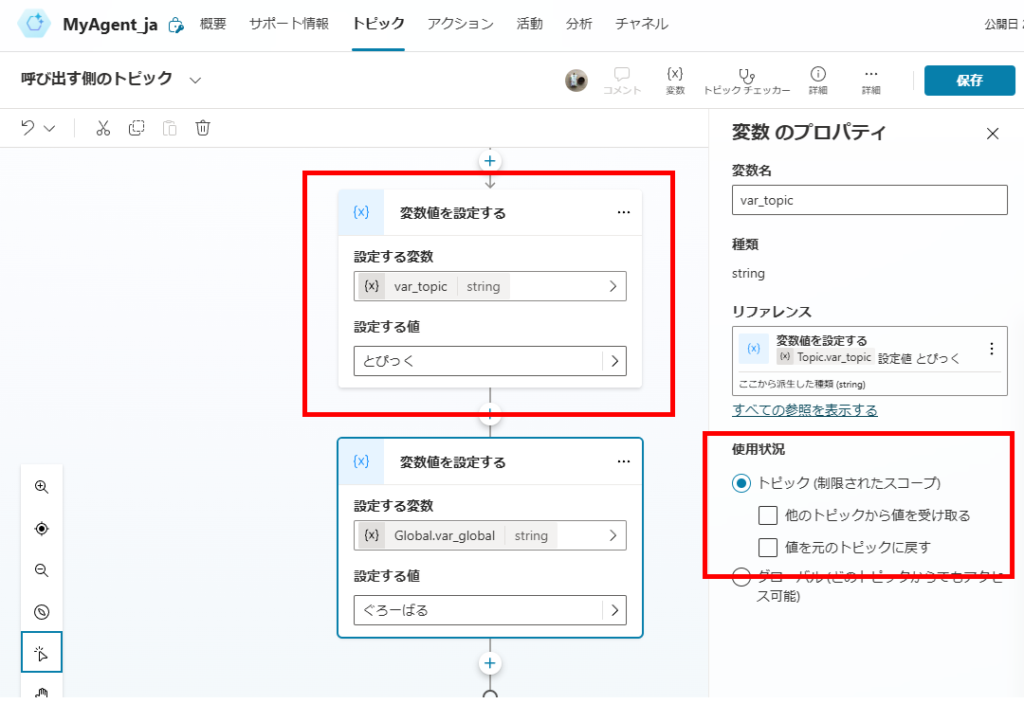
- Topic Variables: Accessible only within the current topic. (Local scope)
- Global Variables: Accessible across all topics in the agent.
- System Variables: Pre-defined variables managed by Copilot Studio (e.g., User ID, Last Message).
- Environment Variables: Defined at the Power Platform environment level (ALM-friendly).
Experiment: Topic vs. Global Variables
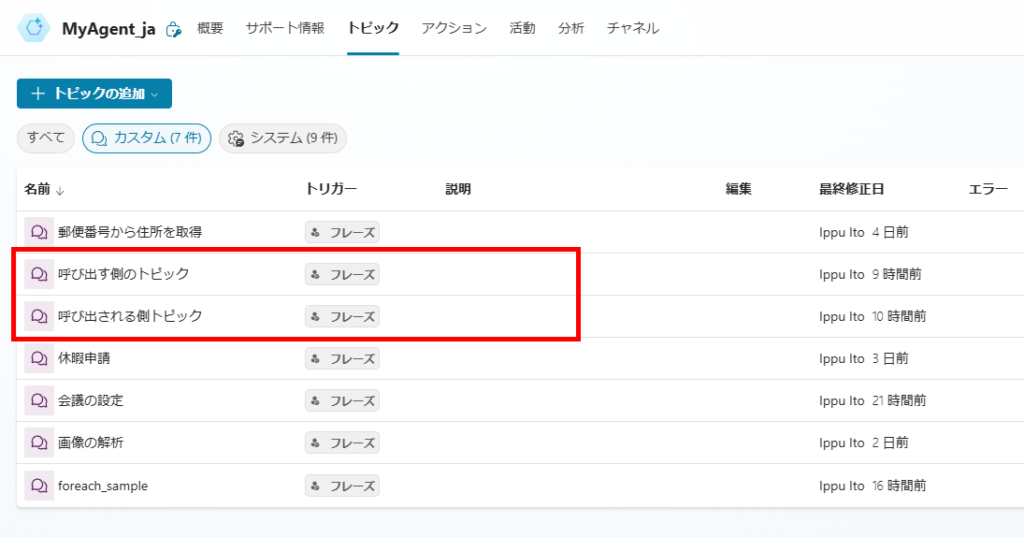
To demonstrate the difference, I set up two topics: “Calling Topic” and “Called Topic.”
In the “Calling Topic,” I defined both a topic variable and a global variable:
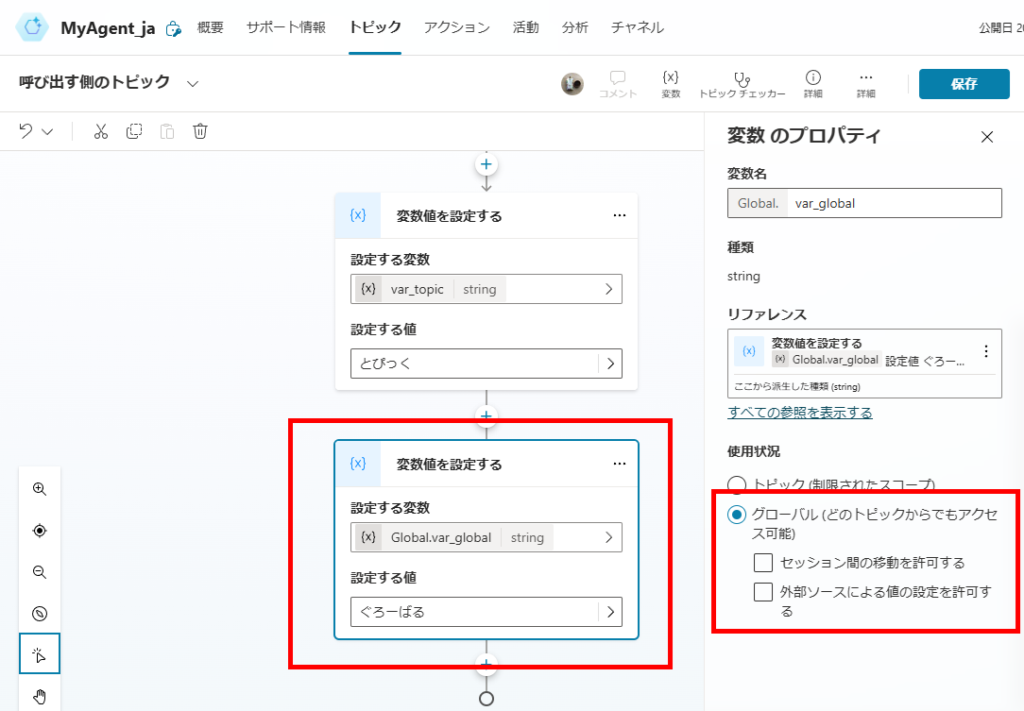
When I switch to the “Called Topic” and try to access variables, only the global variable is visible.
※ Technically, global variables are accessible from ANY topic within the agent.
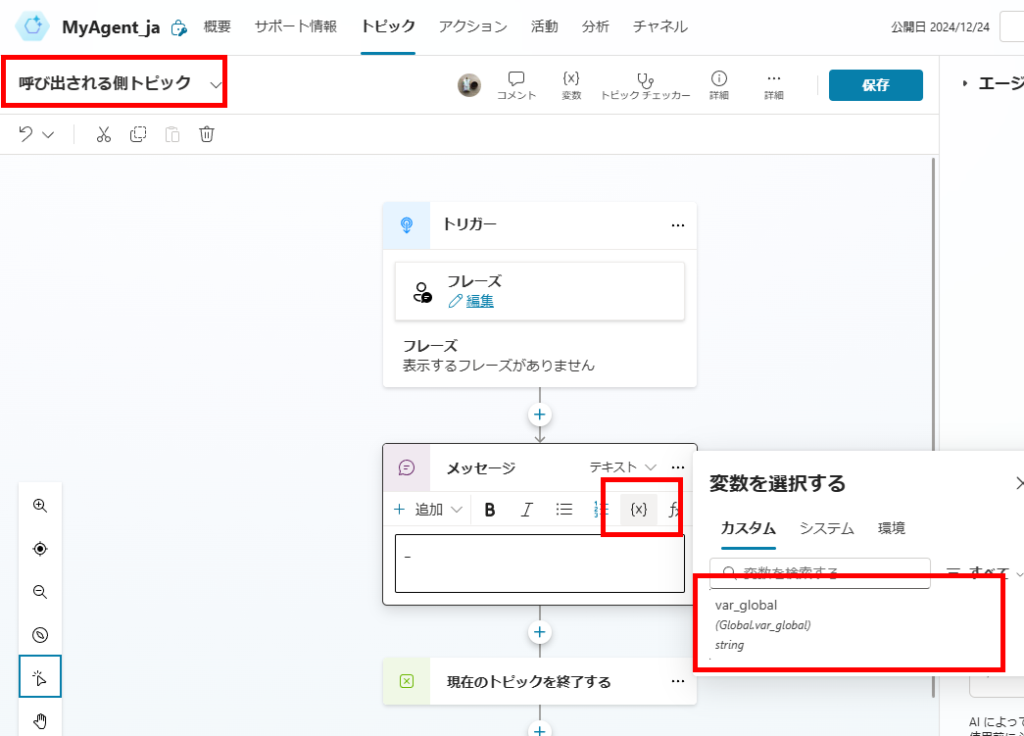
As expected, the message in the “Called Topic” successfully displays the value from the Global Variable defined in the “Calling Topic”.
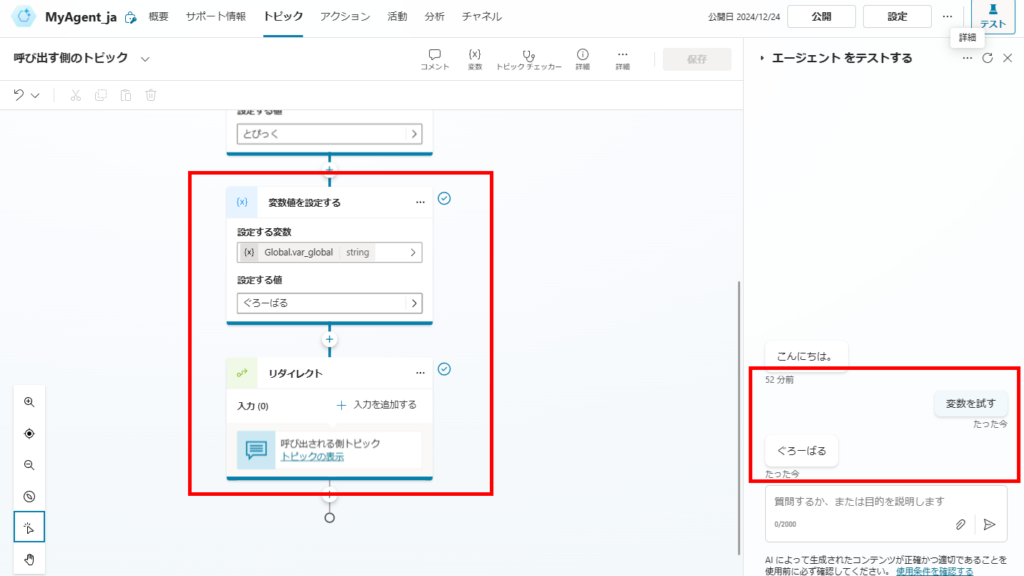
Global Variable Lifecycle
According to the official documentation, global variables retain their value until:
- The session ends (conversation reset).
- The “Clear Variable Value” node is explicitly used.
You can use the “Clear Variable Value” node within the system topic “Reset Conversation” or anywhere in your logic to reset data.
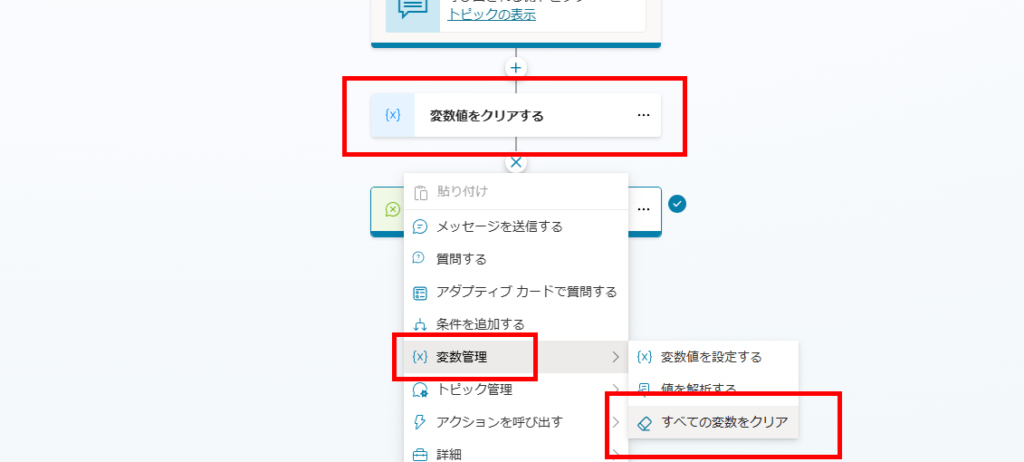
Official Ref: Lifecycle of global variables
3. Passing Values Between Topics (Best Practice)
Avoid relying too heavily on global variables. Overusing them makes debugging difficult and creates “spaghetti code.” Instead, use Input/Output variables to pass data explicitly between topics.
Step 1: Receive Value (Input Argument)
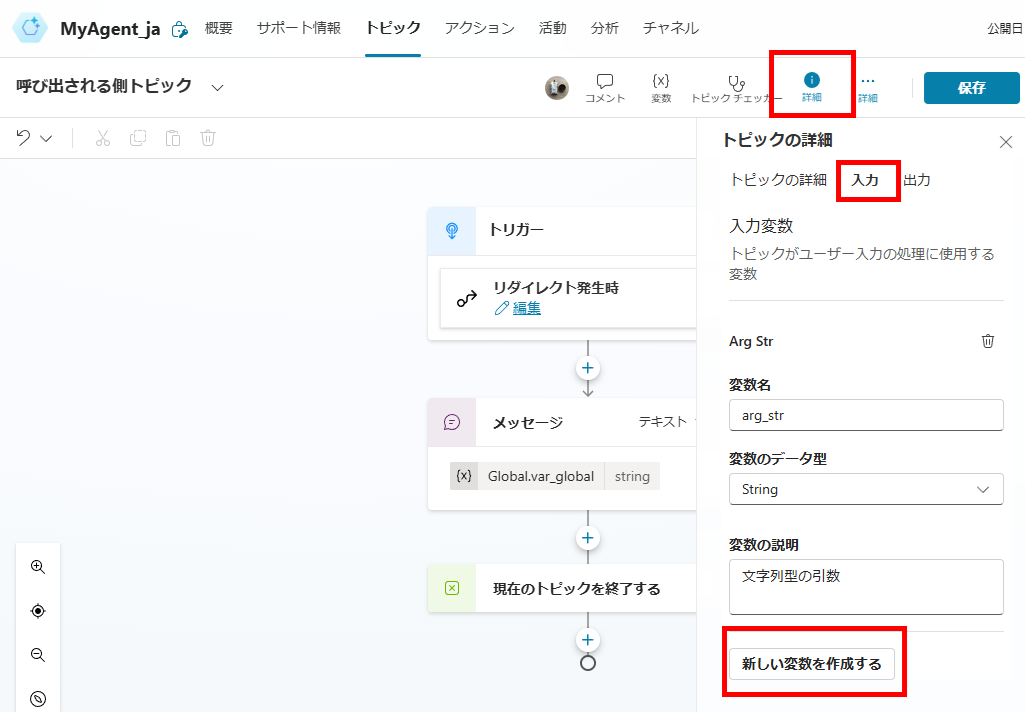
In the destination topic, go to [Details] > [Inputs] and click “Create a new variable.” This defines an argument that the topic expects to receive.
Now, in the “Calling Topic,” when you add a Redirect node, you will see an option to [Add an input].
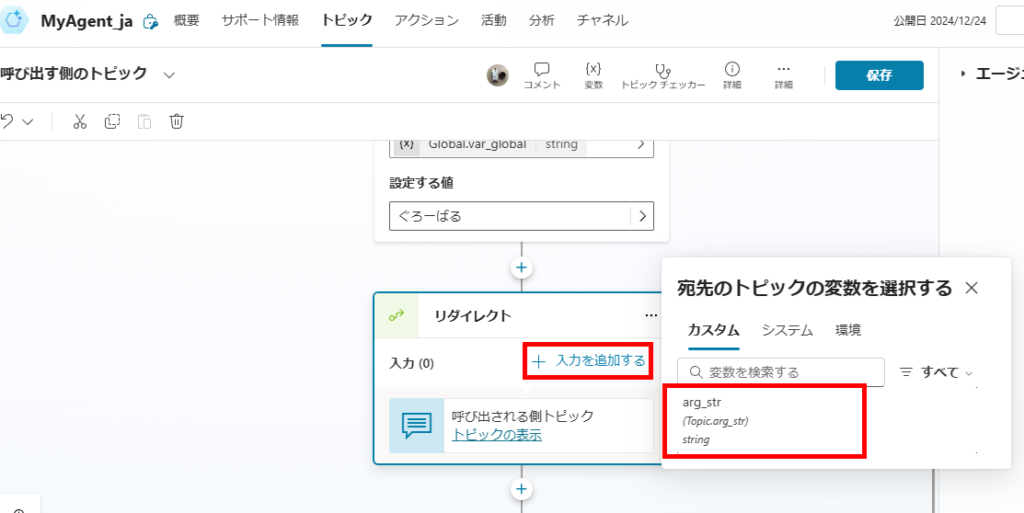
Select the variable you want to pass (in this case, a local topic variable).
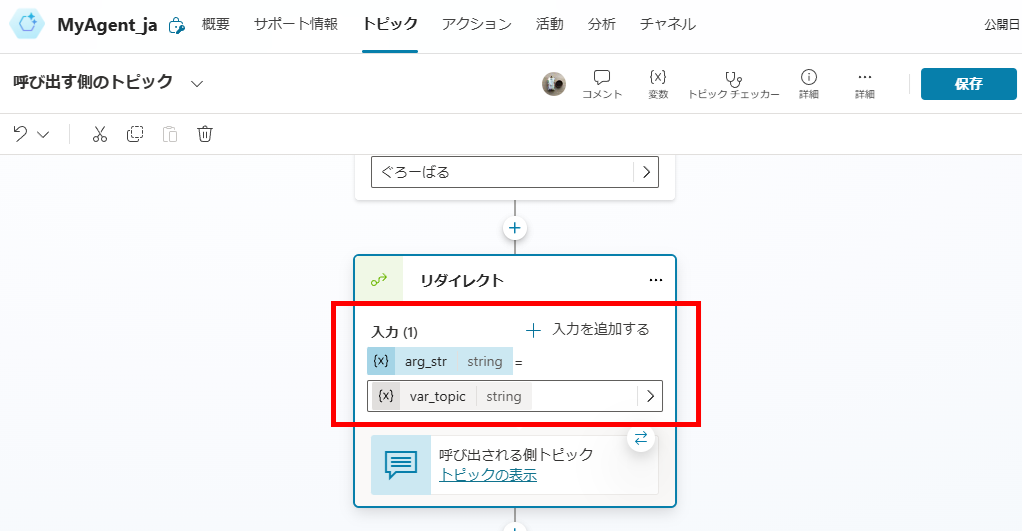
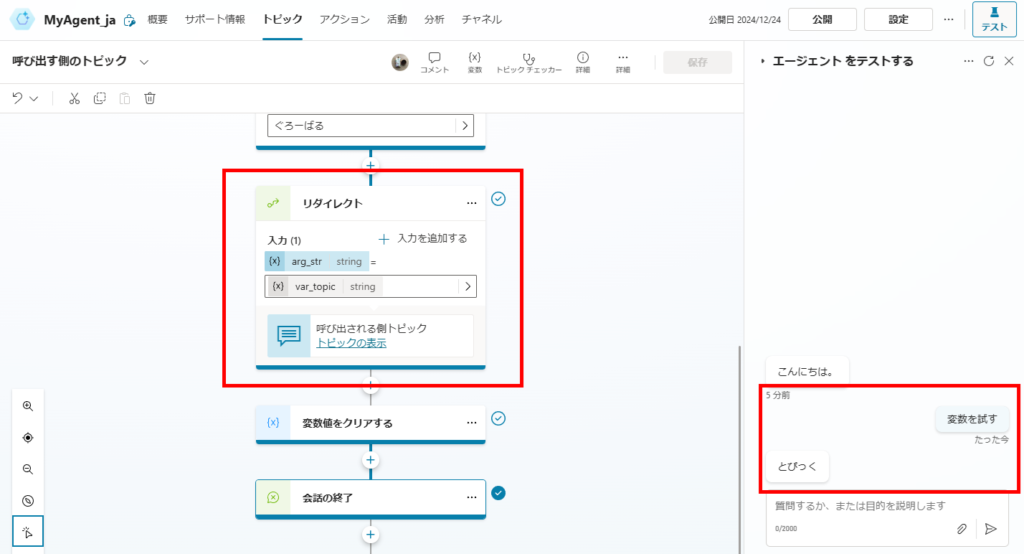
Result: The value is successfully passed without polluting the global scope.
Step 2: Return Value (Output Argument)
To return data back to the original topic, go to [Details] > [Outputs] and create a new variable.
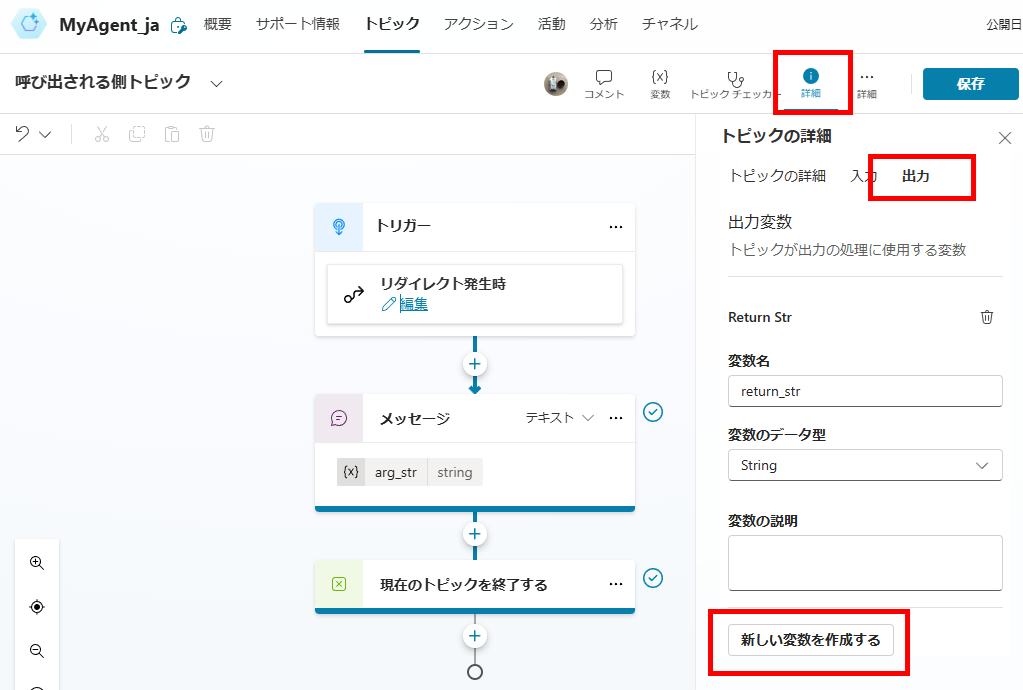
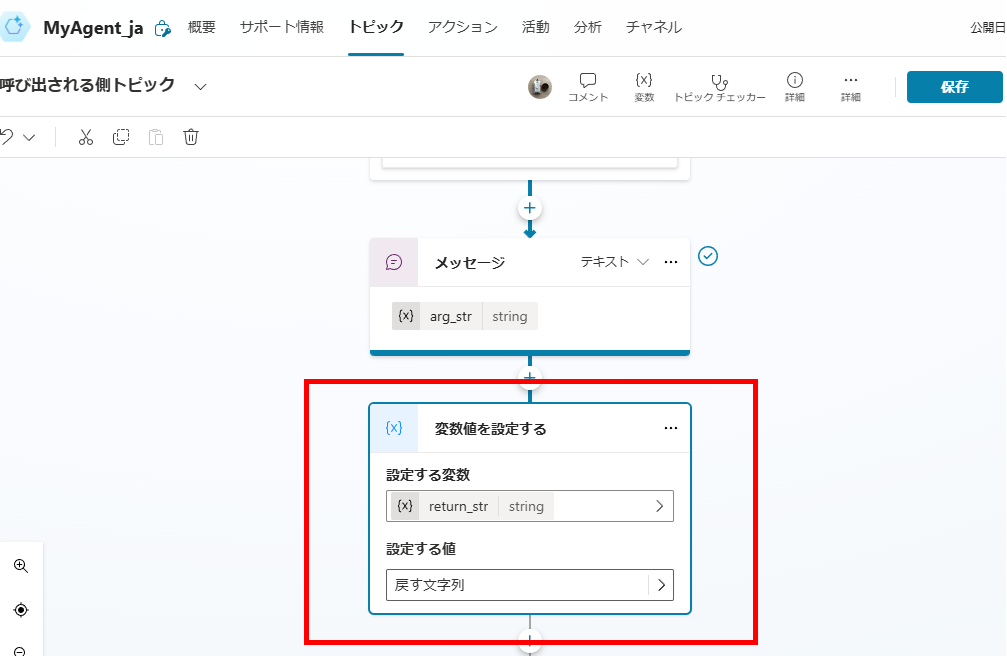
Inside the topic, assign the final result to this output variable using the [Set a Variable] node.
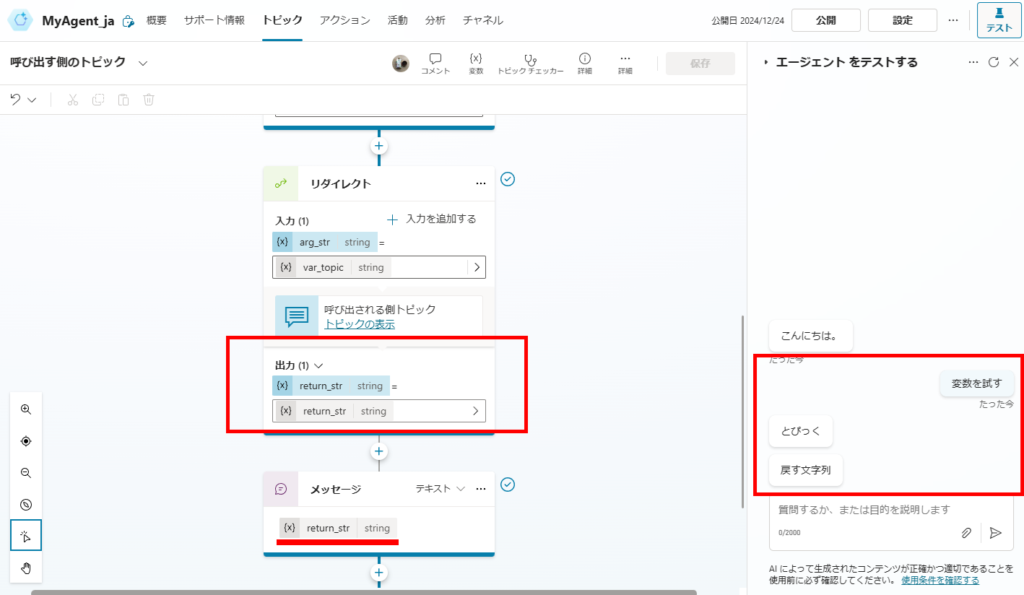
The “Calling Topic” can now access this return value immediately after the redirect node finishes.
4. System & Environment Variables
System Variables
These are built-in variables useful for logic conditions:
- Activity.Text: The latest user input text.
- LastMessage.Text: The previous message sent by the user.
- User.Email: The authenticated user’s email.
- User.PrincipalName: The user’s UPN.
※ Tip: Activity.Text is for the current turn, while LastMessage.Text is historical.
Official Reference: List of System Variables
Environment Variables
Environment variables allow you to change values (like URLs or IDs) depending on whether you are in Dev, Test, or Prod environments.
Define them in your Solution:

Use them in topics (e.g., switching SharePoint URLs dynamically):
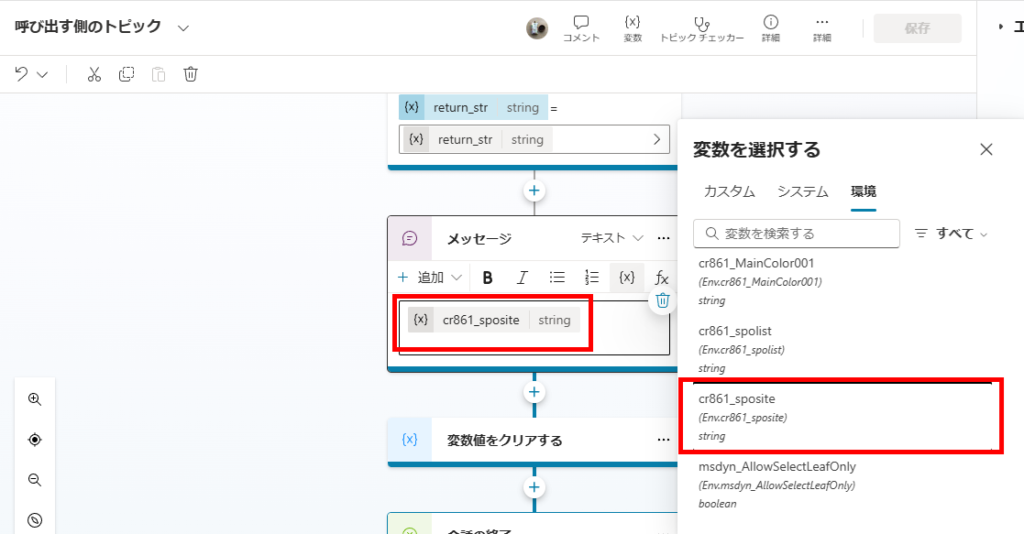
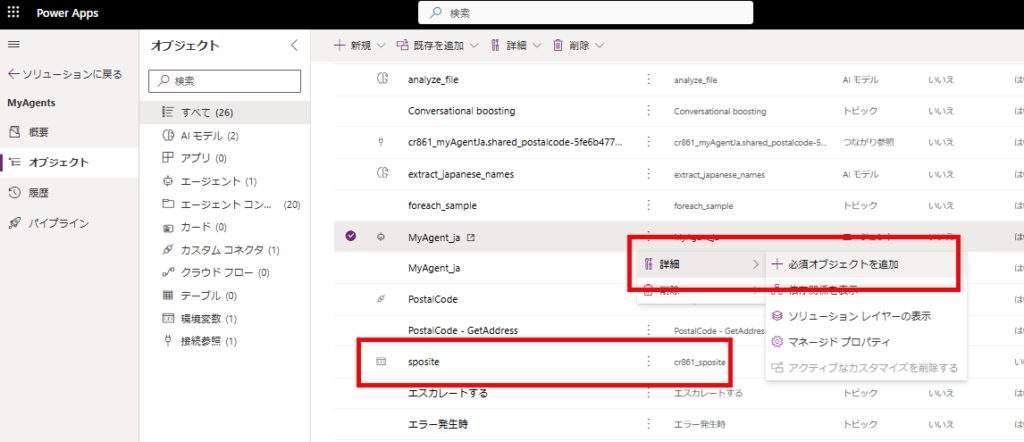
Important: When exporting your solution, ensure the environment variables are included as required objects.
Related Articles
[Power Apps] Variable Types
[Copilot Studio] Entity & Slot Filling
コメント