I recently encountered a frustrating issue where a Business Process Flow (BPF) branching condition worked perfectly for me (System Administrator) but failed completely for other users I shared the app with.
It took me quite a while to troubleshoot, so I’m documenting the solution here to save you time.
The screenshots below use the Classic UI, but the underlying Dataverse security architecture remains the same in 2025.
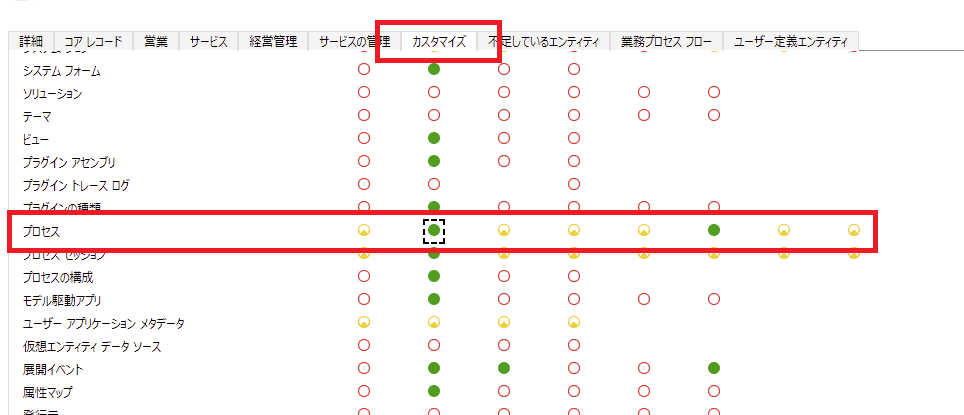
If you are using the modern Power Platform Admin Center, please look for the “Process” table permissions under the “Customization” tab in the Security Role settings.
The Setup
Here is the BPF design:
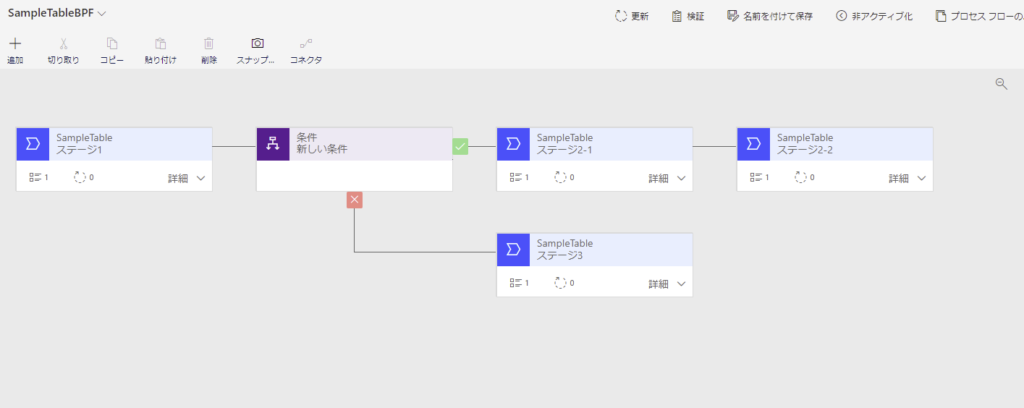
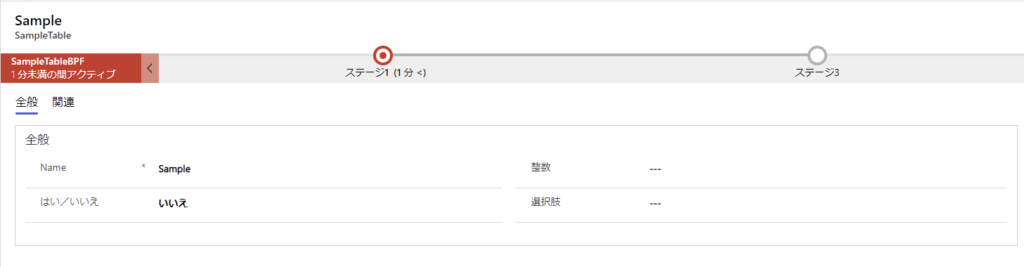

So far, so good.
The Problem
The issue started when I tried to share this BPF with other users.
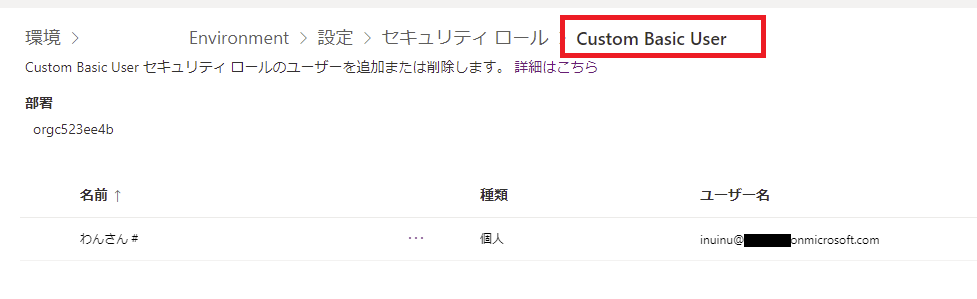
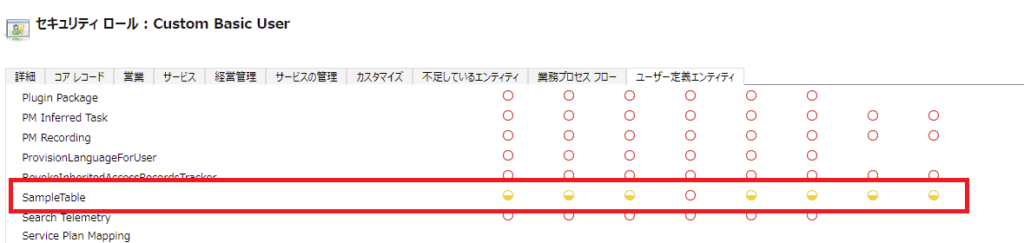
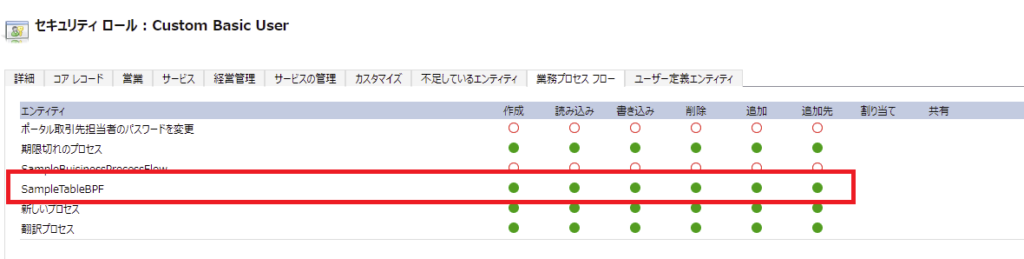
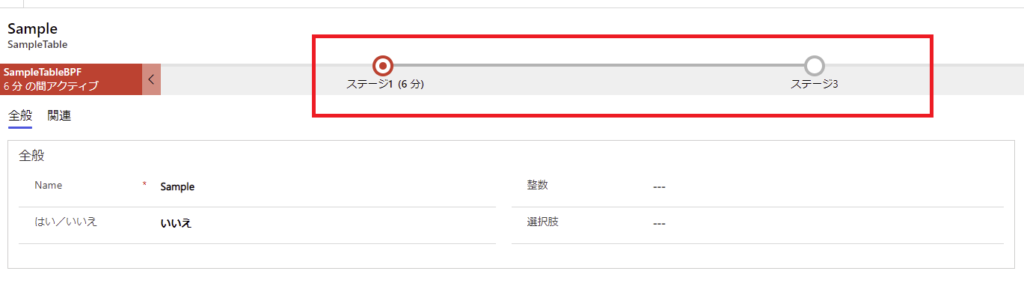
However, when the shared user opened the app, the BPF looked like this:
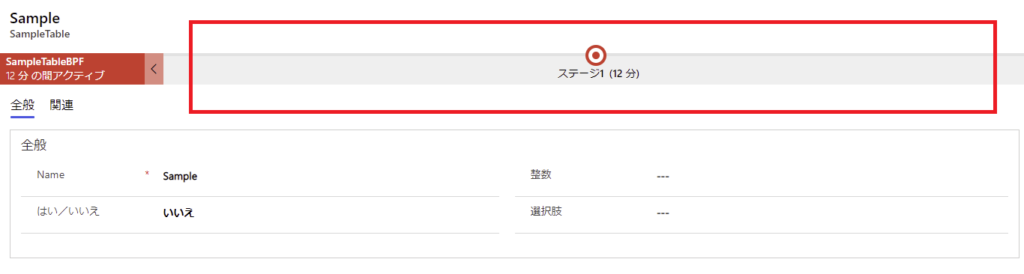
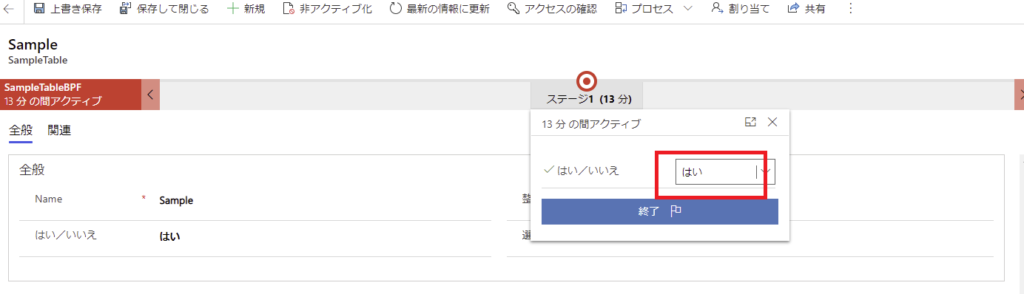
Only the first stage was visible. Even when the user changed the condition field, the next stage never appeared.
The Cause
After digging through documentation and forums, I found the answer in this Power Users thread:
Users cannot see Business Process Flow stages with custom security role
It turns out that Dataverse BPF logic relies on the internal “Process” (Workflow) entity.
Simply giving permissions to the BPF entity itself is not enough for the branching logic to execute.
The Solution
The fix is to grant Read access to the Process entity.
2. Go to the Customization tab.
3. Find the Process table (sometimes listed as ‘Process’ or ‘Workflow’).
4. Set Read privilege to Organization level (or at least User level, depending on your setup).

Summary
It is surprisingly hard to find detailed documentation on specific security role requirements for BPF internals.
If your users can see the BPF but the logic isn’t firing, check the “Process” entity permissions in the Customization tab!
Reference / Special Thanks:
I found the clue in this Power Users Community thread: Users cannot see Business Process Flow stages…
(Thanks to the community for saving my day!)
コメント