Since I received a question about how to manipulate files in private channels, I’m sharing these notes.
The Problem: Private Channel Files Not Showing in Power Automate
Creating an Excel file in a private channel,
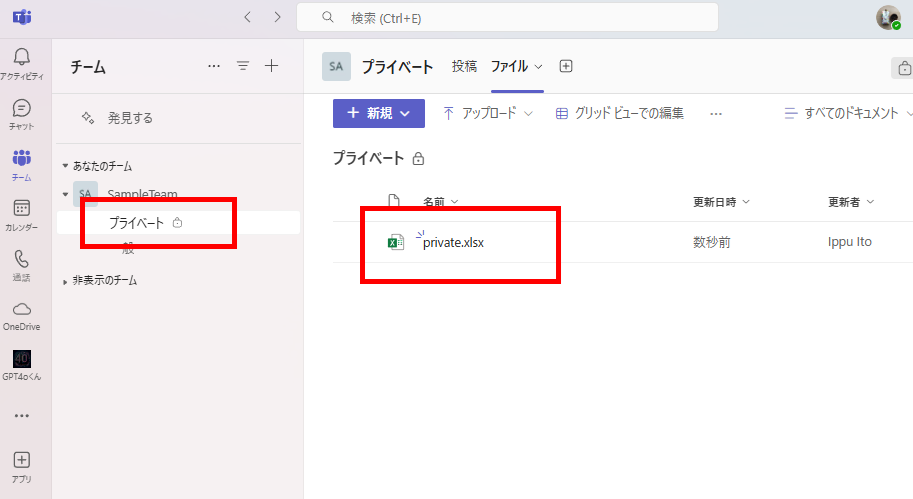
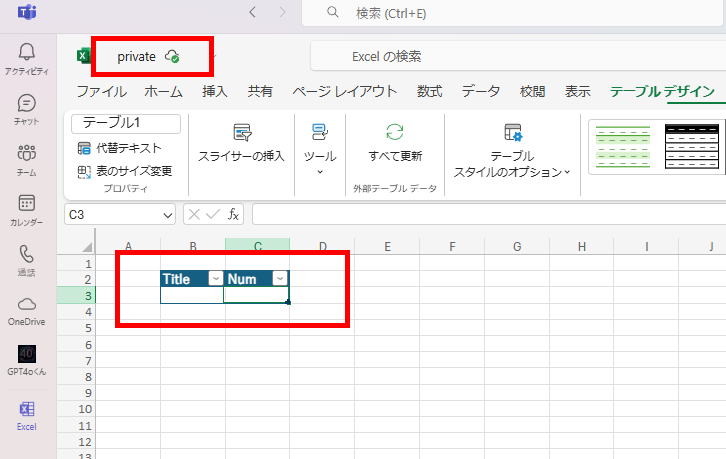
When trying to handle this file from Power Automate, even after selecting the appropriate team in the [Location] field, you cannot access files within private channels.
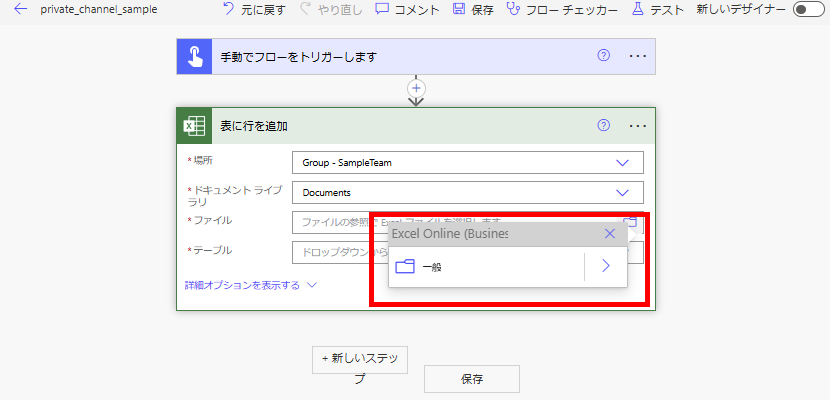
In this tutorial, we’ll learn how to manipulate Excel files in private channels using Power Automate.
Why It Happens: Private Channels Have Separate SharePoint Sites
First, let’s check where each file is stored.
When viewing files from a public channel in SharePoint Online (SPO),
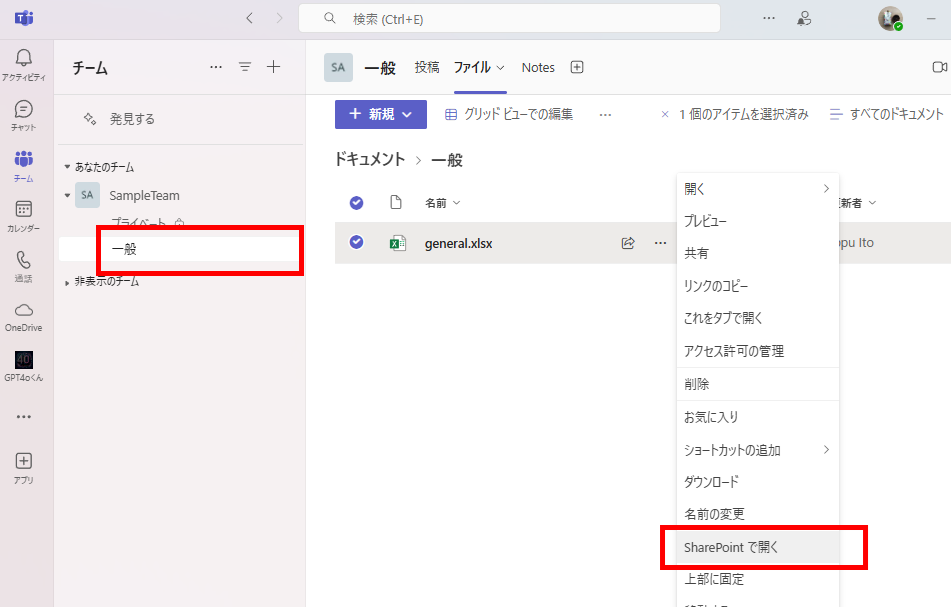
They are stored within the site associated with each team.
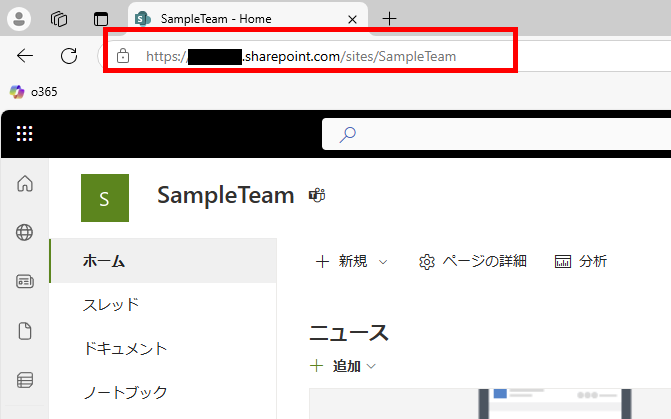
Now, let’s check the files in a private channel.
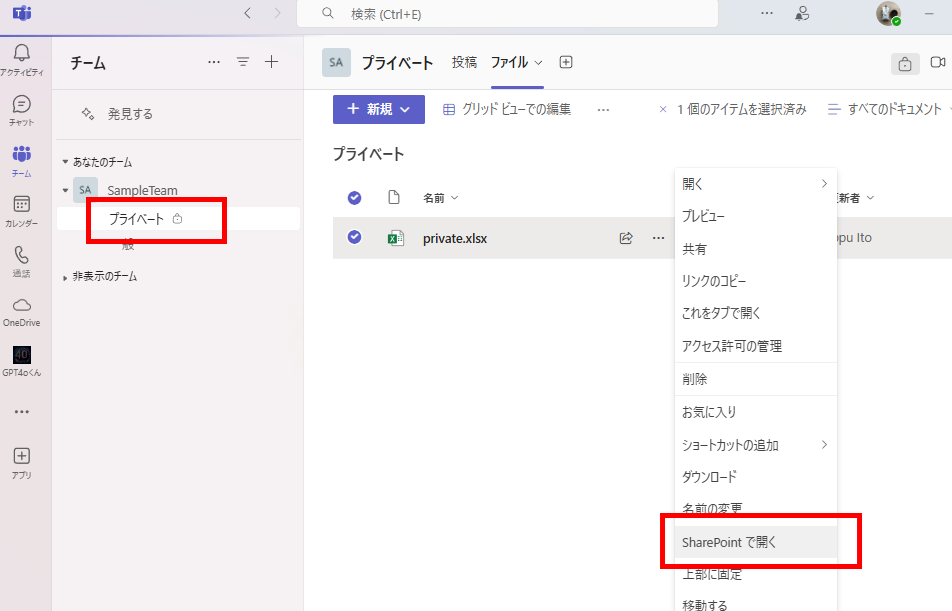
We can see that they are stored in a different site than public channels.
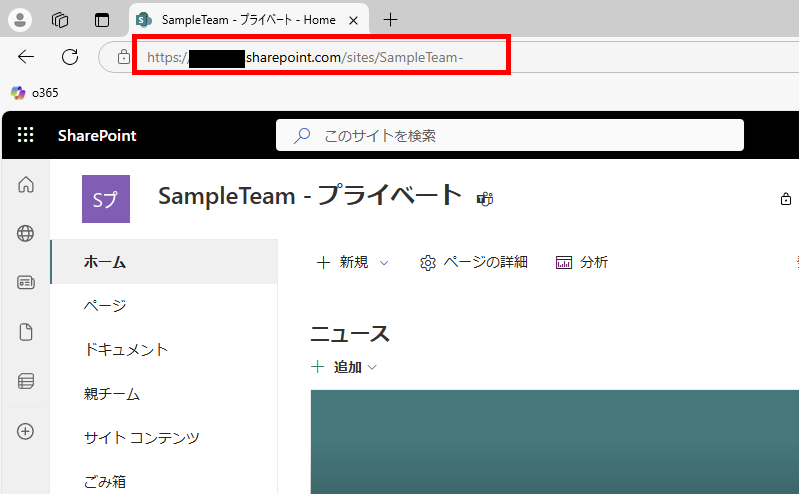
As a result, when selecting a site normally in Power Automate, files from private channels were not displayed.
How to Fix: Manually Enter the Private Channel URL
Select [Enter custom value].
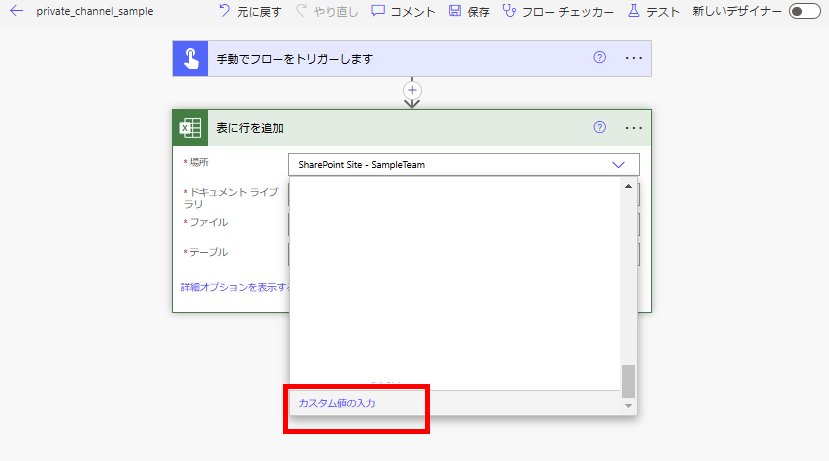
By manually entering the previously noted address, you can access files within the private channel.
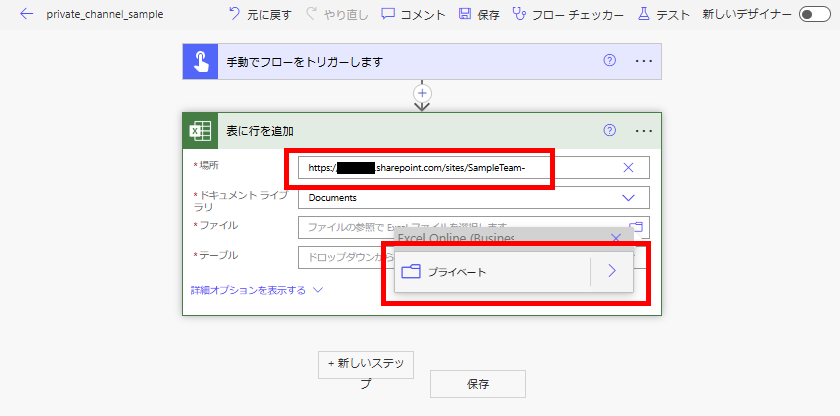
After this, you can proceed with operations as usual.
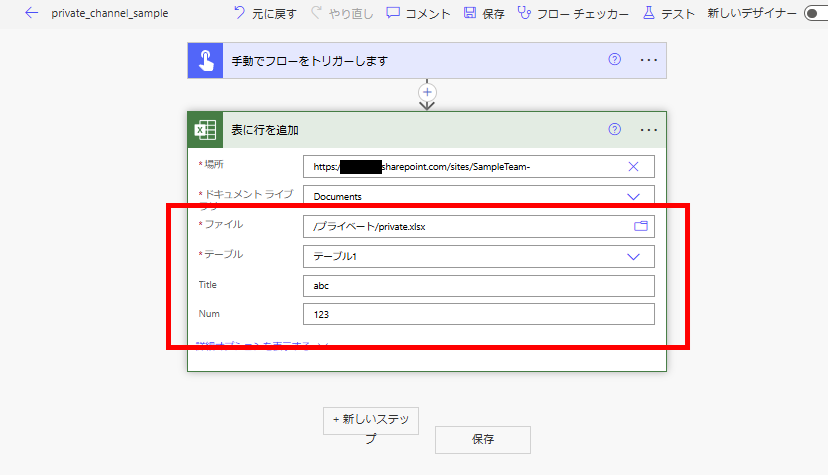
When executed,
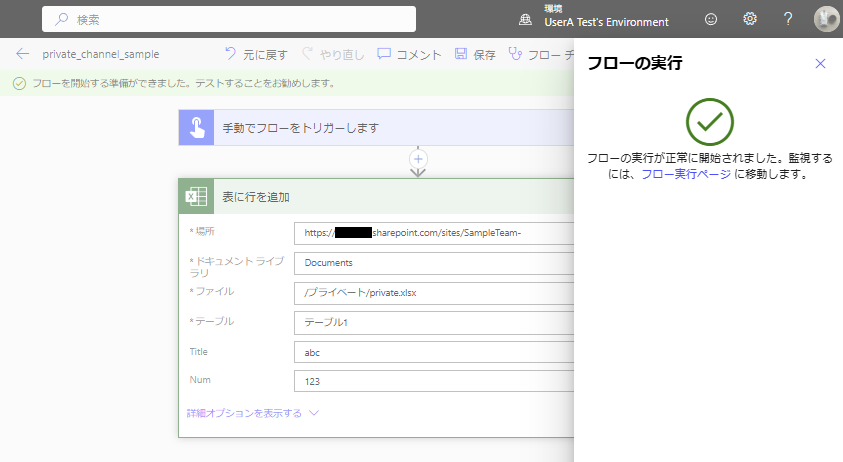
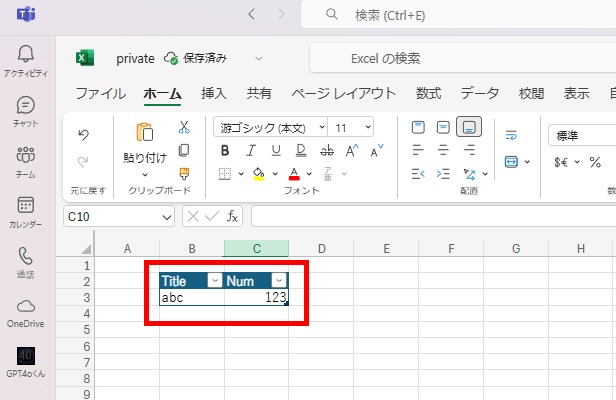
The action completes successfully.
Note: When Private Channel Sites DO Appear
Interestingly, instead of selecting a Group, you may sometimes be able to choose the private channel’s site from SharePoint Site.
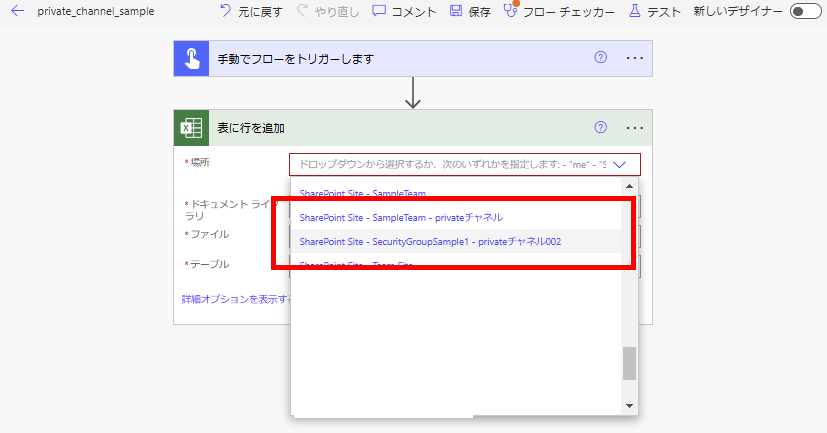
In this case, simply selecting the site allows you to manage files just like in a public channel.
コメント