Have you ever encountered the frustrating “File is locked for shared use” error when trying to delete an Excel file in Power Automate?
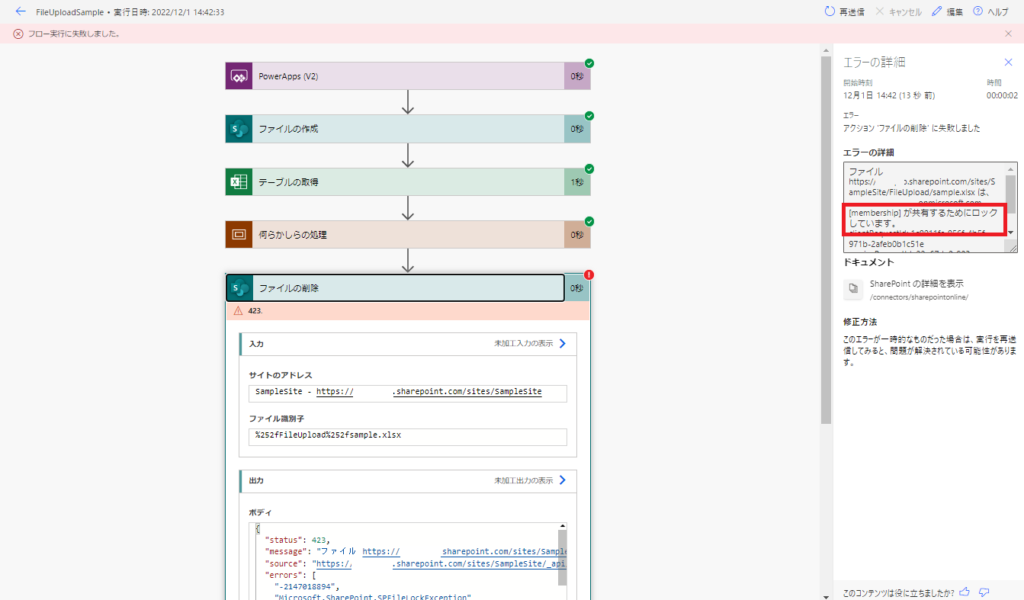
Even though your flow has finished processing the file, SharePoint keeps it locked, and the “Delete file” action fails.
In this article, I will share a simple and reliable workaround to solve this issue: the 6-minute wait method.
Error: “File is locked for sharing…”
When you want to:
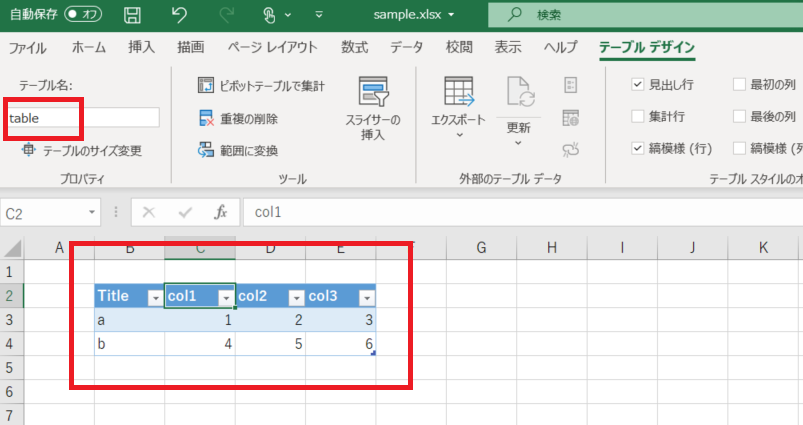
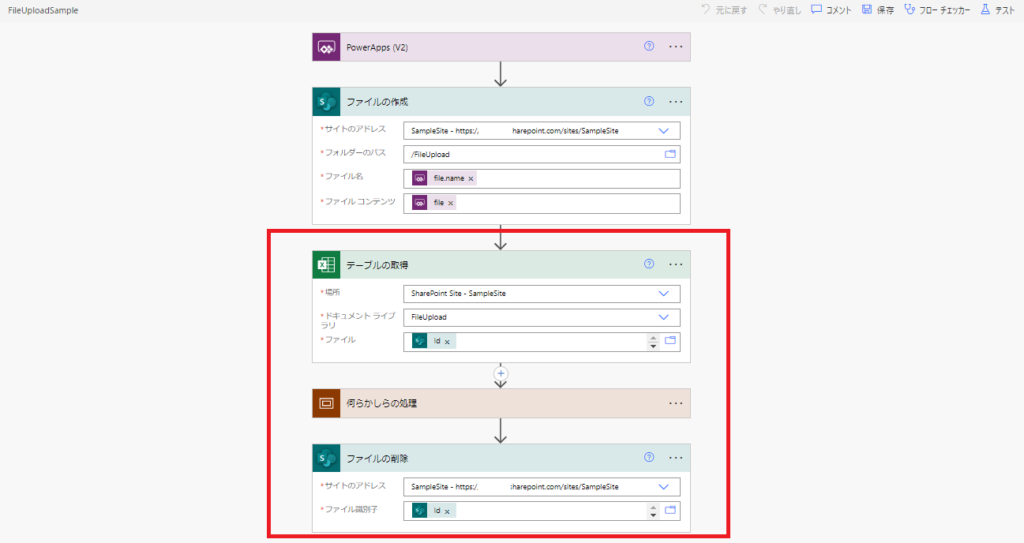
- Upload an Excel file through Power Apps
- Process data from its tables
- Delete the Excel file at the end of the flow
Not being able to resolve this error can be quite problematic for your automation process.
Excel Tables Remain Locked for 6 Minutes After Use in Flow

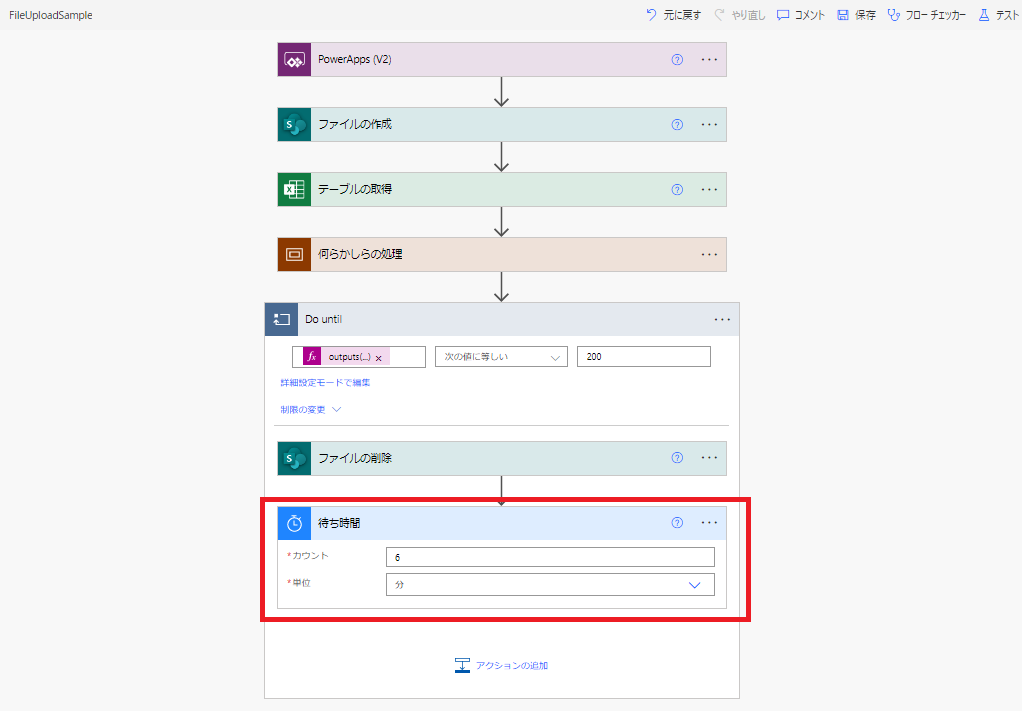
According to the article, when you use an Excel table in your flow, the Excel file remains locked for 6 minutes. Therefore, if you want to delete the file, you need to wait 6 minutes before executing the deletion.
Creating a Flow That Waits 6 Minutes Before Deletion
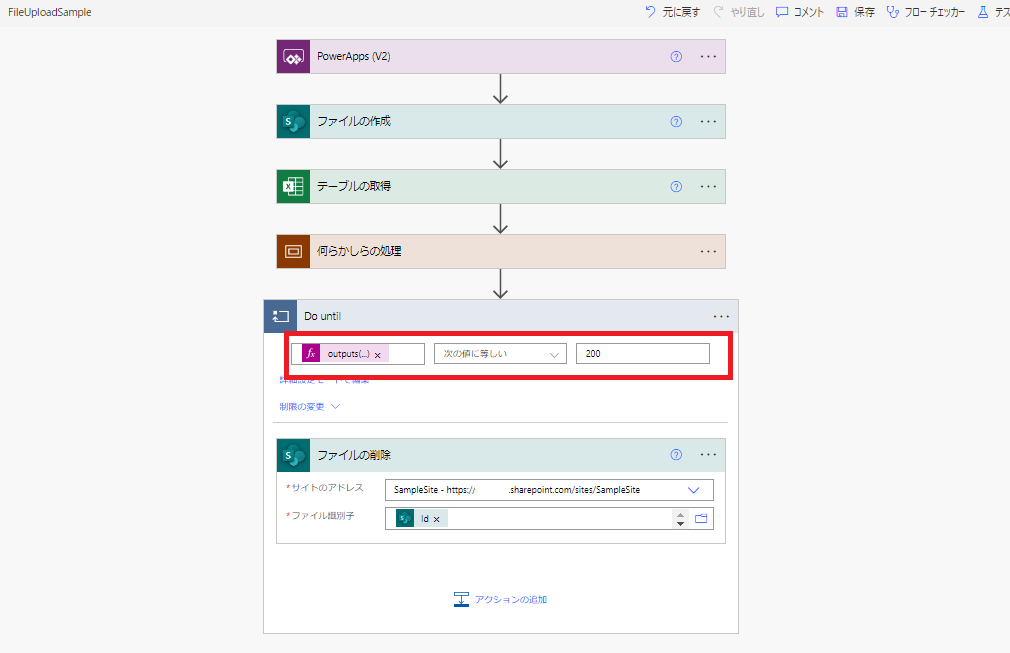
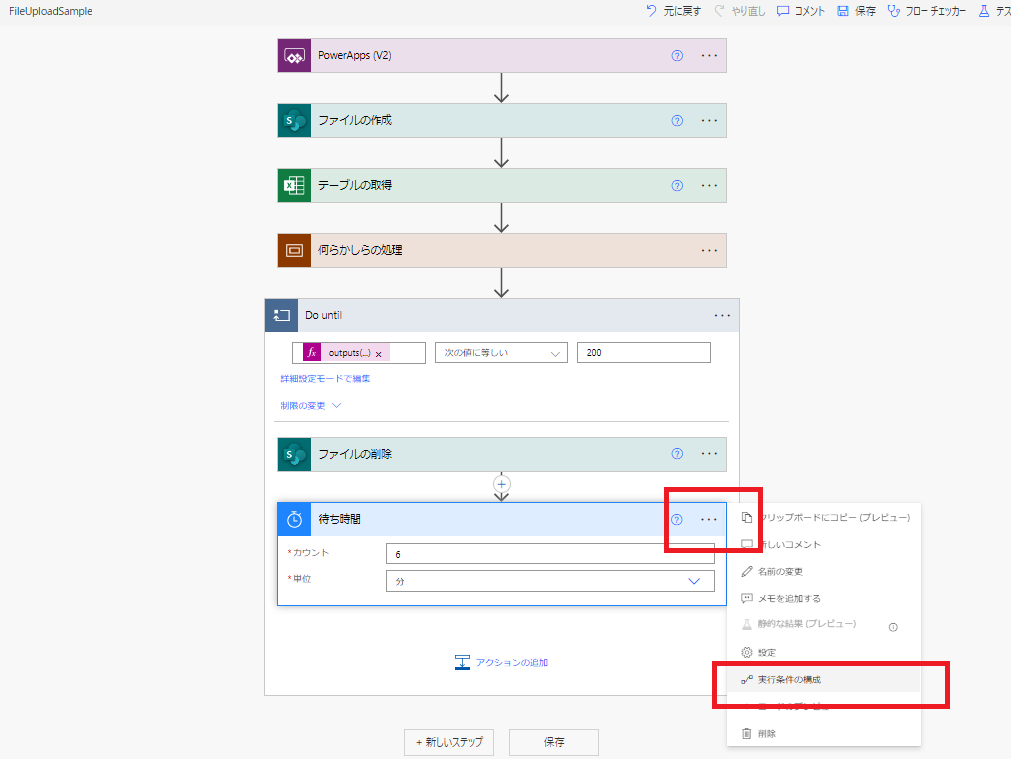
So, I created a flow that deletes the Excel file after waiting for 6 minutes.
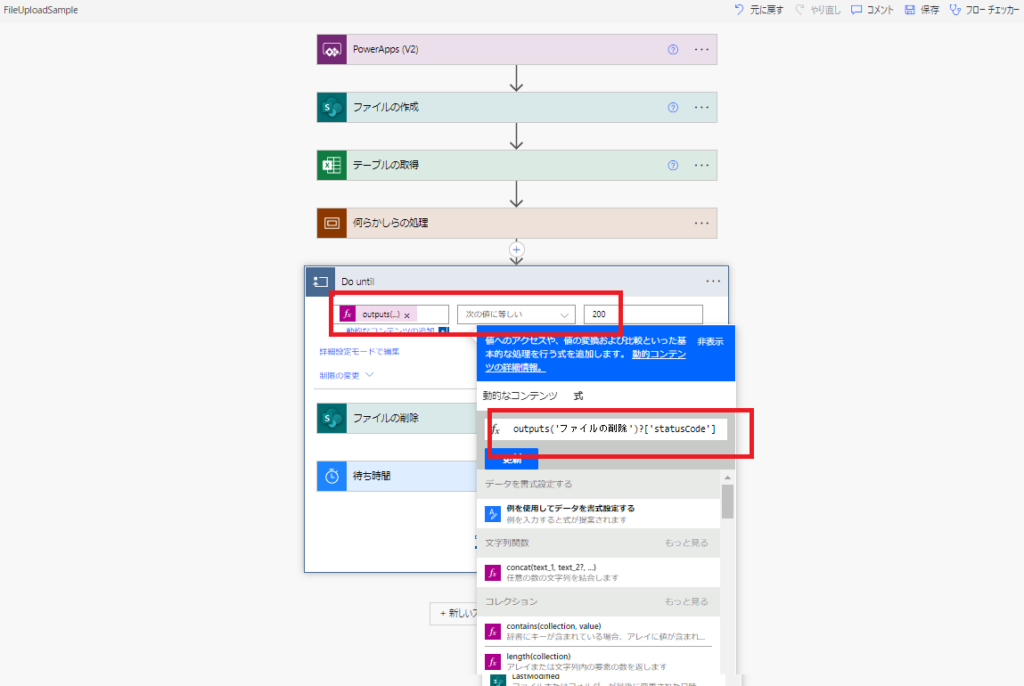
outputs('Delete_file_action_name')['statusCode']
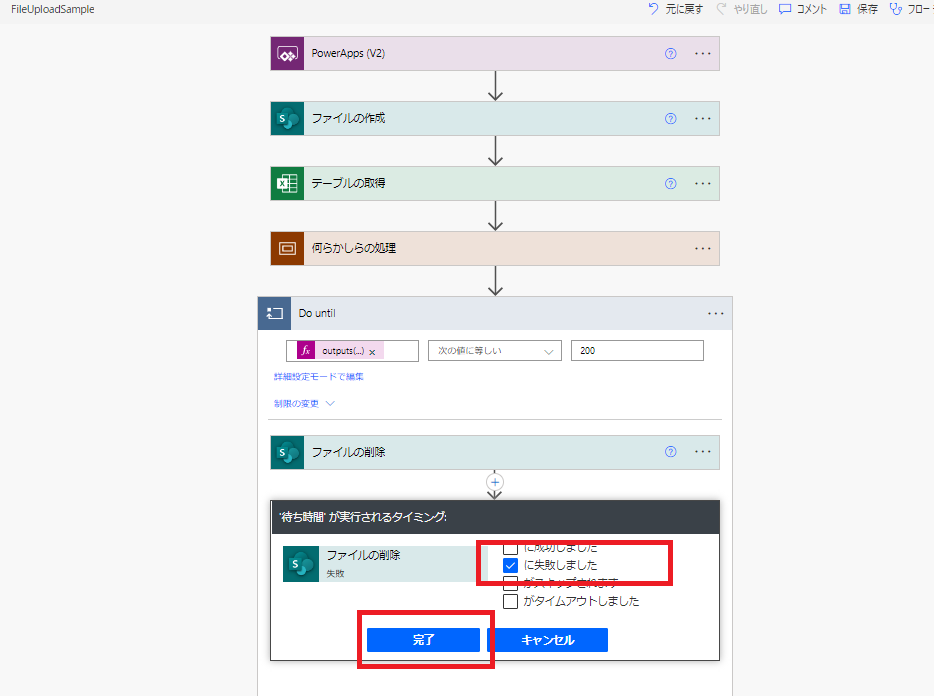
Testing the Flow
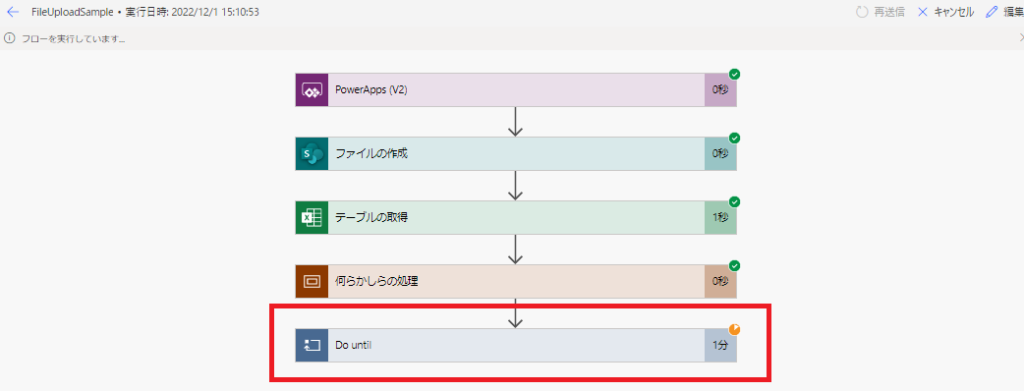
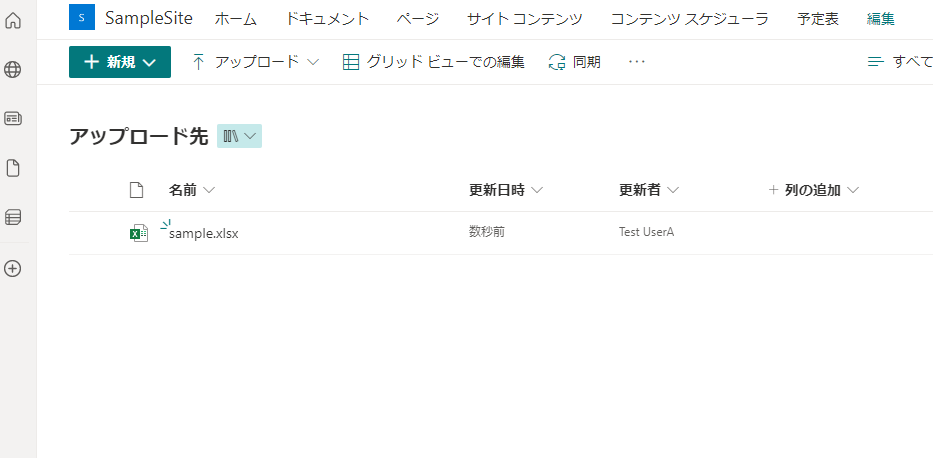
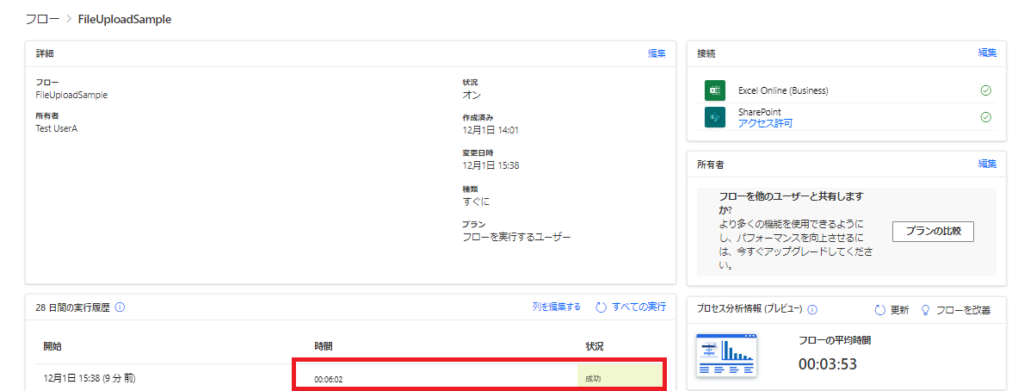
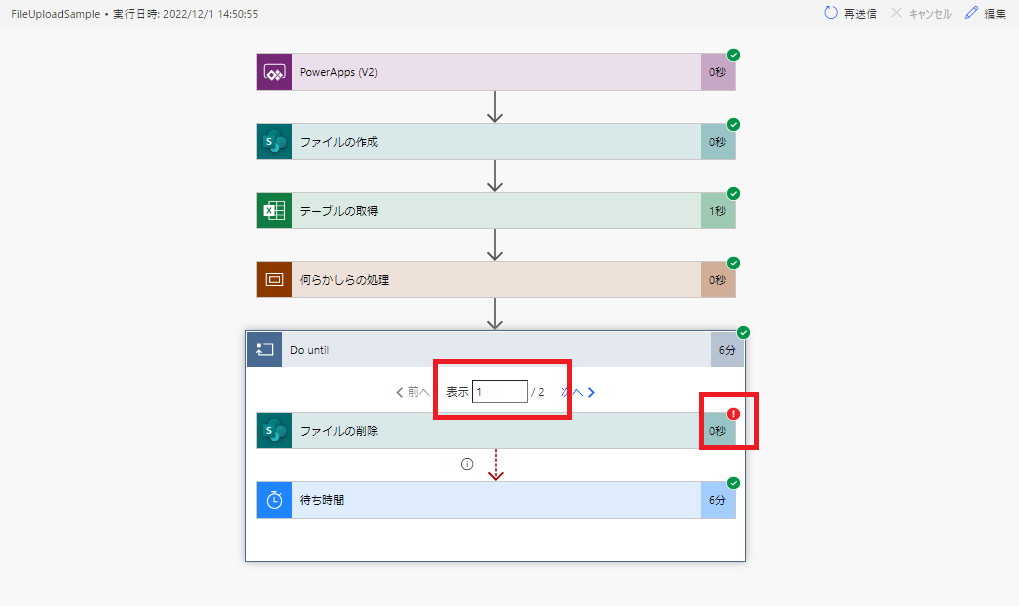
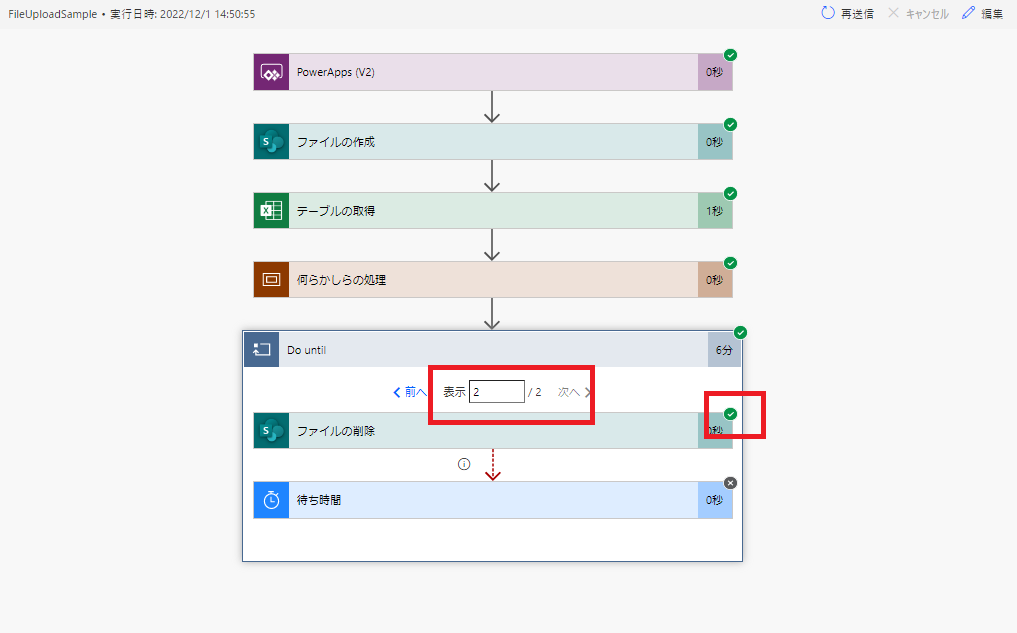
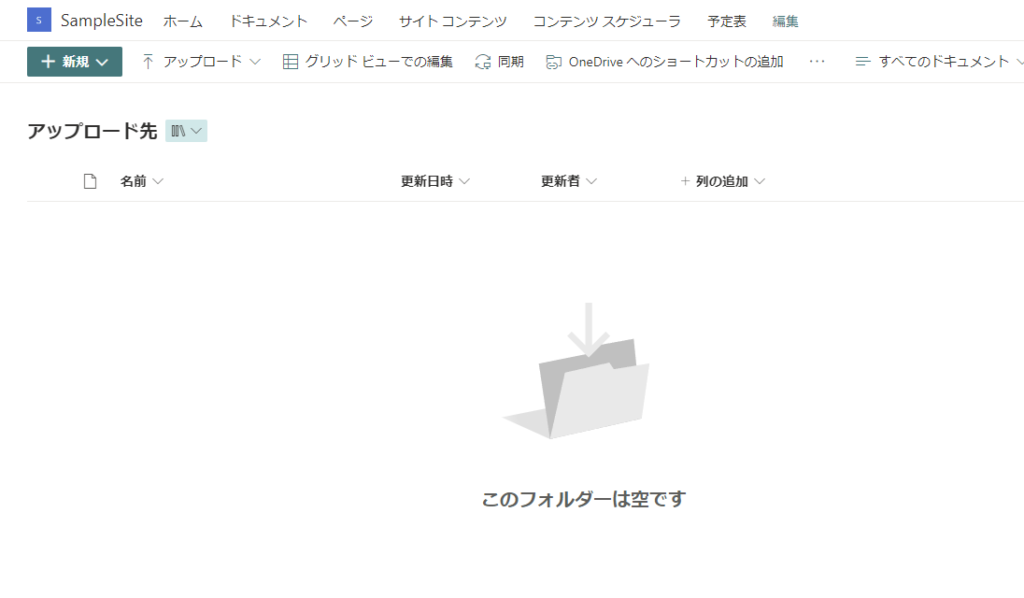
In conclusion, we’ve learned that when you need to delete an Excel file that has been referenced for its tables within the same flow, you must wait 6 minutes before the deletion can be successful.
Alternative: What about Graph API?
Some advanced users might suggest using Microsoft Graph API to force delete the file or break the lock. While that is a valid technical solution, it requires setting up complex App Registrations and handling authentication tokens.
For most scenarios, simply waiting 6 minutes is much easier to implement and maintain. Unless you have a strict requirement to delete the file instantly, I highly recommend this “Delay” method for its simplicity.

コメント