Filtering a gallery based on multiple selections from a Combo Box is a common requirement in Power Apps. However, when using SharePoint lists as a data source, you often encounter Delegation Warnings that prevent the app from processing large datasets correctly.
In this guide, I will demonstrate how to implement multi-select filtering for both SharePoint (with a workaround for delegation) and Dataverse.
Preparation: Data Sources & Test Setup
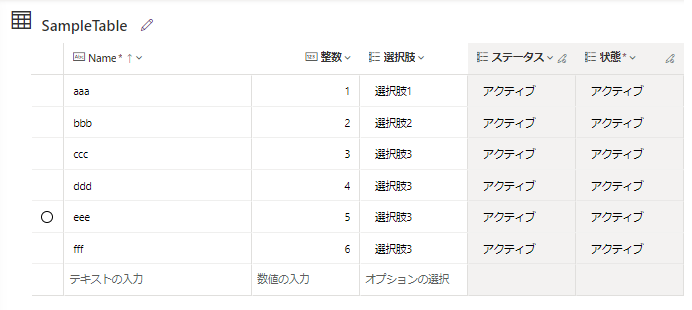
First, let’s look at the data sources.
1. SharePoint List (Target Data)

1. SharePoint List (Target Data)
2. Dataverse Table (Target Data)
Goal: Filter the gallery using a multi-select Combo Box.
- If nothing is selected, Show All Items.
- If items are selected, Filter by Selection.
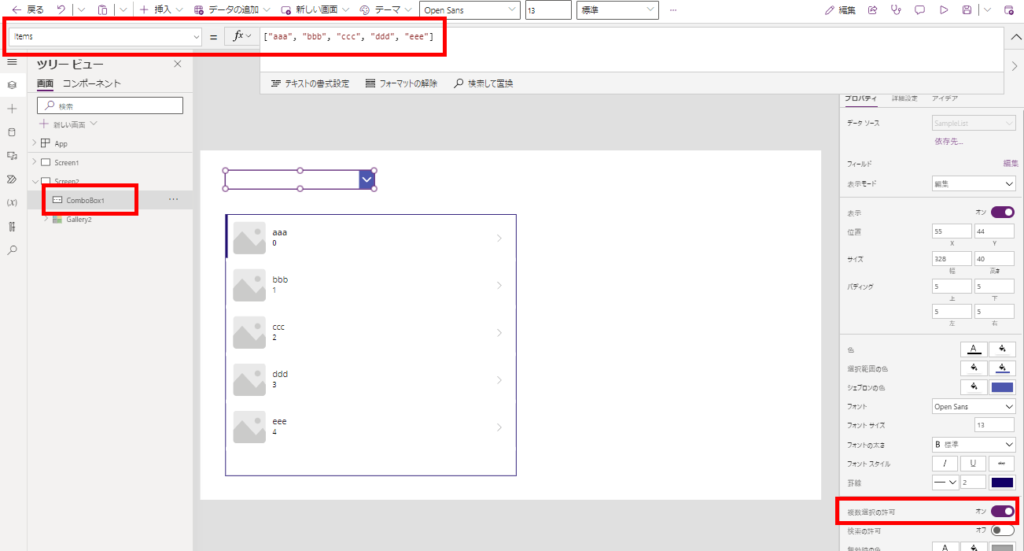
How to Test Delegation
To verify if delegation is working correctly, set the “Data Row Limit” in App Settings to 3 (or a low number).
- If Delegation works: You will see items like ‘ddd’ and ‘eee’ (data beyond the limit) after filtering.
- If Delegation fails: You will only find results from the first 3 items of your list.

For more details on delegation limits, check out this article:
Power Apps Delegation and Row Limits Explained
Case 1: SharePoint List (The Workaround)
The
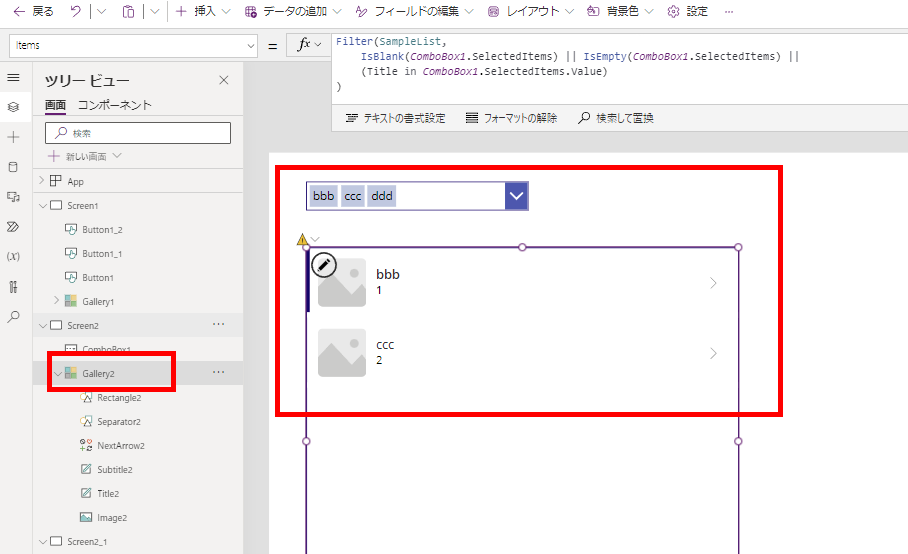
In operator is NOT delegable with SharePoint. If you use the simple formula below, you will receive a delegation warning, and it won’t work for large lists.
The Solution: Hard-coding Index Values
To avoid delegation issues, we need to compare each selected item individually using the
Note: This method limits the number of filterable items (e.g., users can only select up to 3 items in the Combo Box).
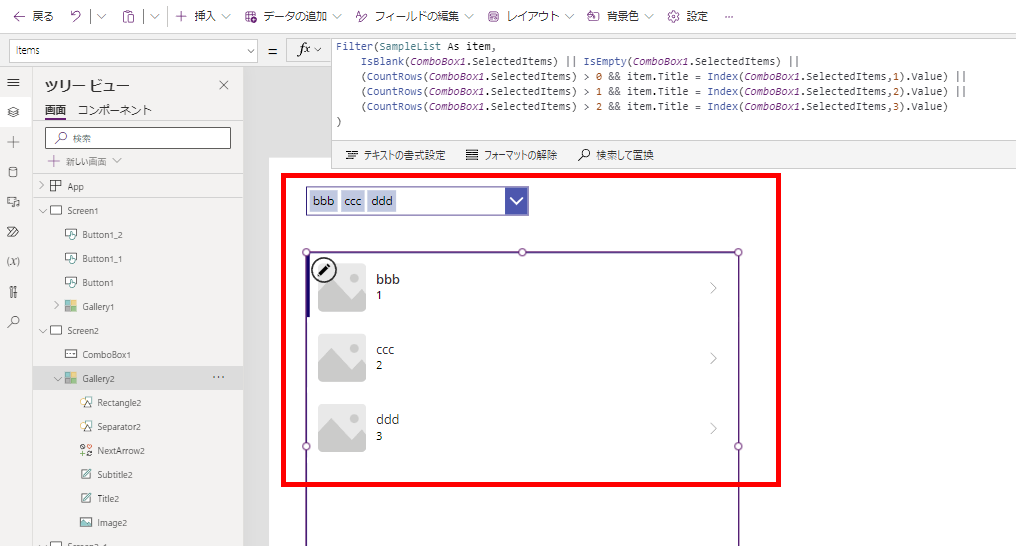
Index function.Note: This method limits the number of filterable items (e.g., users can only select up to 3 items in the Combo Box).
// Replace 'SampleList' with your SharePoint List name
// Replace 'ComboBox1' with your Combo Box control name
// Replace 'Title' with the column name you want to filter by

Filter(SampleList As item,
    // 1. Show all if nothing is selected
    IsBlank(ComboBox1.SelectedItems) || IsEmpty(ComboBox1.SelectedItems) ||

    // 2. Filter by 1st selected item
    (CountRows(ComboBox1.SelectedItems) > 0 && item.Title = Index(ComboBox1.SelectedItems,1).Value) ||

    // 3. Filter by 2nd selected item (if exists)
    (CountRows(ComboBox1.SelectedItems) > 1 && item.Title = Index(ComboBox1.SelectedItems,2).Value) ||

    // 4. Filter by 3rd selected item (if exists)
    (CountRows(ComboBox1.SelectedItems) > 2 && item.Title = Index(ComboBox1.SelectedItems,3).Value)
)
Important: Do not use
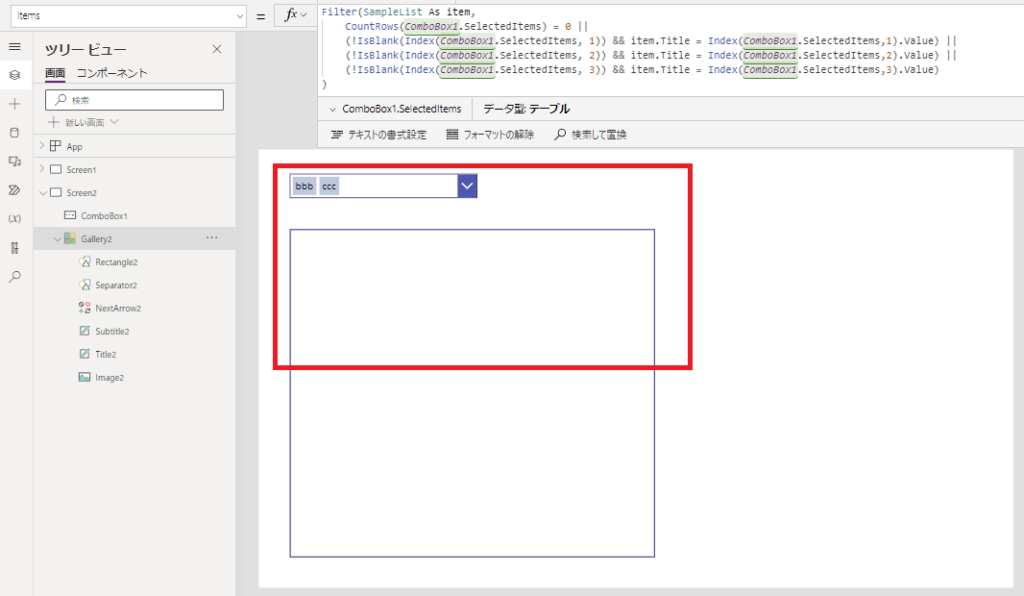
Index directly without checking CountRows. If you try to access Index 1 when 0 items are selected, Power Apps will throw an internal error.
Case 2: Dataverse (The Recommended Way)
If you use Dataverse, the

In operator IS delegable. You can use a much simpler formula without any item limits.
// Replace 'SampleTable' with your Dataverse Table name
// Replace 'ComboBox1_1' with your Combo Box control name
// Replace 'Name' and 'Title' with your column names

Filter(SampleTable,
    // Show all if nothing selected, otherwise check if Name is 'In' the selected items
    IsBlank(ComboBox1_1.SelectedItems) || IsEmpty(ComboBox1_1.SelectedItems) ||
    Name in ComboBox1_1.SelectedItems.Title
)
This is one of the major advantages of using Dataverse over SharePoint for large datasets.
Bonus: Filtering with Lookup Columns
What if your Combo Box choices come from a Master Table (Lookup)?

For SharePoint:
You need to compare the ID of the Lookup column.
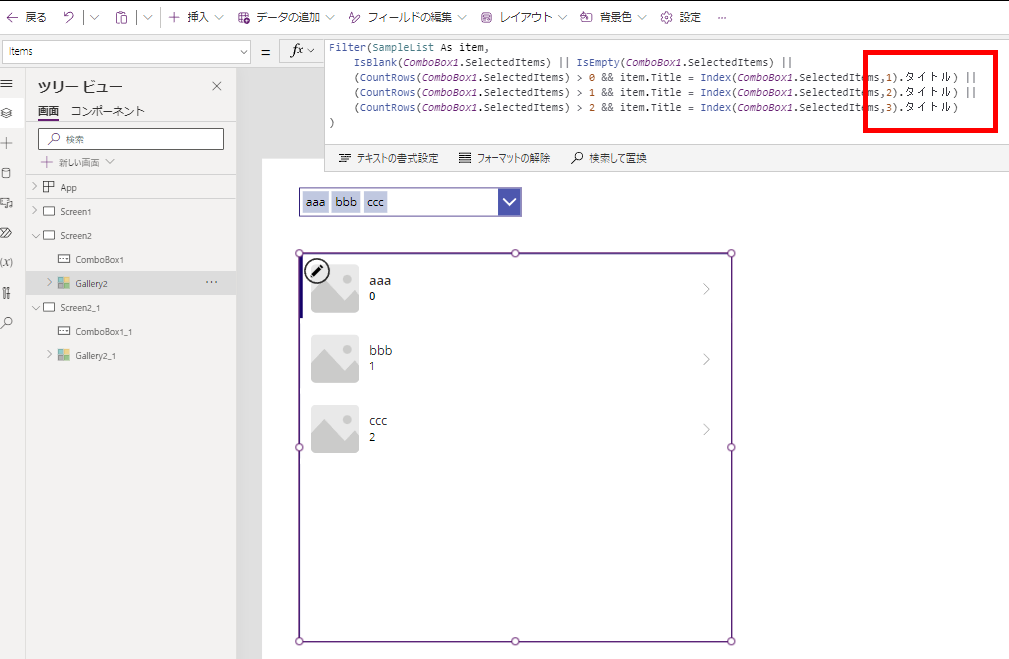
You need to compare the ID of the Lookup column.
For Dataverse:
It remains simple. Just ensure you are referencing the correct column in the
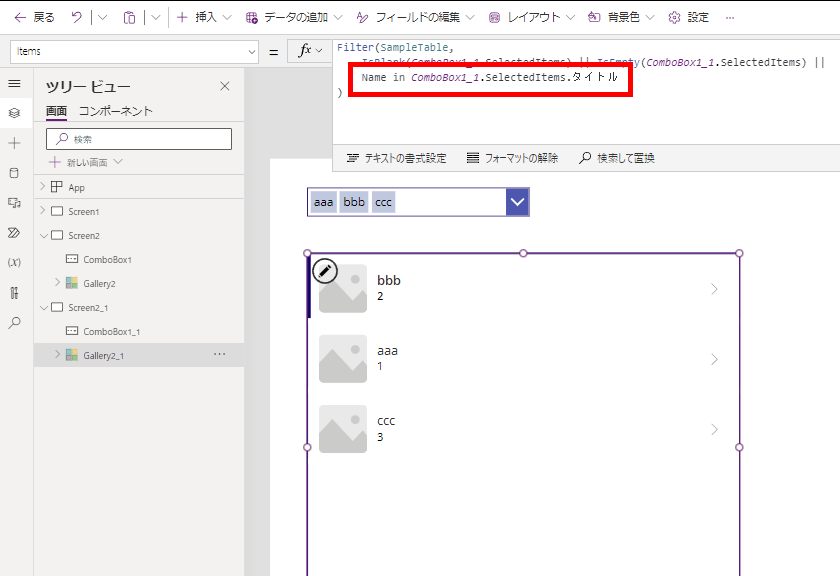
It remains simple. Just ensure you are referencing the correct column in the
In clause.
コメント