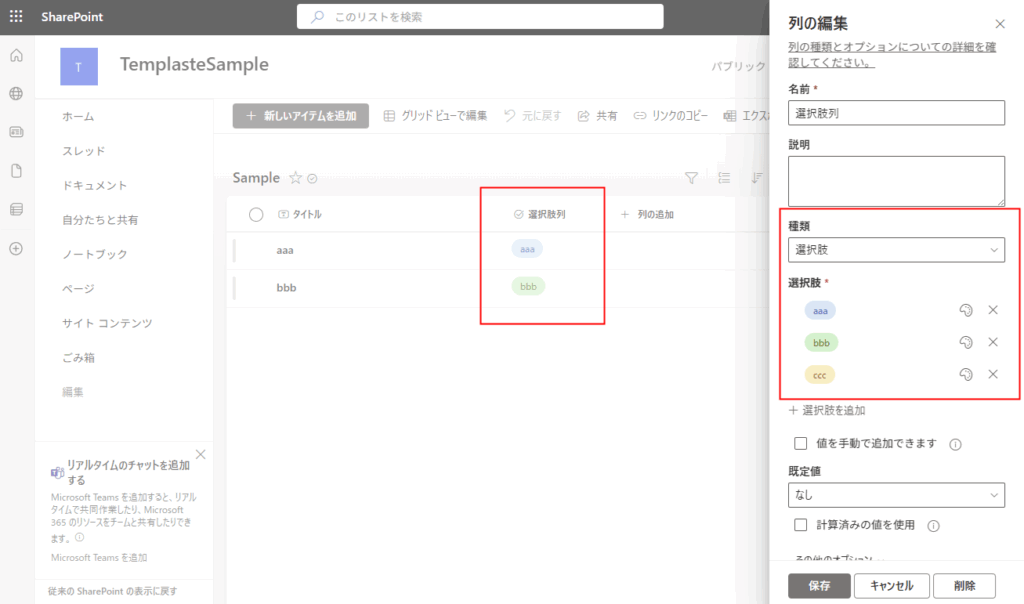
When you have a choice column in your SharePoint list like the one shown below,
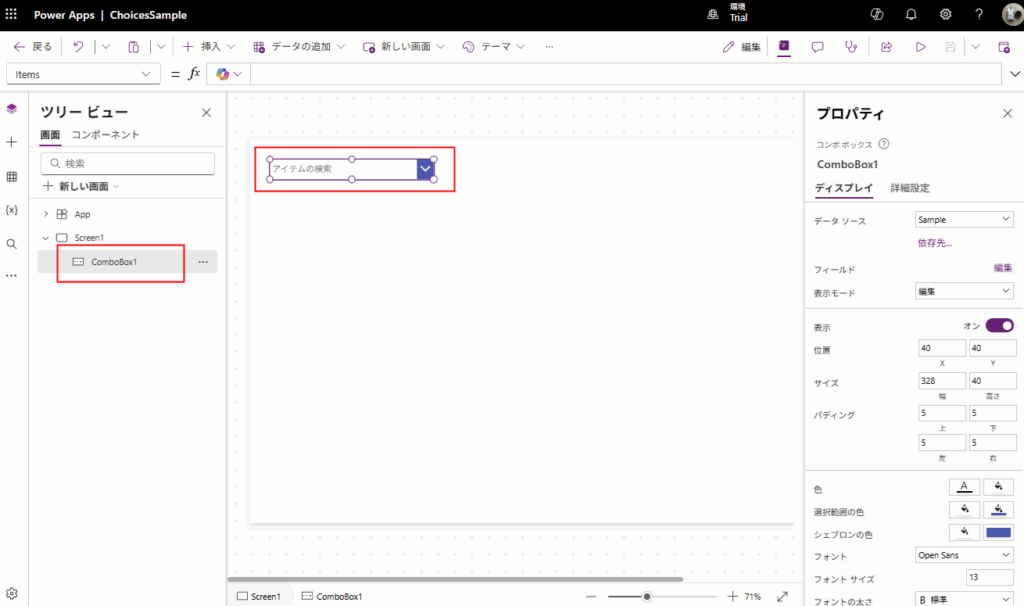
this is how you can display those choices in a combo box.
Using the Choices Function
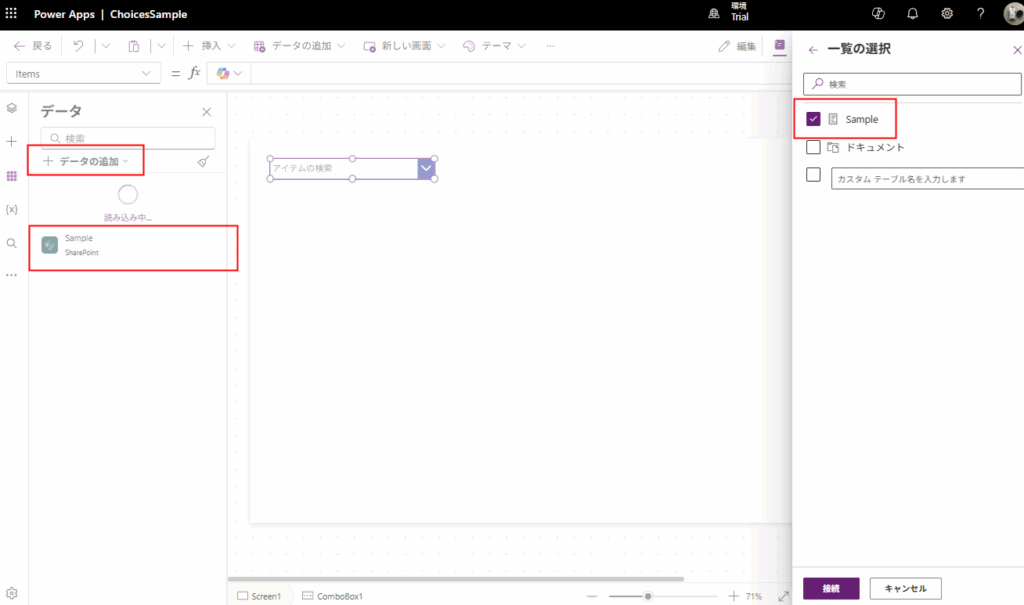
First, add the target SharePoint list as a data source in your app.
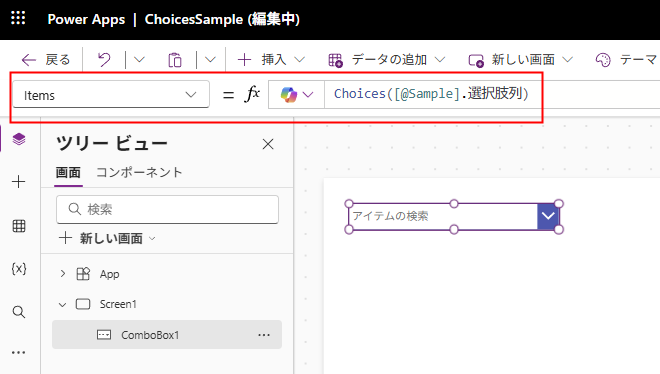
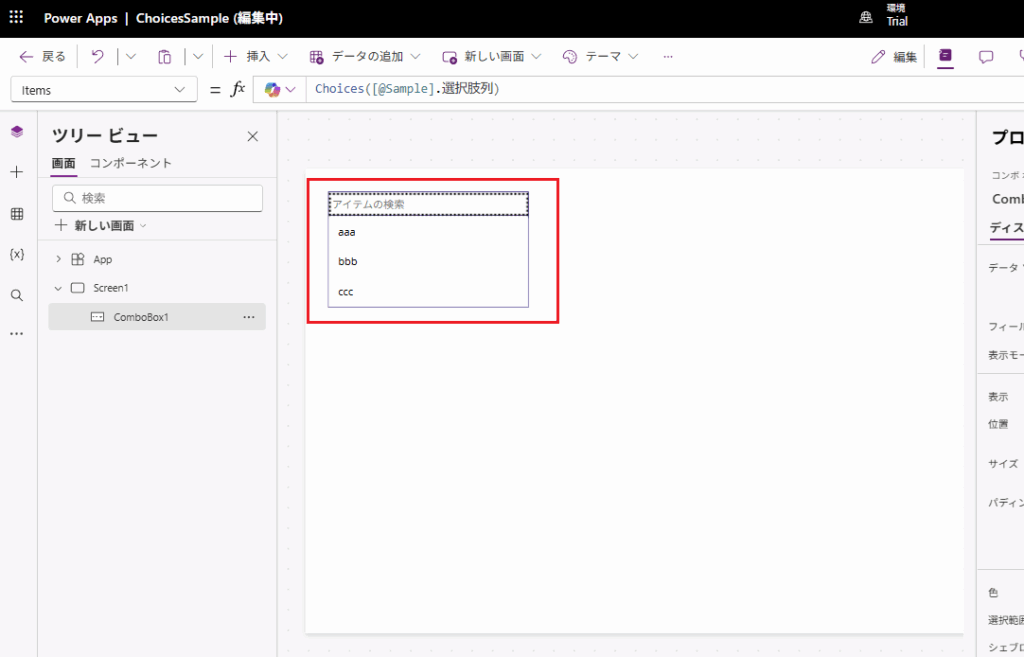
Set the Items property of the combo box to the following Choices function.
Choices([@SharePointListName].ColumnName)

// If the list name is "Sample" and the column name is "ChoiceColumn"
Choices([@Sample].ChoiceColumn)
Now, the SharePoint choice values are displayed in the combo box.
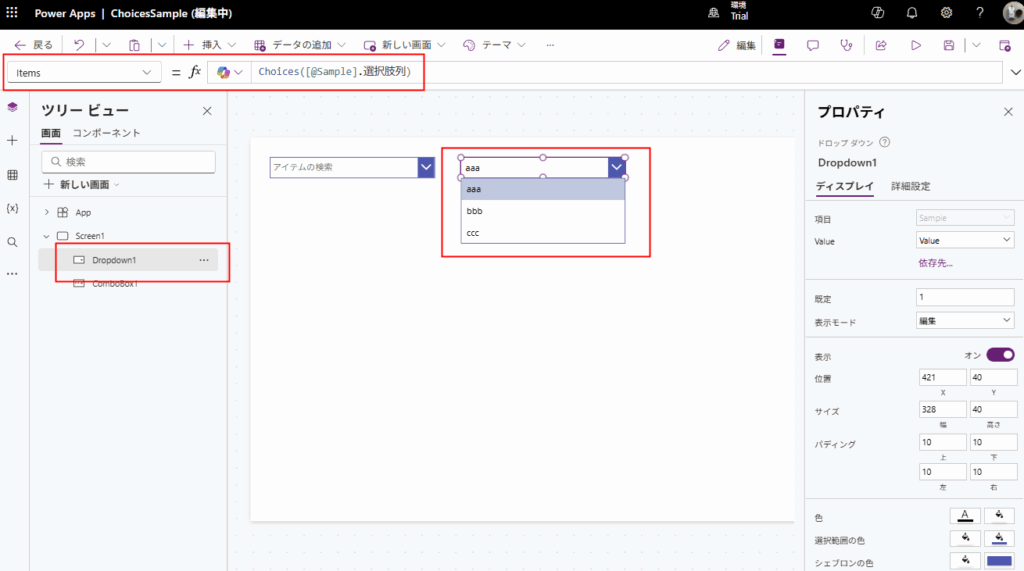
The same approach also works for drop-down controls.
Bonus 1: Using It for Gallery Filtering (Search)
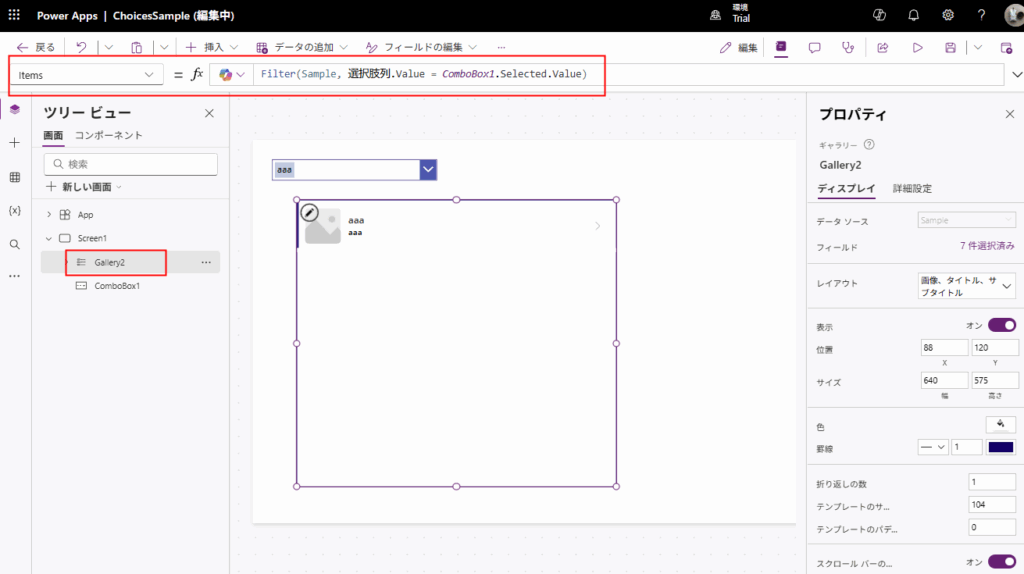
If you want to use it as a filter for a gallery, set the Items property of the gallery with the following Filter formula and compare using the Value property as a string.
Filter([@SharePointListName], ChoiceColumnName.Value = ComboBoxName.Selected.Value)

// Example
Filter(Sample, ChoiceColumn.Value = ComboBox1.Selected.Value)
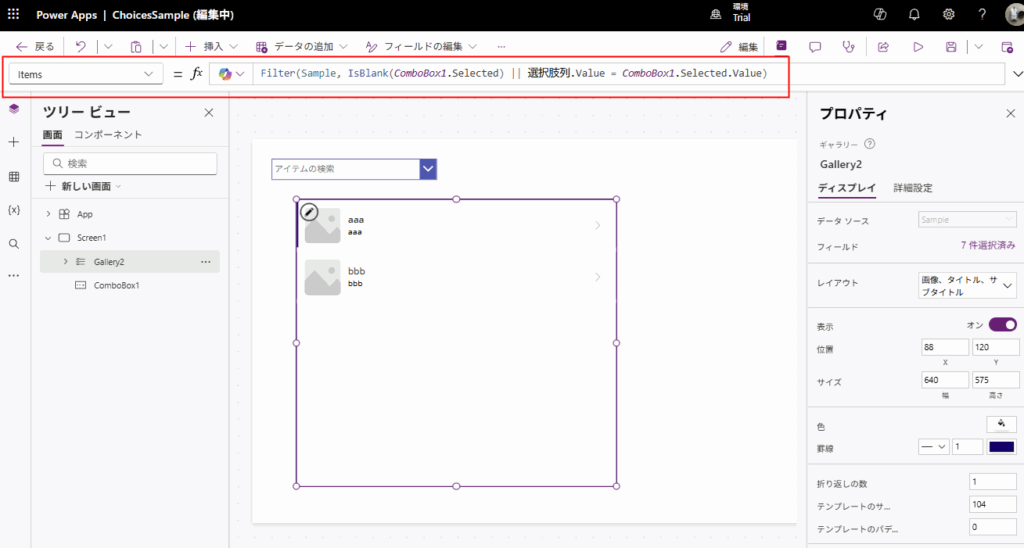
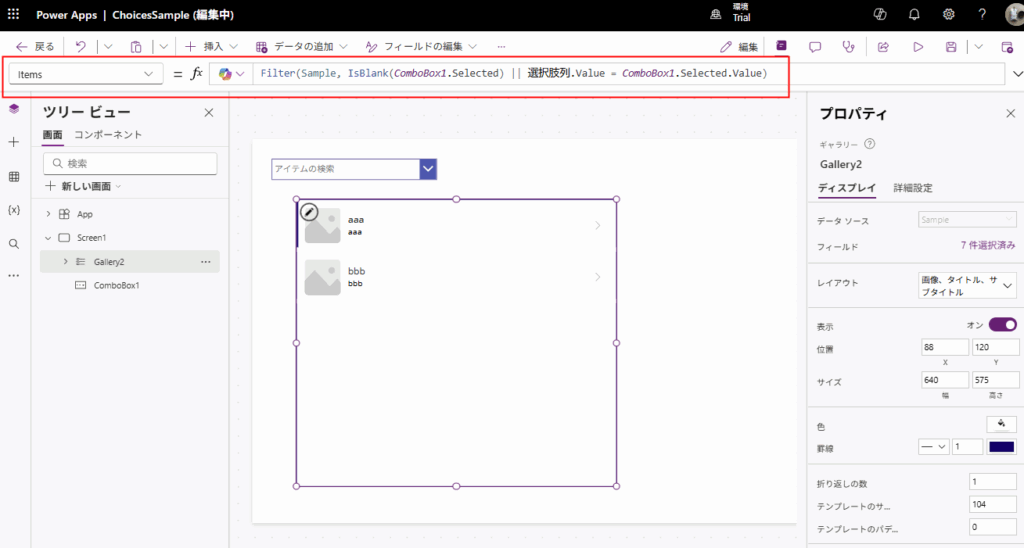
If you want to display all items when nothing is selected in the combo box, use the following formula:

コメント