Is your Copilot Studio analytics dashboard showing too many “Abandoned” sessions? You might be ending conversations incorrectly. In this guide, I will show you how to properly configure conversationOutcome to ensure your Resolution Rate is accurate.
- Analytics Session Outcomes
- Preliminary Setup
- The “End Conversation” Node Alone Doesn’t Result in “Resolved” Status
- Method 1: Redirect to the “End Conversation” Topic
- Method 2: Explicitly Specify conversationOutcome
- Deep Dive: How System Topics Handle conversationOutcome in Code
- How to Check Session Outcomes
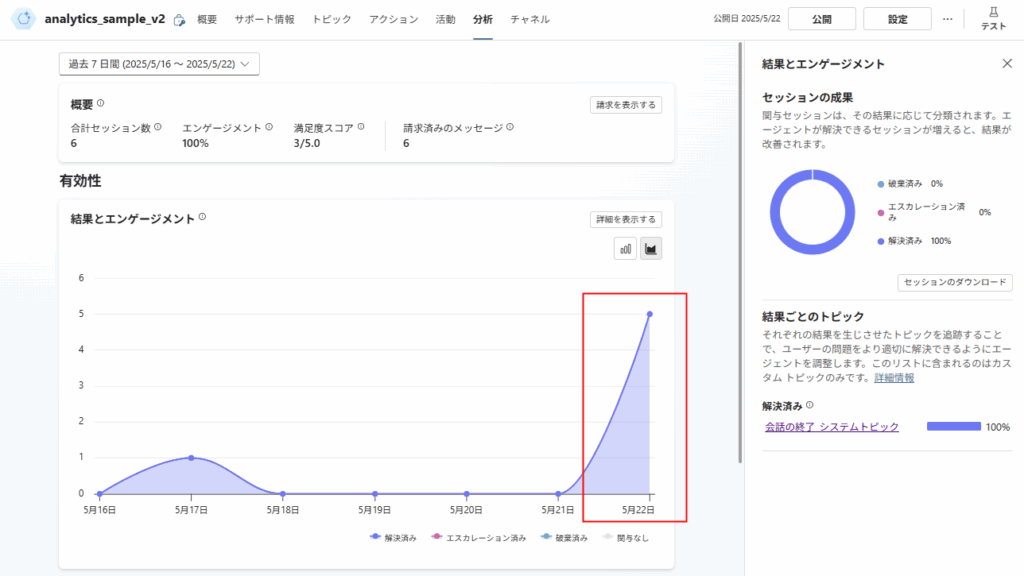
- When you call the operation to set conversationOutcome consecutively
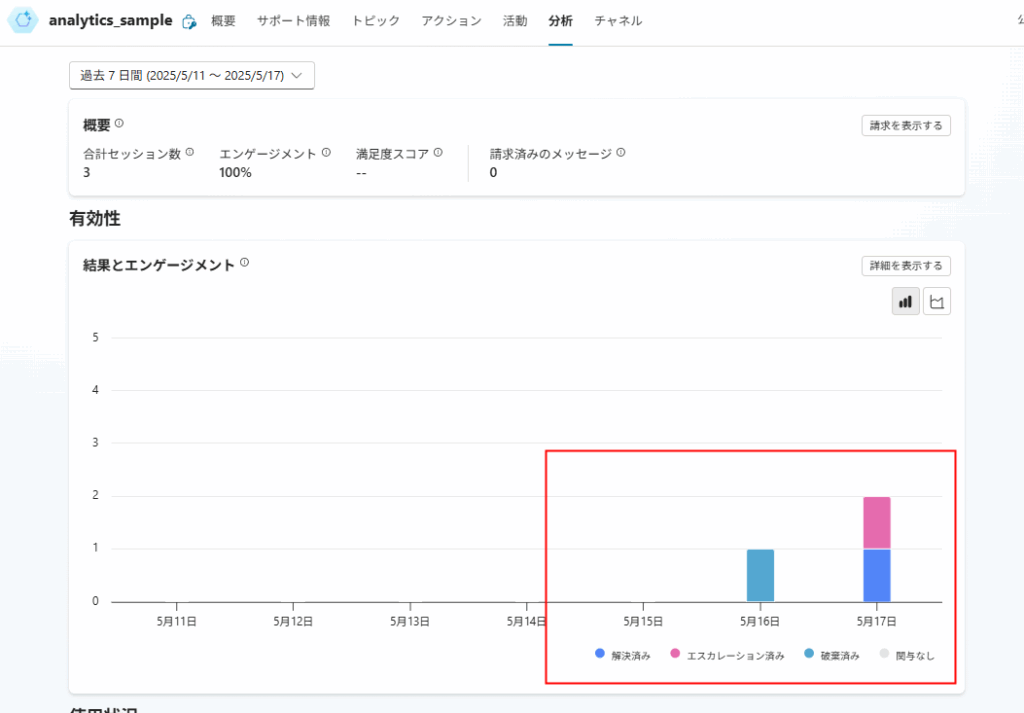
Analytics Session Outcomes
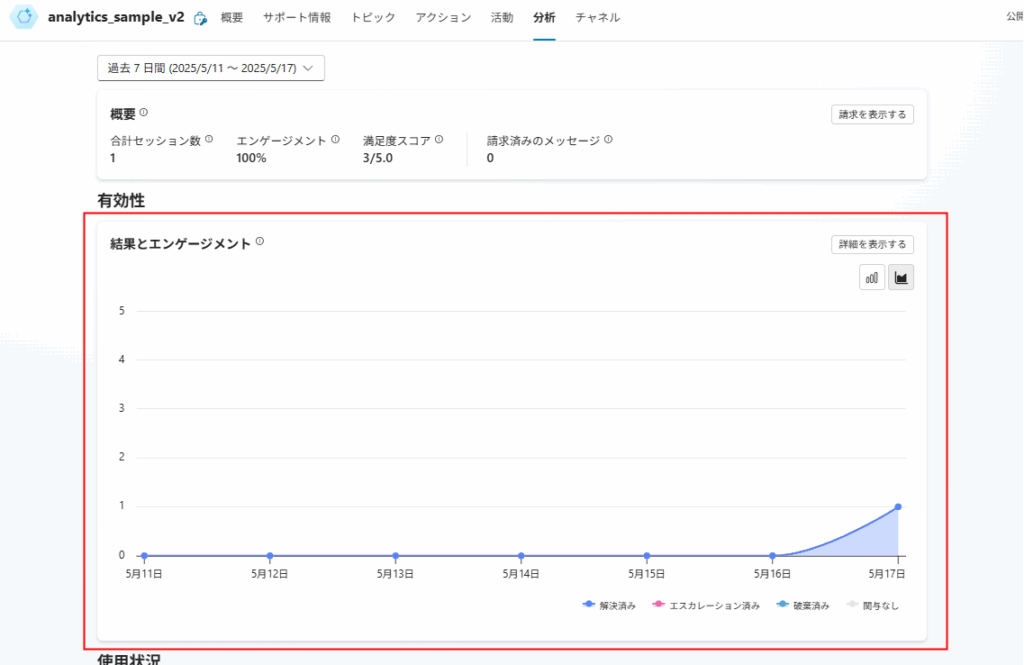
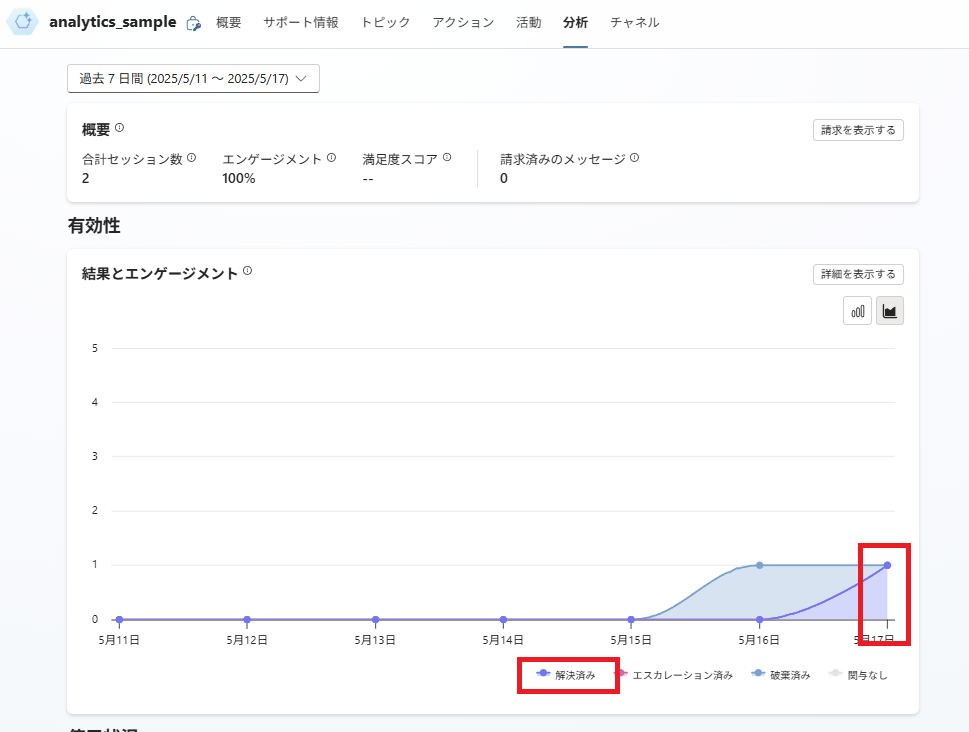
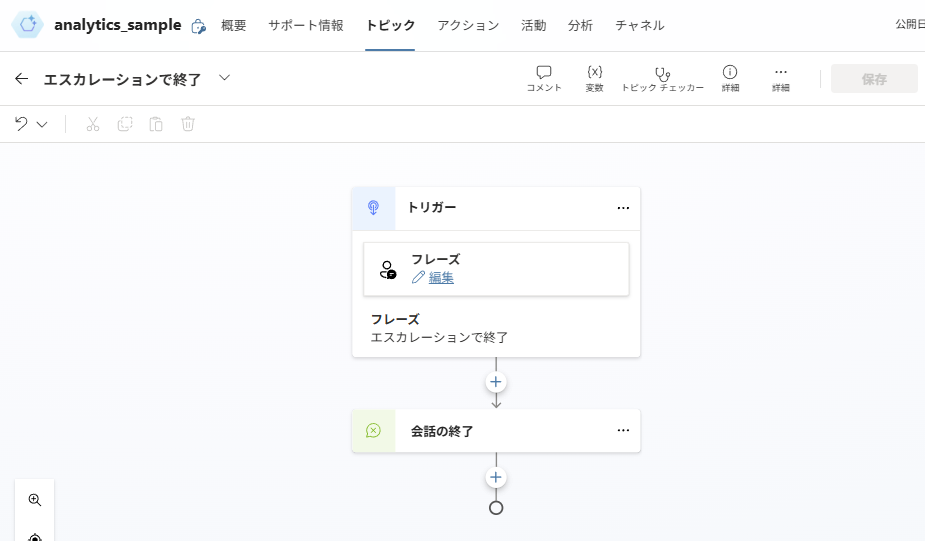
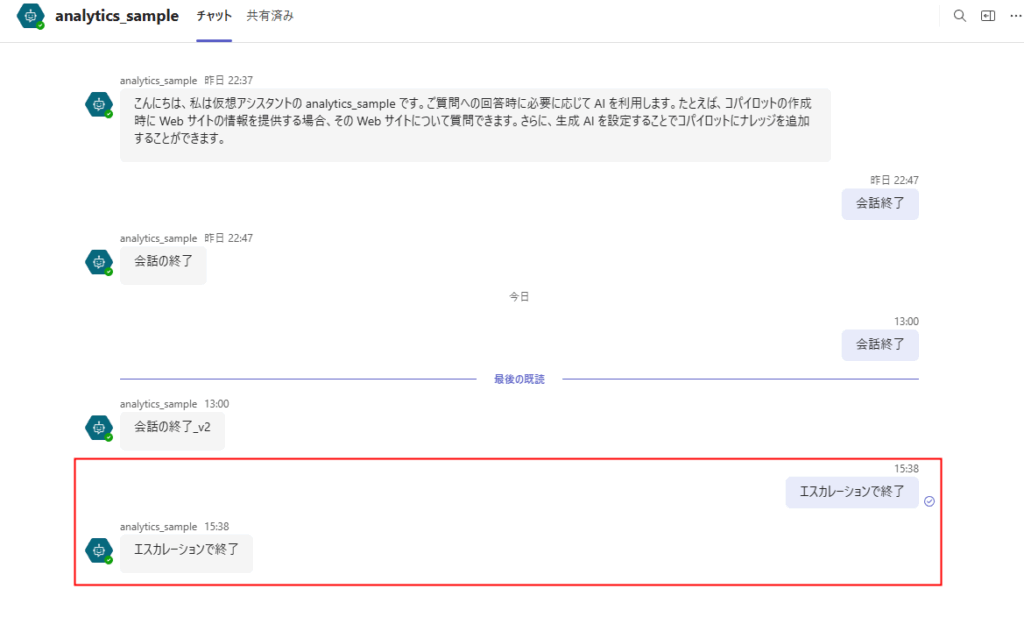
- Escalated: When the “Escalation” system topic is called or the “Transfer to Agent” node is executed
- Resolved: When the “End Conversation” topic is called and the user enters the resolved branch
- Abandoned: When the session times out and is neither “Escalated” nor “Resolved”
Note: A single conversation can contain one or more analytics sessions.
Note: Conversations that are not in the “Engaged” state (conversations in the “Unengaged” state) will be marked as “Not Engaged”

This time, I investigated how to record “analytics session outcomes” (referred to as “outcomes” below).
Preliminary Setup
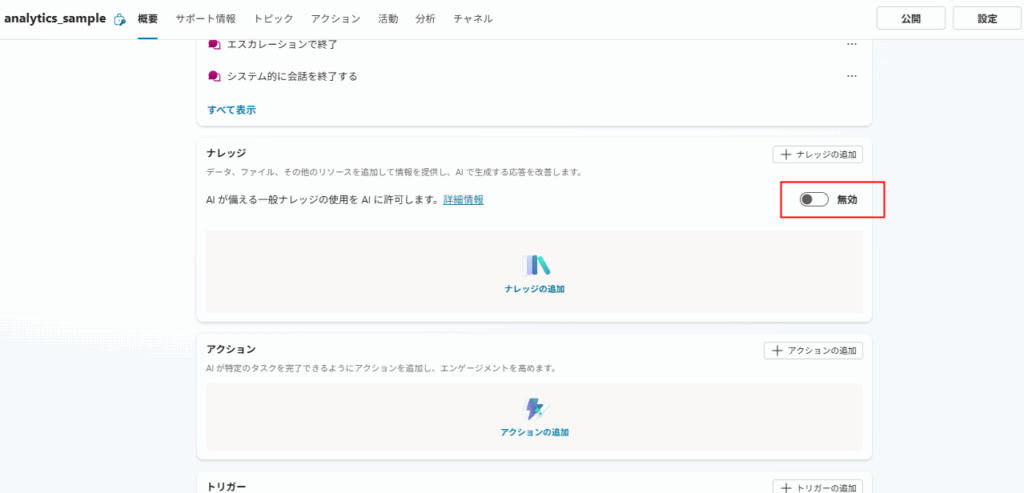
The “End Conversation” Node Alone Doesn’t Result in “Resolved” Status
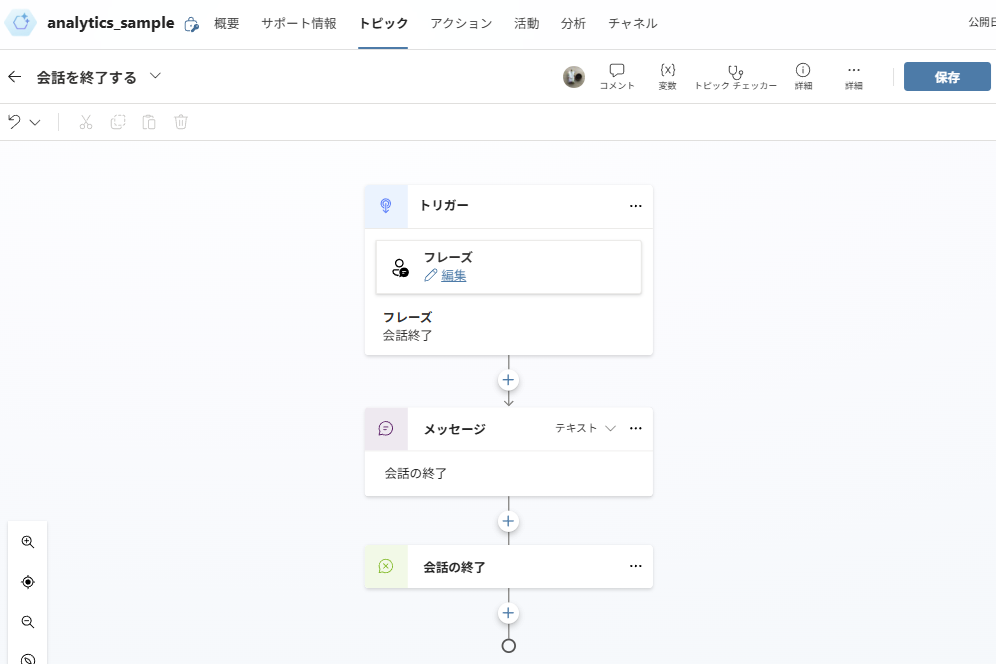
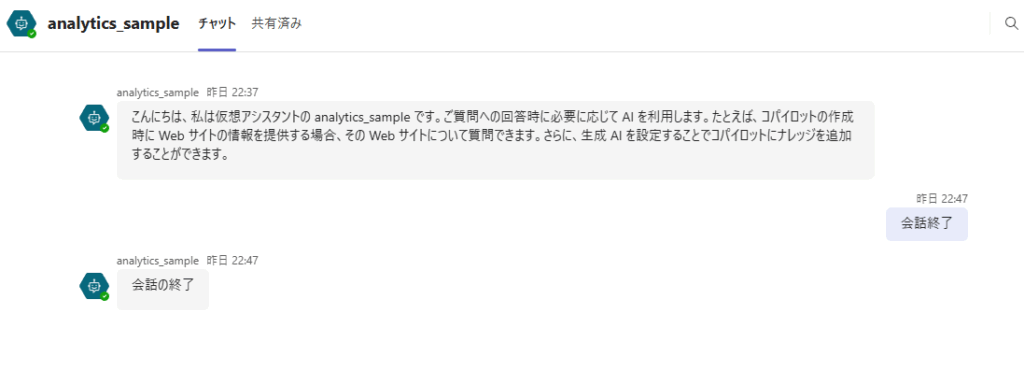
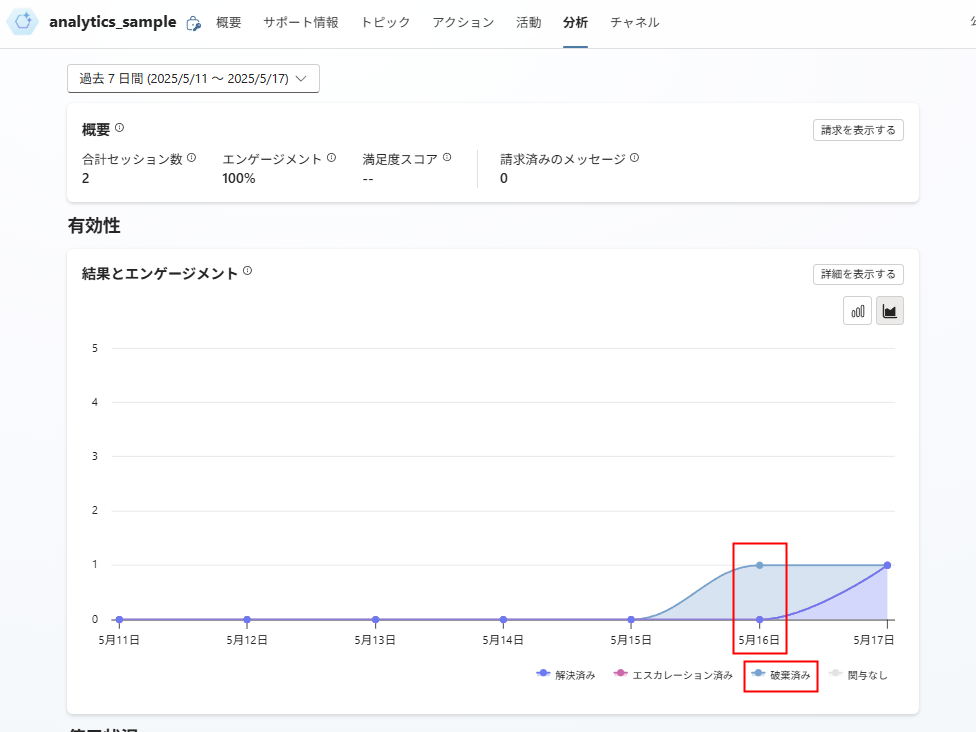
This happens because the conversation ended without explicitly specifying an outcome such as “Resolved” or “Escalated” within the topic (session), and the session subsequently timed out.
Below, I’ll introduce two methods to specify these outcomes.
Method 1: Redirect to the “End Conversation” Topic
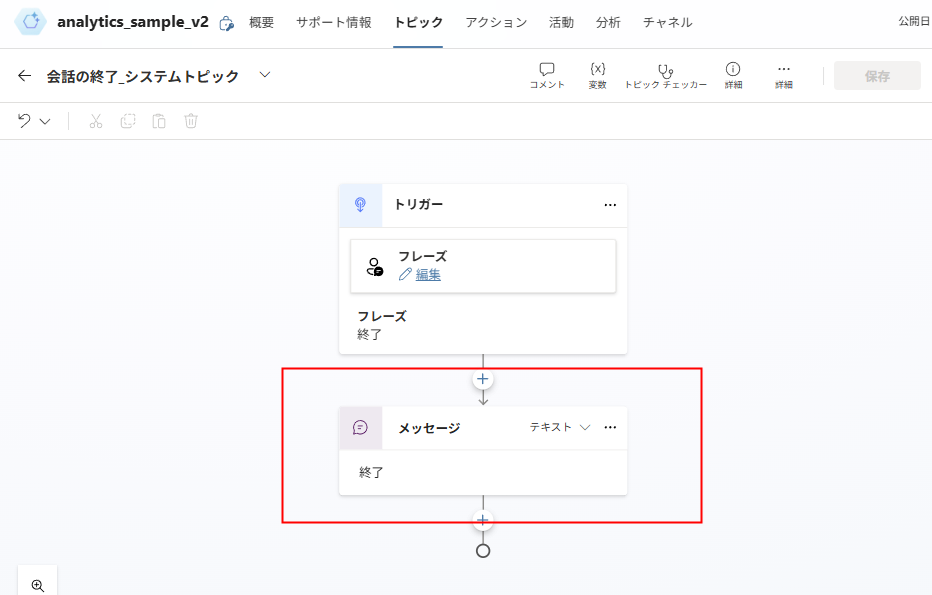
The first method is to use the system topic “End Conversation”.
This is likely the standard approach, as officially documented:
Properly ending conversations to measure outcomes It’s important to end conversations with the End Conversation topic, which allows users to confirm whether their issue was resolved (and if escalation might be needed). When the agent confirms success, a CSAT survey is presented to the user and a score from 0-5 is collected.
If the conversation outcome is certain based on your topic logic, you can either directly flag it as success-confirmed or redirect to the escalate topic.
Official documentation here
Note: System topic “End Conversation” ≠ “End Conversation” node
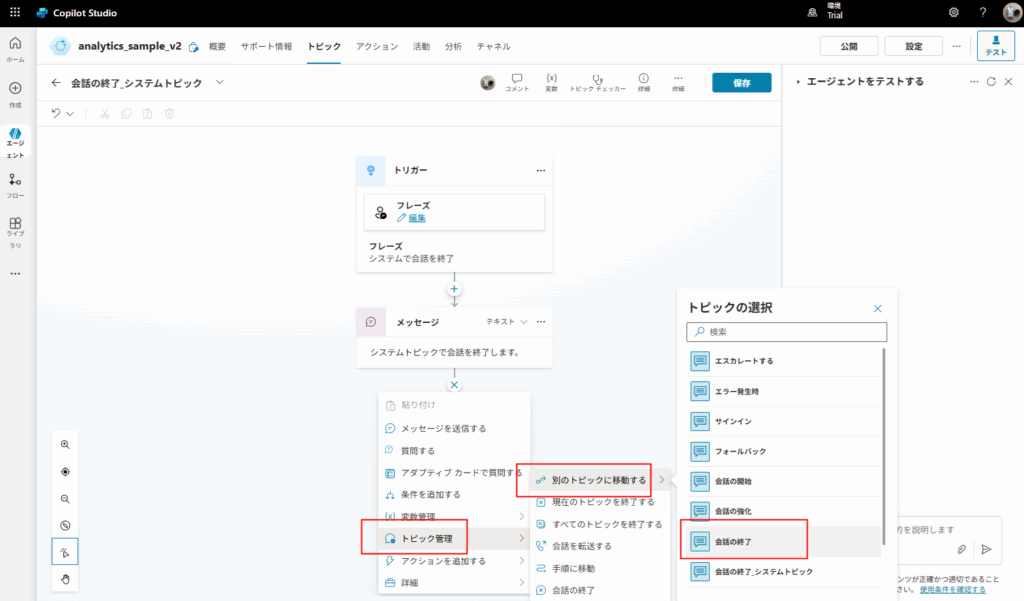
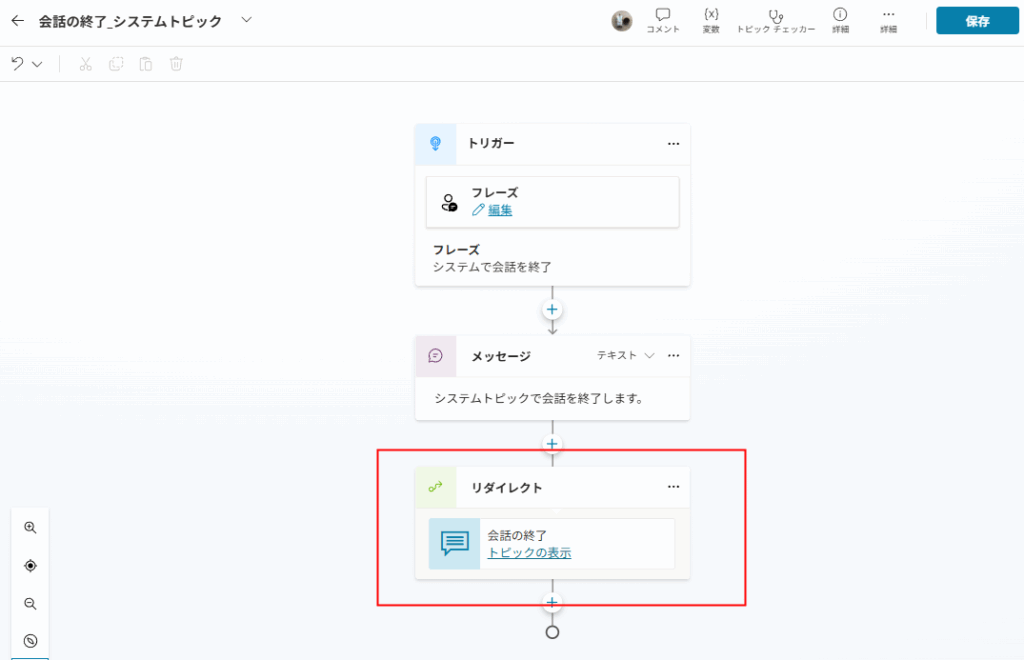
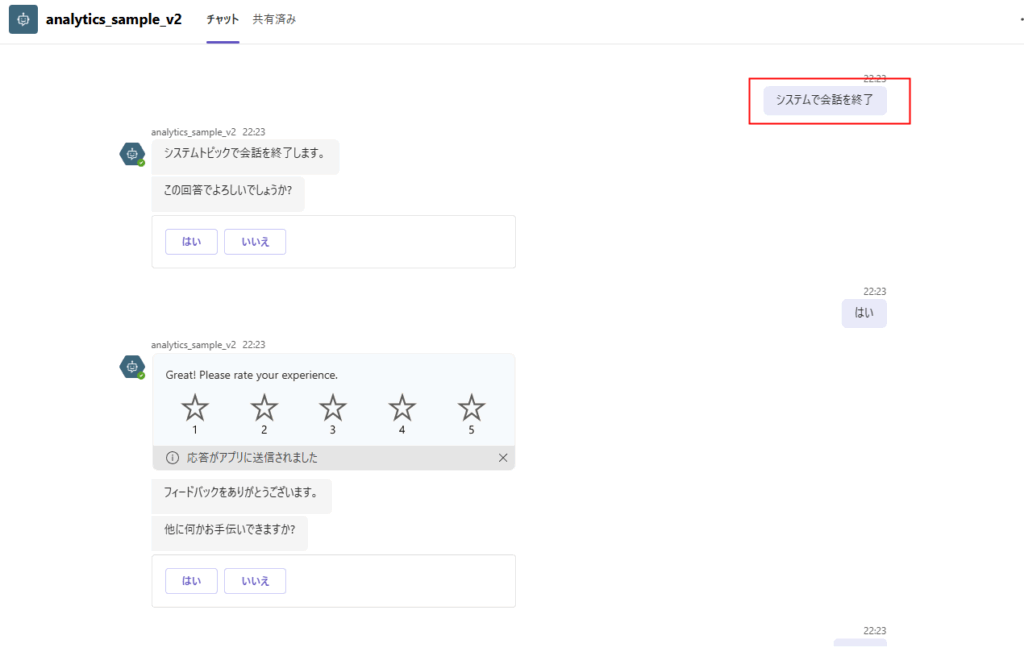
Note: It may take 30 minutes to 1 hour for the results to appear in the analytics tab.
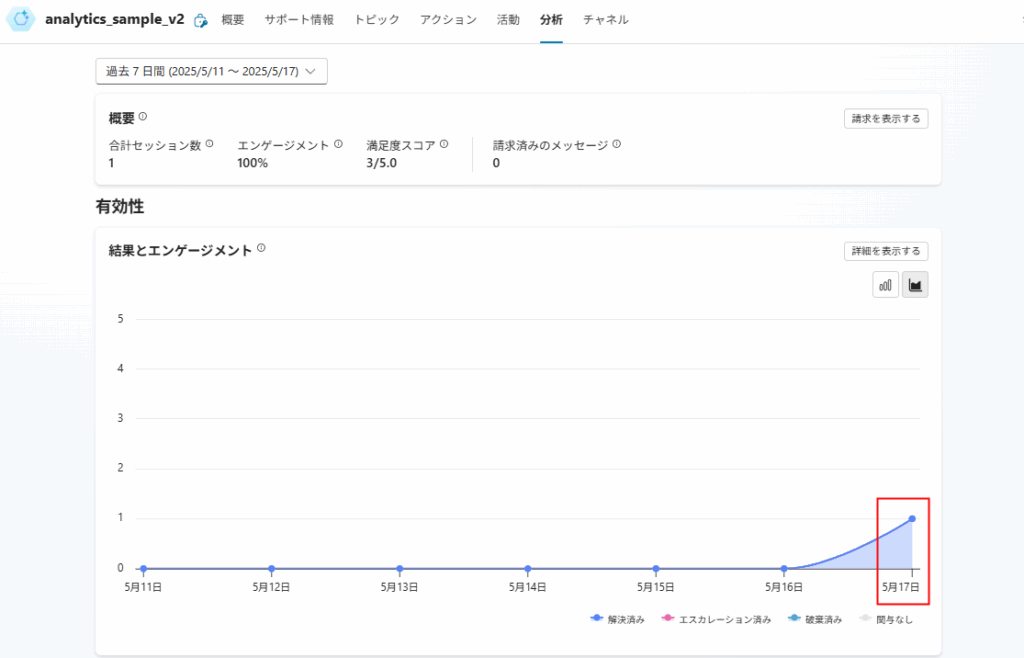
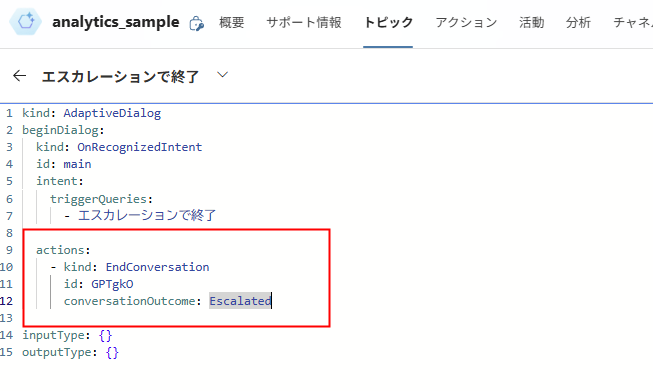
Method 2: Explicitly Specify conversationOutcome
The second method is to explicitly specify either “Resolved” or “Escalated”.
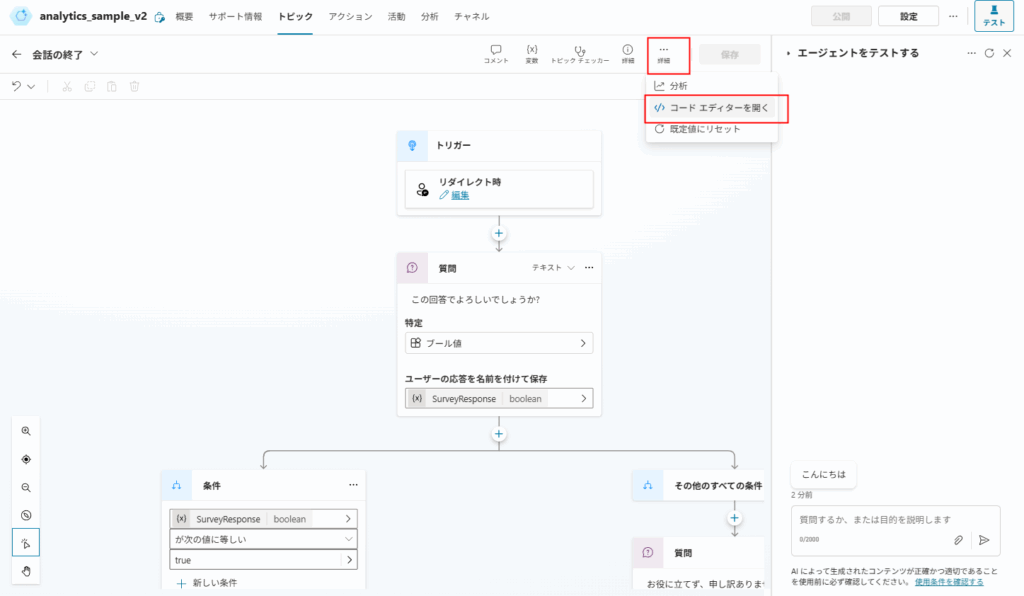
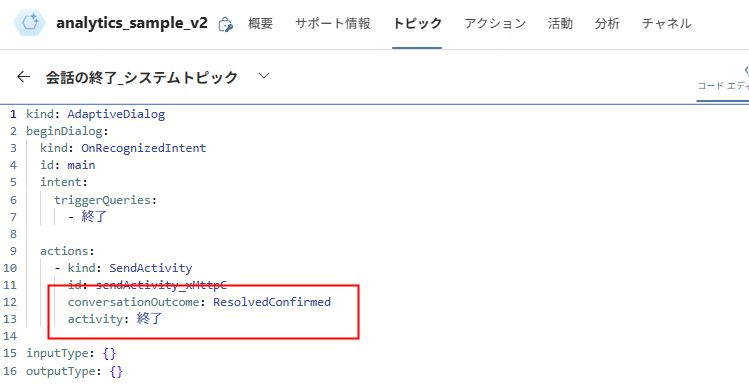
You can also set the outcome of actions using the conversationOutcome parameter in the action code editor. For example, use conversationOutcome: ResolvedConfirmed for confirmed success, and conversationOutcome: ResolvedImplied for implicit success.
From official documentation
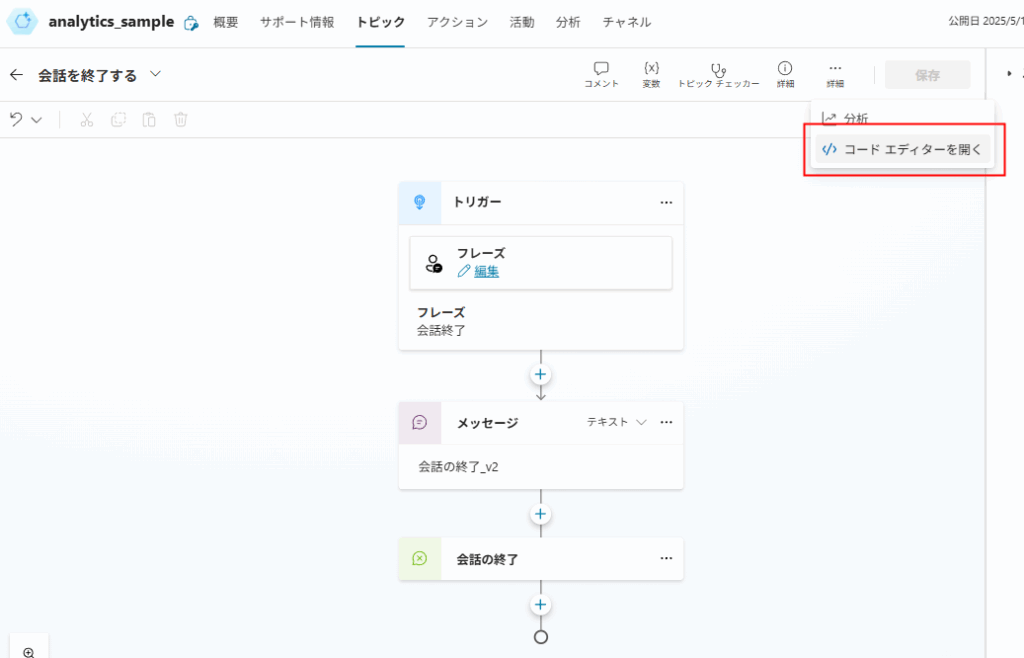
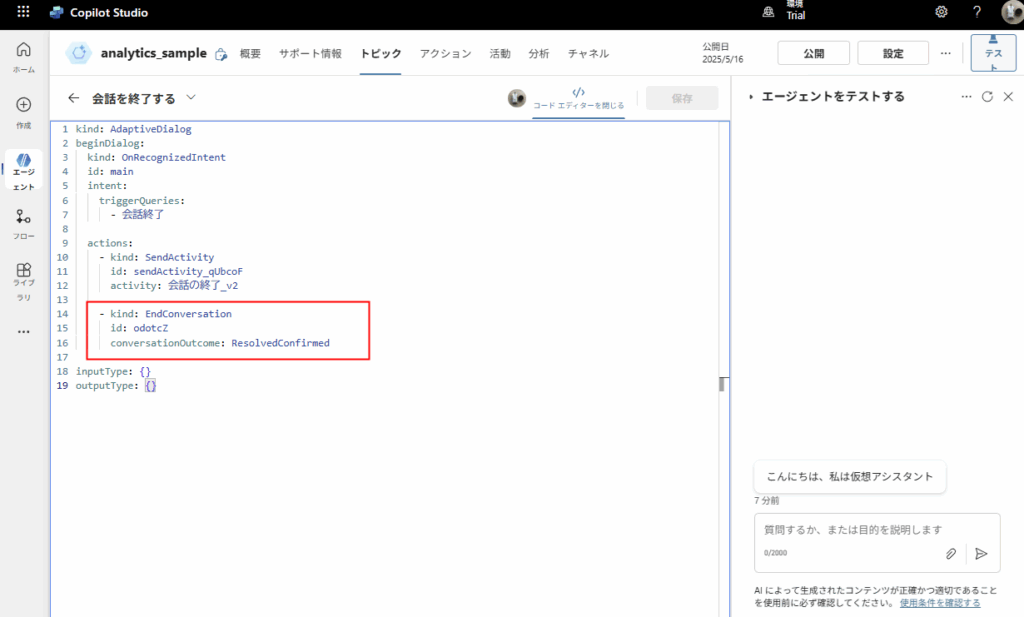
kind: AdaptiveDialog
beginDialog:
  kind: OnRecognizedIntent
  id: main
  actions:
    - kind: SendActivity
      id: sendActivity_1
      activity: "Ending conversation..."
      conversationOutcome: ResolvedConfirmed  # <--- This is the key!
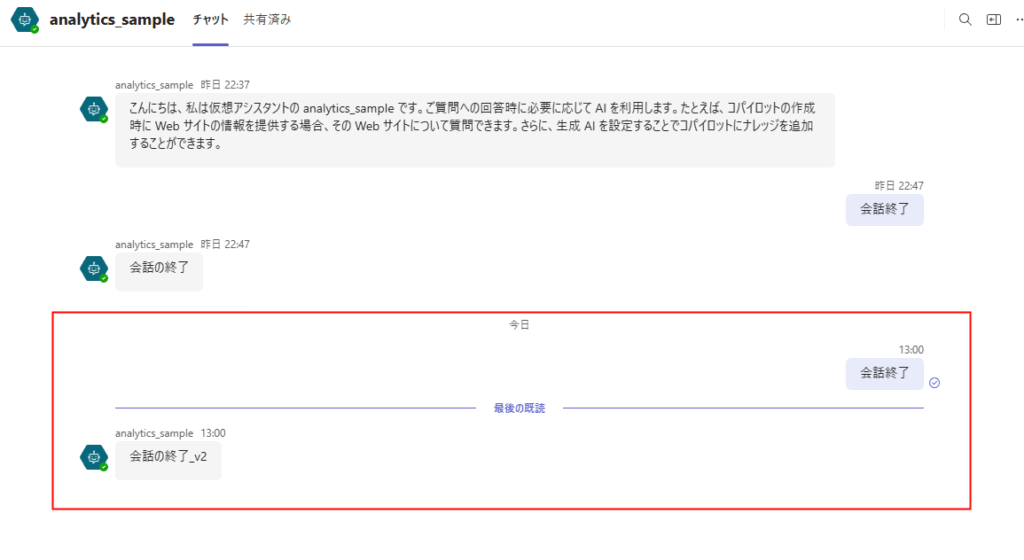
Note: The values that can be specified are as follows:
conversationOutcome: Escalated
conversationOutcome: ResolvedImplied
conversationOutcome: ResolvedConfirmed
conversationOutcome: Abandoned
As such, when using "Analytics" to improve Copilot Studio, you need to pay attention to how conversations are ended.
Deep Dive: How System Topics Handle conversationOutcome in Code
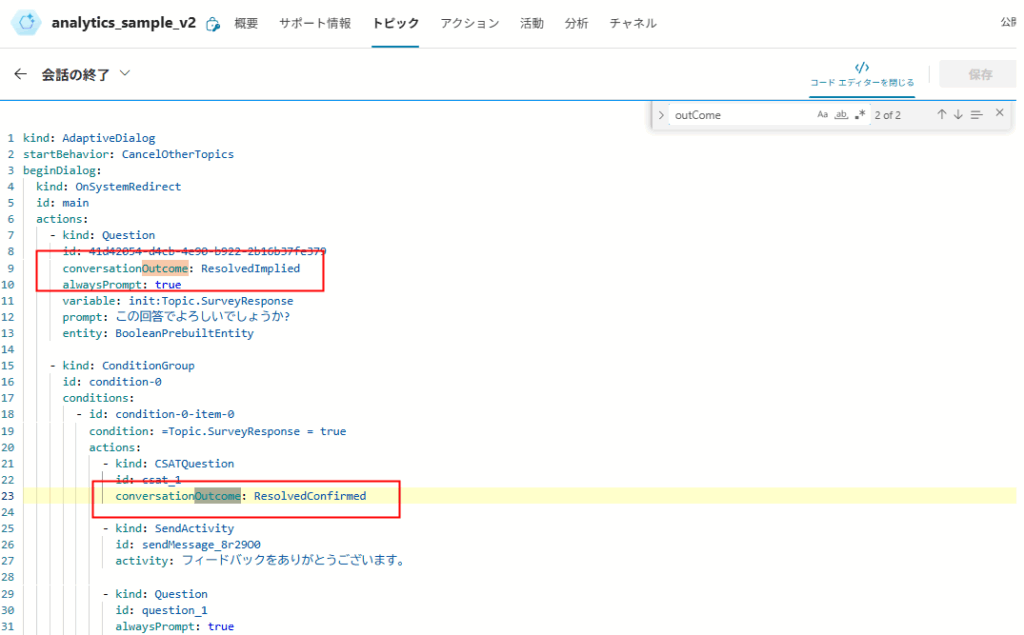
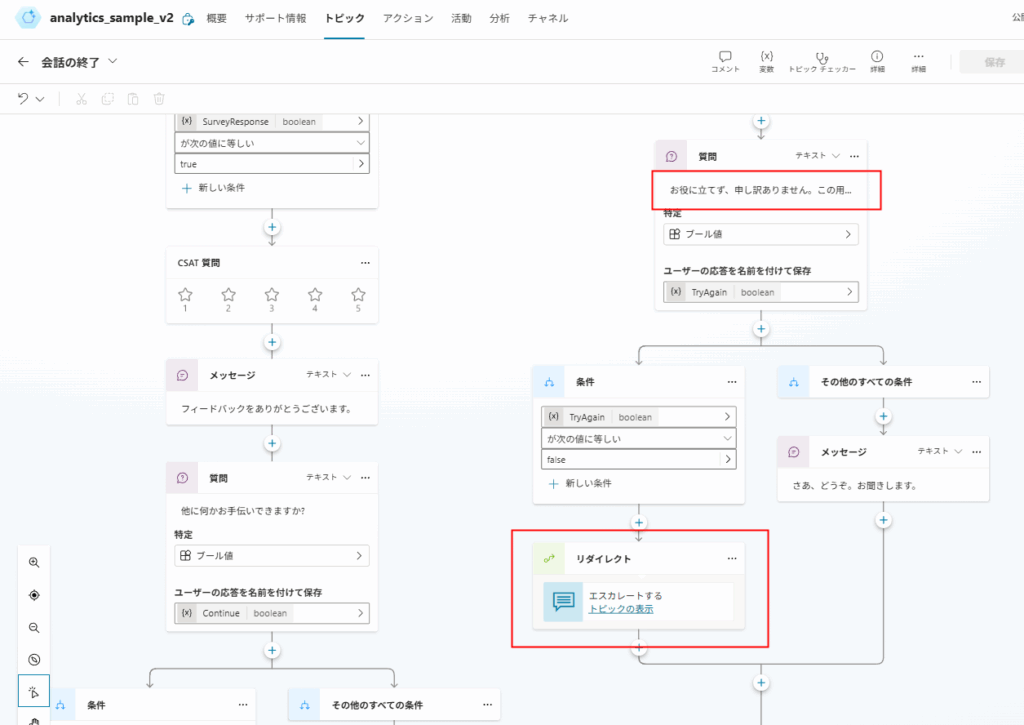
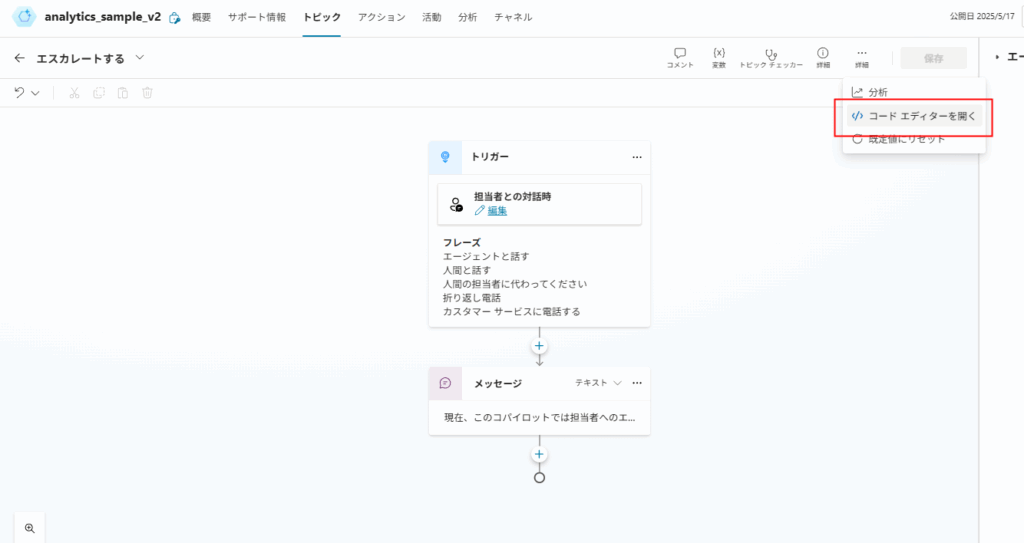
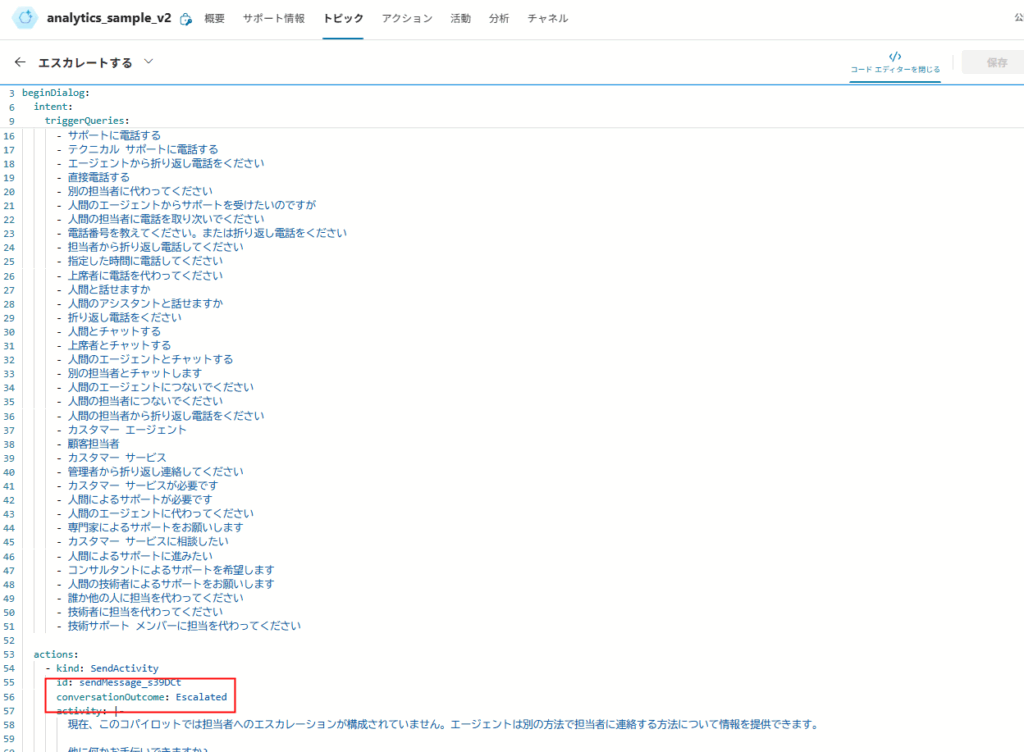
How to Check Session Outcomes
1. From Copilot Studio
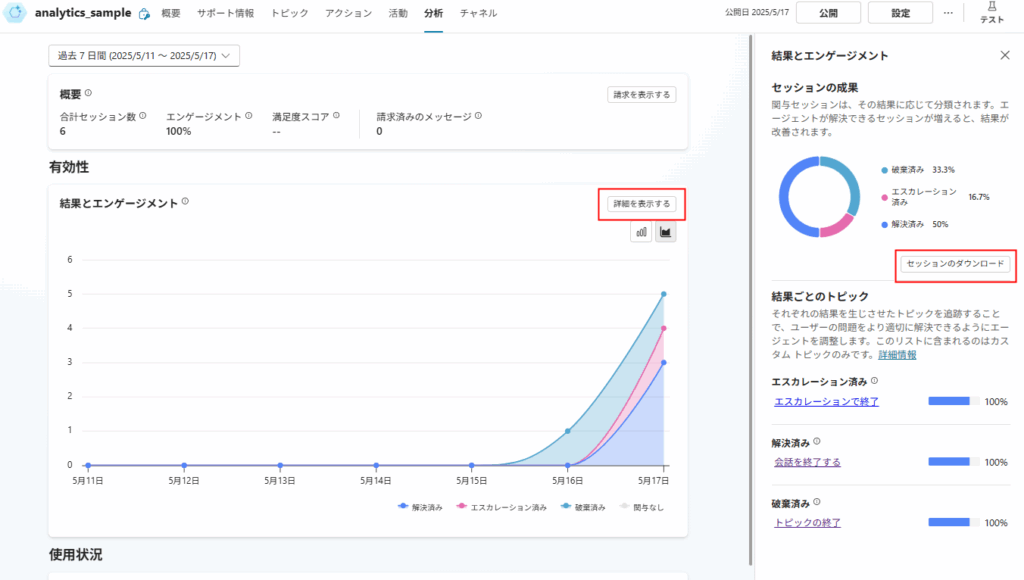
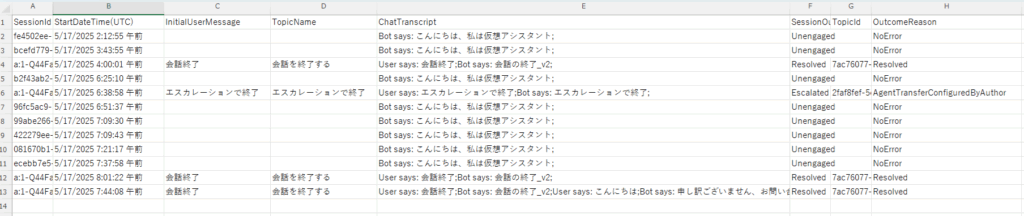
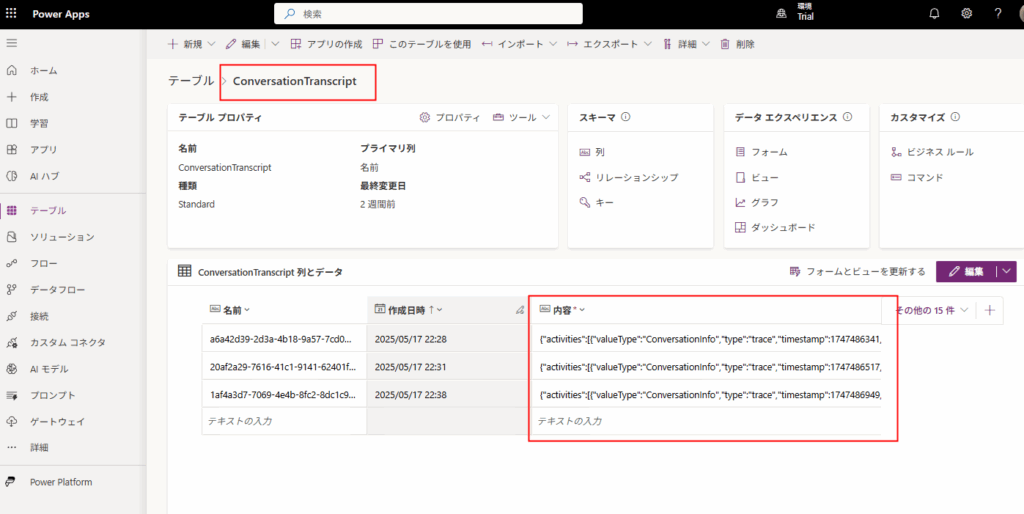
2. From Power Apps (Dataverse)
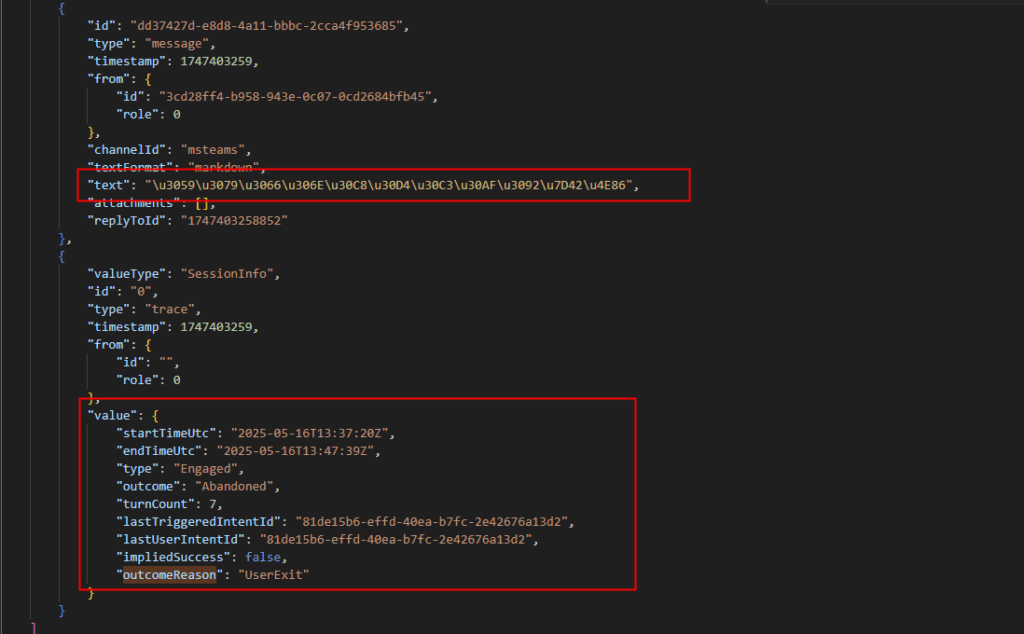
When you call the operation to set conversationOutcome consecutively
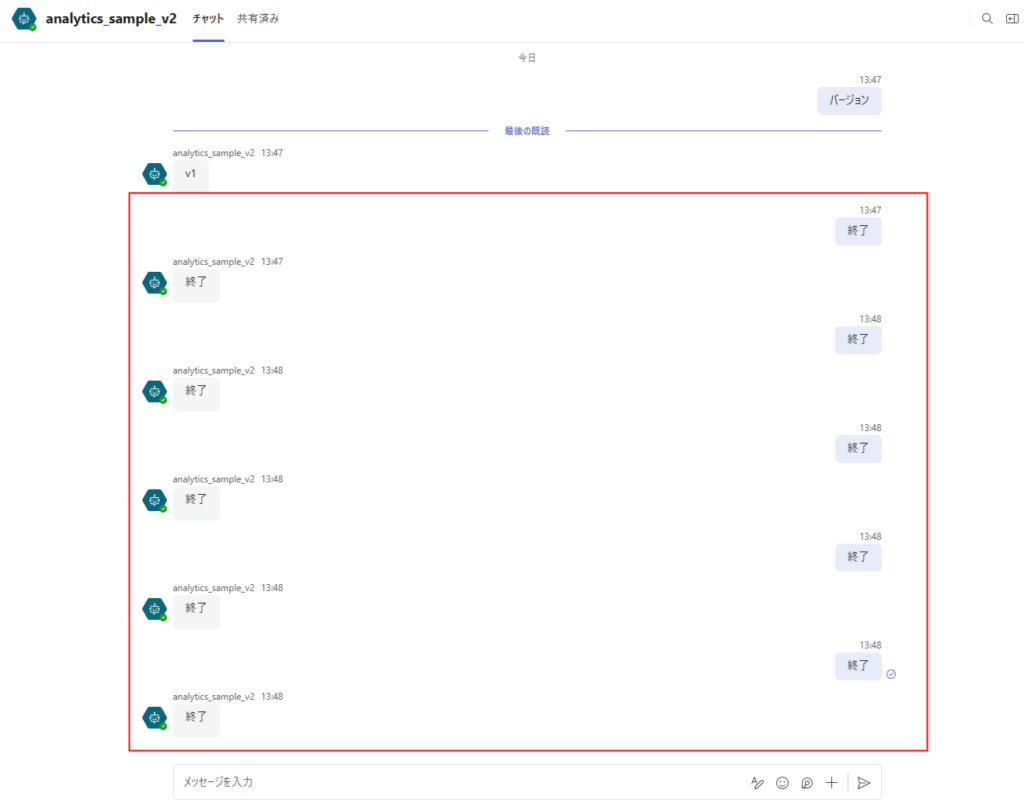
*The reason the number is 6 is because a test run was performed once before this test.
コメント
Very clever discoveries here. Thank you for a detailed and enjoyable write-up.
Hi Jake! Thanks for the kind words.
I’m glad to hear that! Dealing with Copilot Studio analytics can be tricky, right?
Thanks for dropping by!
You’re a Ninja in Power Platform ありがとう
Thanks for the comment! Glad you enjoyed the post.