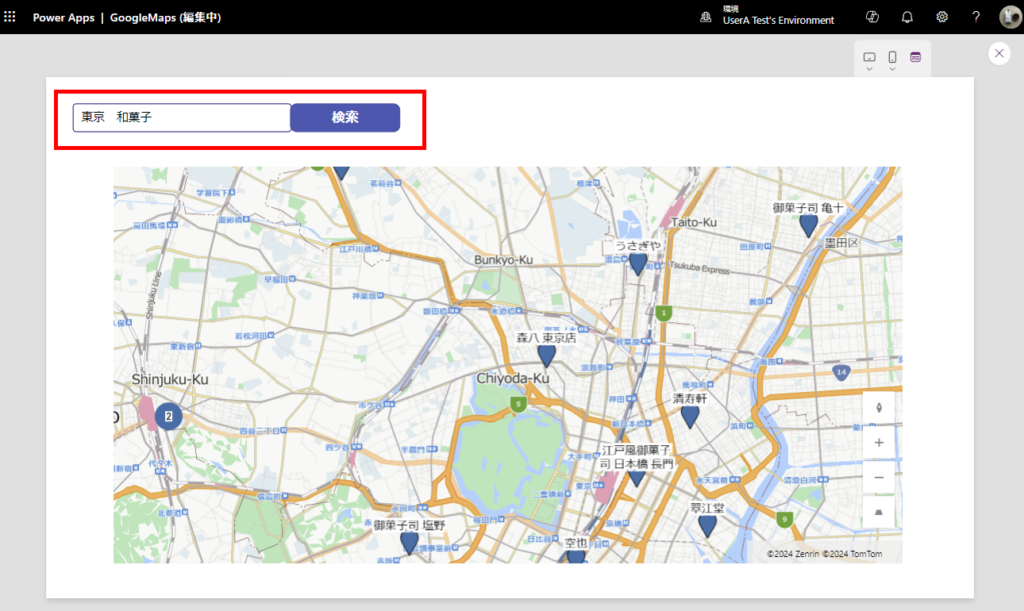
Power Appsにて地図アプリを作ることになったので、Tipsをメモ。
Google Maps APIのキーを取得
まずはAPIキーの取得から。
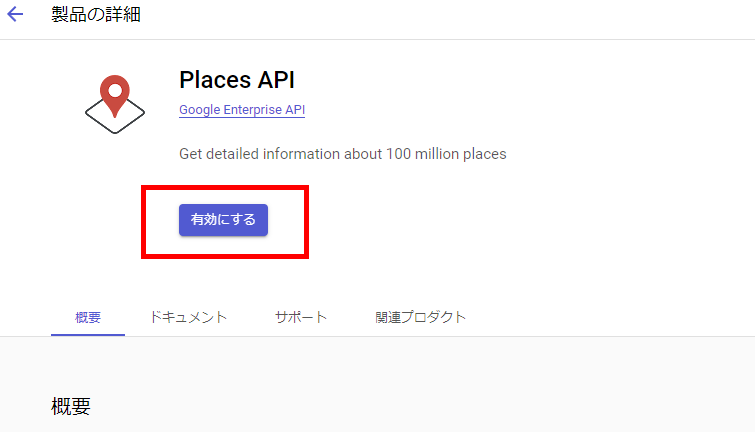
Google CloudのAPIサービスのページに移動して、[APIとサービスを有効にする]から、
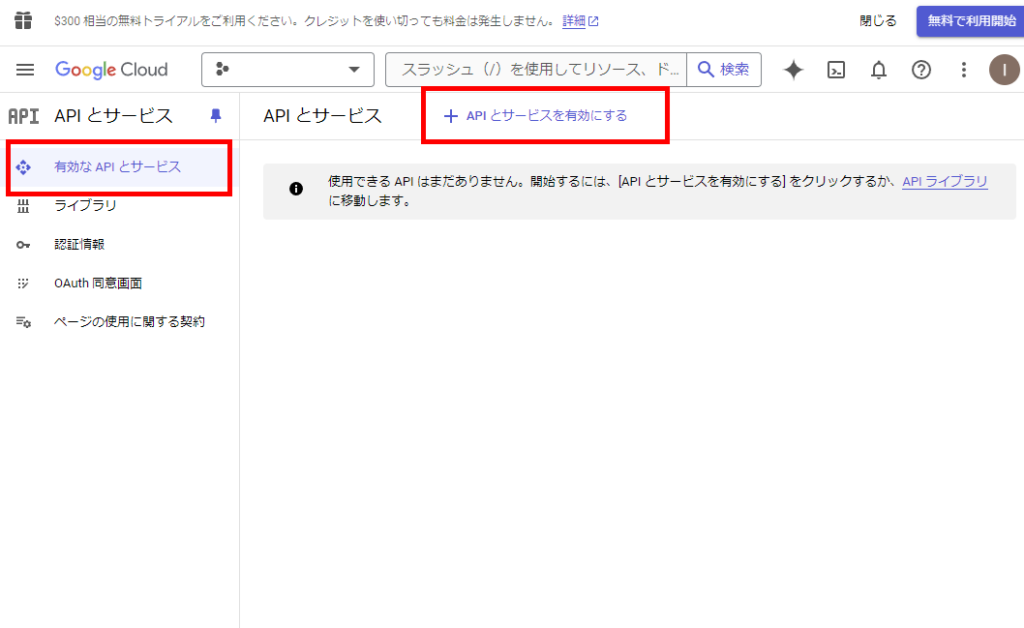
「Places API」を選ぶ。※新しいバージョン「Places API(新規)」も出てるけど今回は旧バージョンを使用
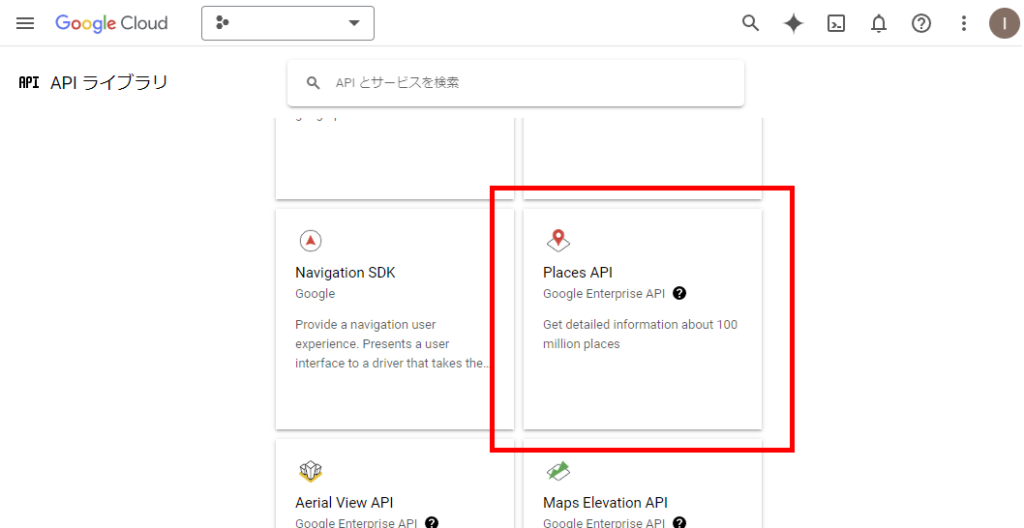
[有効にする]を選んで、
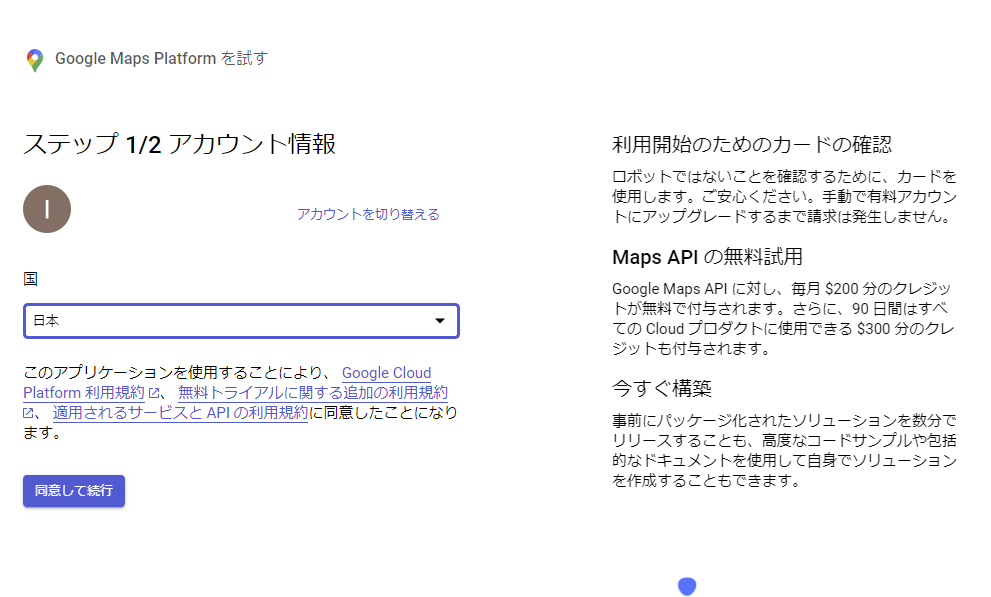
「手動で有料アカウントにアップグレードするまで請求は発生しません。」を信じてクレカを登録。
※大丈夫だと思うけど請求が発生しても責任はとれないので、自己責任でお願いします。
※大丈夫だと思うけど請求が発生しても責任はとれないので、自己責任でお願いします。
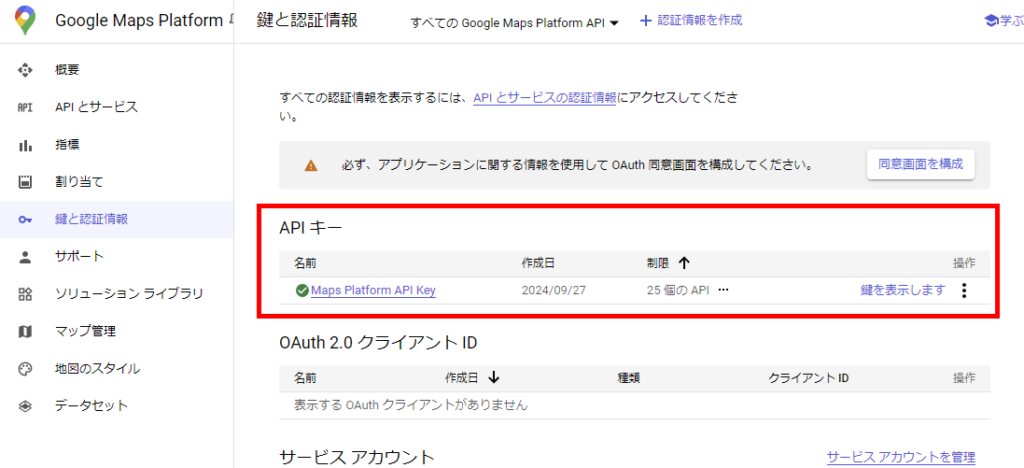
無事APIキーが発行されるので、このキーをメモしておく。
※厳重に管理してください。
※厳重に管理してください。
カスタムコネクタの作成
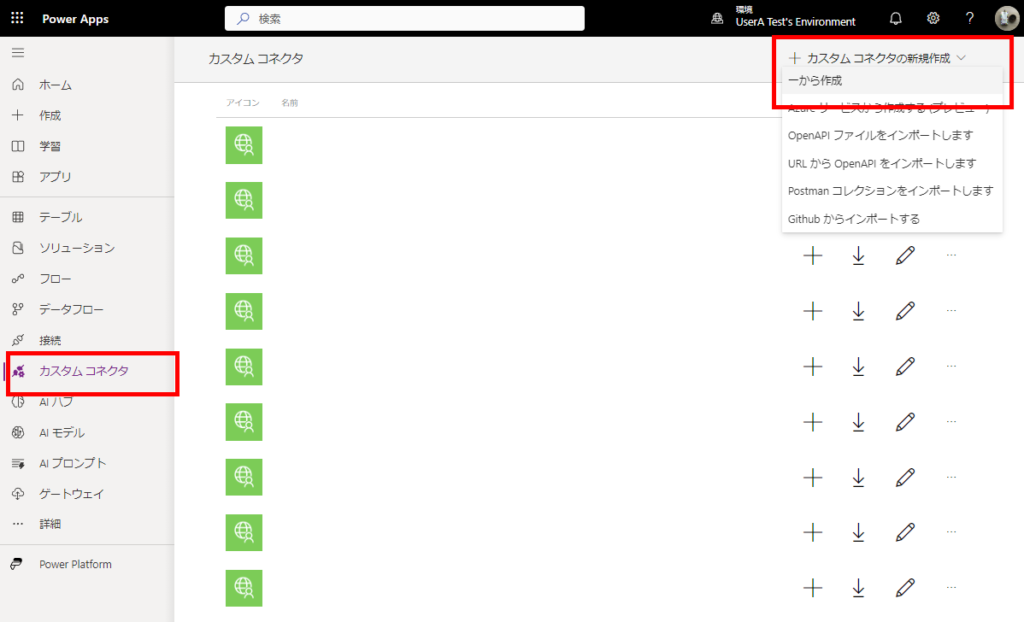
続いてカスタムコネクタの作成。[一から作成]を選んで、
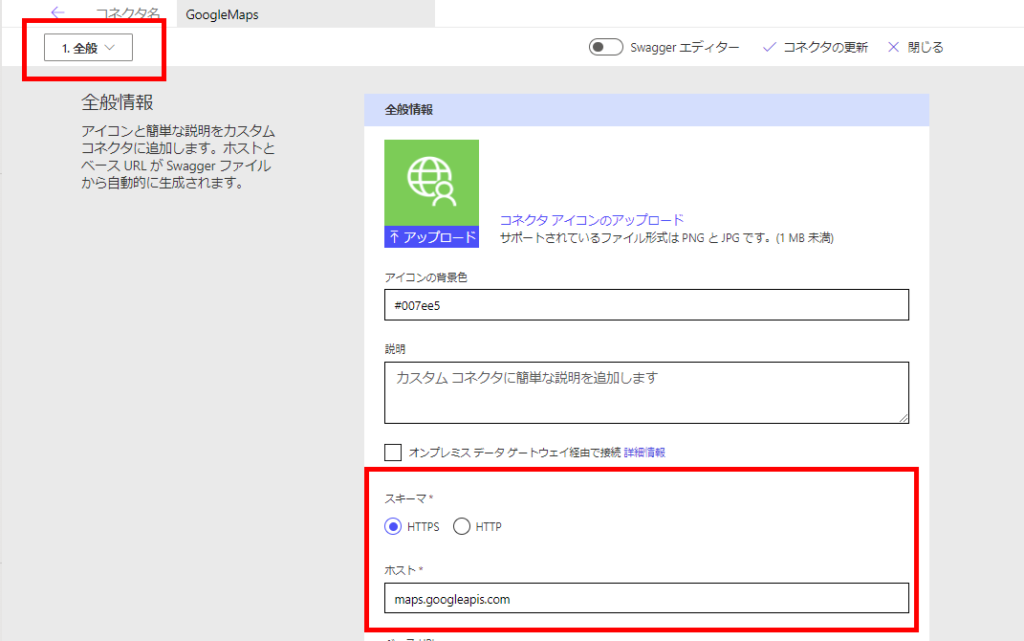
[全般]設定で[ホスト]に「maps.googleapis.com」を入力、
[セキュリティ]で[認証なし]を選択する。
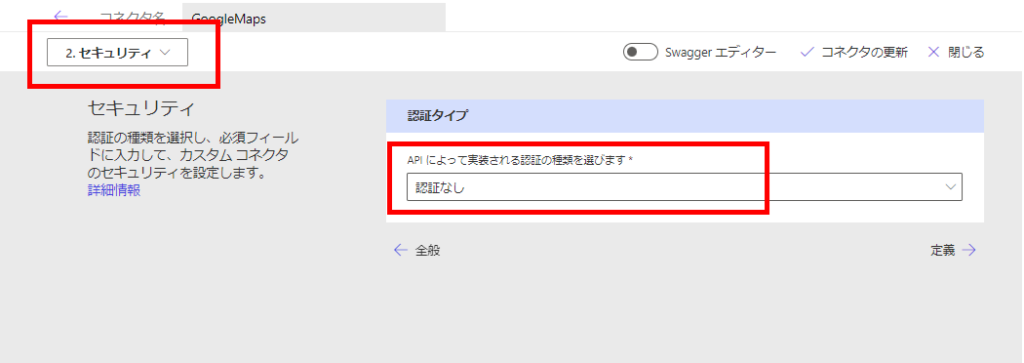
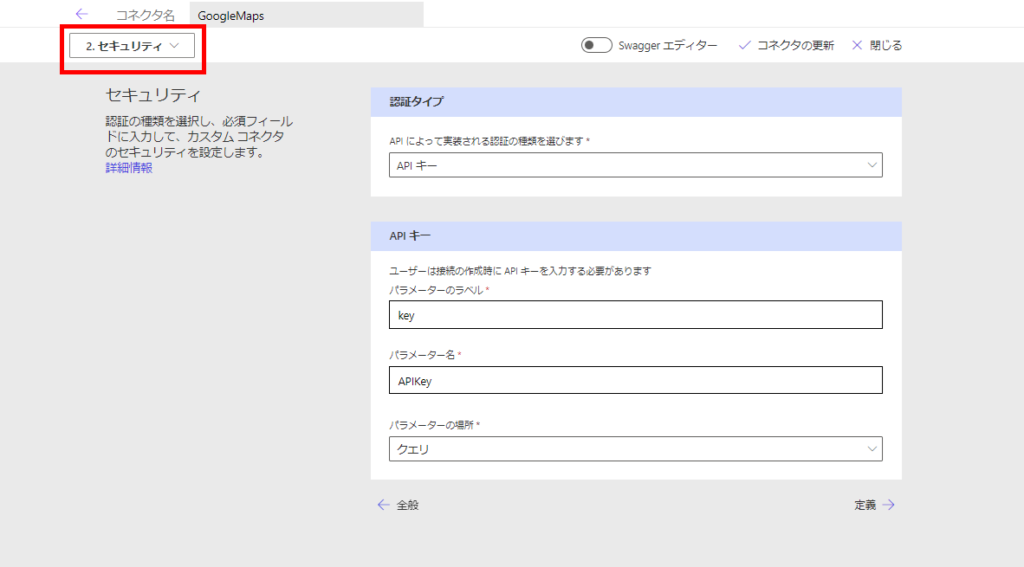
※ほんとはAPIキーで作りたいんだけど、[クエリ]を選択してもなぜかクエリにAPIキーが含まれないので、いったん断念。
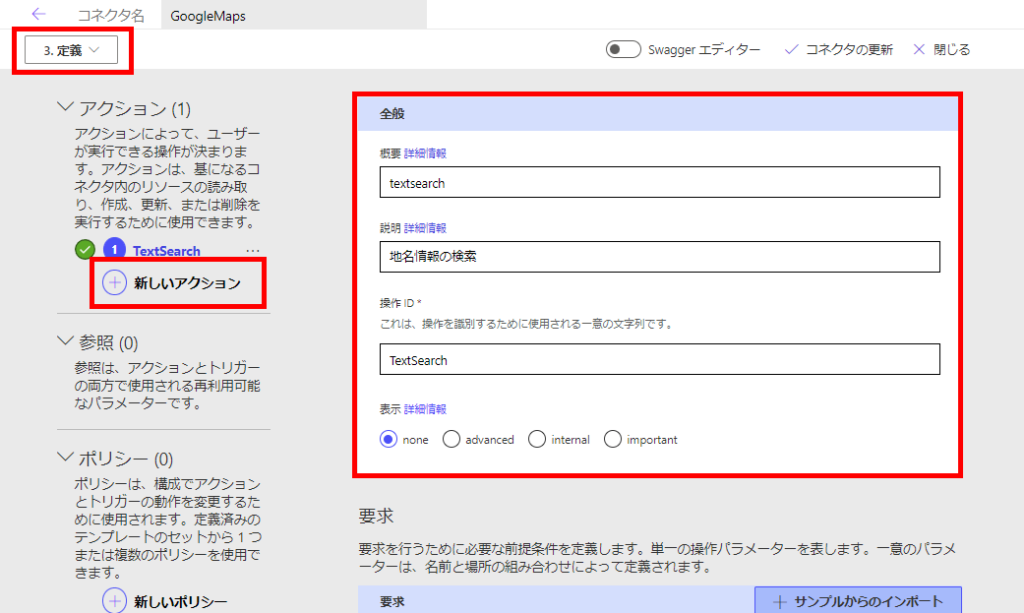
続いて[定義]の[新しいアクション]でアクションを作成し、[全般]でいい感じの名前を付ける。
[要求]の[サンプルからのインポート]で、「GET」を選んでURLに、
https://maps.googleapis.com/maps/api/place/textsearch/json?query=XXX
を入力し、インポート。
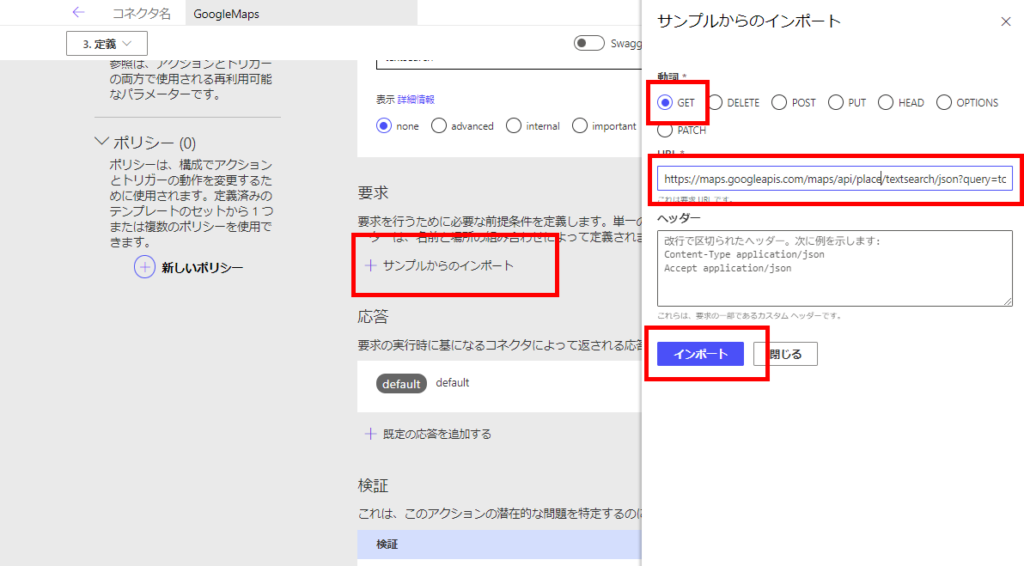
https://maps.googleapis.com/maps/api/place/textsearch/json?query=XXX
を入力し、インポート。
[query]パラメータの[編集]を選んで、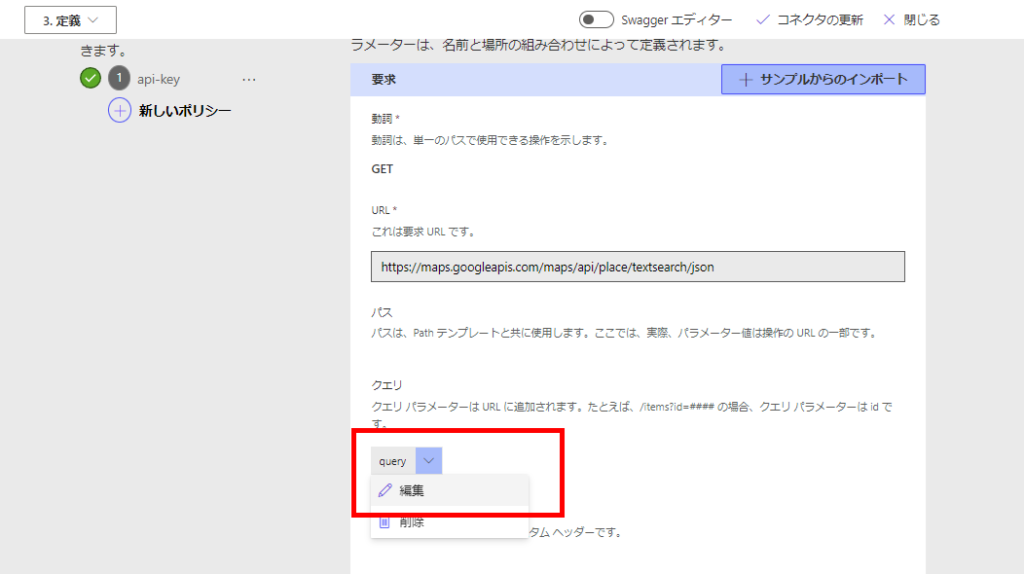
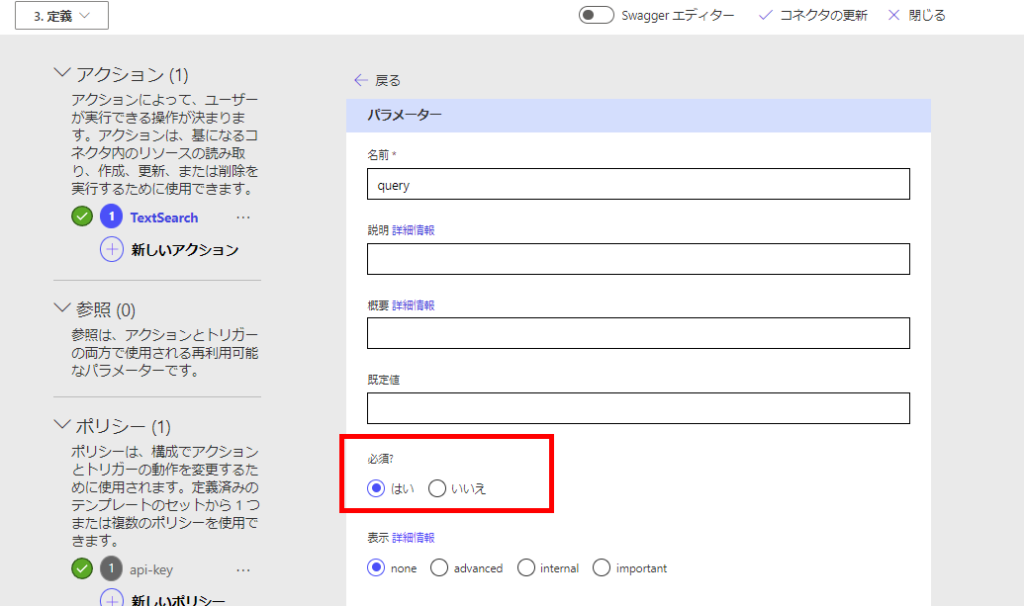
「必須」にチェックする。
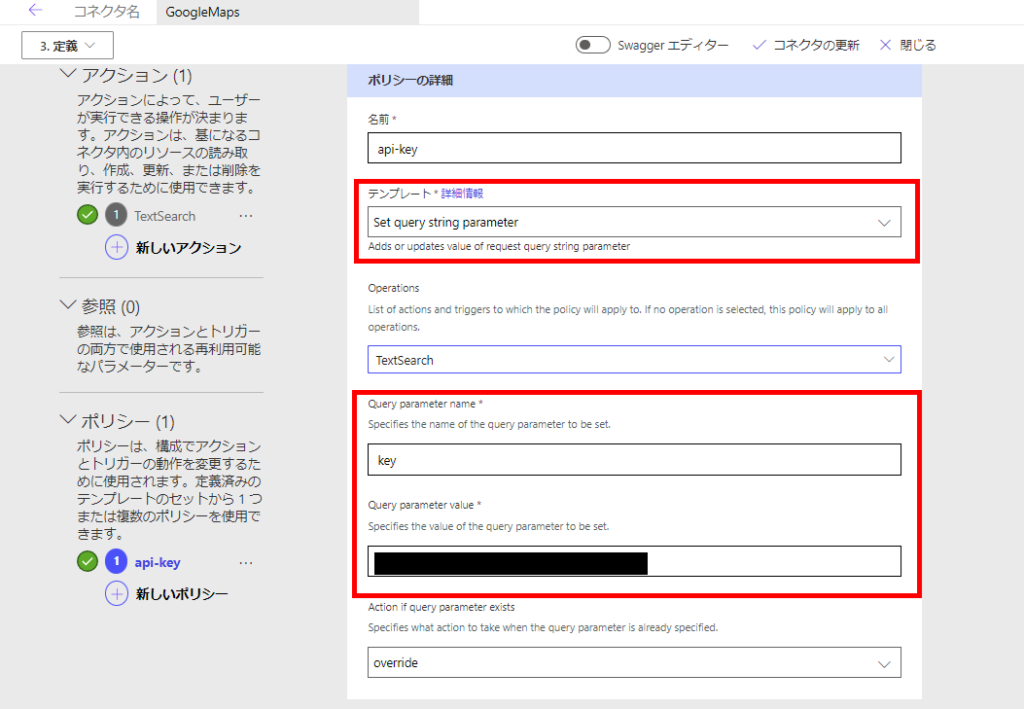
続いて左下の方にある[新しいポリシー]を押して、
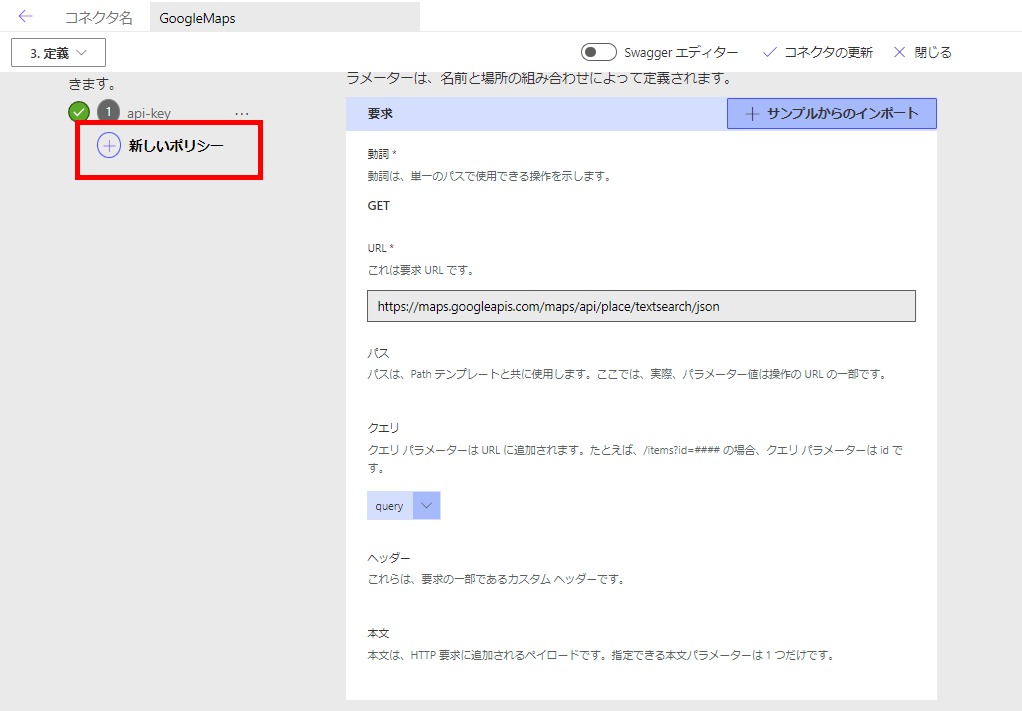
以下のように設定し、TextSearchが呼ばれるときにAPIキーが設定されるようにする。
最後に[応答]の[既定の応答を追加する]から、本文に以下の応答のサンプルを入力する。
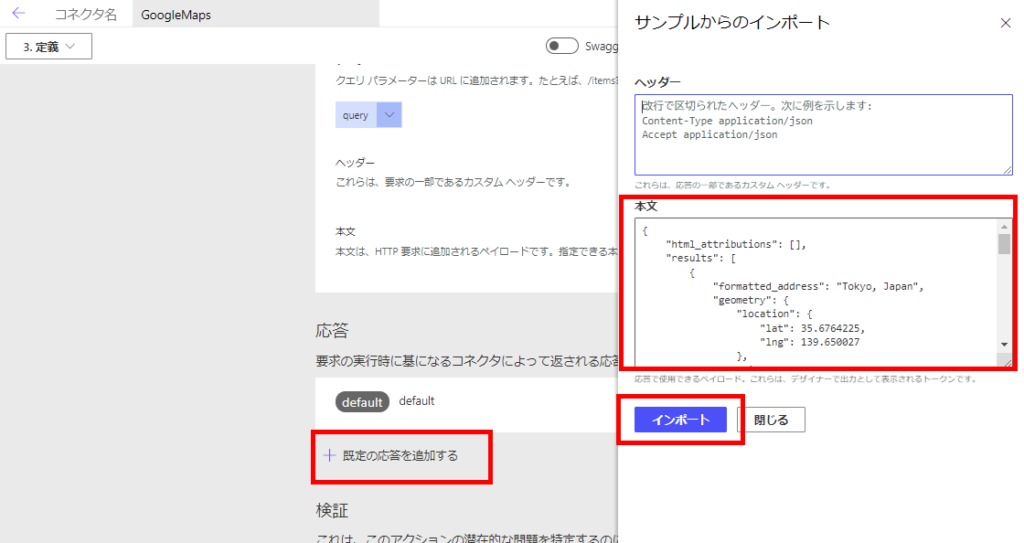
// ※結果が多すぎるときは「next_page_token」が返ることもあるが、今回は考慮しない
{
    "html_attributions": [],
    "results": [
        {
            "formatted_address": "Tokyo, Japan",
            "geometry": {
                "location": {
                    "lat": 35.6764225,
                    "lng": 139.650027
                },
                "viewport": {
                    "northeast": {
                        "lat": 36.4408483,
                        "lng": 141.2405144
                    },
                    "southwest": {
                        "lat": 34.5776326,
                        "lng": 138.2991098
                    }
                }
            },
            "icon": "XXX",
            "icon_background_color": "#7B9EB0",
            "icon_mask_base_uri": "XXX",
            "name": "Tokyo",
            "photos": [
                {
                    "height": 3024,
                    "html_attributions": [
                        "XXX"
                    ],
                    "photo_reference": "XXX",
                    "width": 3024
                }
            ],
            "place_id": "XXX",
            "reference": "XXX",
            "types": [
                "administrative_area_level_1",
                "political"
            ]
        }
    ],
    "status": "OK"
}
これでコネクタの作成は完了。
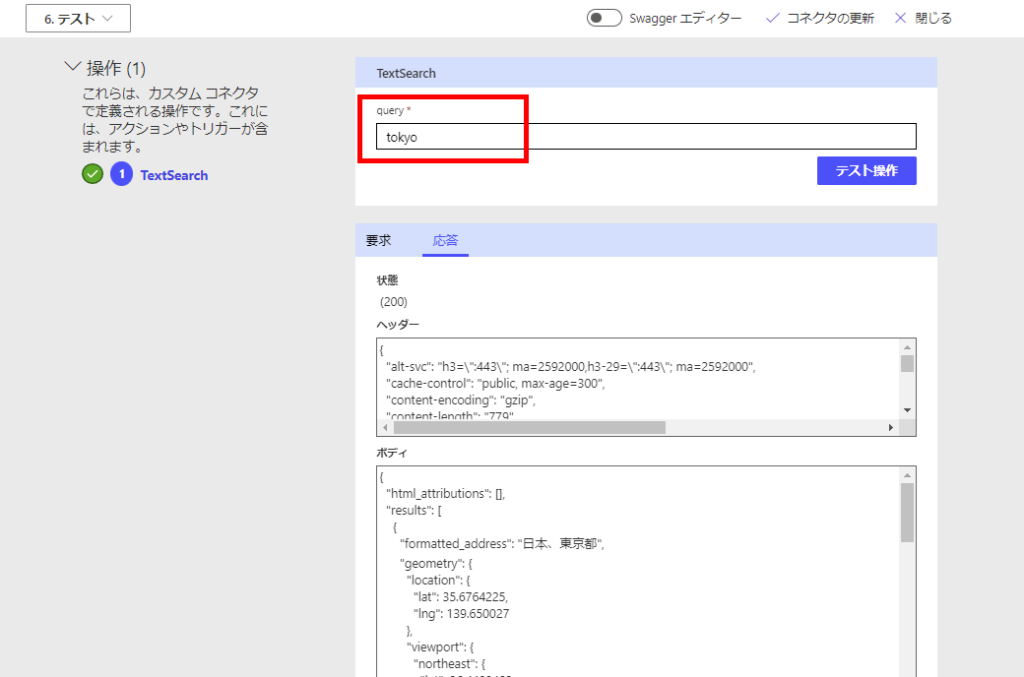
[テスト]から[新しい接続]を選択し、
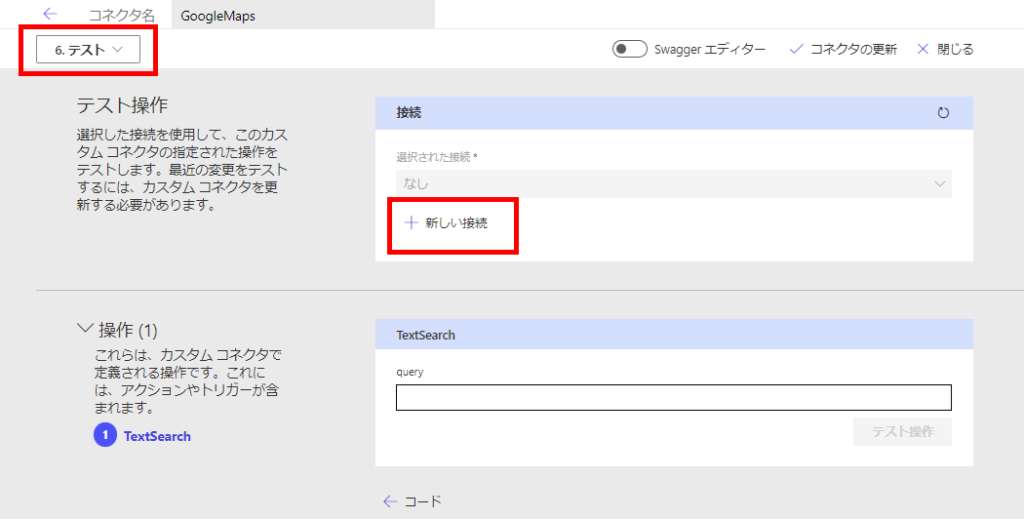
接続を追加。
テストを実行すると無事値が返ってくる
Power Apps作成
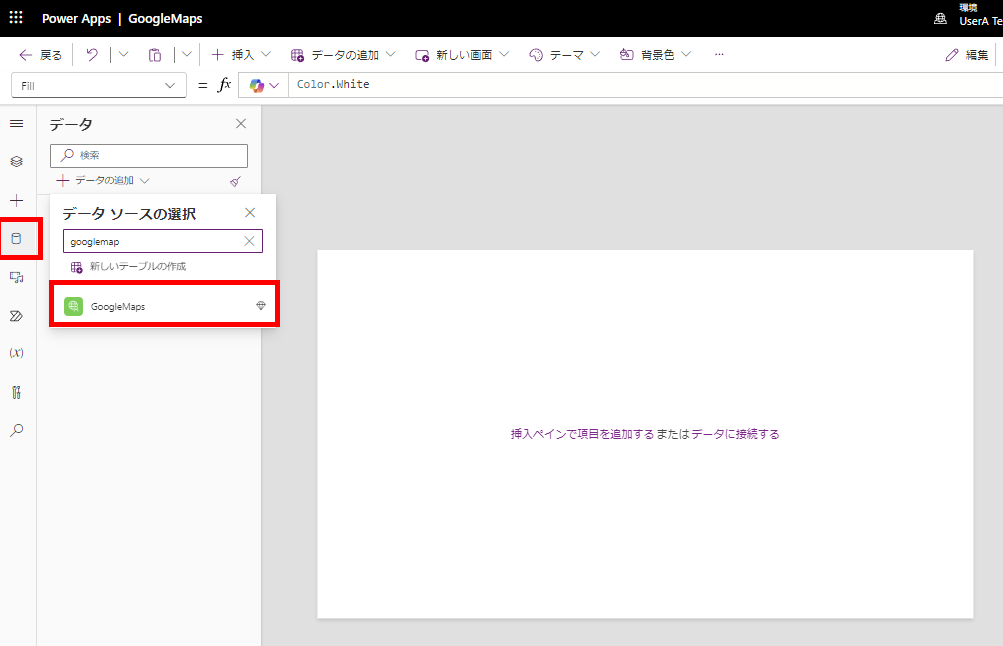
アプリを作成し、カスタムコネクタを追加。
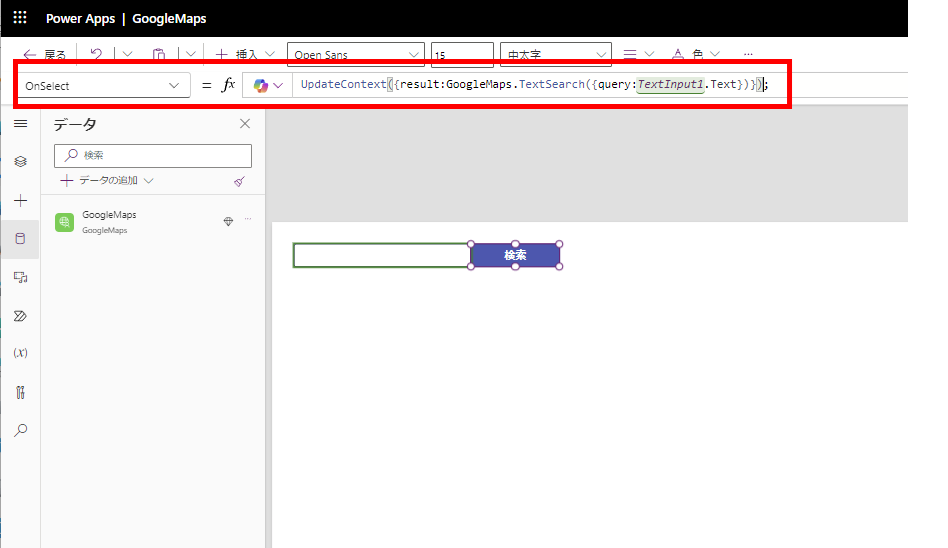
検索窓とボタンを用意して、OnSelectで変数に結果を代入。
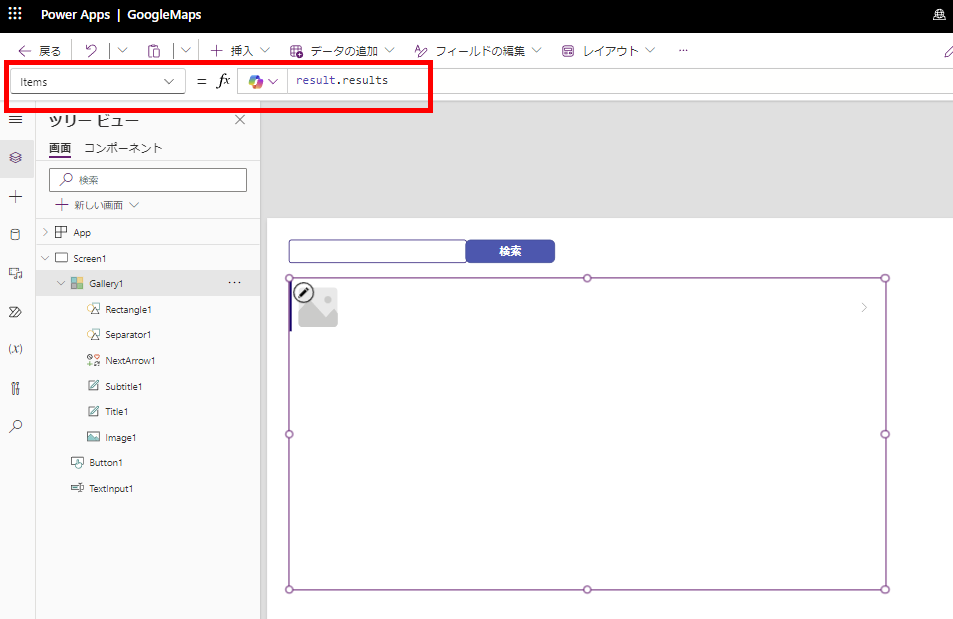
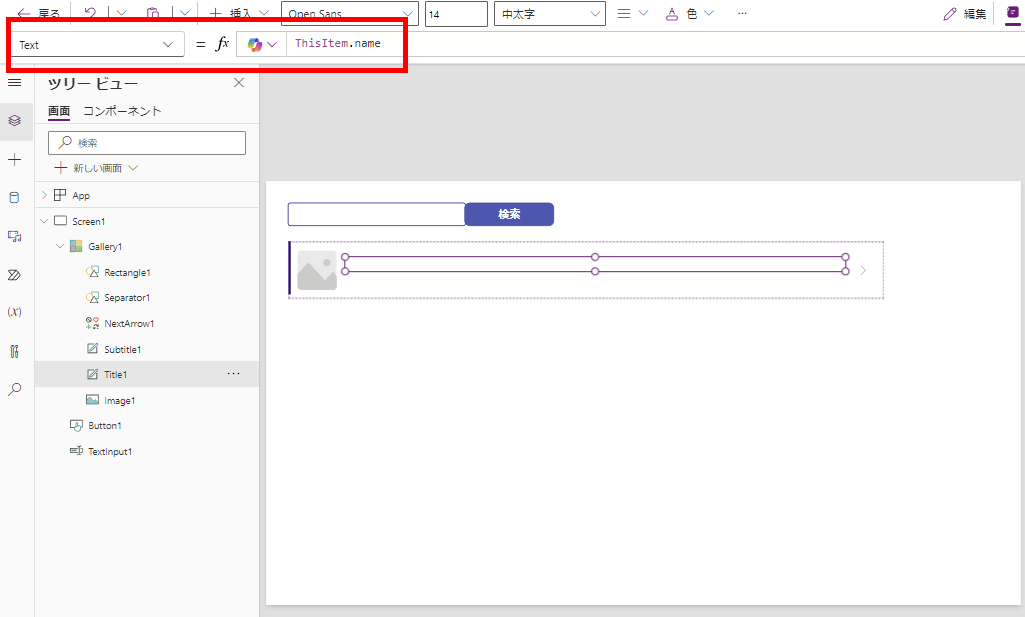
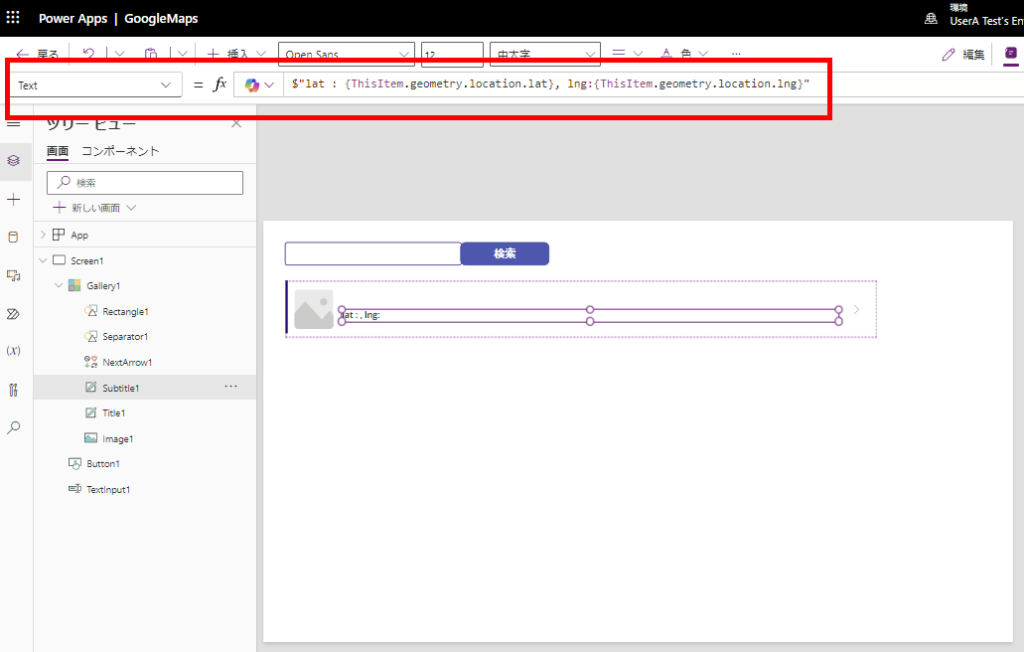
ギャラリーを追加してItemsプロパティに「変数名.results」を入力、
名前と緯度経度を表示するように設定。
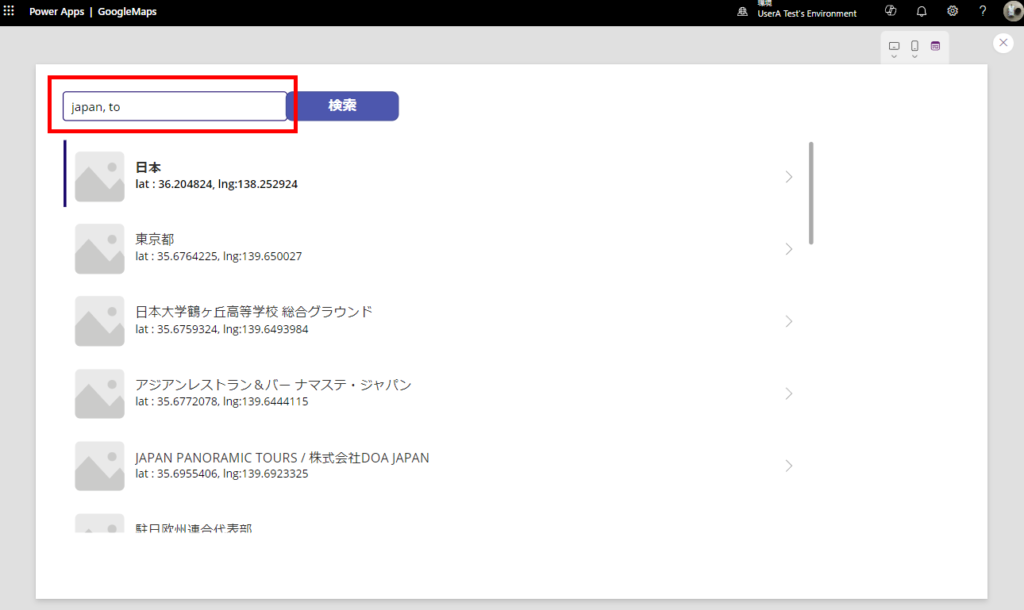
アプリを実行すると結果が表示される。
おまけ:地図コントロールへの表示
地図に表示する際はMapのItemsプロパティにこんな感じの式を入れてあげて、
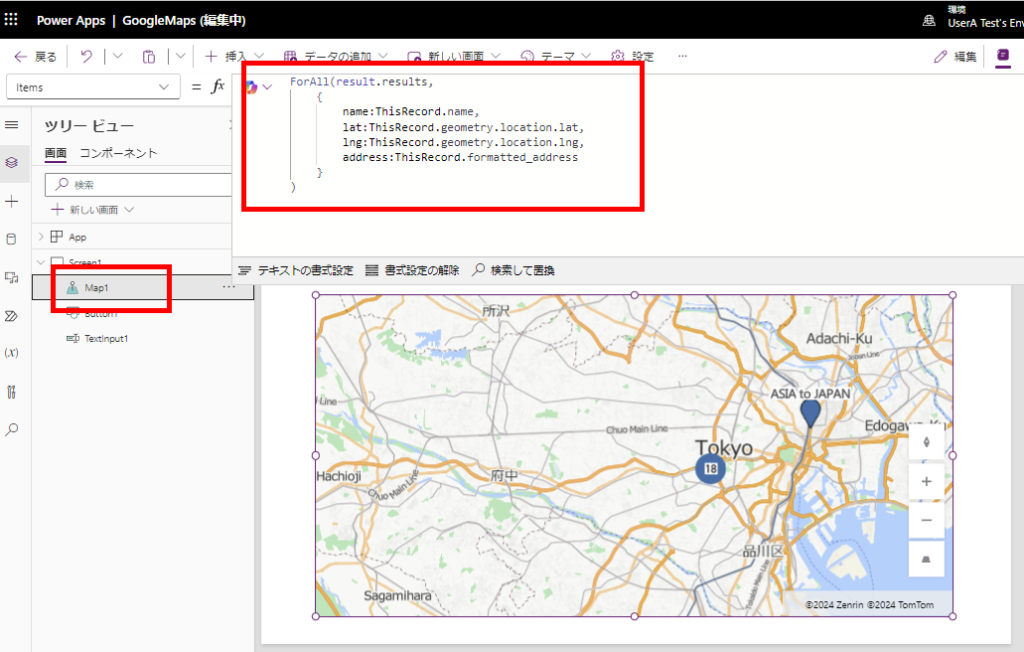
ForAll(result.results,
    {
        name:ThisRecord.name,
        lat:ThisRecord.geometry.location.lat,
        lng:ThisRecord.geometry.location.lng,
        address:ThisRecord.formatted_address
    }
)
ItemsAddressとかItemsLabelsとかのプロパティに、以下のプロパティ名を指定する。
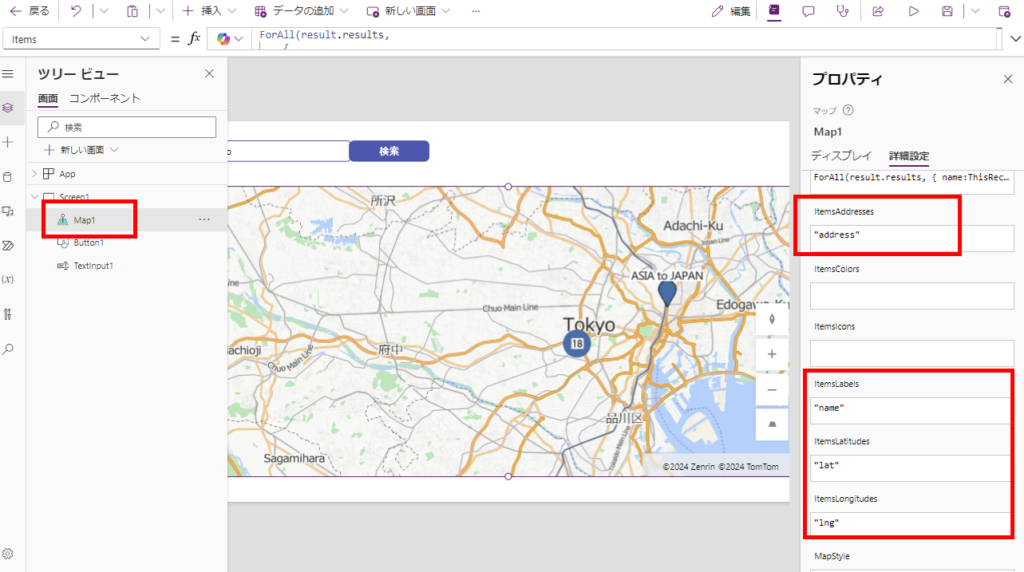
検索すると結果が地図に表示される。